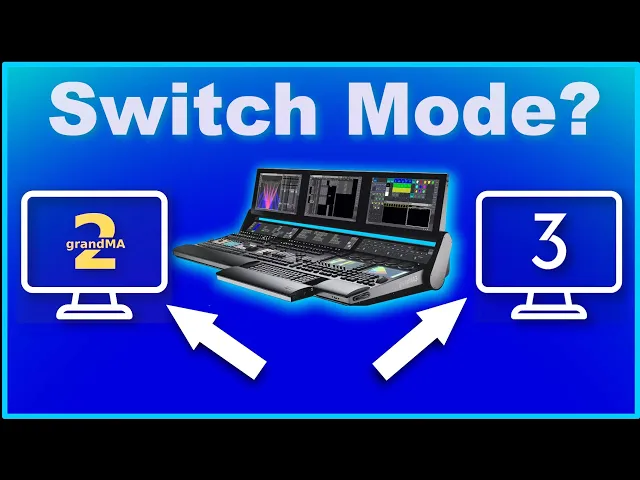
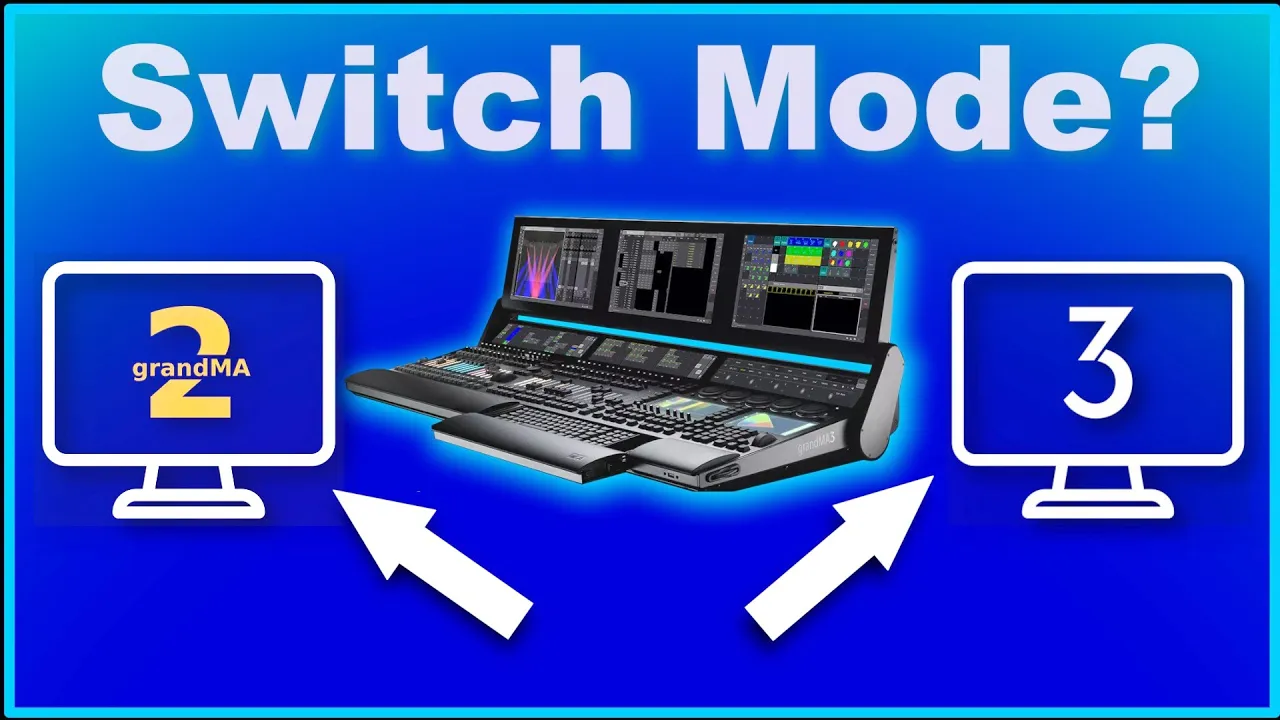
Let's say you work in a theater. Let's say you've been using MA2 for many years, and let's say that you sometimes need to take out an old MA2 show and run it again. Then you have to go back into MA3, and you need to start working there.
The problem is that your system, your processing units, and your nodes are set up in MA2 mode, and if you switch to MA3, then you can't use MA2. But in this video, I'm going to show you a really, really easy way to change the mode, and you can do that through OnPC or through any console. It is really easy, and let's just get right into it.
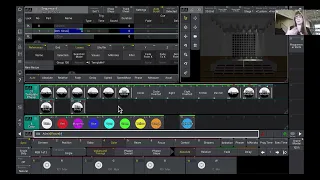
As you can see, we are in MA3 mode, and if we go into Network up here, you can see I have a few network consoles. I have a console, I have the OnPC I'm working on here, and I have a processing unit, and I have a network node. They are all in MA3.
If you look here on my small camera, you can see everything over here is all in MA3 mode. If you want to change that, it is really simple. So let's say we want to take the console and switch that to the GrandMA2 light.
If we go up here and check the IP address, you can see it's 192. 168. 10.
2. The IP address is 192. 168.
10. 2, so right now we are ready with the IP address, and if we push "please," you can see it immediately starts to reboot into GrandMA2 mode. So let's just cancel this one out and say, "Okay, we want to change the entire system.
" In this system, we have three Network units, a console, a processing unit, and a network node. So we know the IP addresses; we can see them right here. But let's just say we need to do this once in a while.
Just remember, when you switch mode, you do it from the GrandMA3 software. You can do it on an OnPC like I’m doing here, or you can do it straight from the console. But if you want to reboot stuff into different modes, you do it from MA3, even though the network node or the processing unit might be in MA2 mode.
I'll show you how it works. Oh, yeah! By the way, if you are not yet signed up to eventlearning.
com, you are more than welcome to head over there and check it out. We launched it last week, and the support has been amazing. There are a lot of users signed up for it already.
It's free to be in there; it's free to be part of the community, and there are going to be courses. Right now, we have a course on learning DMX for absolute beginners in the industry. Then, of course, there’s going to be a GrandMA3 course, and there are going to be network courses and stuff like that later on.
So head over to eventlearning. com and sign up to be part of it. Let's just build a macro here.
We say, “Edit new macro line,” and we say, “Switch to GrandMA2 software again,” and we say, “IP 192. 168. 10.
2,” like this. See that I use camel case? Every word in the command is with a large letter.
So, "switch" is one word with a large "S," "to" is a word with a large "T," and so on. So if we say "please" to this, we created our first macro line. Let’s just copy this one and say the next one is our processing unit, which is called “11,” and if we copy this one, the node is called “21” in my system here.
So I usually give them a second each in the macro to run; I don’t know why, I just like to see that it goes nice and easy. So here we have our macro. Let’s just give it a new name: "Switch to MA2," like this.
And if we run this macro now, you will see that everything starts to change. You can see the network node is really, really fast. It takes, I don’t know, 5, 6, 7 seconds; it's really fast.
The console and the processing unit take a bit longer; they need to reboot. So you can see now we are in MA2 mode. I don’t know how many seconds it took, but it is really, really fast.
So now our entire system is in MA2 mode, and we want to go the other way. Don’t think that you have to start up MA2 OnPC to do this; you can do this from GrandMA3. If you go into the network settings, you can see we now have only the OnPC in GrandMA3 mode, and then you have something called "plugin" small down here, which is our OnPC network node and our processing unit.
But we can still do the command to switch everything back into MA3 mode, even though they are not registered as GrandMA3 compatible devices. So if we take our macro here we just built, and we say "copy," we can copy it to here, give it a new name, and we can say this is "to MA3," like this. Then we need to change the macro lines a little bit.
So we take the first one and say "switch to MA3," the next one "switch to MA3," and the last one "switch to MA3," like this. So this is basically how simple it is. If you look at the GrandMA2 system now, when I push this macro, it does the same thing.
The console and the processing unit will ask you to confirm. If you don’t confirm, it's going to do it, of course, but you can cancel it at any time during those 10 seconds. But you can see now it starts to boot up.
The node is already ready in GrandMA3 mode, and in a few seconds, the processing unit and the console are going to start up in GrandMA3 mode and rejoin the session, everything like you had before. So this is how easy it is if you're working in a… Theater, and you want to get started with GrandMA3, but everything is in GrandMA2 mode, this is how you do it. This is how easy it is, so I hope you enjoyed today's video.
I hope you're going to give it a thumbs up; that means a lot to my channel that people like the videos. If you're not subscribed to the channel, you're more than welcome to do so. You can click the little bell icon down there, and then you get a notification every time I upload a new video here on the Event Lighting Channel.
Until I see you next time, I hope you have some happy GrandMA3 programming moments at home, and I'll see you next time in the next video. See you later! Bye-bye.