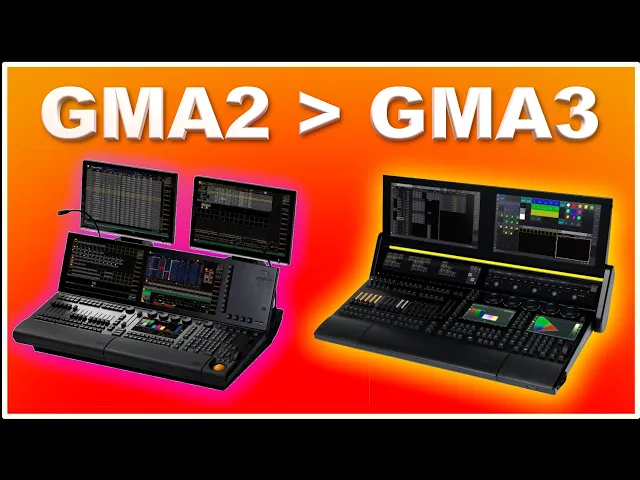
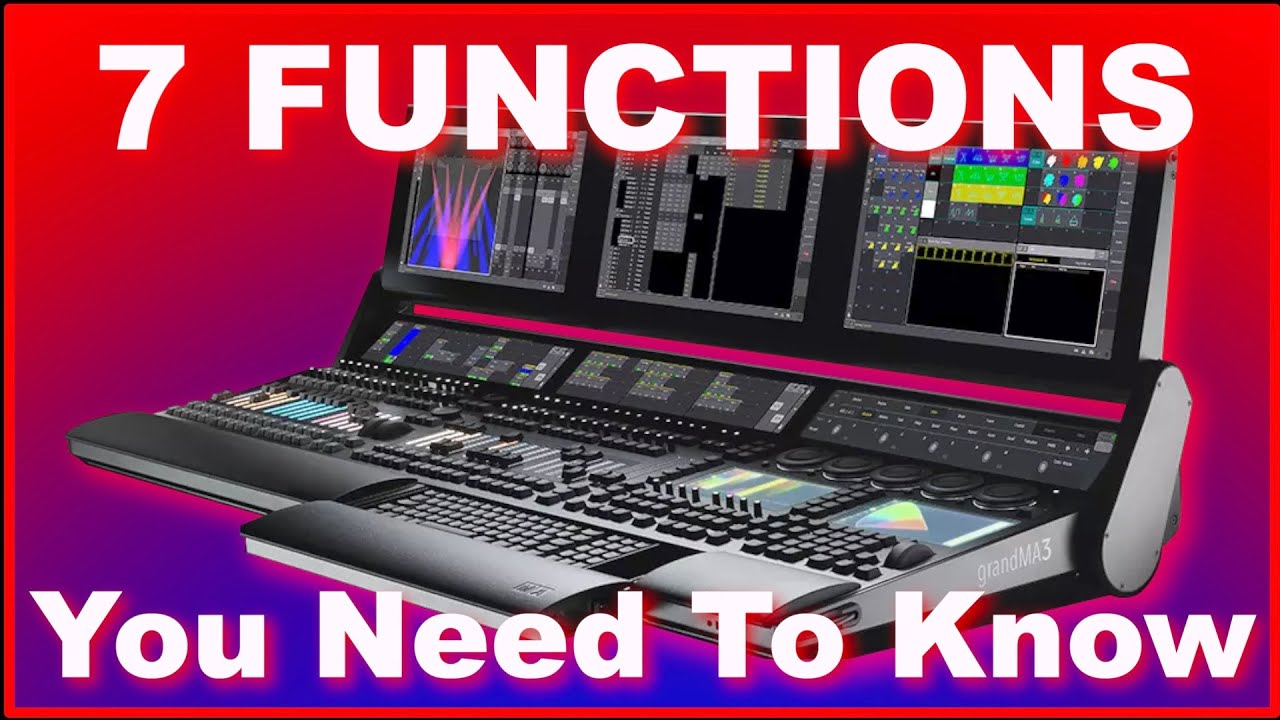
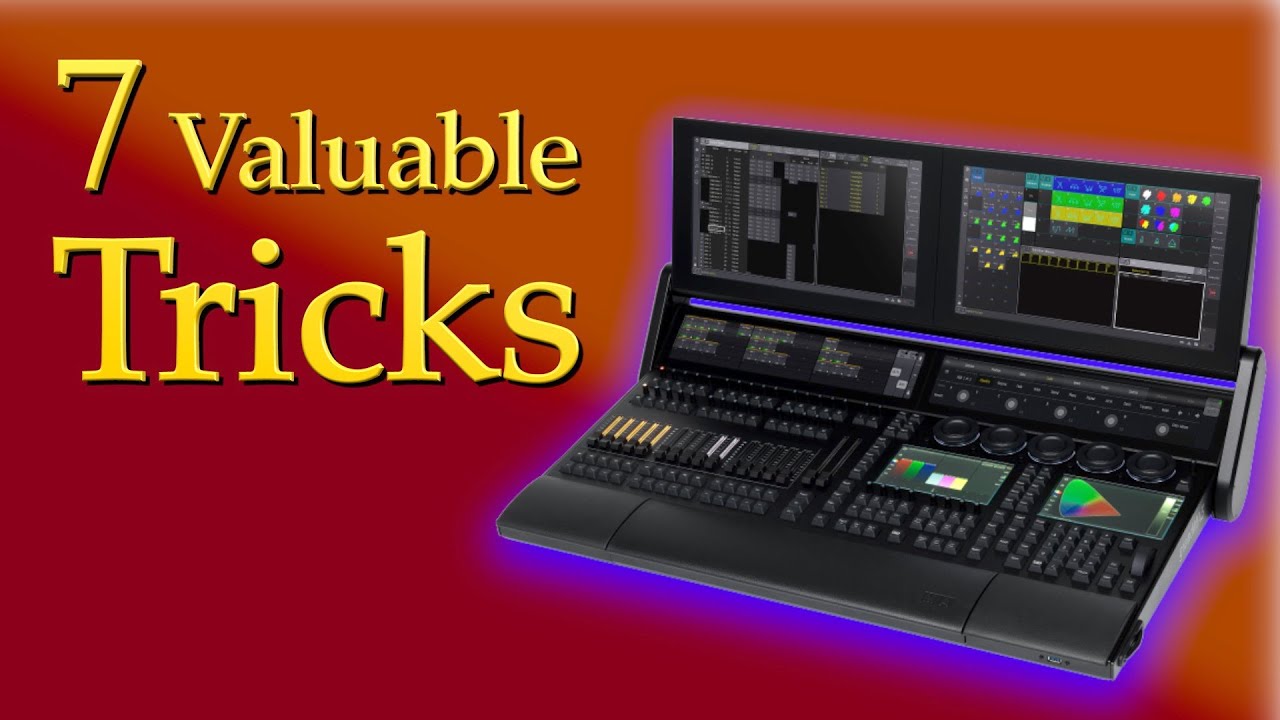
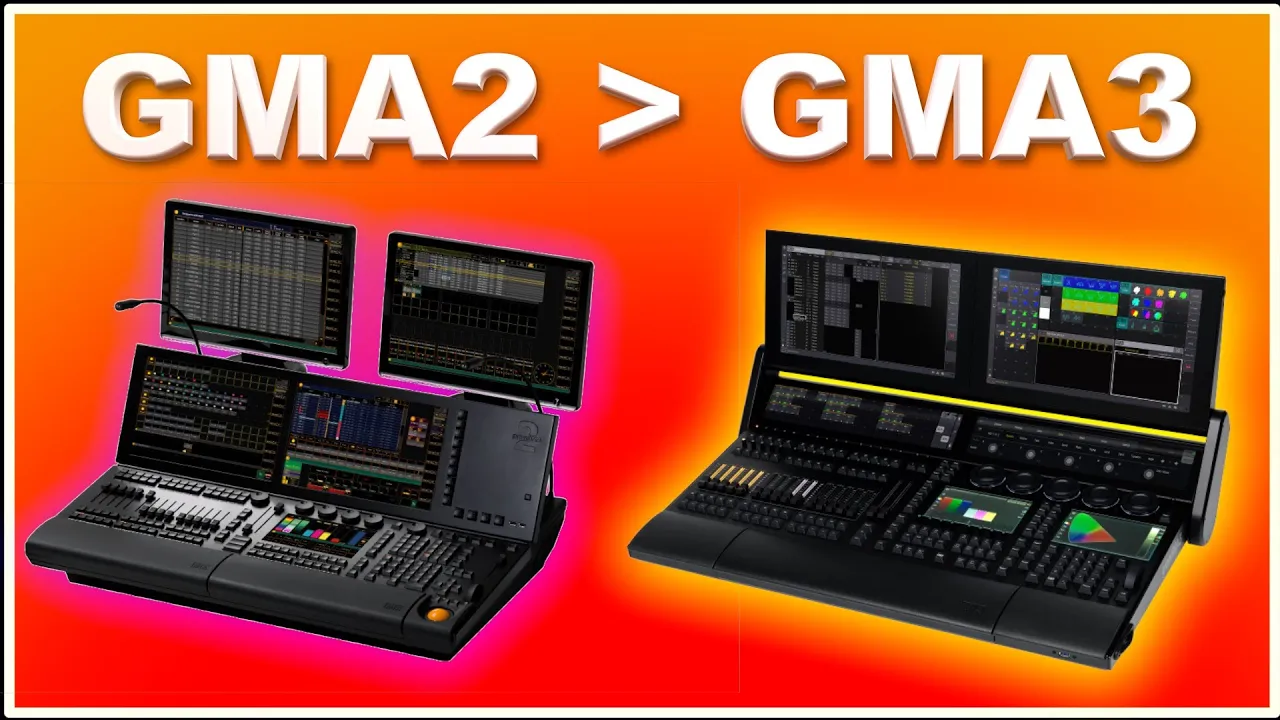
hi and welcome to event lighting once again it's a video from our little channel here this time it's going to be about comparing GrandMA2 to GrandMA3 some of the key features I think is important for you when you are switching from 2 to 3 we're not going to cover everything we're going to cover some of the things that I find important and of course you are more than welcome to comment down in the description if there's something missing and I might take that into consideration when making the next video about this topic today I'm going
to use my trusted old friend back here my GrandMA2 I've been using it for many years it's a console from 2010 and it's been completely renovated in 2017 or 18 I think so if by the way if you're in the market for a GrandMA2 this might be the console for you since my switch to GrandMA3 I don't really use my GrandMA2 anymore so if you want to purchase a very very nice GrandMA2 be my guest and send me an email you can find my email on the about page here on YouTube but let's get into
the video and let's get into today's topic which is the transition from GrandMA2 to GrandMA3 and some of the major differences there is between the two systems and how easy GrandMA3 is in many aspects compared to GrandMA2 but let's just get into it if we start with GrandMA2 just something simple as your windows you have all your Masters here you can open your external screens you can go back and forth in different things like this and you can go back to your command overlay your command section all this stuff so all your windows opening up
all your options they are over here if we switch to GrandMA3 you can see I opened my show file here if you are working on the onpc system you have this small screen icon here if you push it you will see screen one 1 -2 - 3 external screen Number 1 external screen number 2 and then you have your small screen if you're working on a GrandMA3 full size or GrandMA3 you have these small small internal screens of course touch screens as well you can open them up here so that's the difference between GrandMA2 and
GrandMA3 the screens are tucked away here but they are really easy to work with you simply just press screen number two and it opens over here on the other screen but you can see it just opens up and you can start working with it and everything you put on screen number 2 of course will show up on screen number 2 here so that's a compare comparison between these two systems on the screen side if we talk about opening Windows new windows on GrandMA2 and GrandMA3 GrandMA3 has changed a little bit and once again I think
it they made it easier because you you can now search for stuff but let's just go into GrandMA2 first and see if we have a window here you can push the screen and you can select whatever you want and you have to sometimes search for all these things and I sometimes find it very hard to find specific Windows because I forget where in these sheets they are hidden but you can once you find whatever you are looking for you can simply just push it and it will open up right here switching over to GrandMA3 if
I close this window here and I want to make a new screen I can push the screen like on GrandMA2 and it will open up in the entire window I can push it here and it will open up only from where I pushed it going right but you can also if we close this stuff again you can also draw like a square and then you can select whatever you want to look at and it's going to open it up right here on the screen so that's a difference between the two but if you are searching
for something you can do the same thing let's just draw this Square here and you can go into all and you can simply say time code for instance and it will show you everything where time code is part of your search and again if you're looking for layout one of these things where you have a layout View and you have a layout pool you can easily find them because they are in different places on GrandMA2 so the search functionality in the GrandMA3 is amazing I find myself searching for stuff every time instead of searching for
it like like you would on GrandMA2 it's much easier just to start writing and it will show up all the options will show up so that's another difference between GrandMA2 GrandMA3 when you on the onpc system you can see on GrandMA3 there's this gray area here and that is because I have limited my space limited myself to whatever room I have on a GrandMA3 light screen but if you want to change that you can go into the menu and then you have this configure display over here if you on a real console the configure display
opens up on all the screens and whichever screen you use when you press configure display is that specific screen and that's the same on the onpc system as well so this one I'm on screen number 1 and I say configure display you can see I have 18x 10 in my width and my height that is 18 blocks wide and 10 blocks high and that is exactly the space I have on a GrandMA3 light and and because I program something here and I need to take it out on a GrandMA3 light I will limit myself to
whatever screen real estate I have on a GrandMA3 if you are using an onpc system or a compact computer which has limited space you can limit your size to whatever console you on and if you look at this I have I have 18 by 10 and I'm in the scale of 0.75 which means if I push this one I can make it more like the the 1:1 console and then I can change the scale here if I want to using my Swipey and I go down to 0.75 I'm on an HD screen here if I'm
on a 4K screen I can get even more screen real estate but that depends on how you work if you are only working on a onpc system you you could use all the space you want want if you are working on a light or a compact you want to limit yourself I think to to to fit the screen you are working on a cool thing about GrandMA3 is that even though you use more space on your onpc system and you load the show into a console you can still access whatever is outside the screen by
using three fingers on the screen and you can simply move the image around which is much much easier to work with and so it it's not the the end of the world if you are using more space on your screen than you have on your console you just take two three fingers on the screen and you can simply move the entire image and the entire screen around so that's another cool addition to GrandMA3 compared to GrandMA2 and speaking of screens you have to get used to using your fingers in another way that you used to
on GrandMA2 you would have an a bar in the left side and a bar in the bottom and you could move the the screen around using those bars a GrandMA3 Works more like an iPhone you can pinch Zoom you can with two fingers move stuff around preset pools or whatever and with three fingers as I just told you move everything around so there's another way of working with the GrandMA3 using your fingers and using gestures but you're going to get used to it very fast if you start working with the GrandMA3 and you start using
your fingers with pinch zoom and and all this stuff and you come back to a GrandMA2 console you will try this so many times because you are getting used to it so fast working like that on a GrandMA3 so just be aware as soon as you start working on GrandMA3 as soon as you start using your fingers to move stuff around you're really really going to hate going back to GrandMA2 where you can't do this stuff so another difference between the two systems another difference between GrandMA3 GrandMA2 is GrandMA3 also comes in a Mac version
for the onpc software so you can easily download a GrandMA3 on PC for Windows and you can download a GrandMA3 on PC for Mac they work exactly the same but of course some of the key strokes and key bindings are different but that's the only difference they look exactly the same and they work exactly the same so that's another cool thing about switching from GrandMA2 to GrandMA3 if you are a Mac User you can use the onpc Straight Out of the Box on a Mac switching to the effects engine on GrandMA2 and the phaser engine
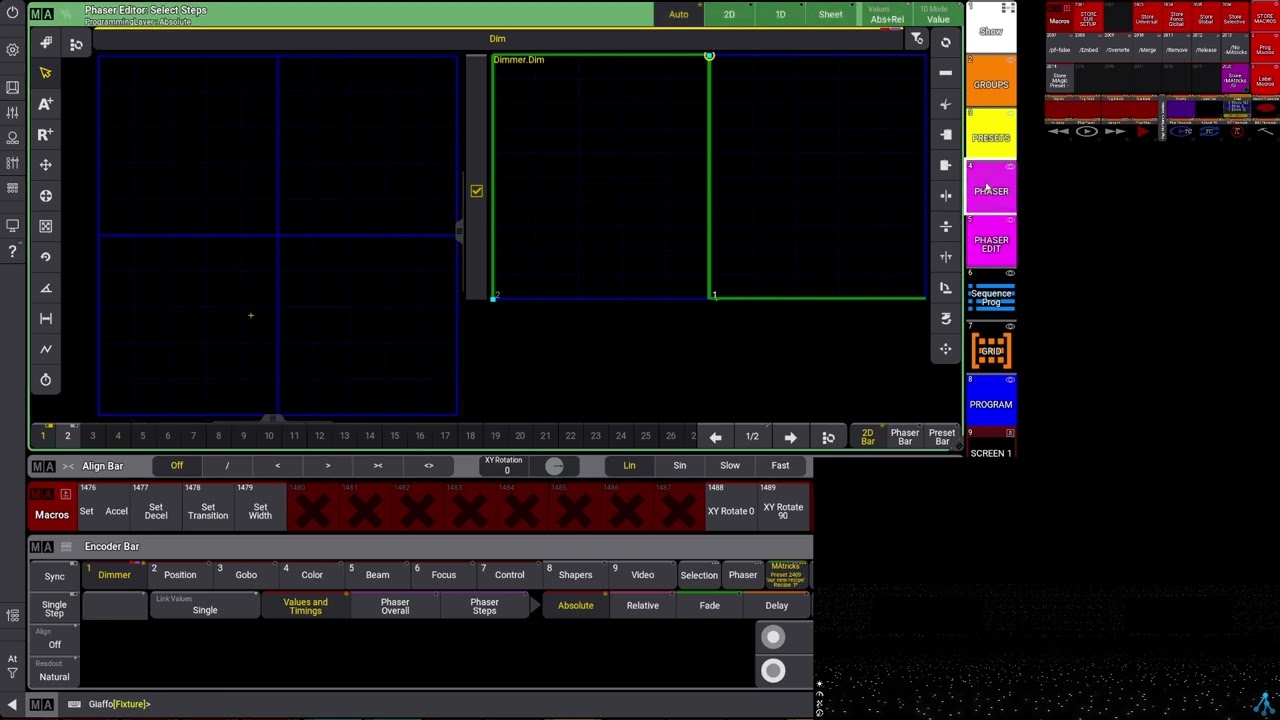
on GrandMA3 there's a small difference of course the the the engine and the whole way it's constructed are completely different you have to start learning it all over again because the phaser engine on GrandMA3 it looks nothing like GrandMA2 it has new Option you are working in steps not as much as you did in in GrandMA2 it was from one to the other and it would do something across that right now you're working in steps in GrandMA3 so you can include everything in these steps so that's another another way of working which you have to
get used to of course the phaser engine is extremely powerful and it can do all kinds of crazy things but you have to start learning it all over again because it's so different one of the things things I find cool about GrandMA3 and the phaser engine is that you don't have a phaser or effects pool as you do in GrandMA2 you had like one place where all your effects was living and you could you would have to go there every time you had to do an effect and collect an effect and start an effect and
even store an effect on GrandMA3 all the phasers can be stored anywhere so if you have a color effect or color facer you can store that straight into your color presets no matter how you work with it of course if it contains position information and any other information if you store that into your color directory by default it will only store the color information from the phaser engine a GrandMA3 has five ALL pools compared to GrandMA2 who only had one in an old pool it will take any parameters when you store that into an all
pool and that's a cool way of working you can now call them whatever you want all the ALL pools can be whatever you want inside I find myself only using one and store my effects in there and that's probably because I came from GrandMA2 but just remember phaser effects can be stored everywhere you have all these ALL pools you can rename them you can call them whatever you want and that gives a much more flexible way of working basically you can store that everywhere so just remember if you are looking for your effects pool it
doesn't exist anymore you can put it wherever you want patching On Your GrandMA2 and Your GrandMA3 also have changed quite a bit so that's one of the things you have to get used to as a GrandMA2 user if you go into your GrandMA2 here we go into our Command overlay and we go into our setup all your patching would be done over here and if we look at all these different groups or different layers as is it's called in GrandMA2 you can have all kinds of different things here depending on how you work in GrandMA3
it's different if you go into the patch here like this you can if I close everything you can put everything into groups and you have to do that manually you patch a group and you put stuff into your group if you patch a group and there's nothing in it it's considered an environmental thing that's because you can import MVR files into your GrandMA3 and if you have like trusses and Stage components and pipes and all this stuff that would be considered a environmental object and if you hide environmental here like this if you have a
group which has nothing in it if it has no fixtures in it it is considered an environmental group an environmental item so if you have hide environmental here even though you patch some groups they might disappear because you you have this one on so you want to take this one off so you don't hide any environmental stuff and then you can patch your groups and then you simply move your stuff into your groups and if you can see here if I expand my group here I have my different layers my blinders front light strobes wash
spots smoke in a in different groups and some of my other videos I explain how you can use use this and why it's so much easier but if you look at the GrandMA2 over here you have all these layers here which is what I need could be different on your show of course but here you can simply say all my local production if you are touring you can store that into group on its tone and you can simply just close it and it's not going to take up any space because right now you might be
working on your tour production and you want to be patching in your tour production so this is a cool way of of getting organized in GrandMA3 so that's a major difference between GrandMA2 and GrandMA3 the way you group stuff in your patch you don't have to group anything there is some different ways you can can view your your different patching information there's a lot of more complex things in here in your patch but if you're just patching it's it's not that difficult to figure out it works kind of the same way as GrandMA2 you simply
say new fixture you right click and it opens up this window here and you can see this show tab here is everything you have patched in the show and if you go into Library it's going to open up the library and it's going to look inside what whatever is local on your machine another fantastic thing about GrandMA3 when you are in your patch if your console is online you can have a GrandMA3 console online with using port number number three I'll get back to the networking side of GrandMA3 in a second but if you are
up here you can see this is some different tabs you can look at and the last one over here is basically your online library so this button up here looks directly into your MA-Share so if you are on your tour and there's a fixture on your tour which you don't have in your local library you can simply put your console online and it's going to look directly into MA-Share and you can patch your fixture from there it's going to download it into your show file and it's so easy to work with if your console is
not online which I mean if you're on a festival or in a theater somewhere your console might not be online but then what I do is I just save my show to a USB stick on my console I open it up on my onpc and I just hook on to some local network on my onpc then I go in and open this tab here I patch the fixture I need I save it to my USB stick I close my onpc and I just loaded up again on my console and now I have patched the fixture
in my show so the thing about going into MA-Share on GrandMA2 and using it on GrandMA3 it's much much easier to do on GrandMA3 so that's patching on GrandMA3 compared to GrandMA2 another big difference between GrandMA2 and GrandMA3 is the updating process or the network process if we start with networking on GrandMA2 you would open your command overlay you would go into your setup and then you would have your network control up here and you can see I am connected from my onpc over to my console over here and there's a show file loaded up
you can see session names and stuff like that but if you want to look at your Network items like your nodes and your processing units you would have to go into this network configuration and right now I don't have any NPU´s or Nodes connected to my GrandMA2 session but they would show up in these different panes here so on GrandMA3 it's different if you go into your menu button here you go into Network you can see here you have everything in the same window which makes it a lot easier to to to to look at
if you have like many different things on your network everything will show up here and it works the same way with the tree structure as when you're working with groups and that is across the entire console you can simply just collapse these things here and say okay I only want to look at my network nodes I can open this up and I can see I have a Time code node connected and a two Port node connected so that's another difference between GrandMA2 and GrandMA3 all the network information is in the same window and you can
see down here this is where you start and stop your session this is where you say web remotes are allowed or not this is where you choose your network card which is another thing about GrandMA3 compared to GrandMA2 is that you can choose where you want to Output your ma3 net where you want to Output your artet streaming ACN stuff like that that can be you can you can basically select which port on the GrandMA3 you want to use for artnet or streaming ASN or ma-net so on GrandMA2 you knew that MA-Net would be from
port 1 one and streaming ACN would be port number 1 and artnet would be port number 2 on GrandMA3 you can select whichever Port you want and you can you can switch it around of course this is something we need to get used to because there's more things to check when you are working with the network so Please be aware that that you have to you have to check this and you have to know exactly where your network stuff is hidden away if you want to change IP addresses on a GrandMA3 you do it in
the same location you go up to my interfaces here and you have your three connectors here you have connector number 1 2 and 3 which is the ports 1 2 and 3 on the back and if you are coming from another console like a chamsys or Whole Hog or whatever you might have four ports or something in the back of your console just know that in a chamys console that is a switch so that's basically the same thing coming out of all the ports on GrandMA3 you have your three ports in the back and they
are three different network cards so you can do three different things and you can completely isolate whatever is coming out of them you cannot do that on some of the other console manufacturers so just beware you have to select everything in here and that is one of the main differences between GrandMA2 and GrandMA3 you have to select basically what you want to do so I find myself using kind of the same kind of the same way as I did on GrandMA2 I use port one for A-Net I and I actually use port two for artnet
which which whichever system I use sometimes I use artnet sometimes I use streaming ACN but most of the time I don't use them at the same time but you can select wherever things come out and you can choose which Port you want to use for it just be aware that you have to manually go in and look for it another massive change to the GrandMA3 compared to the GrandMA2 is the way you set IP addresses so let's just have a look at it if you go into your menu here go into Network you can see
all the network attached devices I have on this GrandMA3 system right now if if you look at the GrandMA3 light which is my console over here you can see I have the IP address here and if I'm in on PC I can go into my interfaces and I can see the network cards that are available to my onpc session but if I close this one down and I go into this one and I right click I can actually change the network settings for all three network cards on this console locally from my own PC which
is pretty cool and another fantastic thing you can do on GrandMA3 compared to GrandMA2 is the way you handle the network settings on your devices like your processing units and your nodes you can see here I have connected a processing unit and two nodes and time code node and a 2-Port node and if I go into the IP address you can see it is completely wrong it's completely out of range but the cool thing is even though it's out of range it shows up here and I can right click it I can right click the
address here and I can set it to another address so 192.168 dot what are we using here 10 and we can set it at 21 for instance and we can apply and apply the changes here you can see now it's within range it shows up and it connects to my session right away another thing you can do is go in and right click on the name and you can as soon as it's out of session you have to take it out of session I can do it on the node here I can even change the
name so if you're work in front a house and some of the systems guys are setting up on stage they they just need to connect everything and you can start configuring everything from front of house from an onpc wherever you are on the system so that is fantastic as a systems engineer to be able to change addresses and subnets and stuff like that on consoles everywhere so you don't have to go to the console and ask the programmer to move away while you change stuff you can do it from your onpc without him even noticing
it fantastic new addition to GrandMA3 and while talking about that if you are working with streaming ACN and artnet you go into your menu here and you go into your DMX protocols and you can select between artnet and streaming ACN and here you simply set up what you want to do right now there's no interface selected here but if I want to select an interface for my artnet I simply push this one and I put it on whichever connector I want let's just choose this one I know the IP address is wrong right now but
this is the way you select how to do that my network is not set up for artnet right now but you have to go in on your artnet and select it and you have to go into your streaming ACN and select select whatever Port you want to use another big difference between GrandMA2 and GrandMA3 another cool thing about GrandMA2 and GrandMA3 and another difference is is in GrandMA2 you would have an update file for different items you would have an update file for the console whether you wanted to do a clean install you would have
an update file if you only wanted to update it you would have different update files for PU´s and nodes on GrandMA3 you have one update file and that will update everything you can use it to boot up your console on your USB stick you don't have to use stick maker anymore you just have to put your files in the correct location on your USB stick if you want to know more about updating I'm going to link a video somewhere where you can see the update process it's much much easier on GrandMA2 so sorry on GrandMA3
it's much easier on GrandMA3 you download One update file and that update file will update your consoles no matter what console it is except for some of the PC versions and you can update nodes you can update processing units time code nodes all this stuff can be updated updated with one file from a console that is much much easier you only have to carry one file for updating and of course you can put your console on it or you can just use the update process you can do clean install all this stuff is done with
the same file so it's a lot easier and another thing about updating you can also downgrade your consoles you can downgrade your PU´s you can downgrade your nodes if you want to from the same update menu it's a lot easier to work with and on GrandMA2 you would have to have a keyboard attached to your NPU if you wanted to downgrade it you would have to boot it up you would have to put in your USB stick and kind of a cumbersome process on GrandMA3 if you have used an update file in your show on
your console it remembers it so you can even downgrade your entire system really fast if you want to so that's a huge Plus for GrandMA3 compared to GrandMA2 if you are not already subscribed to event lighting you're more than welcome to do so today's video was about the switch from GrandMA2 to GrandMA3 if you find it useful you're more than welcome to give it a like as well and if you are not subscribed to the channel when you do please click the little bell icon so you get a notification every time I upload a new
video which happens frequently on this channel but sometimes there's a little break we had a little break from mid December until mid January because of Christmas and I've been teaching a lot of ma stuff locally here in Denmark and of course we have some exhibitions and and stuff like that but if you enjoyed the video give it a like and I hope to see you next time here on the event lighting channel for another GrandMA3 video and until I see you next time have some happy GrandMA3 programming moments at home and I'll see you next
time bye-bye