foreign who is this for oh oh hello doers and welcome back my name is Jose Ignacio and as you can tell we've got a problem and that problem is that stealthy wood is expanding and my workflow is getting chaotic now Steve is receiving broken tables and directly storing them as you saw from my box now people are just grabbing packages they see myself included and we're putting them everywhere on shelves in the studio inside of Steve's room and we're even unboxing stuff meant for delivery it is it is crazy and as you can see we
need better organization around here now there's too many packages to receive now so we need to split people up into teams the put away team and the receiving team that's what we've decided so in this video I'll show some additional features to Taylor odu's basic operations to meet your business's needs now we can add quality control points to receptions we can set picking and packing operations and we can improve the way we track products using lots and cereal so I am ready let's hop into our database and take a look at the ways we can
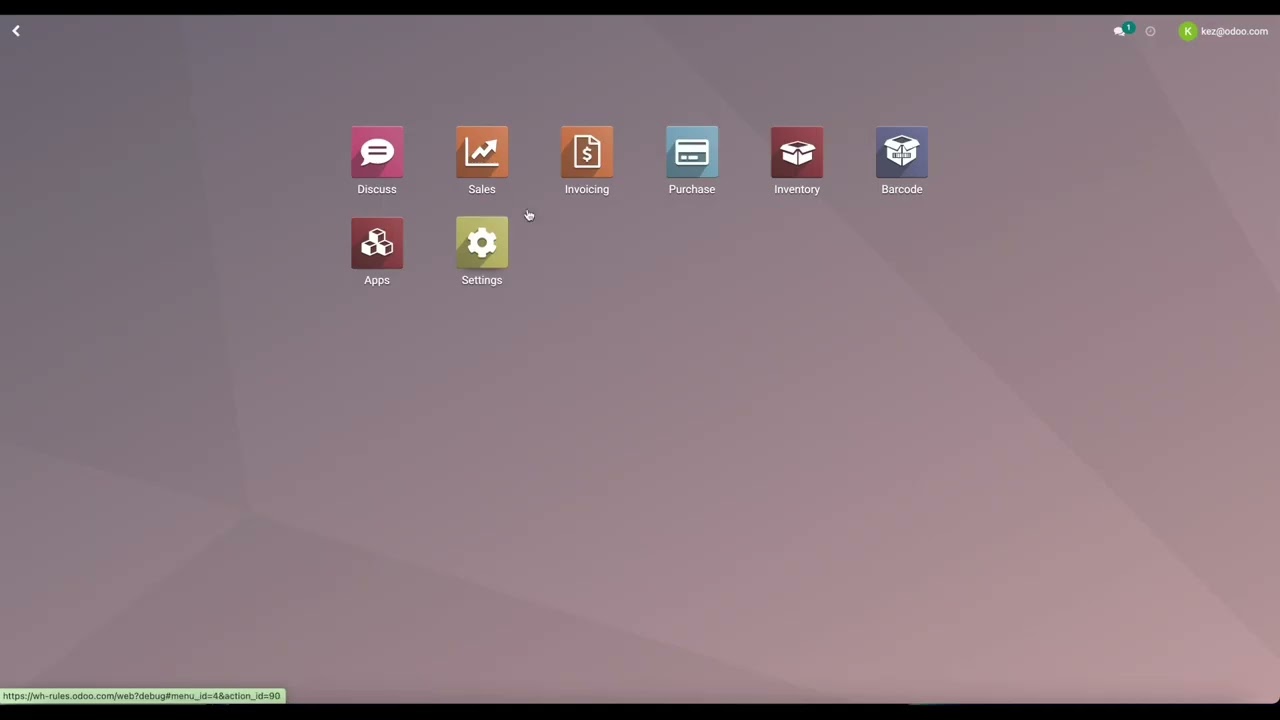
improve our boxes okay so this is the inventory dashboard it's an overview of Warehouse operations so we have receipts and delivery orders over here appearing by default and I also enabled internal transfers by going up here to configuration and settings because there's something cool I'll show you later on now during active Warehouse operations you can keep track of to do tests over here with the waiting button stuff that's behind with the late button over here back orders and batch pickings and yikes I am now noticing there are eight lates let's check these out all right
this takes us over here to a filtered list of delivery orders with planning issues that we need to resolve we can take advantage of odo's powerful filters over here by selecting this drop down arrow and picking something that could change it for us and we also even have group by functions so let's quickly access some of this information so here's a quick Jose Ignacio tip I'm going to group them by the status we're going to select ready and you'll notice everything is now separated I'll ask my team to quickly pack these delivery orders and prepare
them for shipment ASAP finally we can actually see favorite operations we want to see on the top of the list such as this one for our VIP customer Azure interior all right now that we're familiar with the basic operations why don't we jump into the specifics in order to address stealthy Wood's most important needs so let's go do that all right so back over here on the inventory overview page so that we could see basically all of the actions that we can take in our warehouse so to do that we go to the operation types
page now to access that we'll go up here to configuration and select operation types now let's click on one of the default ones how about delivery orders perfect on the operation type form there's a lot of customizations we can play with for example we can even choose a new name for this operation let's assume we don't want delivery orders we want delivery mandates and then we realize orders makes more sense as you can see the current name can be changed as well now directly below the name is the type of operation field which is currently
set to delivery but you could change that that means this operation type is an outgoing transfer that moves products from our warehouse to an external location we also have the option to change it over here to receipt or internal transfer but right now we're going to keep it as this so I don't mess anything up up next we have barcode field this is so our colleagues can just scan a barcode to select this operation type and start processing the delivery order this is faster than clicking and finding it inside of the barcode app and that's
convenient so doers now there's also as you can tell a reservation method if we hover this question mark it gives us a little bit of information and it tells us what this field is basically for now the reservation method is essentially how products are reserved to fulfill sales orders manufacturing orders and other operations that consume products now as you can tell this is mine no one else can consume it here's some ASMR unless I unreserve it get it and that's essentially it now I'm going to go over more about that in another video so keep
an eye out for that and keep your eyes off my snacks now we'll keep the reservations set for confirmation which means products are reserved at confirmation of the sales order but we can also change it to manually and before scheduled date as well now on the right hand side over here you'll find basically the show detailed operations field now this is a technical option to make the detailed operations tab show up on your delivery orders there you can assign lots and serial numbers and view detailed info for more advanced picking operations now continuing down this
page we're going to head on over here we have sections four lots and serials packages and locations as well now these are extra features not available by default but I enabled them to show off what odoo is capable of if you're interested in using these features as well enable them inside of the the setting sorry about that small load doopsy I was going to say the settings go up to configuration and then inside of settings are doers now still on this delivery orders page do you see the section called lots and serials this is an
important one since it allows us to create and assign new lots and serial numbers specific to our operations now this is crucial since we want to accurately track which product was delivered to what customer but we don't want Steve making up random serial numbers for the dining tables that we're selling so to control that we got to use existing ones over here now below that is the location section and what is this this lets us specify which location our stock comes from and goes to when we manually create packing and picking operations now this is
good for setting up designated picking and packing locations for more complex Warehouse flows now we're continuing on we have over here our batch transfers this is for advanced picking operations and we enable in our case we we can enable it but I actually haven't we can enable batch automatic batches to group similar orders or orders to the same customer together upon confirmation by grouping like orders Pickers can fulfill multiple orders simultaneously but I'm going to cover that again in a future video and then lastly over here we have our packages section here we can enable
move entire packages features so that we can move entire packages of different products instead of moving individual items within those packages this makes moving things that are in bulk super convenient wow all right that was a lot of configuration I only have the receiving and shipping options left to show you oh doerers so hang in there all right up next I'd like to talk about Warehouse configuration now to get there we'll select configuration and warehouses then we're going to go into stealthy wood perfect so here we can configure whether to receive or deliver shipments in
one two or three steps you'd want to add more steps to your incoming and outgoing shipment processes in order to map your business Flows In Odo in more detail for example in my case I'd set my incoming shipments over here to three steps if I wanted to add quality control points when receiving products from vendors or I'd set the outgoing shipments to three steps if I wanted separate teams dedicated to picking dedicated to packing and loading packages onto delivery trucks now if this sounds confusing don't worry odoers there's more on that in another video so
please stay tuned and up next I want us to check out the routes we have set for our warehouse using this convenient route smart button up at the top perfect now routes are the different ways we can move products to from and around our warehouse when we click over here in our case the receiving ones step one it shows us a few other things it actually allows us to specify how we get products from vendors where the default input location for the products are if we want to add any quality checks before accepting the products
Etc and more again in other videos now additionally under the rules section over here I have the option to create a custom one by selecting out a line which are essentially the actions that Define the route the product takes to and from specific locations I'm going to expand on this in dedicated videos about routes as routes and rules are closely tied together in this example we would specify the steps we take to receive our products from a vendor so if we wanted to move products to our input location and then finally do a designated storage
location this would be the place where we basically set those configurations and that's pretty cool and there you have it outdoers we just covered the basics of configuring Warehouse operations oh doers are really smart so I bet you're already thinking about how you're going to customize your operation type settings to better suit your company's needs for more examples and actual workflows tune in to the next Warehouse operations videos see you next time foreign