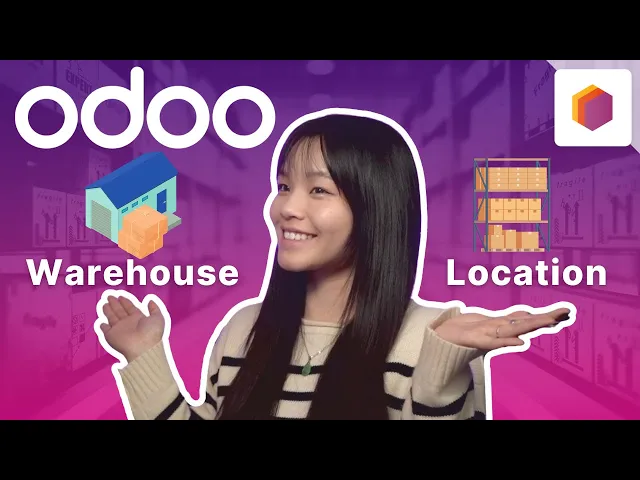
Hello Odooers, and welcome back! Pop quiz! We’re gonna play a game of “Is it a warehouse or location?
" So, consider this: is the freezer area that stores ice cream a warehouse or location? Correct! It’s a location!
A location is anywhere a product can be, like a shelf, floor, aisle, or customer location. They’re used to organize the flow of incoming and outgoing goods. Now, what about a warehouse?
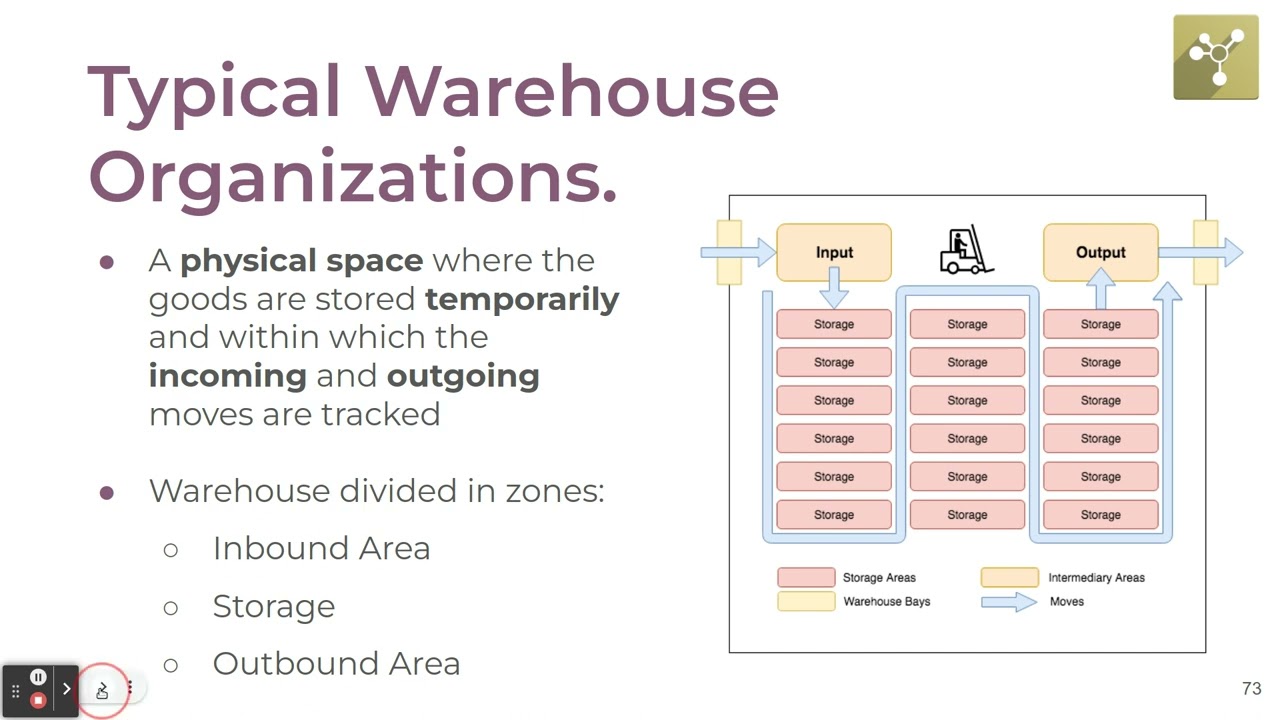
A warehouse is a physical place, with a physical address – an actual building where your items are stocked. Here’s a tip: 1 warehouse has 1 address. For the most part, a typical warehouse has a designated inbound area, storage area, outbound area, and as many locations as needed to smoothly organize the flow of incoming and outgoing goods.
In Odoo, these locations are structured hierarchically. What this means is that for a child location, like ‘WH/Stock/Zone A’, ‘Zone A’ is located inside the parent location, ‘WH/Stock’, which is located inside the warehouse, aka WH. The locations are organized in a tree-like structure, with the warehouse at the top.
Alright, I know that was a lot Odooers, so let’s jump into our database to see how warehouses and locations work. Alrighty, let's go ahead and start in our Inventory Overview. First, it should be noted that, in order to keep track of locations, we need the ‘Storage Locations’ feature enabled.
We can do that by going to the Configuration subheading, and clicking on Settings. Then, we can scroll down to the ‘Warehouse’ subheading at the bottom, and make sure that ‘Storage Locations’ is checked. Ok, now let's go ahead and click Save on the top left.
And now, I want to view a list of the different locations within my warehouse. I can go there by going to the Configuration subheading again, and selecting Locations. This brings us to the Locations list.
The existing internal locations are marked in red, and contain everything that is considered my stock. If you look closely at the names of the locations, they all feature the prefix, ‘WH/Stock’. Each row under ‘WH/Stock’ are child locations, which are specific storage locations for products in our warehouse.
Now, let’s say I need a new location just for our popular ‘Stealthy Wood Mug’. To do that, I’ll click New, and that brings us to the location form. Let’s go ahead and type the name of this location which is ‘Favorite’.
In the ‘Parent Location’ field, I’ll choose ‘WH/Stock’, which encompasses all storage locations. Awesome! And in the ‘Location Type’ field, we’ll keep it as is.
Now we’re done creating this new location. But don’t forget this one valuable lesson, before you go off into the world, Odooers: try to avoid having too many children… locations, that is. That’s because it's hard to maintain and use daily, if you have to look for really granular location, like ‘Row A/Shelf B/Rack C’, that is a lot of work.
So, if you’re interested in learning more about other fields and options on this page, I’d suggest checking out the documentation linked below. Alright, let’s learn more about location types, by clicking the Locations breadcrumb. And I’ll remove the ‘Internal’ filter here at the top.
And would you look at that! There are a lot more locations to choose from now. Let’s take a look at the ‘Location Types’ column.
Each of these ‘Location Types’ help Odoo understand where products at these locations are, and what to do with them. It also tells us where products come from: like if they’re from vendors, customers, shop floors, and so on. For example, Odoo only counts products that are currently in the red ‘Internal Locations’ and ‘Transit Locations’ for inventory valuation.
A ‘Customer Location’ is where products sold can be viewed. Products here are no longer available in stock. A ‘Transit Location’, like ‘Physical Locations/Inter-warehouse transit’, is used for intercompany or inter-warehouse operations to track products shipped between these different addresses.
Virtual location types, like ‘Production’ and ‘Inventory Loss’, are a counterpart location to consume or create stock, like if we find 5 or more candies crammed in the back of a shelf. Lucky us! Raw materials for manufacturing are consumed in ‘Virtual Locations/Production’, and a manufactured product will pop out!
Damaged *products are thrown into ‘Virtual Locations/Scrap’, which is essentially our trash that can automatically keep track of our inventory losses. Finally, I’ll get into what the heck a ‘View’ location is all about. To do that, I’ll click the blue ‘View’ location for ‘WH’ to give it a closer look.
The location type, View is for organizing the hierarchical structure of your stock location. It should not directly contain products. The view location, ‘WH’, groups all of the internal locations, like receiving docks, quality checkpoints, and packing areas together.
Lastly, let’s talk about warehouses. To do that, I’ll go to the Configuration subheading, then click Warehouses. This is where all my warehouses are listed.
So, when would a company feel the need to create a new warehouse? Well, they could be setting up a new shop, opening up a distribution center, or getting another warehouse at a new address. To check out how that works with Odoo, let’s click New to create a new warehouse for Stealthy Wood.
And let’s name it ‘Pop-up Shop’. I also need to create an abbreviated name, so in the ‘Short Name’ field I’ll put ‘POP’. For this new warehouse, we gotta make sure to assign a new Address too, since the company address is used by default, and different warehouses must have different addresses.
To do that, I’ll click on the Address field, and select ‘Stealthy Wood pop-up store’ from the drop-down menu, which is a contact I created in advance. Because I’m prepared like that. Awesome, let's go ahead and save this.
And then I can click the Internal link arrow button in the Address field to open up a contact page. This Address over here is automatically used as the warehouse’s reception location for all my operations. This address will now also be on all documents associated with this warehouse, providing precise information about the product’s origin.
And there you have it! You’re all up to speed on the basics of creating warehouses and locations. These concepts will be essential for understanding how to use Odoo Inventory.
You all did great today, Odooers! You deserve to be so proud of yourselves. I'll see you soon!