in this video we will see how the Perry can be configured to extract data from listing pages organized under alias categories within a website the most common example of this case our e-commerce websites where products are classified under radius categories and subcategories if you go to our website and look under the Help section you can see more details regarding the category scraping feature as you can see there are two methods described here off this let's see how the first one the multi-level category scraping feature works this feature helps you to extract data when there are
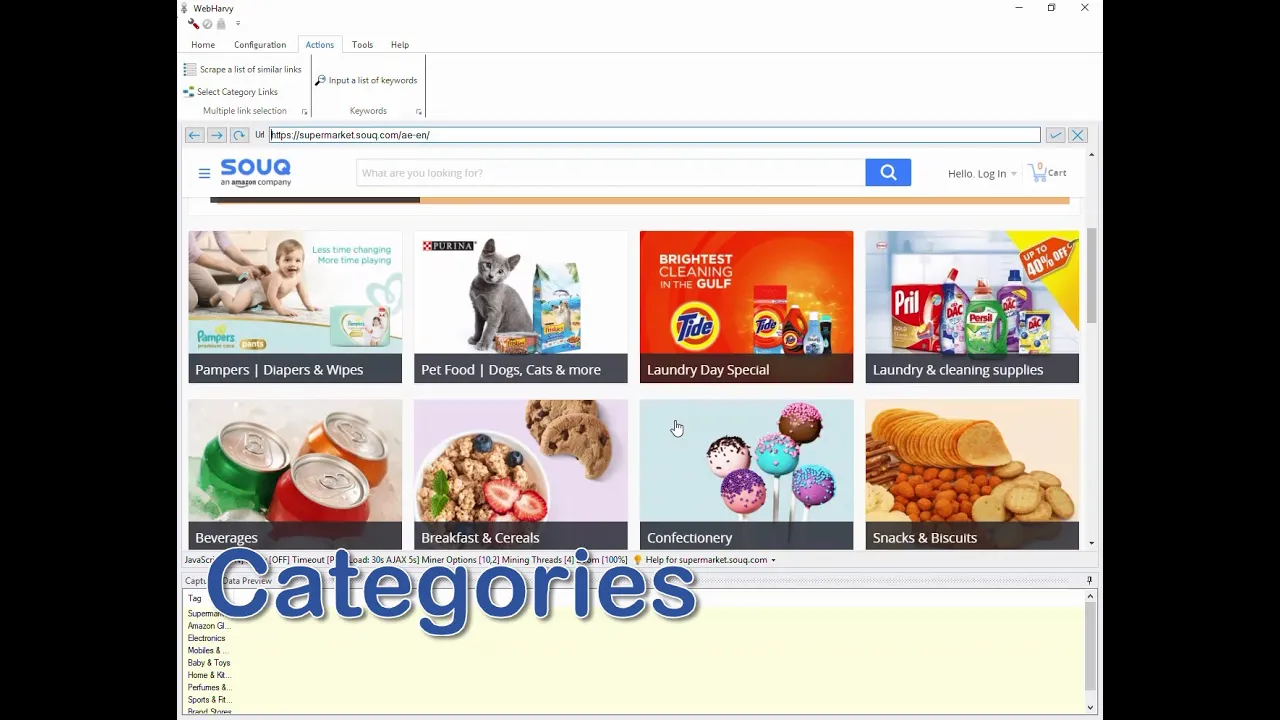
various levels of category and subcategory pages before we reach the final product listings page the first step is to load the page which displays the main category links within web hobbies internal browser so in this website these are the main category links and within each main category you can see that there are various subcategories go to the actions tab and click on the select category links option repor will then ask you to click on the first category link click OK and click on the first main category link rapport will now scan the remaining category links
you can see the selected links highlighted and also in the preview area click OK Andropov II will load the first link which we clicked wait for the first category page to load inside this page you can see that there are more sub category links so we repeat the same steps which we did before go to the actions tab and click on select category links my Pahlavi will ask to click on the first subcategory link on the page and then it will scan the remaining category links and then follow the first subcategory link which we clicked
you can repeat these steps till you reach the final listings page in this case we have already reached the final listings page from which we need to start the tracking data so the guideline is that you use the Select category links option to keep selecting category links from the home or main category listings page all the way down to the real listings page and then start configuration in this website you can see that more products are loaded in the same page as we scroll down now we can start configuration let's select few details from this
page we can also follow each product link to get more data using the following this link option but let's keep this configuration symbol so let's proceed with selecting page nation since this page lots more products when you scroll down go to the configurations tab and select scroll to load next page option under pagination pane now let's stop configuration if you go to settings and open category keyword tab you can see this option named attack with category keyword if you enable this option and give a column name then during mining where power we will add an
additional column filled with your URL of the product listings page from which the product is extracted bills helps to categorize the products finally you will know from where each product came from now let's start mining mapper be will now travels the entire category tree of the website and extract data listed under radius categories you can see that an extra column has been added filled with the listings page URL you can also see the power extracting data from various categories now let's see a stripped-down version of the same feature this is the second method explained under
category scraping in our website and this feature is called scrape a list of similar links let's try an example page suppose I need to extract data listed under these links here the difference is that these links go in directly to the listings page from which we need to start extracting data there are no subcategory links in between so this feature helps to scrape a list of links in a website all of which point directly to similarly formatted listings there are two main advantages of using this feature over select category links feature which we will discuss
as we proceed to configure this under action tab click on the scrape a list of similar links option ref avi will ask you to click on the first link in the list when you do that repair we will automatically identify all remaining links in the list you can see them highlighted and also in the preview area now you can see that robbery is asking us whether we need to select more links this gives us a chance to manually select any links which were missed by the automatic selection process this also helps to select links within
a page which is not well formatted or where the links are not occurring in pattern this is one advantage which this method has over the category scraping feature so if you click yes the Pahlavi will ask you to manually click on links which has not been selected and then click on empty space to finish the selection if we open web hobbies settings and go to category keyword tab you can see this option called disable automatically identifying category links when this option is enabled my papi will not attempt to automatically scan links you will have to
manually click and select each link which you need to scrape this helps if you wish nor to scrape all similar links on the page but only a few selected ones since all links have been selected in this page let's straightaway click on empty space Andropov II will now load the first link which we clicked wait for the page to load and then start configuration now we can start selecting required data to keep this example symbol we are not following links or selecting the next space link details regarding which are discussed in other videos now if
you go to the configuration tab and click on URLs you can see that these are the URLs of the links which we selected in the start page the second advantage of this feature is that you can manually add more URLs to this configuration here or delete unwanted ones now even if you have not selected links before starting configuration you can click on the URLs button under configuration tab and add URLs of similarly formatted pages to the configuration so that during mining Wepa we will scrape data from all of the added URLs in addition to the
original starting page again if we go to our website and under the Help section if you go to capturing data from multiple pages you can see this option called manually add URLs of next pages this explains how you can scrape a list of URLs using a single configuration now let's stop configuration and start mining during mining we're paw we will load each of the links which we selected and extract data from them you can also see that the category column has been filled with a category name we hope you find this video useful and in
case you have any questions please feel free to contact our technical support host link is given in the video description thank you
![WebHarvy Tutorial [Part 4] - Images](https://img.youtube.com/vi/ekAPFi6POzU/maxresdefault.jpg)





![WebHarvy Tutorial [Part 6] - Following Links](https://img.youtube.com/vi/INTLg7c79mI/maxresdefault.jpg)


![WebHarvy Tutorial [Part 1] - Introduction](https://img.youtube.com/vi/KrfIH7arn6I/maxresdefault.jpg)
![Power Automate Desktop Tutorial for Beginners [2024]](https://img.youtube.com/vi/B0cHOdBv7Jg/maxresdefault.jpg)


![[Part 7] WebHarvy Tutorial : Pagination | How to scrape data from multiple pages ?](https://img.youtube.com/vi/9M2YmDdX12E/maxresdefault.jpg)