welcome to the first part of video tutorials on web hobby in this part we will see how a parva can be easily configured to extract data from websites data extraction from websites using web Javie involves to status a configuration stage and a mining stage in the configuration stage we teach vibhava how to extract data and in the mining stage the Pahlavi actually extracts the data based on the configuration which we create let's start by following an example the first step is to load the page which displays the data which we need to extract within web
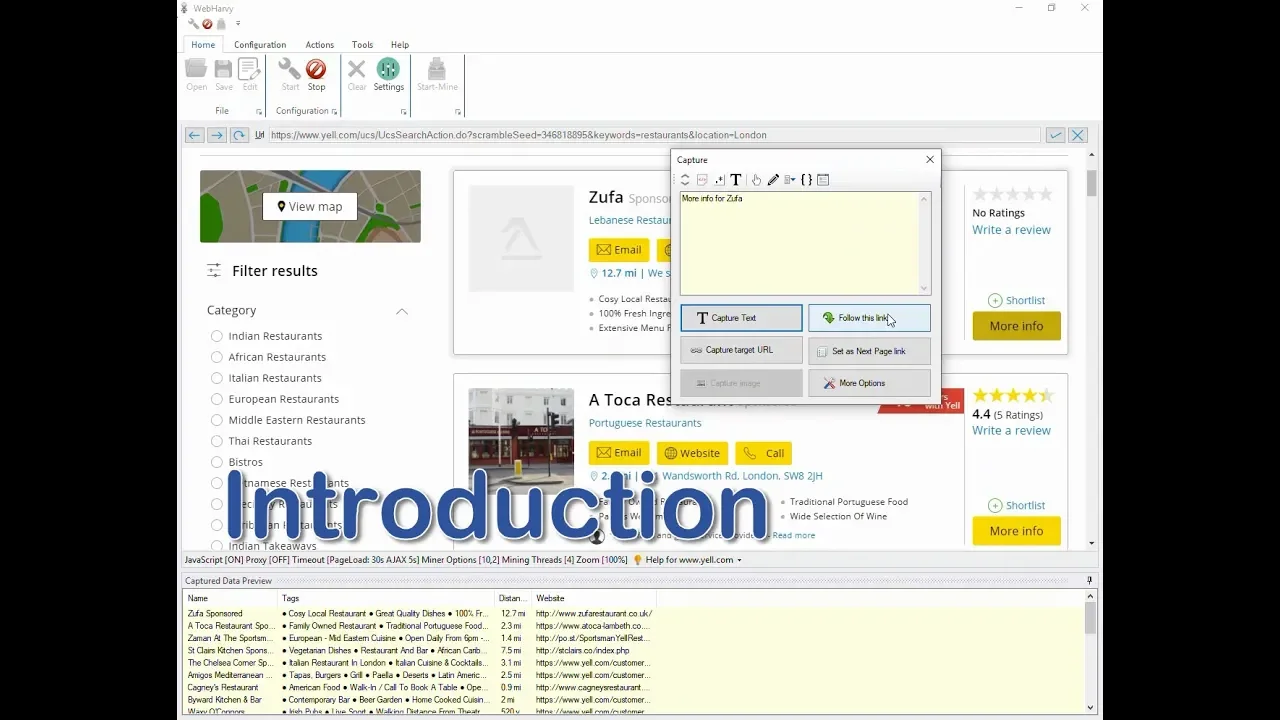
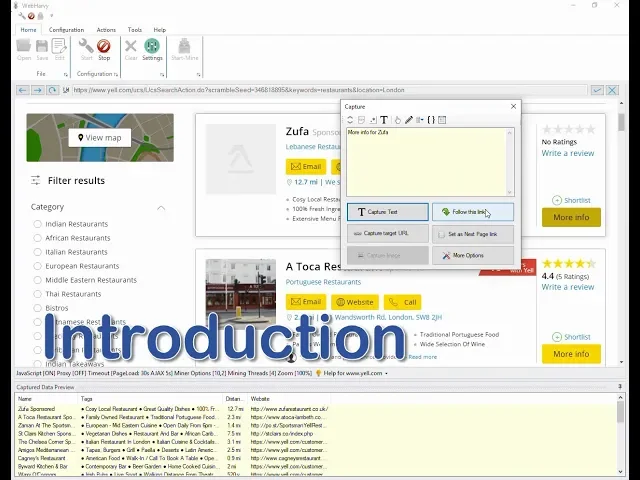
Harvey's internal browser repop is internal browser is just like any other normal browser like Google Chrome or Microsoft edge you can load and navigate webpages perform searches follow links submit forms etc just like you would do on your default browser in this example we are trying to extract restaurant details from a Yellow Pages web site so right now we have loaded the page which displays the data which we need to extract as you can see in the status bar of the internal browser there is a smart tooltip which displays articles and videos explaining the configuration
process for the loaded website you can make use of this feature in case you need help in figuring out the configuration process for the loaded website the next step is to start configuration to start the configuration click on the start button under configuration pane of the home tab once you click the start button you are in configuration mode the next step is to select the data which we need selecting the data which we need to extract is very simple just click on it where Pahlavi will display a capture window with various options to capture the
text of the selected item click on the capture text but and provide a name for the field as you can see in the captured data preview area map RV has intelligently identified all subsequent restaurant names from the page and fill them you can select more data from the page in similar fashion if you need to extract more data than what is displayed in the preview area of capture window click on the capture more content option from the quick access toolbar or from under more options when you select this option the Pahlavi will search more text
from around the content which we initially clicked you can also partially select the data which is displayed in the preview area of the capture window for that highlight the required portion with mouse or keyboard and then click on the capture text button note that the part we can also extract email addresses website addresses content from HTML and images in addition to plain text now if we scroll to the bottom of the page we can see that the listing span over multiple pages to teach vihari how to extract the selected data from all these pages click
on the next page link or the direct link to load page number two in this case let's click on the next base link and from the resulting capture window select the set as next base link option we have now taught by Perry how to crawl multiple pages and extract the data which has been selected from each of those pages let's also see how we can configure website addresses or links for that click on the link and select capture target URL from the resulting capture window now let's see how the party can be made to follow
each listing link to get additional data to follow a link click on the link and then select follow this link option from the resulting capture window the Pahlavi will now load the listings details page wait for the page to load and once the page is loaded we can select more details from this page just like how we did in the start page whenever the data which we need to extract is guaranteed to occur after a heading text it is recommended that you use the CAPTCHA following text method for this instead of clicking directly on the
text which we need to extract click on the heading text and from the resulting capture window select the CAPTCHA following text from the queue access toolbar or from under more options and then click on the capture text option after you have selected all required data from the details page you can stop the configuration process to stop the configuration process click on the stop button in the configuration pane under Home tab we can now optionally save the configuration as a file so that it can be run later or it can be edited to make changes you
can click on the edit button to edit the configuration save the configurations can also be scheduled to be run periodically and extract data that our mind can be automatically saved to a file or to a database to run the configuration click on the start mine button clicking the start mine button will bring up the miner window in the miner window you can specify the number of pages which you need to mine or just click on mine all pages option to start mining click on the start button rapid I will now load the starting page for
which we created the configuration and will extract restaurant details from each of the multiple listing pages the extracted data will start to appear in the data table in the miner window you can wait for the mining to complete or you can click on the stop button to stop mining at any point once you have start mining or once the mining is complete the mined data can be saved as a file or to a database click on the export button Andropov II will provide two options save the file on to database select the save to file
option to save the extracted data as a CSV XML Excel or JSON file select the export to database option to save the mined data to an SQL database we hope you find this video useful if you have any questions please feel free to contact our technical support and the link given in the video description thank you
![WebHarvy Tutorial [Part 2] - Keywords](https://img.youtube.com/vi/7DEglrLDXFQ/maxresdefault.jpg)




![WebHarvy Tutorial [Part 3] - Categories](https://img.youtube.com/vi/po1vcvaetDY/maxresdefault.jpg)


![WebHarvy Tutorial [Part 4] - Images](https://img.youtube.com/vi/ekAPFi6POzU/maxresdefault.jpg)
![How to Scrape Job Posts on LinkedIn | Step-by-Step tutorial | Octoparse FREE Web Scraping Tool [Eng]](https://img.youtube.com/vi/YxC1C25VIq0/maxresdefault.jpg)