welcome to a Pahlavi tutorial series in this part we will see how the Pahlavi can be configured to follow links and extract data if you go to the puppy-dog comb and go to the Help section and then following a link you can find the various methods by which the public can be configured to extract data by following links within webpages during data extraction so suppose you need to extract data from a product or property listings page this feature helps you to follow each product or property listing link to load its detailed space and then select
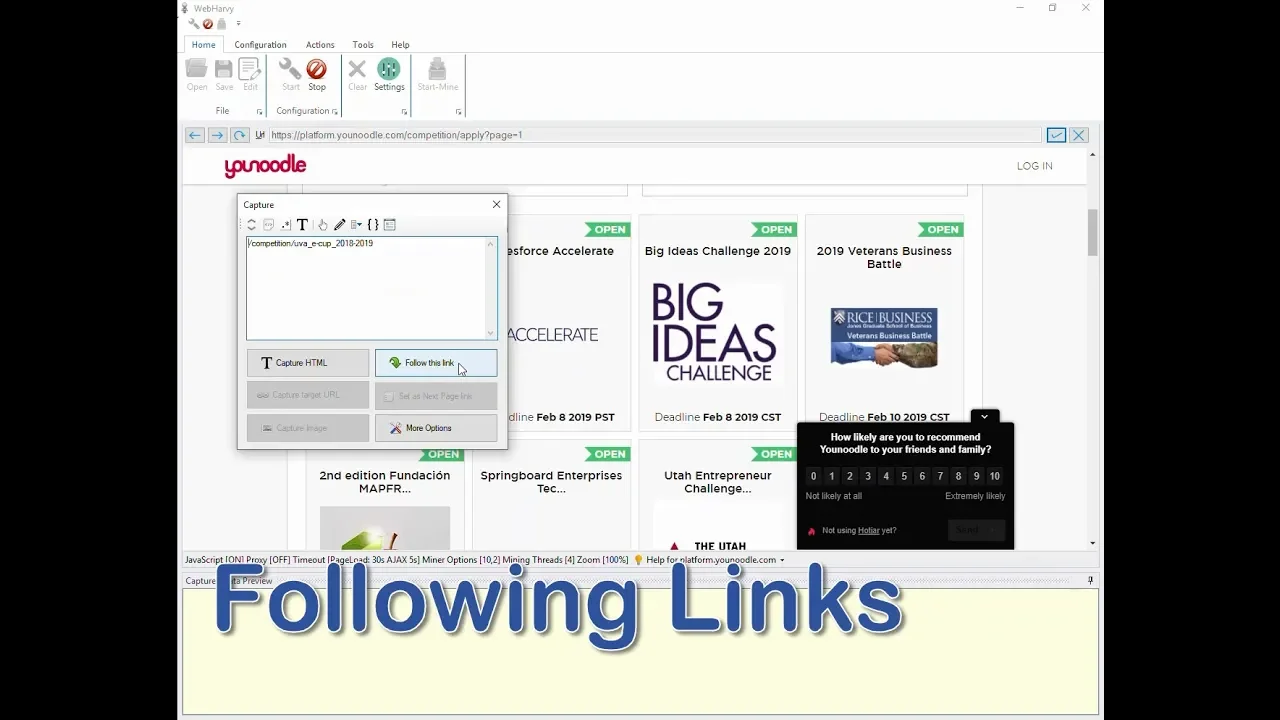
extra data from there so let's follow an example we have loaded the product listings page of an e-commerce website within vapoury let's see how we can configure the power to extract product details by following each of the product links so we start the configuration and select all required data from the listings page once all required data displayed in the start page has been selected scroll down the page and select the next page link now scroll back up and click on the link of the first product from the resulting capture window select the follow this link
option andropov e will load the link which we clicked wait for the place to load and once it is loaded we can select all additional data requite from the newly direct page and once letter selection is complete we can stop the configuration there is no need to go back to the previous page because we have already selected all required data from the starting page and we have also configured pagination now we can start mining during mining where Pahlavi will extract data from the listings page as well as from the details page of each product now
going back to the example which we just followed once you have already followed in Ling from the starting page of the configuration the Lord the details page you can still click and follow links further from this page for that as before click on the language we need to follow and from the resulting capture window select the follow this link option if for some reason the follow this link option is disabled you can select the click option from here or from under more options now let's see how we can follow links which are present in the
HTML source code of the page by applying regular expressions so for this page if I start the configuration and click on the first listing style you can see that in the resulting captured window the follow this link option is disabled this happens with some websites there is a specific nature in which the site is implemented so in such cases we should get the URL of the linked page from the HTML core of the page for this we select the capture HTML option to see the HTML code behind the area where we clicked we need to
check if the URL of the linked page is present here if it is not present we can apply capture more content as many times as required till the URL of the linked page is displayed in the preview area since the URL is now displayed in the preview we can select it by applying a regular expression string they look extreme to extract the URL which we need to follow from this HTML is copied and applied you can now see that the follow this link option has been enabled clicking which the link can be followed once the
new page is loaded we can start selecting more data and once that a selection is complete we can stop configuration and start mining during mining data will be extracted by following each link from the listing in the start page we hope you find this video useful in case you have any questions please feel free to contact our technical support using the link given in the video description thank you
![WebHarvy Tutorial [Part 7] - Regular Expressions](https://img.youtube.com/vi/gMV7ZntUFDg/maxresdefault.jpg)



![WebHarvy Tutorial [Part 1] - Introduction](https://img.youtube.com/vi/KrfIH7arn6I/maxresdefault.jpg)