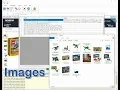
welcome to my Pahlavi tutorial series in this video we will discuss the various methods which can be used for extracting images from websites we will also see how the Pahlavi can be configured to extract multiple images automatically from product details or property details pages let's start with a simple example in this page let's try to extract the thumbnail images displayed for each item so we start the configuration and click on the first thumbnail image and from the resulting capture window click on the capture image option you have the option to either download the image or
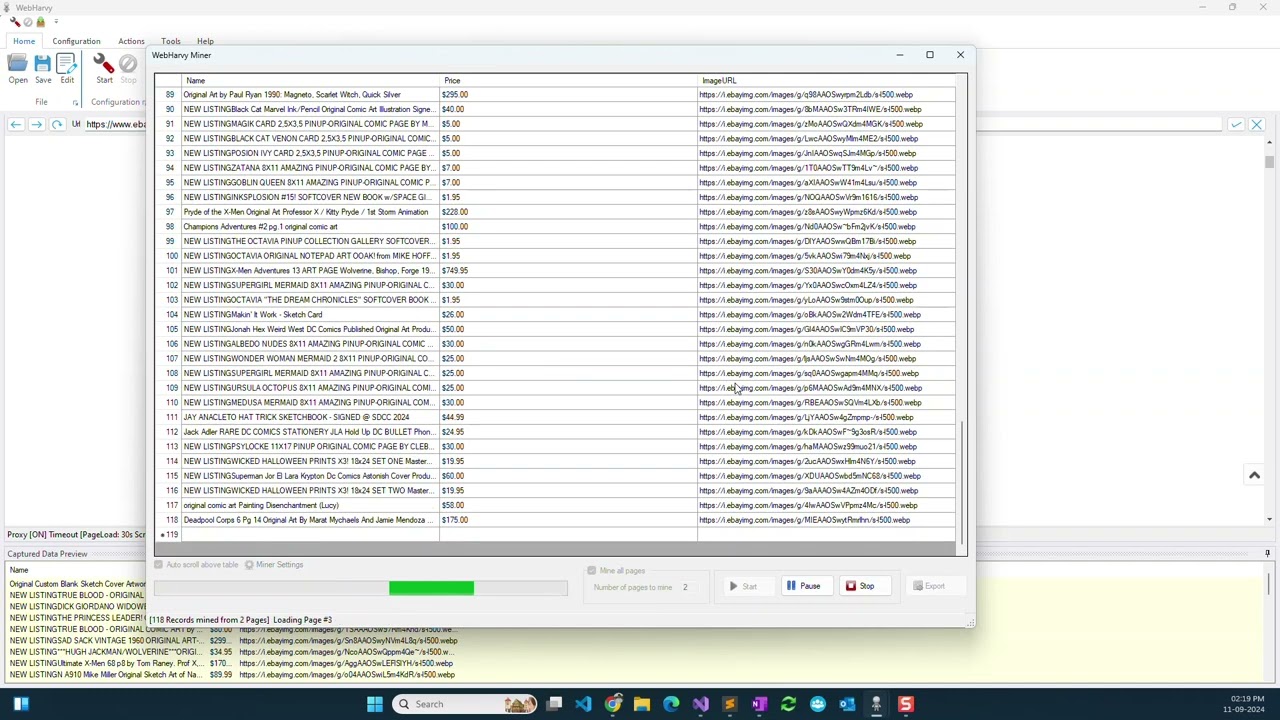
just capture its URL let's select download image option and give it a name you can see that the preview is updated with image URLs of all thumbnail images on this page during mining the actual image files will be downloaded to your computer and the file names will be displayed in the miner windows data table let's top configuration and start mining when I click the start button a puppy will ask me to select a folder where the unloaded images are to be saved if we do not select a folder here and hit cancel then the Pahlavi
will capture image URLs instead let's select a folder for this example and mining will start this is the folder which I have selected where image files will be saved you can now see that images are being downloaded and saved to this folder now let's try a more difficult case if you go to our website and add a Help section under selecting data if you click on images we have already discussed the straightforward method which works with most websites now let's see how images whose links are present in the HTML source code of the page can
be extracted let's load another web page for explaining this method let's start configuration let me select the product name and then follow the first product link to get details of each products in this listings page here let's try to extract the main product image which is this when I click on this image you can see that in the resulting capture window the capture image option is disabled what we can do now is to click on the capture HTML option and see if the image URL is present in the HTML code of the area where we
clicked unfortunately the image URL is not present so we click on capture more content which will serve as more content from around the area where we clicked now I can see that the image URL is present so how do we extract this for this we will have to apply a regular expression string by clicking this option regular expressions are coded strings which help you select only required portion from a wall chunk of text you can do a google search to know more about it or you can go to our website and under knowledgebase articles we
have a very simple regular expression tutorial which will give you a basic introduction it also contains some sample logic strings which are commonly used for that extraction so in our example we need to get the image URL and the image URL follows this heading so the logic string to extract the required URL portion only would be when I apply this flag string you can see that the Pahlavi has selected only the image URL from the bowl of HTML now we can also see that the captured image button is enabled and if I click on it
you can provide a name and click OK now let's stop the configuration and stop mining and when I start as before the puppy will ask me to select a folder where downloaded images are to be saved and when mining starts we can see that the images are downloaded to that folder and the image names will be filled in the miner windows data table you can see that the product images have started to appear in that folder where we selected now let's see how we can configure vaibhavi to automatically extract multiple product images from product details
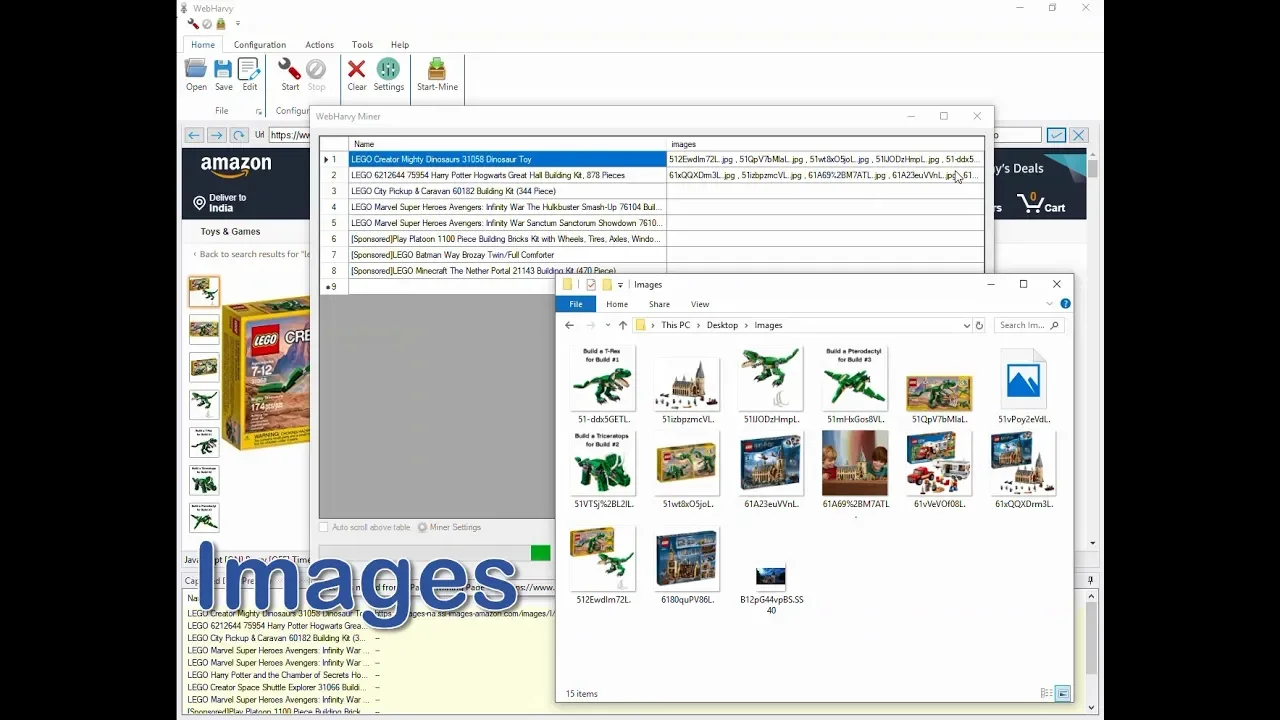
pages for this example let's try Amazon let's start the configuration and select each product name we can also configure page nation if required and then follow the first products link to load its details page now you can see that there are multiple product images whose thumbnails are displayed on the left hand side to extract full sized images corresponding to these thumbnails click on the first thumbnail and from the CAPTCHA window select the capture HTML option and since the HTML displayed does not contain the image URL click on the capture more content now we can see
that the image URL is present in the HTML code so as before we need to apply a reg extreme which would extract only the URL of the image from this wall HTML code for that we click on the apply records button and paste the corresponding record string and then apply you can see that the Pahlavi has now selected only the URL from the HTML and the capture image option is enabled you can find all the ragged strings used in this video in the video description now when I click on the capture image button you can
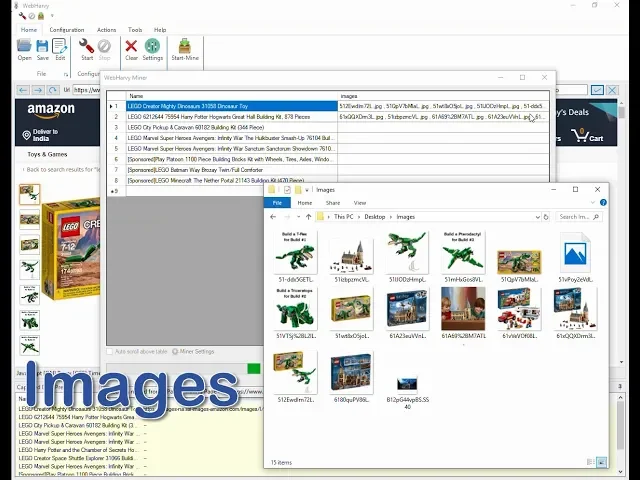
see that Aparri has ticked attacked that there are multiple images on the page and it's asking whether to capture them all we click yes and give a name in the preview only the first image URL is updated but during mining all images will be extracted let's check that by swapping the configuration and starting mining you can see that multiple images for each product are downloaded and saved their image names are updated in the preview here you can see that the images are named automatically based on the names given in their URLs if we stop mining
and go to the Pahlavi settings under images tab you have this option where you can name images based on the string in another column of minor windows data table so if I select this option and here the value 1 means the first column which is product name so the name of the image will be the product name itself if there are multiple images then they will be named by adding one two three etc to the end of the product name we hope that you find this video useful if you have any questions you may contact
our technical support team at the link given in the video description below thank you
![WebHarvy Tutorial [Part 5] - Pagination](https://img.youtube.com/vi/HoIjs1F56LI/maxresdefault.jpg)
![WebHarvy Tutorial [Part 1] - Introduction](https://img.youtube.com/vi/KrfIH7arn6I/maxresdefault.jpg)