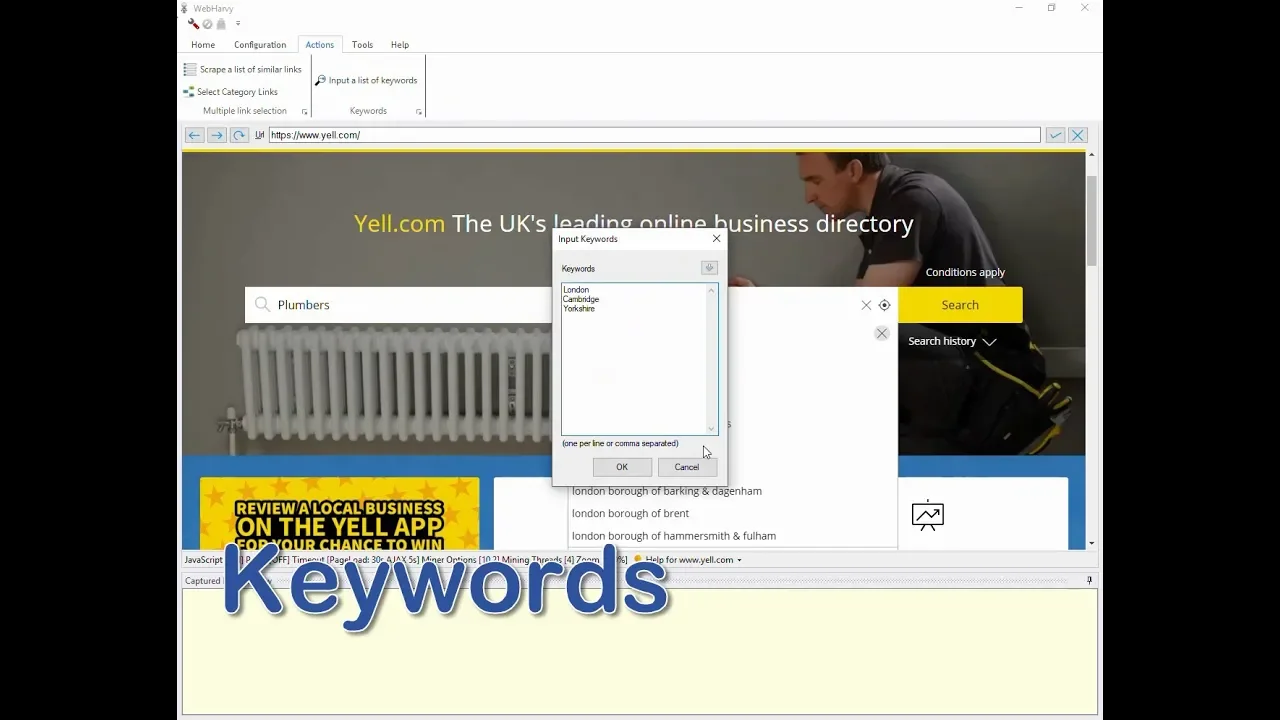
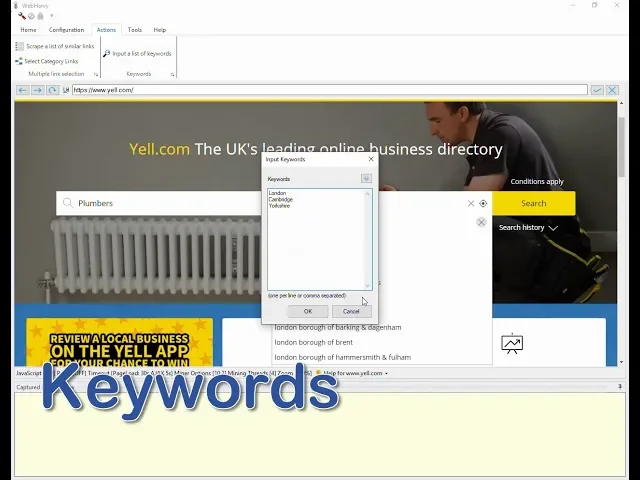
welcome to the pervy tutorial series in this video we will see how a pervy can be configured to extract search results data for a list of keywords the first step is to load the page displaying the search form and then to submit multiple keywords to a search box click on the search box and then click on the input a list of keywords option from under actions tab Mohave will display a window where you can enter multiple keywords to be submitted you can type or copy/paste keywords in a 1 per line or CSV which is comma
separated format there is also an option to import keywords from a file which has keywords in similar format for this example let's type in 3 keywords in separate lines note that if you need to include commas in keywords then they should be enclosed within quotation marks once you have entered the keywords click on the ok button you can see that where perry has automatically filled in the first keyword in the search box make sure that you do not change this if for some reason the first keyword is not automatically filled in by web Harvey you
should manually type or copy/paste the first keyword where Perry supports keywords to be automatically submitted to multiple input fields of a search box so we can submit a list of locations to be searched for in addition to the list of search terms which we already configured for this click on the location box and as we did before click on the input a list of keywords from under actions tab in the resulting keywords window type in the locations for which we need to perform search click on the ok' button and ask before the party will automatically
fill in the first location in the search box we have configured both input fields of the search form with multiple keywords and dueling mining repair we will extract search results for each combination of search term and location so it will get plumper details from London Cambridge Rock share and then proceed with extracting doctor details from the same three locations now if there are any additional inputs to be provided in the search form like selecting dropdowns or taking checkboxes then they can be done manually and after that you should click on the search button to load
the first set of search results once the search results are displayed you can start the configuration process by clicking the start configuration button the steps to be followed from here are as explained in the previous videos you can select required data select pagination and also follow links to get more data let's select a few details from this page to keep the configuration simple we are not following links or selecting the next base link if we now go to the configuration tab and click on keywords we can see the keywords which we have already set for
this configuration as you can see there are two lists of keywords one for search term and the other for locations you can edit both this lists here you can add or remove keywords from this list now let's stop the configuration process if you go to web hobbies settings and open category keyword tab you can see this option called tag with category keyword if you select this option and provide a column name the during mining wrapper we will add an additional column in the data table filled with the keywords corresponding to each row of data now
let's start mining wrapper we will start with extracting data for the first set of keywords which we provided and then it will proceed with all combinations of input keywords you can also see the keyword column which has been added filled with the keywords used to get each row you can see that after getting plumbers details from all the three locations but Pahlavi has now proceeded with extracting doctors details for the same three locations we hope you find this video useful if you have any questions you can contact our technical support team whose link will be
in the description below thank you
![WebHarvy Tutorial [Part 3] - Categories](https://img.youtube.com/vi/po1vcvaetDY/maxresdefault.jpg)
![[Part 2] WebHarvy Tutorial : How to submit keywords from a list and perform data extraction ?](https://img.youtube.com/vi/CE991Jf7sbs/maxresdefault.jpg)






![WebHarvy Tutorial [Part 1] - Introduction](https://img.youtube.com/vi/KrfIH7arn6I/maxresdefault.jpg)