welcome to the pave tutorial series in this video we will see how far we can be configured to automatically extract data from multiple pages of a website for example if we go to amazon.com and search for any product we can see that the search results span our multiple pages this is called Paita Nation the technique employed by websites to display large amounts of data in multiple pages there are various types of pagination a different type is where websites load more data or products in the same page as we scroll down to the bottom of the
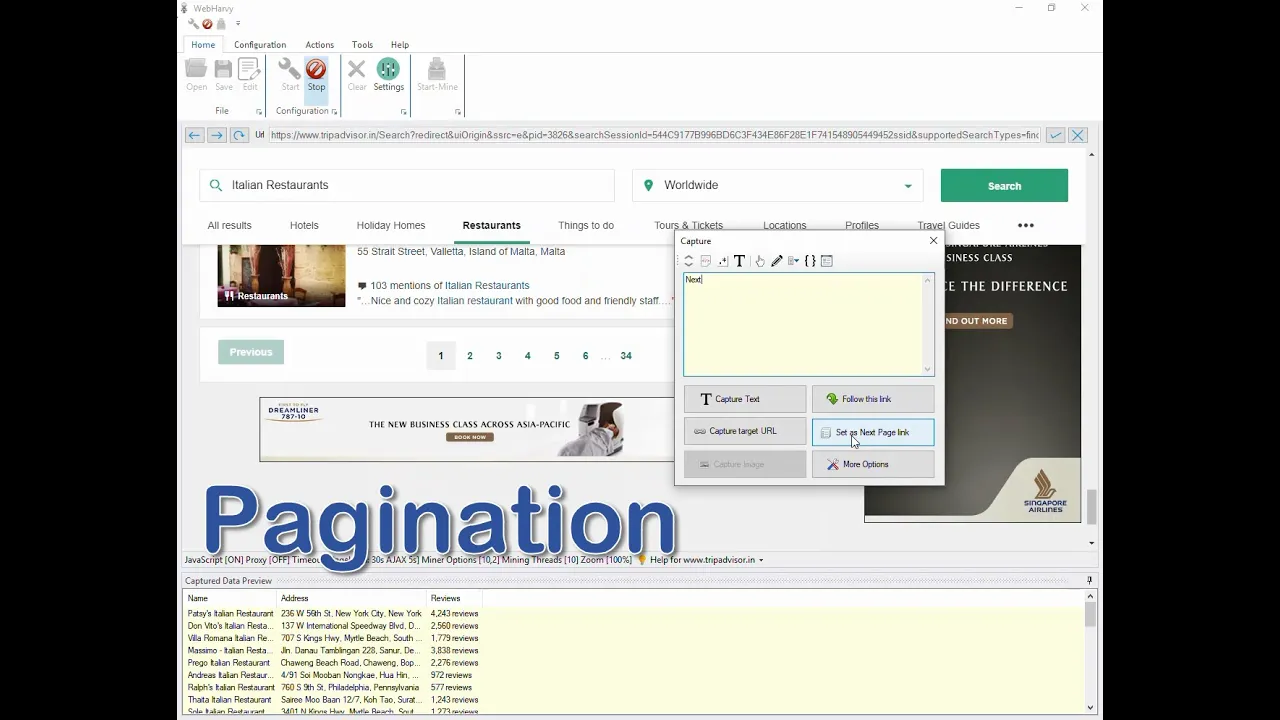
page also known as infinite scroll if we go to our website and go to this Help section and look under capturing data from multiple pages you can see that the Pahlavi handles all types of page relation techniques employed by websites let's start you these techniques one by one so let's start with a basic case where if you go down the page you can see the link to subsequent pages and also a next base link in this case I have already started the configuration and selected some data let's see how pagination can be configured so that
the selected data will be extracted from all these pages for that click on the next base link or the direct link to load page number two if the next link is not available and from the resulting capture window select set as next page link option it's that simple after this if required you can follow the first listing link to get more data using the follow this link option in this example let's stop configuration and start mining in the miner window you can specify the number of pages to mine or you can click on the mine
all pages option click the start button Andropov II will start to extract selected data from multiple pages another method of pagination is when you scroll down to the end of the page and the website displays a link or button clicking which more data will be loaded in the same page so in this example you can see that if I scroll down to the end of the listing there is a load more results page clicking which more data will be loaded in the same page the configure page nation in this case click on the link which
will load more results and from the resulting capture window select more options set as show load more data link during mining you will have to specify the number of pages to mine because the mind all pages linked will be disabled when you click the start button map RV will first load all pages and mining will start only after loading the specified number of pages another case is where more data is loaded in the same page as we scroll down the page you can see that the website loads more data on the same page as we
scroll down here to configure presenation go to the configuration tab and select the scroll to load next page option under pagination pain during mining as before you will have to specify the number of pages to mine because the public does not know how many pages of data are there when you start buying as before the Pahlavi will initially try to load all praises by continuously scrolling the page down and only after sufficient data has been loaded it will try to extract data so you will experience a delay before data starts to appear in the data
table there are three more methods offered by Papa V to configure page nation that can be used if all the above methods fail the first one is to manually add the URLs or addresses of subsequent pages so if you have a list of URLs all of which needs to be scraped using the same configuration you can follow this method for this during configuration click on the URLs button under configuration pane and in the resulting window you can paste the URLs of the next pages and apply during mining where Pahlavi will scrape data from all added
URLs the next method can be used if the URL of each of the subsequent pages contains its space number like in this example the page number is a part of the URL this can be handled by replacing the page number in the URL by a predefined code and adding that URL to the configuration just like in the previous method the code to replace the URL number is this and the resulting URL is added to the URLs window of the configuration the last method is to specify a JavaScript code running which the next page will be
loaded for this during configuration click on the set JavaScript button under configuration tab and in the resulting window you can write or paste the J's code which would load the next page please refer the space in the Help section of our website to know more details regarding each of the methods discussed in this video you can find the link to this page in the video description we hope that you find this video useful and in case you have any questions please feel free to contact our technical support and the link given in the video description
thank you
![WebHarvy Tutorial [Part 6] - Following Links](https://img.youtube.com/vi/INTLg7c79mI/maxresdefault.jpg)

![Hands-On Power BI Tutorial 📊Beginner to Pro [Full Course] ⚡](https://img.youtube.com/vi/5X5LWcLtkzg/maxresdefault.jpg)





![Hands-On Power Apps Tutorial - Beginner to Pro [Full Course]](https://img.youtube.com/vi/rJsHc-4w60g/maxresdefault.jpg)


![Hands-On Power BI Tutorial 📊 Beginner to Pro [Full Course] 2023 Edition⚡](https://img.youtube.com/vi/77jIzgvCIYY/maxresdefault.jpg)

![Power Automate Beginner to Pro Tutorial [Full Course]](https://img.youtube.com/vi/1p5kI7SYz4Q/maxresdefault.jpg)