act like you know [Music] hey there and welcome to tick tock effect house today we're going to talk about how you can add interactions to your effect in effect house interactions are preset subgraphs that you can add in one click to make your effect interactive for example you can add an interaction that will make an object appear or disappear when a person Taps on the screen there are a bunch of different types of interactions in effect house that you can use to make your effect more Dynamic and engaging interactions also offer different levels of customization
and complexity depending on your experience level to make an object interactive all you have to do is select the object in the hierarchy panel then go over to the inspector panel and click add interaction these listed interactions are available by default for any object but I do want to note that there are specific interactions that can only show up for objects with specific components attached like the image component which we'll explore later in this tutorial so let's get into some basic features so for example let's choose top screen to toggle visibility which will make the
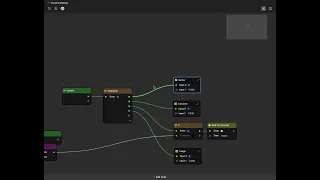
object appear or disappear when a person Taps the screen you can simulate tapping by clicking on the preview to see how the interaction works you'll notice that the interaction subgraph appears in the visual scripting panel connected to the object's node if you want more information about the interaction subgraph you can just click on the information icon which will display the definitions and a link to the effect House website if you want to learn more now this interaction subgraph offers a basic level of customization here you can choose if you want to start with the objects
hidden from View click Start hidden if you want to customize interactions even more you can double click on the interaction sub graph to see the next layer of sub graphs made up of an event trigger and event response these trigger and response subgraphs essentially control the interactive behaviors in response to some kind of cue in this case the event trigger is touched which corresponds to a person tapping on the screen the consequent event response is visibility which makes the object appear or disappear if you want to go one level deeper for the highest level of
customization you can double click on the sub graphs to access the most fundamental nodes and logic flows one of the cool things about interactions is that you can add multiple interactions to an object you can also mix and match event triggers and event responses to make your own interactions so let's say I want to create an interaction that makes the object appear and disappear whenever a person opens their mouth to do this I can actually take the event trigger and event response subgraphs from different interactions and combine them to make my own interaction so first
I'll go ahead and add the detect face movement to show slash hide object interaction since this interaction changes object visibility in response to facial movement all I want from this interaction is the part that detects face movement so I'll click into the detect face movement to show slash hide object interaction copy the event trigger that detects face movement and then paste it in the main graph now I need an events response that controls object visibility so I'll go into the top screen to toggle visibility interaction copy the event response that controls object visibility and then
paste it in the main graph like that since I have all of my desired Parts I can just delete the original interaction sub graphs to clean up my visual scripting panel up a bit now all I have to do is connect the event trigger to the event response and connect my object node to the Target then I'll change the events triggers face movement to mouth open since I want the object to appear and disappear whenever the person opens their mouth finally I'll just change the preview video to show a person opening and closing their mouth
and that's it I've just created a brand new interaction now keep in mind that there are many different ways to customize interactions all we did was rearrange some sub graphs but if you're a more advanced user you can even tweak the base level nodes to your liking there are lots of interaction types available for you to choose from so get creative and use your imagination like I mentioned earlier some interaction types are only available when specific components are attached let's take a look at how this works using the image component as an example so first
let's go ahead and add an image object in the hierarchy panel 3D image this object already has an image component by default which we can see in the inspector panel when I click add interaction I'll see some image specific interactions available in the drop down these types of interactions are especially handy if you have your own texture assets that you want to use so let's choose Tap Screen to transition image opacity this causes the image to change opacity within a set period of time within the sub graph I can change the opacity settings I can
either make the image Fade Out completely or fade in change in two values depending on what effects I want to achieve I can also change how long it takes for the image to change opacity and of course if I want to customize the interaction even more I can just play around with different layers of logic and that's it now you can use interactions to enhance your effects we can't wait to see what you make for more information about adding interactions to your effect be sure to check out our documentation at effecthouse.ticktalk.com