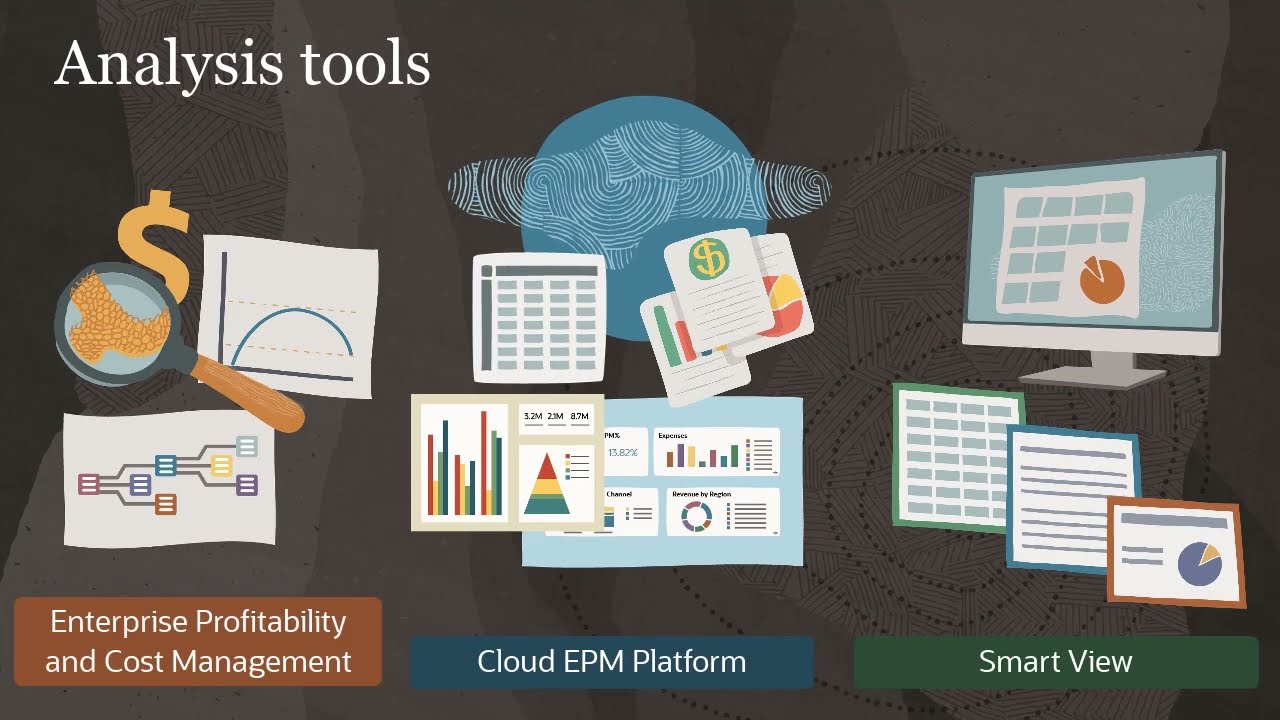
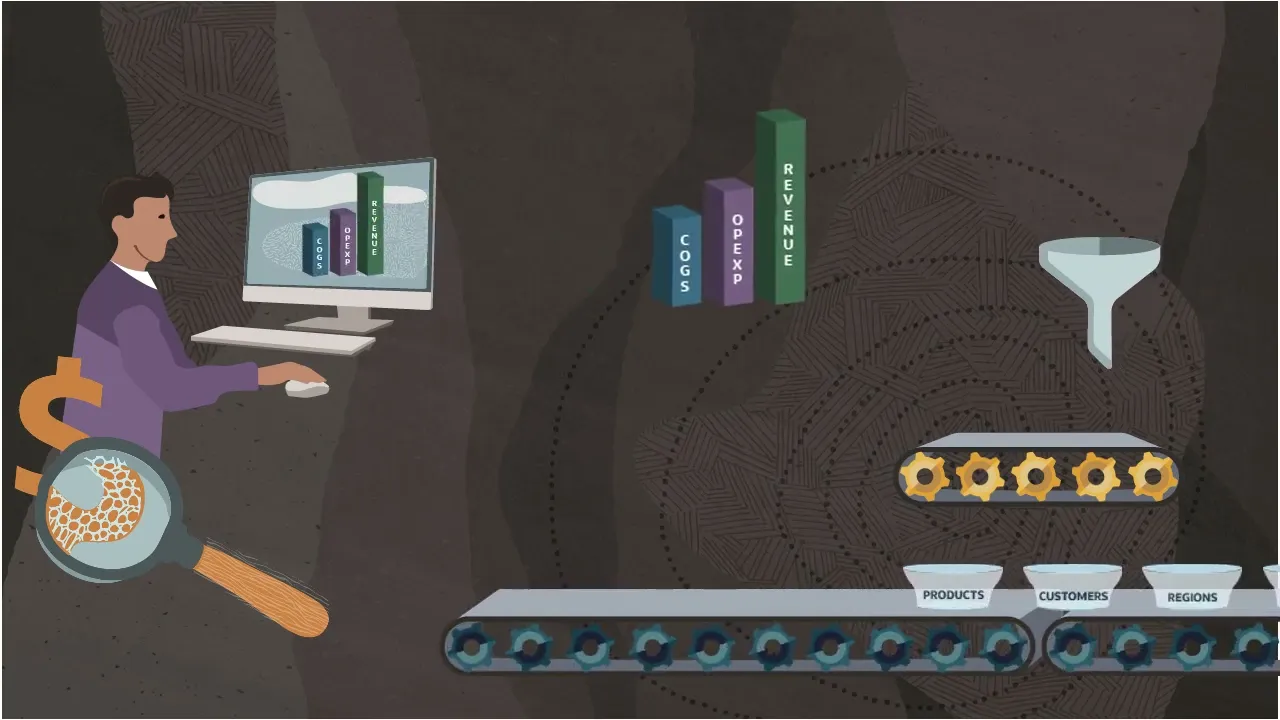
In Enterprise Profitability and Cost Management, you manage the cost and revenue allocations that transform your basic financial data into fully realized profitability analysis for a business segment, such as products, customers, regions, or entities. This series covers the tasks to create, run, analyze, and troubleshoot models for transforming data in Enterprise Profitability and Cost Management. In this video, we'll look at how you can analyze and troubleshoot your model calculations after running them.
The Calculation Analysis screen contains records of all your model calculation runs. The status column shows if the calculation completed successfully or with warnings or errors. You can inspect a record to see more details, such as which options you selected when you ran the calculation.
When you get errors or warnings, or calculations take longer than you think they should, Check the Calculation Statistics Report. Warnings and errors are displayed at the top of the report, under Elapsed Time. In this example, I calculated a single rule and received a warning that zero cells were updated during the calculation.
This warning is common and can happen when source or driver data is missing. For this warning, the next step is to check source and driver data for the rule. On the Designer screen, select the model you calculated, then select the rule you want to validate.
Run the Rule Data Validation report for the rule. Set the report POV to match your calculation. Along with summary values, you can include samples of source data, driver data, or both.
You can also adjust the rounding precision. The report shows that I'm missing both source and driver data for this rule. In this case, I'll have to load input data and drivers before I can run the rule successfully.
Prior calculations can affect the values for source data in this report. It will also show zero source data if the rule has been run already and thus has already allocated all the source data; if the rule uses source data that is generated by a prior rule which you haven't calculated yet; or if a prior rule allocated the source data to another location. As a best practice before validating rule data, use calculation ranges to calculate your model up to the point right before the rule is run.
For example, before validating data for the Activity Costing Assignments rule in this model, I should calculate the model with a processing range selected to end after the Product Material Allocation rule. Now let's look at the calculation statistics for a successful calculation. The report shows the calculation times for each rule and rule set.
For each rule, it shows the number of cells for potential sources, destinations, and allocations, and how many cells were updated. Notice that as we get down to the most granular allocations in the model, these numbers -- as well as the calculation times -- go up. For this model's most expensive allocation, the system takes under two minutes to traverse about 825 trillion potential allocation combinations and write to almost three quarters of a million cells.
This report helps you identify performance issues with your rules. You can find problem rules here and compare their setup to design best practices in the Administering and Working with Enterprise Profitability and Cost Management guide. Finally, if you need to request help from Oracle Support for model calculation or performance issues, this report contains key diagnostic information for the support team.
When you submit a service request to Oracle Support, you should attach this report, the model documentation report, and a thorough description of the issue to help the support team quickly diagnose your problem. After checking calculation statistics and dealing with any errors or performance issues, continue to the Rule Balancing screen to verify at a high level what the model calculation, did rule by rule. First, select a form from the library.
Select your POV values, then refresh. Rule Balancing forms are specific to your application's dimensions, and they must be created by a Service Administrator before you can use this screen. For more information on designing forms for Rule Balancing, see Administering and Working with Enterprise Profitability and Cost Management.
Rule Balancing shows rules in the rows and activity across the PCM_Balance dimension in the columns. Let's look at this form's layout. In addition to the row and column dimensions, the form point of view includes Enterprise Profitability and Cost Management POV Dimensions, which you can override on the Rule Balancing screen, and static selections from all other dimensions, which focuses the results on a specific slice of your cube.
For example, this form for All Steps focuses on a slice of the cube that includes results from all my model's rules. By following best practices for designing your dimension hierarchies, models, and Rule Balancing forms, you can use Rule Balancing to verify that the system is allocating all data out of a particular database slice before continuing to the next set of rules. In this application, the Step 1 form focuses on calculation activity for Operating Expenses before any allocations are made to the Customer, Product, or Activity dimensions.
This focus returns rules from the first two rule sets in my model. I can use this form to verify that rent and utilities are fully allocated by the first rule set, and that all operating expenses are allocated out of this slice by the second rule set. If you want to view details of the values in the Rule Balancing form, click a value to open a context-sensitive ad hoc report in Smart View.
For example, the Rent and Utilities Reassignment rule allocates occupancy expenses from the Corporate entity to other entities. I'll click the Allocation In value to investigate in Smart View. By adding the Entity dimension to the ad hoc grid and zooming in, I can see the values allocated to each entity.
And if I add the Allocation Out measure, I can also see that the value allocated out of the Corporate entity matches what was allocated to the other entities. Check the description for links to the other videos in this series. To learn more, visit docs.
oracle.