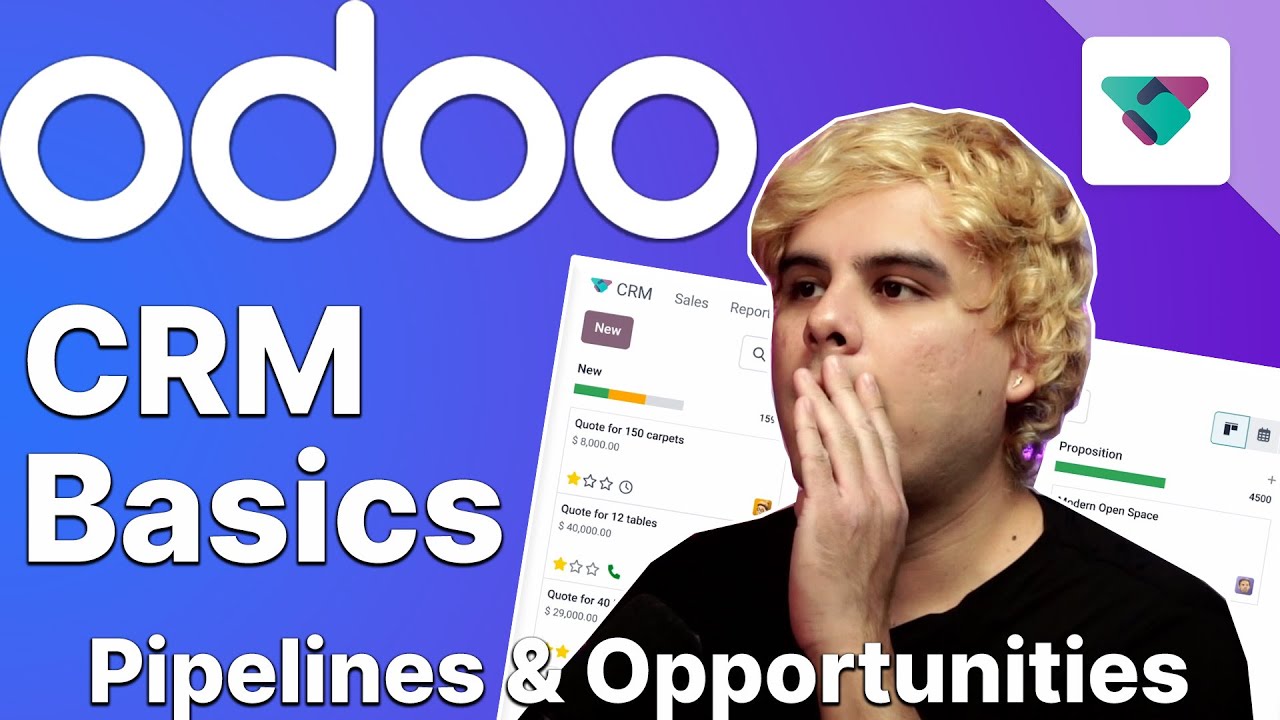
what's up OD doers and welcome back got a question for you how do you manage your relationships no no no not those relationships I'm wondering how you manage your customer relationships if it's not through the customer relationship management or CRM you might be missing out CRM is a tool that tracks the different stages of a business interactions with leads and customers and compiles that information in one place here at stealthy wood we use ODU CRM pipeline to track leads and opportunities as they move through the various stages of our sales flow as you can imagine
there's a lot to cover with CRM Basics so this video will be the first of two parts related to the subject but don't worry you'll be shocked to see how easy it is to use today we'll cover the CRM Pipeline and how to create a brand new opportunity so let's jump into our database and check out some of the basic elements of Odo CRM app this is the main CRM dashboard by default the CRM dashboard in the various stages in it are shown in the cand view also by default ODU only shows you the opportunities
that are assigned to you as indicated by this my pipeline filter in the search bar of course when we click the X besides the filter OD reveals all the opportunities in our database as you can see we have different stages set up to track stealthy Woods opportunities these stages are fully customizable and if we scroll we even have the option to add more stages however for example if we wanted to customize the one stage all we'd have to do is hover over the stage itself and click the tiny gear icon that appears next to the
title when we do a drop- down menu opens with four options being fold edit automations and delete if we select fold this stage will be folded in the cand view which just means hidden and to unfold it all we have to do is click the Stag's name or the arrows above it and boom our stage is back now if we reopen the gear icon in the menu and select edit we can customize a few other things as you can see one of the configurations ask if this is a one stage ODU asks this because once
a sales lead or opportunity is one that means our company can expect revenue from that opportunity there are other options on this window as well but for now let's just click X to return back to our Pipeline and if we reopen the gear icon menu once more and select automations we are presented with a pop-up window in which we can fully customize a fully automated workflow completed with preconfigured automation rules this one's a bit more advanced though so I'll link our video on CRM automations in the description so you can check it out later for
now let's click back to our Pipeline and from here on the far right side of the pipeline we'll see the plus stage button and as I mentioned this can be used to add a new stage to the pipeline so let's click the plus stage button and we're going to title it second proposition and then all we have to do is Click add now we can place this stage wherever we want in our pipeline but since this is our second proposition stage we're going to drop it between proposition and one and boom we just created a
new stage super easy right now let's take a look at a couple different ways an opportunity can be created from this dashboard first we could click the plus sign that appears next to the stage itself for instance if I click the Plus at at the top of the qualified stage I can fill out this mini form to create a new opportunity in this specific stage or I can click the new button at the top left screen and this will create a new opportunity in the new stage from here we'll enter the contact name associated with
the opportunity let's go with Abigail Peterson since this customers already in our database the rest of their information has been autop populated in the remaining Fields but if this was a new customer I'd have to input their email address and phone numbers myself next we'll give this opportunity a unique title so we can easily identify as it moves through our Pipeline and so other teammates know what the type of sale this is for example for this opportunity Abigail sent in an RFQ or request for quote for 10,000 lamps so let's go ahead and name this
10,000 lamps now since our lamps are $10 a piece let's enter the expected revenue of 100,000 which I can change at any time also I want to make sure this opportunity is a priority which I can designate with these Stars right here so let's do three stars and Mark this as a highlevel priority for Abigail and with everything in place we could edit this more if we wanted to but for this instance let's go ahead and just click add get this in our Pipeline and we'll worry about the other details later and just like that
ODU has added our opportunity to the new stage and presented us with a fresh opportunity form to fill out you may also have notice the number next to the stage has increased this number represents our total expected revenue for the stage and ODU automatically updates that figure whenever a new opportunity is added with expected revenue of course and there you have it folks you now know how easy it is to set up and customize pipelines and how to start adding opportunities in ODU CR M told you it was that easy didn't I join me in
part two where we'll learn how to add scheduled activities to Opportunities and how to move them through the stages to keep our sales flowing smoothly see you real soon o doers