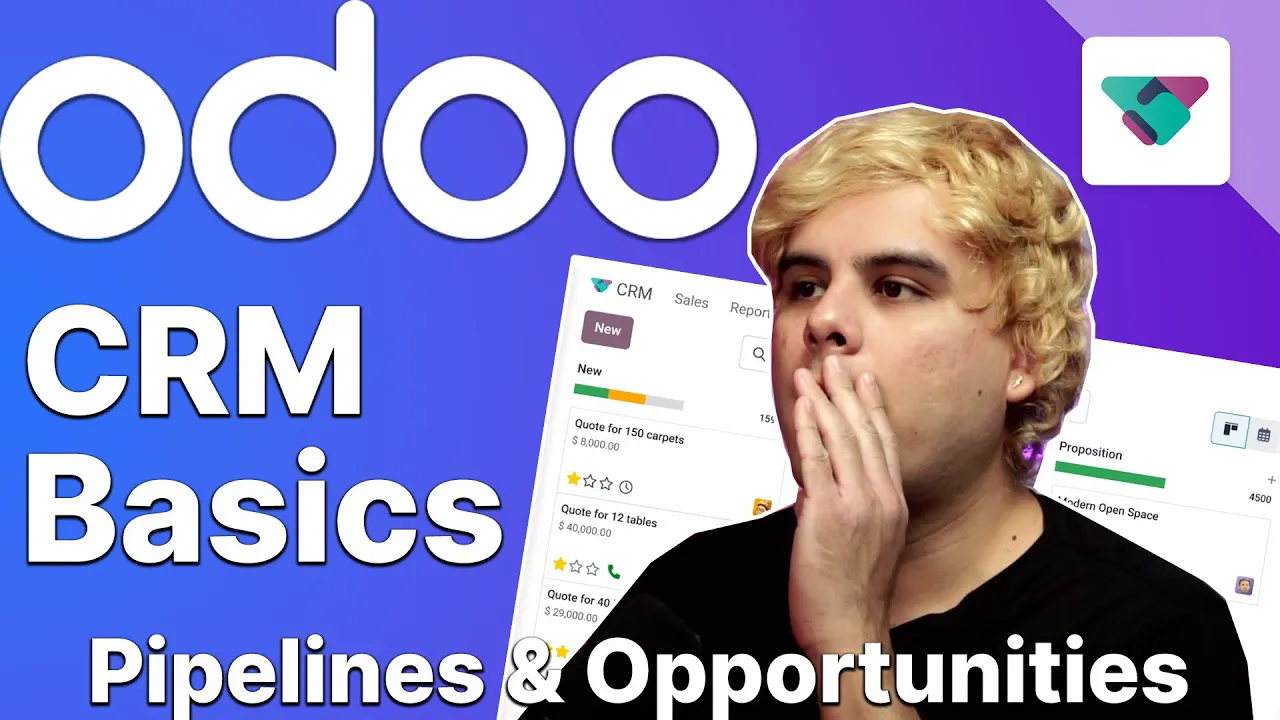
hello doers it's time to focus on ODU CRM application now CRM or customer relationship management is a process that tracks all of a business's interactions with leads and customers and compiles all that info in one place now since crms look at across a different range of communication channels they can be pretty handy for a variety of roles for the customer facing roles like Sal crms provide a more holistic picture of the customer journey and help plan or SK ual activities and on that back end crms can analyze vast amounts of information such as web visits
purchase history attributed revenue and more at an increasing scale over time now here at stealthy wood we use ODU CRM pipeline to track leads and opportunities as they progress through the various stages of our sales flow OD crrm also keeps track of client info for us and helps us see where we stand with each of our customers so this is the main CRM dashboard Now by default ODU has various stages in it that are shown in can band view also by default ODU only shows the opportunities currently assigned to you as indicated by the my
pipeline filter appear in the search bar of course if I click on that X right there boom all of the opportunities are appearing now and as you can see we have different stages in place to track our business opportunities now these stages themselves are each customizable and we even have the option to add additional stages as well if we'd like to customize any of these stages over here we'd simply actually hover over them and select this little gear icon that appears now we have a couple options when you click that we have the option to
fold edit automations and delete if we select the fold stage look at that boom it's folded the stage right there in the camand view which means it's just hidden and to unfold it we just select it there and boom it's back to normal if we reopen that gear icon up here I want to show you something look at that inside of this menu if we select edits we're given a bunch of options to customize a few other things related to this stage like if it's a one stage or folded but for now let's select that
X over here great going back into the menu I want to talk about automations over here now what can you do in here well inside of here we can customize a fully automated workflow with preconfigured automation rules for this stage but don't worry we'll get into all of that in a different video for now let's click back into our pipeline because I want to talk about more stuff over here now from here on the far right over here do you see that there's a plus stage button this can be used to add a new stage
to the pipeline so let's click on that right now and it's giving us the option give it a title so we're going to click second proposition right there boom we have our stage now we can place it wherever we want to in our pipeline for this let's drag it over to where it sounds like it would belong after first proposition and before one boom we've created a new stage all right but we've made stages now let's take a look at a couple of different ways an opportunity can be created for these stages now first we
could click on any of these plus signs above one of these stages and doing so allows us to create an actual opportunity within that specific stage for instance the qualified one over here will appear inside of here after I fill out this form and if I wanted to I can discard this and instead do a new one up here by selecting new in the top left creating an opportunity in the new stage and let's do that so from here we're going to enter the organization or contact name associated with the opportunity so let's select in
our case Abigail Abby for short now since this customer is already in our database the rest of the information has been automatically input in the fields below right there but if this was a new customer we'd have to input things such as the email and the phone number if we had those manually of course up next we'll give this opportunity a more unique title besides Abigail's opportunity just so it'll be easier to recognize as it moves through the pipeline and it's easier for me to find so we're going to type in Abby wants 200 lamps
great why does she want them we don't know now since our lamps are $10 a piece let's enter an expected Revenue of2 $22,000 because math great and I could also change this at any time if I want to also I want to make this opportunity a priority which I can actually designate with these star icons over here and give it the two stars for a high priority and with everything in place we select add and look at that just like that ODU has added our opportunity to the new stage and presented us with a fresh
opportunity to fill out if we needed but we're good for now so we're going to close this out and there it is look at that now I'm noticing something on a lot of these and what is it oders it's a gray little clock icon what does that mean well that represents an activity that can be assigned to the opportunity you'll see opportunities have different icons on this spot on their cards some represent a phone call others a scheduled activity and if we click on that clock icon such as the one for Abby we have the
option to schedule an activity which prompts us to a popup inside of this popup when we click the activity type drop down over here we have the option to change it to something else meeting reminder couple other ones such as a call now I want to make a quick note for this it's important to know that the fields on the activity form will vary depending on the chosen activity type some of them disappeared or and appeared for instance with a call we can add a summary like in our case I know that they might want
two times the order great we can also add a due date in the event that we want to make sure this gets done in a Time new manner so our customers isn't kept waiting they're going to select something like a Saturday I'm going to make them come in on a Saturday and for now we also have an assign to field over here and I'm going to keep this activity assigned to Mitchell admin for now also if I have any notes I can log them right here like rich person and we're done now below these fields
once everything's been done I have the option to open calendar schedule and Mark is done done in schedule next and cancel now marking the activity as done over here would mean that I've already done the activity and I'm just logging it in the database for now we're actually just going to click open calendar and something cool happens look at that OD doers we basically open the calendar and I can specify a date and a time for this activity on a calendar view from here we'll select the date and time slot in the future now this
is happening on Saturday so why don't we do something tomorrow great and you'll notice a pop-up window appeared I'm going to keep the default settings for now so I'm going to just hit save and close over here now once that we do that look at that our new activity is right there and if we click into it gives us some more information that we wanted along with the opportunity that it's associated with as you could tell ah great and when we return to the CRM pipeline over here you'll notice something really cool happened right there
boom it's no longer that little gray clock it's now a phone icon that represents the scheduled call that we just configured okay now let's imagine that Abigail just told me they definitely want to get the deal done knowing that I'm going to drag this over here to the qualified stage we can quickly move an opportunity back and forth between stages whenever we want and keep that in mind you'll also notice that above each stage there are color-coded bars indicating how many activities are scheduled for opportunities in that stage along with their current status now for
instance the color green it represents planned activities we have yellow over here which represents activities that are scheduled for today could also be closer to like an orange or something yellow orange and finally red which means you're overdue Mitchell do not let this one get overdue and finally gray which represents no scheduled activities now to the right of the activity bar there a huge number and that is the projected expected revenue for that specific stage that number instantly changes to adhere to any new opportunities that are added to or that you removed from that specific
stage and now I'm feeling kind of spicy so if we click into aby's opportunity we're taken to the opportunities form now from here we can check out and adjust all sorts of things like the probability of winning this for example which ODU calculated for us by the way but we'll cover that in another video so stay tuned for that now below these fields we have a couple of tabs first up is internal notes where I could leave notes for my sales team regarding this opportunity and if we click extra info tab there's a lot of
information right there and tons of additional Fields some are related to contact information of the client While others are focused on marketing and tracking we can even move this opportunity to another stage from this opportunity format we go up to the top right and we select where it goes aby's moving forward so we're at the proposition stage oh and guess what oders I just got a quick phone call and it turns out my hunch was right they do want double their order knowing that let's quickly adjust this opportunity info to reflect that change so let's
change the title to Abby wants 400 lamps and because it's double this has also doubled over here boom look at that o doers now as we just saw this this change was actually a second proposition so let's select our new stage for second proposition up there and just like we did before our pipeline is now completely up to date if we go back over here ah look at that o doers I know that is a lot to take in at once so how about you let all of this new CRM information marinate a little and
we'll reconnect in the next video to go over even more cool stuff found in the CRM app sound good of course it does now go grab a snack