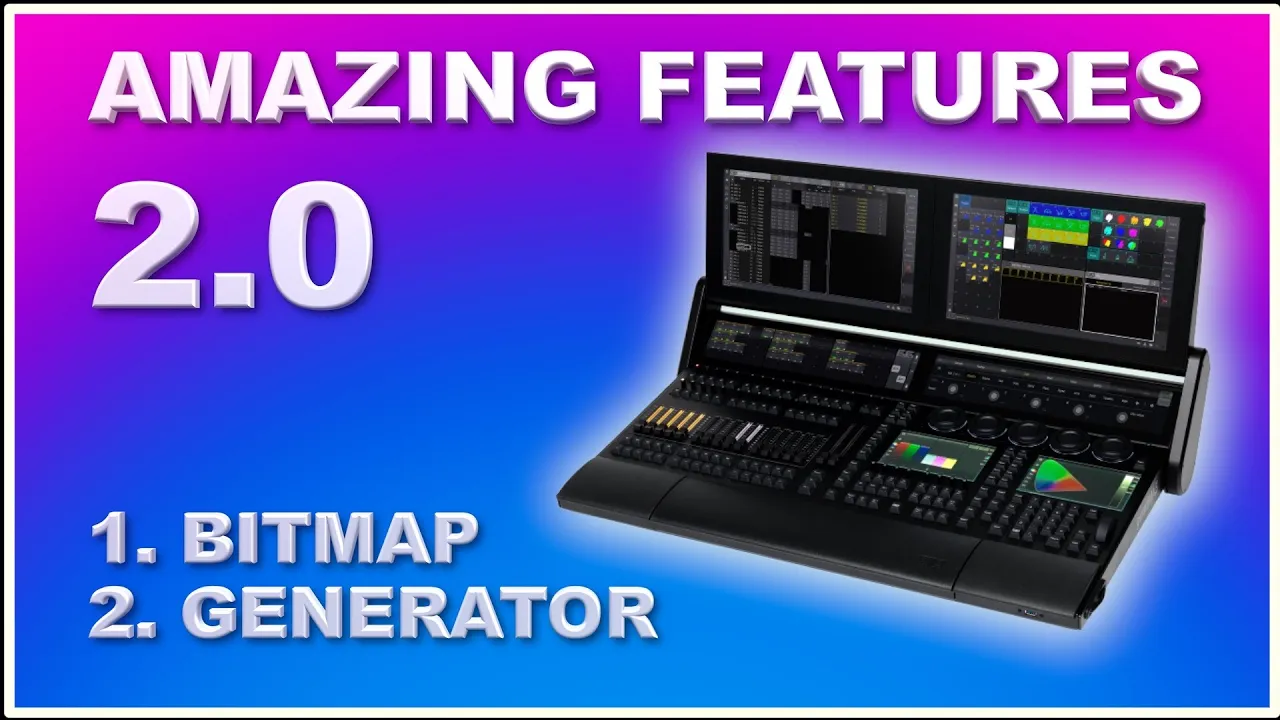
Welcome back to another, uh, video here on the Event Lighting Channel! Once again, we're going to take a dive into the new software released from MA Lighting for GrandMA3, called 2. 0.
Uh, we're going to dive into two specific features—two specific new features introduced in this software. The first one is, uh, the Generator, and the other one is the Bitmap Engine. You can see some graphics running here in the background.
I'm going to show you how you can use an external source via NDI and put that onto your fixtures and map your fixtures using the, uh, Bitmap Engine, but that's later in the video. Let's just start with the, uh, Generator. When I, uh, read about it for the first time and saw it for the first time, I was like, "I'm not going to use that.
" But after diving into it, I am definitely going to use that because it takes away, in my case, some of the issues I have when using strobe channels on different fixtures. If you have worked with strobe channels on different fixtures, you know that they react completely differently. So, random strobe on a Martin fixture is very different from random strobe on a Robe fixture or on any other, uh, different manufacturer fixture.
Uh, so using the Generator kind of takes that away from you because it can create random strobe; it can do randomization not only on the demo channel, but also on other parameters. We'll get into that in a second. The Generator is really cool, and I'm just going to show you how it works.
First of all, uh, you open a window, like any other window; you can search for Generator and you can search for Bitmap, as we're going to get into that in a second. But first of all, you just open the Generator window, and, uh, you patch some fixtures. I'm just going to show you—I patched a few different kinds of fixtures here.
I have a grid with actually something like 900 RGBW fixtures, uh, which we're going to use for the Bitmap engine, and I have, uh, 24 Vipers in another world here. They are simply just 24 Vipers, and I'm just going to use those guys to show you how the Generator works. But first of all, the Generator—it's right here.
You work with the Generator like any other pool item. You drag this to the side, use the swipe piece, and go into edit. You can see right now it's working with dimmer, but if you right-click this one, you get all kinds of different attributes you can use.
If you go up here, uh, you can actually use the filter here. If you have a selection in your programmer, it will kind of clean out all the stuff that the fixture can't do, so that's kind of cool. But let's just stay in dimmer here.
You can see we have some speed and we have some speed variants; we have faces, all kinds of different stuff. It’s not like I'm an expert; I don’t exactly know how everything works. What I have tried is simply just to play with it—play with some of all these, uh, different parameters here.
You can see now I just did something, and if I clear this stuff here and I select all my Vipers, I go back into my dark world here of 3D and maybe even put it into a position. I can press this random generator, and it's going to start doing things. Right now, I applied the selection to my Generator, so now I can go into my, uh, edit again, and I can start playing around with all these different, uh, parameters here.
First of all, you can see the speed right now is 100. What I can do is go up to speed here, and I can just right-click it, and I can type in something faster than 100. So the, uh, fader just goes between zero and 100, even though I now, uh, increase the speed to double.
Play with all these different things here, and it will do something crazy. What I like here, uh, trying to create a random strobe, for instance, is the ratio. I can turn this all the way down, and it becomes much more, uh, it seems like faster and seems like more of a strobing thing.
You can even adjust this attack and decay thing here and, uh, see how it works. You can see now we actually have something that kind of looks like a random strobe, and the cool thing about this is you can use that on any fixture, which I'm going to show you in a second. So now, if we are satisfied with the way the Generator works, we simply just clear everything here, and we can, uh, clear our selection and apply it to any kind of selection.
It just starts doing this stuff here. You can see it starts a little bit funny. Uh, I don't know how we can, uh, change that; I'm sure you can play with some parameters in there, but it kind of does the trick.
The cool thing about the Generator is it's kind of a universal thing because if I go into my other world, where I have my large, uh, G going on here, I can even apply the same Generator in here. If I select the fixture, it actually starts doing, uh, this random thing as well. So once you've sorted out how it starts and stops.
. . You can start playing with the generator.
The cool thing about the generator is it works in your programming and your recipes, just like you would expect it. So if we go into the playback window here, for instance, we are in this world with all our RGB fixtures. Let's just go into our Viper World here and we go up into our first queue.
We turn on recipes. I like using recipes, as you might know if you have watched this channel before. I take my selection here, which is all my vipers, and the values.
I go down into my generators, and if I created a generator, it pops up in here. I select it, and it immediately starts working based on my recipes, which I think is amazing because then it's like a universal thing; you can use it anywhere. As long as you made your generator, you can point any fixture into your generator if you want to.
Let's just delete this one here and go back into the view we came from right here. Now, let's say we cover the generator. Now let's go into the bitmap fixture, or the Bitmap engine, if you will.
For that, we choose all our RGB fixtures here and we put it into our 3D. If we turn them on, you can see, select them; you can see they're all here, and we can zoom in just a little bit to start working with it. So we clear this stuff.
To work with the bitmaps, you start by creating a bitmap, and bitmaps can be imported. If you see, there's no content selected right now, but you can right-click it; you can choose an image if you want to, which is kind of boring, but you can also go up into videos, and you can see here we have bar, ring, and rotating, which are videos that MA supplied for us. You can go into new here, and you can go into import, and you can see these three video files as part of your installation, and you can choose them.
You can, of course, create your own and put them into the bitmap engine the way you want. But let's just clear this stuff here, and we select a video called bar here, and we basically just close this stuff down. We take all our RGB fixtures here and we point them to this bitmap, and you can see immediately it starts working the way we think it would.
So let's just clear this stuff and maybe just try one of the other ones. We go into edit, we go into content, into videos, and we choose ring, for instance, here, and we choose our fixtures and put ring on, and it works just like intended. You can go into your bitmap again and you can attach a speed master to your video.
If you make a video with a high frame rate, for instance, you can slow it all the way down. So just put in speed master number one, and you can see it moves faster. I have speed master one here on my console, so if I take the speed master a little bit down, you can see I can make it work a lot slower, or I can turn it up and make it work a lot faster.
So that's the built-in bitmap if you want to import video into your show. But if we clear this stuff here, I'm going to show you how you can map something external. If you have a video server of some sort and you are transmitting video to your LED screens, you can, in most servers, also transmit the same output signal into your NDI as an NDI stream and import that into your show here.
Let me show you how. By the way, if you haven't worked with NDI, I'm going to link a video up here so you can check out how you can set up NDI on your grandMA3 console. But let's go into bitmap.
We go into edit and we go into content once again. We go into video, and you can see I already tried this out. I have some NDI sources here.
But if you don't have any NDI sources and you are transmitting NDI on your network, you can go into new, and instead of file up here, you choose NDI. You simply select the source. In my case, I'm going to select my graphics card, and you can see it mimics exactly what's going on here behind us.
So we close this down, and we choose all our RGBAW fixtures once again, and we simply just click our bitmap, and it starts working. You can manipulate your bitmap afterwards if you want to, and that goes for all of them. Of course, you can go in and you can rotate your—or you can move the axis on the X and Y axis.
You can zoom it in or out if you want to, you can play with the aspect, you can rotate it, you can play with the colors, and all kinds of stuff. So that's really, really, really cool. Importing these bitmaps into your console will just make it easier for you if you have like a back wall of fixtures, or you want to do something crazy with a lot of Dimo fixtures, or whatever.
The bitmap engine is quite cool, and the bitmap works exactly the same. Same way, if we go into playback here and we go into our queue, uh, we can—I forgot to save my view here—show my recipes, take my selection, my RGBA fixtures, my values could be bitmaps, and, uh, that would be bitmap number three. You can see it starts working immediately, so working with bitmaps and working with generators is really valuable, and I'm definitely going to use the generator more than I thought when I saw the generator for the first time.
So, uh, I hope you liked this video, and if you did, give it a thumbs up. That’s going to indicate to YouTube that you liked it, and it’s going to spread it out to more people. If you are not yet subscribed to the Event Lighting Channel, be sure to do so.
You can click the Subscribe button and the little bell icon next to it, and that way you get a notification every time I upload a new video here on the Event Lighting Channel about the Granny MA3 software and workflow and all this stuff we do on this channel. Until I see you next time, I hope you will try this out at home, and, uh, when you do, I hope you have some happy Grandma A3 programming moments. I'll see you next time.
Bye-bye!
![grandMA3 | MA Tips [EN] | Generators](https://img.youtube.com/vi/TjGhKybt_4k/maxresdefault.jpg)

![grandMA3 | MA Tips [EN] | LOS - Live Output System](https://img.youtube.com/vi/vcZ_1FJQEeQ/maxresdefault.jpg)