In this GrandMA3 tutorial, we're going to look at some of the different settings you can use on your executors and your sequences. There's a gazillion different things you can do with the buttons; you can configure them in different ways, and they all have different purposes. So let's just get into it.
Of course, we set this one up with a Go and a Go+ button. We've used that many times before. You simply press Go+ and Go-, and it takes the time right over here to get into the settings.
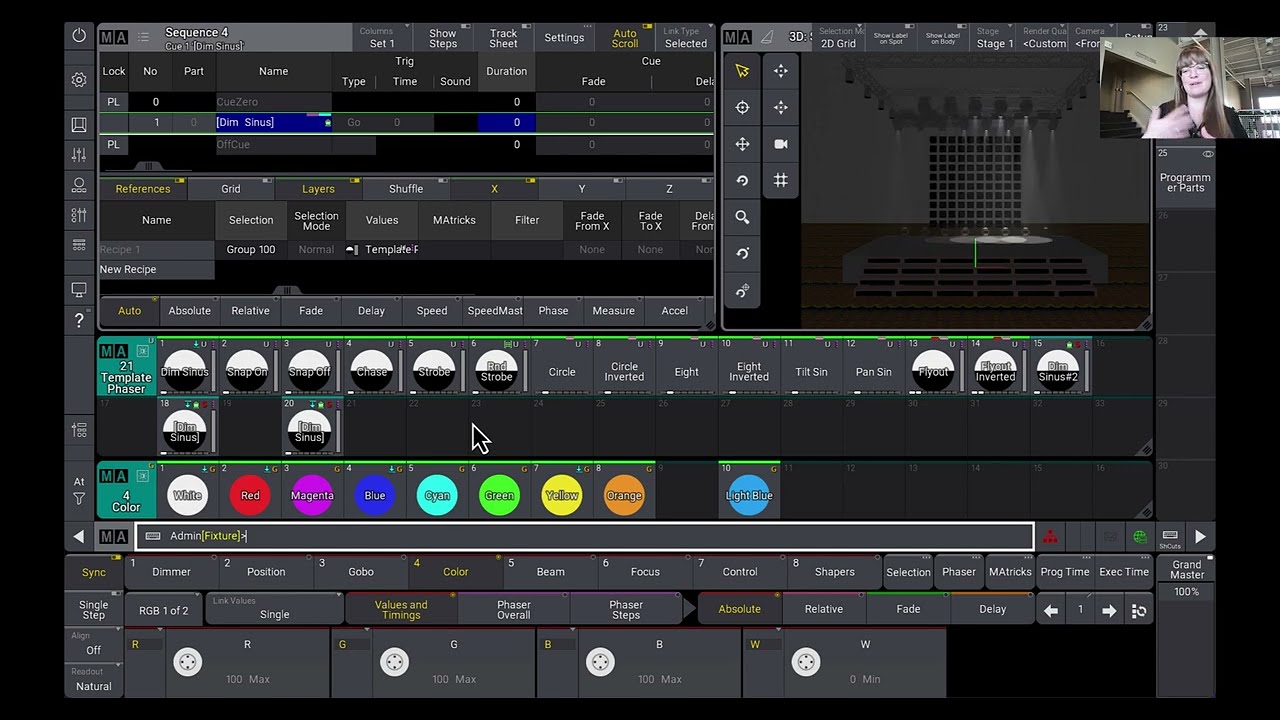
To change the button press, you press any sequence, and you go into the buttons down here. We can start from the top and say this one will go forward, and this one will go backward. So this one is Skip forward without any time.
If I press this one, you can see it completely disregards the timing I set here. This one never takes time; it simply just skips from cue to cue. If we go into the settings again and we press Black down here and we close this one down, if I press this button, it simply does a blackout on that sequence and that sequence alone.
So every time I press and hold the button, it goes to Black, and when I release it, it comes back. It doesn't release the sequence in any way; it simply just takes the intensity down to zero. Back into the settings again, we try the next option; it's a speed option we'll save for another episode.
The flash button, we can go down here and we can actually configure this one to an off button, so we can turn the sequence off. Now it's off. If I press the flash button, it simply turns on everything that's on here, and it releases it again.
You can see it's active up here when the button is pressed, and when I release it, it simply releases the sequence again. We go back into the settings and find the next one: Go+ and Go-. We already covered Go to; it's the next one.
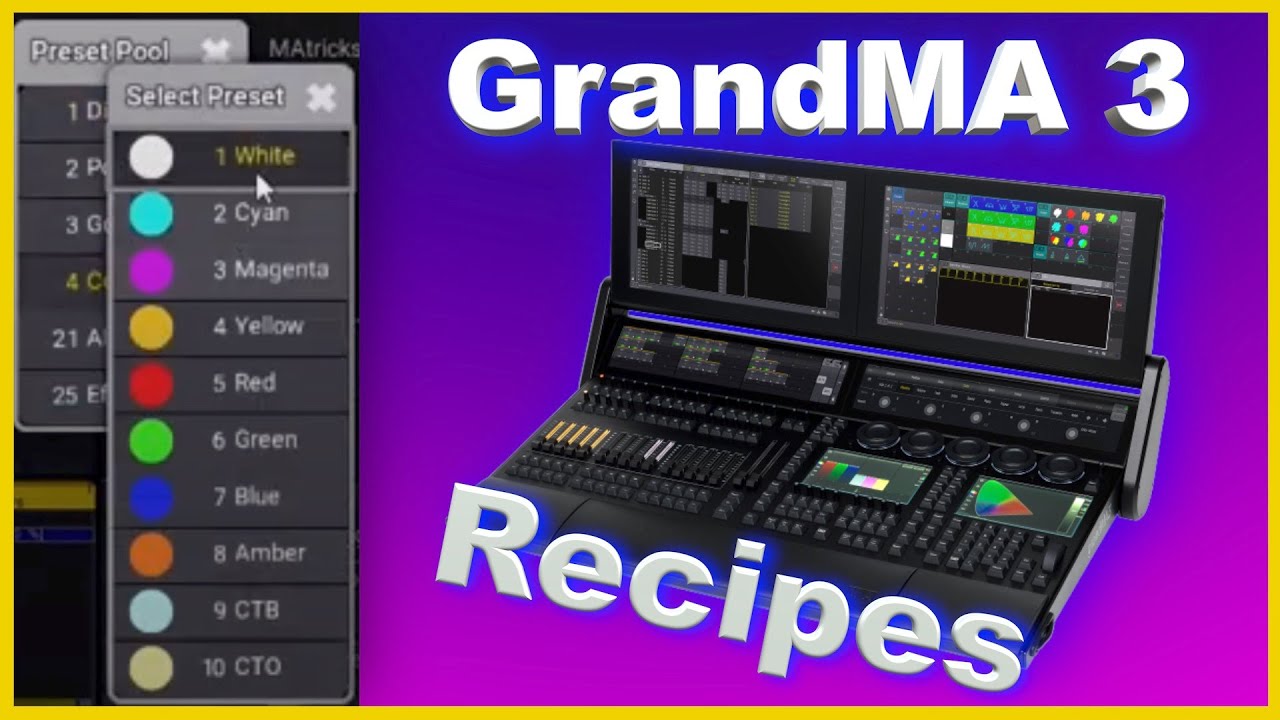
So if I press Go to, it simply presents me with a GUI interface where I can select my next cue, and it goes straight there. So Go to my CTO; Go to my cyan. It's very, very simple; that's Go to.
If this is all Russian to you, you are more than welcome to sign up for my email list. I'm going to notify you when I open my GrandMA3 online school, and you can get notified when something new is happening there. So check out the email list; there's a link in the description.
Into the settings again, we change to the next one. That's also two speed options, which we're not going to cover in this one. The next one is LOAD, and we change this one to Go+ because we need that in a second.
So if we say we have our cyan cue active right now, I press the load button. Once again, it presents me with a user interface where I can pick my next cue. I press the amber one, and it's now loaded and ready to go.
As soon as I press Go up here, it goes to the next cue. Again, I can load maybe my white position up here or my white cue, and it doesn't do anything until I press Go next time on that sequence. We go back into the settings and take the next one: On and Off.
It's quite self-explanatory, I would say. We have Off on our cue list, and we can turn On our cue list again. Very, very simple; it's simply a toggle on and off.
Into the settings again, we take the next one: it's our Pause button, and we configure this one to a Go+ button. So if I go to my sequence again, you can see it does a fade in two seconds. If I go and pause, it simply stops until my next Go, and when I press Go, it actually activates the next cue as well, which I think is a bug, but somebody correct me if I'm wrong.
But that's the Pause button. We simply go into the settings again and pick the next one. It's a Rate one, and we're not going to cover this one in this episode.
Select is quite simple. Again, if I select a cue list up here, you can see it's yellow, and if I press this button here, it simply selects my sequence here and it puts it into the selected options down here. I can always use the Select keyword, and then I can select any sequence here, but you can also simply make a shortcut and use a Select button on your sequence.
We go back into the settings again and we take the next one, which is SelFix. SelFix is basically to select all the fixtures that are in your sequence. In this case, we have all our Astras active in this sequence.
So if I press SelFix, you can see it's selected the fixtures, and it actually puts them into the programmer as well. So now I can easily manipulate whatever is in this sequence. Sometimes, if you have a strange selection in a sequence, SelFix is really valuable because it easily selects what is in that sequence.
You don't have to think about what was in the sequence; it automatically selects everything that is active in that sequence. So that is SelFix. If you haven't joined our Discord Community yet, there's a link in the description down below.
Click up and sign up for our Discord Community. There are a lot of cool people in there. We're actually almost 300 people in there now, answering GrandMA3-related questions, so I'll see you on Discord.
So we clear everything and we go back into the settings one more time. We skip the speed one and go straight into SWOP. I'm actually going to show SWOP on a different sequence over here.
I take all my vibers and I put them into SWOP. We go back into our color sequence, and we set. .
. That to go minus, and we close this one down. Now, I have all my Astras active here, and in this one, I have all my vipers pointing up into the air.
If I press my go plus down here, you can see they go all the way up. That's just off this one again and off the other sequence as well. I take all my vipers again—sorry, all my Astras again—and make them active, and I take all my vipers and I SWOP.
You can see all my Astras turned off, and all my vipers are now active because we SWOPPED the intensity. As soon as I release, they go back to where they were before. So, SWOP is very, very cool if you do like busking shows and you want to do some really hard effects, and you want to turn off everything but the blinders, for instance.
SWOP is great. What you can do is SWOP protect your main cue list if you want to, if that makes sense to you. So, you can go into the settings in here of your main cue list, and you can SWOP protect it.
Now, if any SWOP is pressed anywhere on the console, they're not going to turn off. So, that is the SWOP options. We go back into the settings again, and we go back to the handle options down here, and we take the next one: time.
Time is basically a toggle. If you want to turn on the time here, you can see it now skips in no time, and it comes from in here, the selected time in here. So, if I take the selected time and turn that all the way up to 10 seconds and I press go, now it's not a two-second fade; it's a 10-second fade because time is active.
Again, I can simply toggle it off, and if I go back in here, you can see it's not selected anymore, and then I can press go, and we are back at two seconds. So, that is time. Let's go back into the settings again and see what we can find next time.
The next one is TEMP, and TEMP is actually best shown on a fader. I prepared a TEMP fader over here. If you go in here and you set the fader to TEMP, what is TEMP?
TEMP is basically a crossfade, a crossfade between where your fixtures are previous until you take the fade up and where they are going next. So, in this case, this is just all my vipers turning on and going up into the air. As you can see, when I turn the fader up, it simply takes all the values and crossfades them on, or in, or whatever you want to call it.
So, the TEMP fader is brilliant if you want to maybe follow a guitarist on stage. You can put a pan movement; you can put all your moving lights in your main cue in the left side, and then your TEMP fader can move them all the way across to the right side. Then you can simply follow the guitarist with your fader.
It's also valuable if you are using some smoke machines where you have the fan module and the blower module or the haze module inside the fixture itself. So, it's not the dimmer you are controlling; you can actually use TEMP, and then you can crossfade between there's no smoke and full smoke. So that's the TEMP fader; it's actually quite useful.
If we go back into the settings again and we go down to toggle down here, we have a toggle button. This is all my house lights. As you can see, this is just a simple button; it's just a toggle between whatever's in the sequence on or off.
So, if I just put a small PAR 64 par can up here in the roof, if I toggle that on, it stays on until I toggle it off. So, that is basically what toggle does. Into the settings again, we take the last one, which is TOP.
I use TOP quite a bit. Actually, if I have a sequence, as I have right here, we can maybe just select it. You can see right now I go through the sequence, and if you are doing a show, sometimes you just want to take all your colors back into white, for instance.
And then TOP—the only thing TOP does, it goes to the first cue of your sequence. So, that is what TOP does: it goes through your cues. If you forget where you were, you don't have to back four steps; you simply press TOP, and it goes all the way up.
If you liked this video and it brought any value to you, you are more than welcome to give it a like. That's going to indicate to YouTube that it's valuable and has some valuable content in it. And if you want to learn more about GrandMA3 on your journey of learning it, you can check out this next video on my channel where we cover some other topics of the GrandMA3.
I hope you enjoyed the video, as I said, and I hope to see you next time. Until I see you next time, I hope you have a happy GrandMA3 programming session checking out all this stuff—see ya!