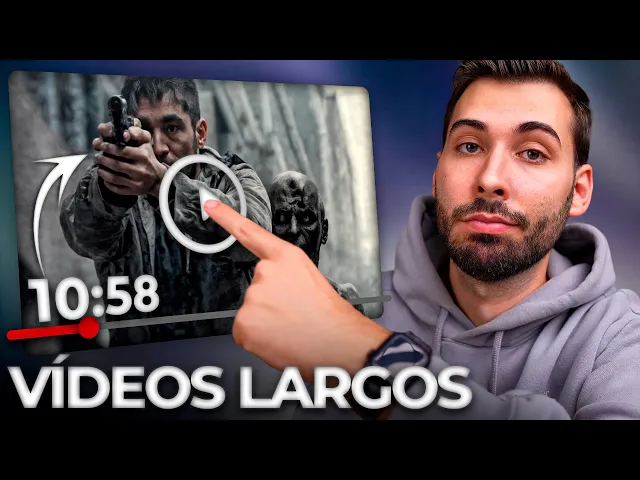
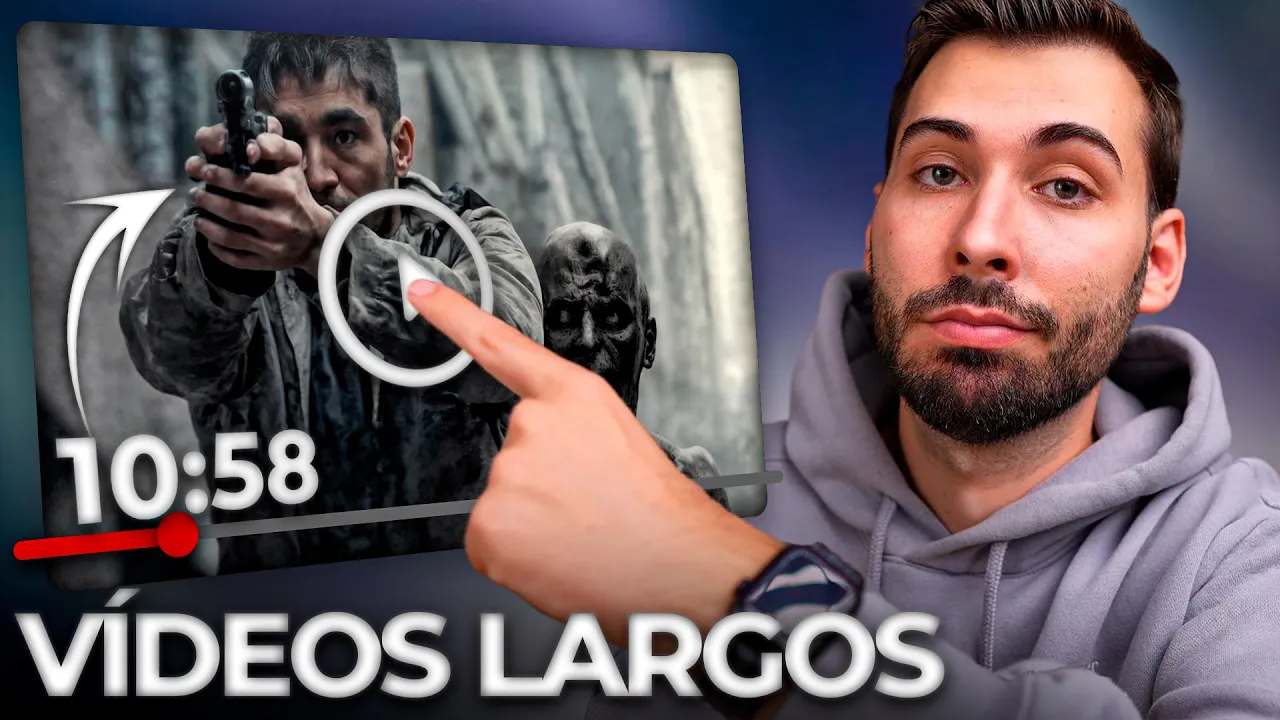
There are clocks that mark the time and others that mark decisions. Despite the improvements in the results of videos generated by artificial intelligence, I still saw a problem: their 5-second duration. But now we no longer have that limitation and we can generate videos like this one here.
The video you just saw was generated with a single prompt of these three methods we'll see. We'll start with the easiest method and go on to the most professional and automatic. We'll be doing this with these three artificial intelligences that will allow us to generate long, high-quality videos with audio, which we can also use completely free of charge.
Sounds good. So let's look at the first method. We'll start with the option that will give us the greatest control, since we can sequentially decide how we want the video to continue.
To view it, we have to jump to Grock, a platform that I'll leave in the description along with all the ones we'll see throughout this video. From here, if we click on Imagine, we'll be able to see a bunch of images that we can then convert to video format with audio. For example, if I saw this image here where a fox is reading a book, if where it says "Create a video" I specify what I would like this fox to do, like here when I tell it that it wakes up when it hears a noise behind the trees, if I click on this button to create, I'll find a result like this.
As we just saw, this video is approximately 6 seconds long. And to make it even longer, what we could do is click pause and, holding the cursor over the timeline, we would play it to the end. That way, we'll access the last frame of this video.
And from here, we simply right-click, copy frame, and now clicking in the prompt area, if we right-click and click paste, this image will automatically start loading, and seconds later, it will start generating the video at this speed as fast as you're seeing here. After about 20 seconds, we would find this result. But of course, this is quite random, since we haven't really specified anything in the beginning.
So from here, I'm going to create another example specifying that the fox notices the light, falls into the tree, and approaches it, wondering who it is. Click on generate, and we might end up with this result. Now with this other video, if we put it together, we'd have a 12-second video, but we can keep iterating to make it even longer.
In this sense, we would simply have to pause and repeat the process again, copying the last frame from here. From the main screen, we'll be able to paste it again, and a third video would begin to generate. While the last video is being generated, I've gone back to the previous one to show you how, in parentheses, I've set it to no background music.
And this is because Grock, although he does a good job, adds background music to convey more emotions. But of course, if we want to put all those videos together, different music will be playing, and the fact that they are independent clips will be noticeable. So a trick would be to specify that they don't play any music, and that way, everything will look much more natural.
I've actually generated this last result here, but so you can see it clearly, I've put the three clips together so you can see it here. Hey, it actually looks pretty natural. Now we're going to look at a second use case where we'll see how the characters can actually speak and we can make even more aggressive changes.
Before watching it, keep in mind that in the last block I'll also explain how you can put all these clicks together for free. But first, let's look at the next case. To do this, let's start with this image here of this girl where she's looking at a box that's releasing smoke.
I click on generate and we'll have this result. I didn't dislike it, so now I'm going to jump to the next scene, specifying that behind the smoke, an evil witch is approaching the girl. And now the girl sees the witch in a mirror in front of her and runs away asking for help.
Help, please. Someone help me. Hm.
And now I need to run away. Well, no, a man in his car turns around to save her. Ah, help, please, help.
Wait, no, better, the scene is a little older. I'll say that an older man on horseback saves her. Help, please, help.
Here, get in. I'll take you to a safe place. This ease of generating videos using artificial intelligence could even be applied to professional projects.
With this, we could actually close meetings with companies to which we could offer content creation in video format. Of course, managing meetings is not such an easy task. Therefore, I want to introduce you to Chatfel, an all-in-one platform for managing your client relationships in a simple way.
They recently launched a calendar that literally simplifies bookings, completely free of charge forever. With this feature, you'll not only have a calendar to view all your appointments, but artificial intelligence will automatically send reminders to your clients via WhatsApp. And this is free and hassle-free.
Look, it's very easy to do. Just select your language, the calendar feature, and now your number to test how these messages would reach your clients. Confirm the reservation, and that's it—my message arrived.
Now you can customize your name, number, and communications like an instant confirmation message and reminders the day before and two hours before the appointment. You can send everything from your Chatfuel number for free, but with their premium plans, you can also customize it with your own number. Plus, thanks to Chat Fuel sponsoring this video, they've given me a special coupon with the code Alejabi, which lets you purchase premium features for a month for free.
You'll find the link below in the description. And now let's move on to the next method. Let's continue with the second technique, where we can achieve this with just a prompt.
To do this, we need to understand the term "timeline prompting," a concept I discovered on Daniev's YouTube channel, but which I've renamed "chronological prompting. " To find out what it's all about, let's jump to Mindo, another platform I'll leave you below in the description. This is very interesting right now because they let us generate videos completely free of charge with the new Sora 2 model, a model that currently creates videos with a minimum duration of 15 seconds.
With the technique I'm going to show you now, we'll have total control over everything that happens during those 15 seconds. To watch it, first click here to start a session. When we register, if you're not too late to watch this video, they'll probably follow this promotion that they have Sora 2 completely free.
To use it, simply click on "Trade Now" and from there we'll find Sora 2 in beta, which they let us use at a cost of zero credits. So from here, as you can see, they sent me 17, but since this has a cost of zero, they won't deduct anything. From here we could now put any kind of background on a video, but to really make it optimal, let's look at the chronological background.
To do this, I have the background from the first example I'll be showing you, where I detail everything I want to appear in the video. On the one hand, I would have the style, which in this case I'm asking for an apocalyptic neorealist style, since I really want to make a video of someone escaping from zombies. Here, I also specify the camera movements, who I want to be in the character, and the context that should be there.
Up to this point, we could say that it's a fairly complete background, but the key is here, since we're really finding models that are increasingly generating longer videos, and it's key to have total control of everything that happens in this video. To do this, as you can see here, I've divided those 15 seconds into four scenes of 3 seconds each, with the first 3 seconds being the first scene, where the person would be on alert, looking in close-up to see what's happening. In the second, there would be fleeing.
In the third, he'd have a confrontation with those zombies. In a fourth, he'd calm down, reloading his weapon, and in the end, he ends up escaping in a shot where there were no zombies. With all this pron, we'd be giving all the details, but it has two drawbacks.
First, the difficulty of being able to do all this quickly, and second, I have to keep in mind that this platform has a maximum of 1,000 characters. So to simplify all this, I've prepared a Yemini gem for you so you can simply enter the video idea you want to create, and it will structure all this automatically. Look, if I write here, for example, to him asking him to make me a realistic-style action movie full of gunfire where a person tries to escape from a zombie apocalypse, if I click send, well, a little later he would have generated the pron I just carved for you.
But of course, keep in mind that this detailed pron, if I try to put it on the official Sora platform, does pick it up in its entirety, but in the tool they make available for free if we don't have access yet, well, we try to put it in, it actually gets cut off because it's too early to exceed this limit. However, all the results you find will have an optimal one for the official Sora 2 and a little lower. I set as a second task to summarize it even further so I could use it in that other one with the 1000-character limit.
So with this more simplified one that really would have that essence above, I would copy all of this, where we would have a breakdown of what happens in each of those 3 seconds, and pasting it here, we see that we don't reach the limit. And now we could select the aspect ratio we want. In this case, I'm going to select horizontal, and if I click on create, we could find a result like this.
And the truth is that the video is very good, not only because it conveys emotions and all the action, but also because every 3 seconds we have specifically specified what we want that character to do. And now to see the comparison with adding the long prompt in Sora 2, I have returned again to the gem, from where I have the prompt that was generated for us before, only here I go to [ __ ] the longer prompt and having pasted it in Sora 2, if I click on send, we could see this result here. A result that really is not bad at all, since both videos have really been made with the same model.
Regarding Sora 2, keep in mind that I already had a complete guide here and also about the gem that I mentioned before, you will also have it below in the description. Let's now look at the last method, which is the most automatic of all. And from the method we're going to see now, with a simple idea, we'll be able to develop a complete script for videos, for example, 10 minutes long, with all the materials we need, narrated voices, and, ultimately, a video ready to publish.
To make this possible, we'd have to jump to CapCat, another platform linked below the description. From that link, we wouldn't have to download the desktop version, but rather access its web version, since it has a ton of artificial intelligence tools that will allow us to create long videos. To do this, we have to click on the free artificial intelligence video creator .
And if we click on it, once we're there, we'll be able to create a project, automatically generating videos using artificial intelligence, which is what we'll be looking at now. But keep in mind that you could also brainstorm with artificial intelligence to see what content might be the best. You could also upload all the files you need to edit so it can take care of combining all these materials.
And finally, we could even use avatars to say whatever we want for free. We won't be covering this last point, since in this video I already explained in detail how we could use this tool to generate avatars for free and in a limited way. So now we're going to focus on this new video generator.
To do this, Let's click, and from here, we'll be able to select from a bunch of styles. As an example, I'm going to stick with this 3D cartoon style, and for the aspect ratio, I'm going to select 16. 9 to have it horizontal.
Now, here we could enter our idea for the artificial intelligence to generate the script for us, although we could also enter one manually. However, I want the AI to take care of everything, so I'm going to click on " Generate Script. " Here, I just gave you an idea: I want to create a video about the origin of artificial intelligence.
This video features a lonely man from Earth who meets an alien from another planet, and the man makes a pact with that alien. The alien can access that nature on Earth, while the man gains access to advanced artificial intelligence, which subsequently causes the Earth to evolve so much that it goes out of control. So, once we have an idea for the story we want to create, now we have to choose what kind of voice we want for our story.
Here, the truth is, we have many styles, from emotional, to a more academic television style, or even ASMR. I'm going to leave it blank so the artificial intelligence can really choose for me according to the type of story I'm creating. And now, another thing we can do is create videos from one minute to 10 minutes long by simply clicking here.
In this regard, I'm going to select 10 minutes of video and with this, I'm going to click on create. With that, the artificial intelligence would start to get to work. Starting with the creation of the script, and once I have it, I'll move on to creating voices using artificial intelligence and generating all the files automatically without having to do anything.
Once the script is generated, which usually takes around a minute, I would then move on to generating the next steps, which can take approximately 10 minutes. And nothing, approximately a minute later, in the end, they actually take less than what it says, we would have everything generated here. And as you can see, we have a ton of images generated by artificial intelligence, and we actually have a ton of content because, remember, we have a 10-minute video.
So now would be the time to start reviewing each of the images to see if we want to change any of them. Here, in fact, we can see that in each of the images we have consistent characters throughout the story, so it makes sense to me. However, one of the things I recommend is that if you see phrases that are longer than two lines, I recommend shortening them, since we're really going to have many seconds without any visual changes.
Here, in fact, above each line, it tells us roughly how many seconds it lasts so we can actually cut it. I recommend it be approximately 5 to 6 seconds long. So, if we wanted to shorten any of them, we could add an intro, and that way, a couple of videos would be generated, or we could also modify the text.
However, since these first three refer to a YouTube channel welcome, because we could upload this to YouTube and monetize it, I'm going to remove this, since I'm going to go straight to the creation of the story. So here, since I have 12 seconds, I'm going to try to divide it into slightly smaller pieces so that everything is much more dynamic. Here I've been dividing the first ones, but I really see that this is a character who would again be introducing the video.
So I just deleted it up to where the story itself begins, since I really still have a video of more than 10 minutes long, as I did here. So now, from here, I'm going to divide those clips that I have here a little more. And keep in mind that when you divide them, you'll have the same images repeated, but keep in mind that on some of the images you want to change, for example, this image here, you could click on this replace button.
And now we're going to find the prompt that was previously set to generate this image by artificial intelligence. So now we could make some small variations, or even if we leave it the same, clicking on generate will very quickly create four more images based on that profile we have here. So now I'm going to choose, for example, this one here, and if it fits, we would click on add to sequence.
Once we've done that, we could see that we would have the previous image here, and in the next one, this other one, which we could also specify that we want a beard so it doesn't change. And so we would do it successively with the following clips. For example, here I'm going to click on replace again.
I'm going to change the perspective view. For example, after viewing a drone, I click on generate again. About 15 seconds later, we would have four more results.
For example, it's adding me with this fourth one here, so I add it to the sequence. And so I could continue with each of these images to change everything, although it really maintains a lot of consistency, as you can see in each of these examples here. Here, in fact, the characters, regardless of the photograph we use, will always be the same, and we can really see that it follows the story we initially outlined to a certain extent.
I, however, am going to focus on the first scenes, but to further edit them, we would have to click on "Edit More. " And when we do this, a new project would start loading for editing. Seconds later, the Capcat video editor would open, which Capcat was really born as a video editor.
And as you can see, we have everything here perfectly edited and positioned, with all the images generated by artificial intelligence in a timeline. At the top, we would have the voice narrated by a person using artificial intelligence, but there is one thing about it: although this video is actually ready to be published, you should keep the following in mind. And if I click play, you'll see that all the images that appear are static.
It's true that they have a small animation that goes up from top to bottom, from side to side, or from bottom to top, but they're not really moving, something that we can improve with other artificial intelligence tools. Although we can export this, one of the things I recommend is that you actually select a voice that matches the one you like. Beyond changing it from the platform, you could go to platforms like Level Labs, create a higher-quality voice, and upload it here, since this is really a video editor.
But beyond that voice part, let's look at what the images are for having those long videos using artificial intelligence. And if we take any image, like this first and second one, which are two images we had in the previous tab that we wouldn't have lost, if you click on one of the images from this tab to simulate replacing it, you'll see a preview that you can enlarge. And once we have the image open, we could right-click, click on copy image.
And if we go, for example, to Grock and Imagi, we could paste the image here so that it automatically converts a static image to a video using artificial intelligence. Once we have our video generated, which by the way you can already see here that the character would be moving, what we could do now is click on this download button. And if we go back to our editor, instead of having this static image, we could open the download folder where we would have our video, drag it to the timeline where we have all these edits , and now we would simply adjust it to where we want the video to appear.
We also adjust the size to make it a little bigger. And now that we have it adjusted, we will be able to see this other video where the character would now be in motion, But with the added value of already having the subtitles, the voices generated by artificial intelligence, that we could even modify all of this, we could even add visual effects, transitions, filters, subtitles, music, text, and really anything else, because this is a video editor. The good thing here is that all the hard work of having to think about each of the prompts we would do in the previous methods, well here we will have the entire story automatically with all the images created and those that we want to give movement, we would simply have to go to the previous tab where we were, select replace to be able to preview any of these images, copy it and repeat the entire process in imaging so that we can actually convert those images to video format, having already done all the work and being able to upload a long video anywhere in record time.
And the best thing is that tools like Grock are working better and better and allow us to obtain good results the first time. And in fact, this result, which would be the first encounter between the human and the alien, without me having to specify anything, would have been like this. [Music] This helps us visualize any idea we have in mind.
And now it's easier than ever to start building our own story.