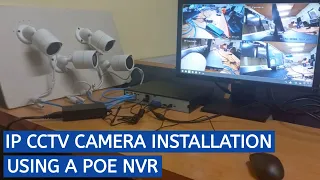
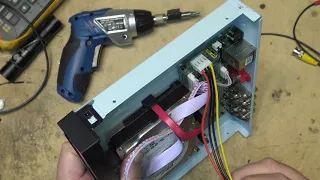
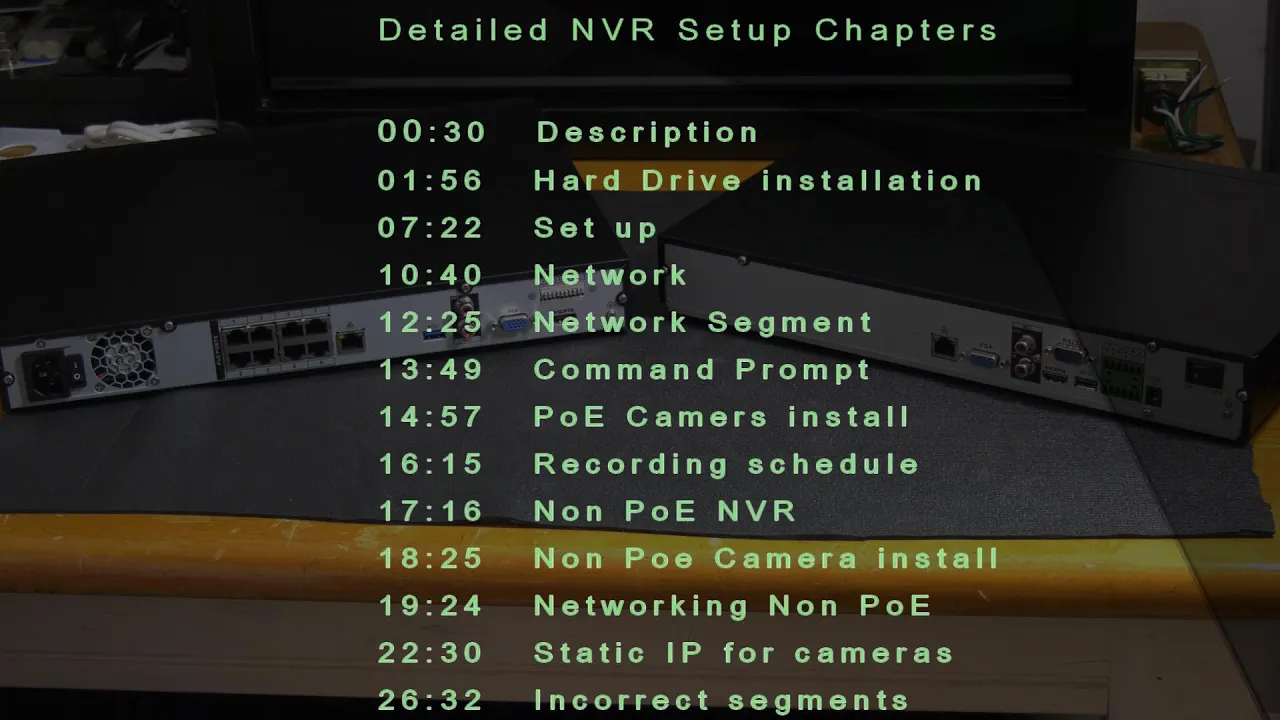
in this how-to video for nvrs we'll go over how to set up your nvr how to install a hard drive how to add a camera and how to configure the nvr for your network you can pause the video as we go along as needed you can also skip ahead or come back to different parts of the video by selecting the chapter in the video description below today we're going to take a look at these nvrs or network video recorders we're going to look at two different types today one's a poe which stands for power over ethernet which will allow you to plug your camera directly into the video recorder and supply power to the camera the other type is a non-poe which will require you to either supply a separate poe switch a injector or even a wall plug to power the camera we'll go over the differences and show you how to connect the camera to each one you can see that there's minor differences between the recorders besides where the rj45 plugs into the recorder you can see here where the alarm inputs and outputs are on the non-poe you have to supply your own 12 volt with the poe power supply internally it does have a connection for a 12 volt connector the main difference between the recorders is the poe as a plug and play unit where you can actually just plug the cameras in it'll initialize the cameras and you'll have a live feed versus the non-poe nvr you'll have to initialize each camera and set the cameras up individually we'll take a look at installing the hard drive into the poe nvr regardless which one you choose they're pretty much the same as far as installing the hard drive what we'll do is we'll start and we'll remove the back screws you can see there's four screws that hold the cover on i'll remove them and take the lid off after removing the screws i'll slide the cover towards me i'll take the cover off and carefully set it down so i don't scratch it up and we can take a look inside of the recorder you can see you have the power supply two cards one is the poe and one is the main board what we'll do now is install the hard drive with this recorder we have a space for two hard drives one here and one here depending on what model you have you could have anywhere from one up to eight hard drives when you install the hard drive you just have to make sure that you have the plug side face in the middle of the nvr so you're not sitting on its cables and if it goes on the other side we'd just turn it over and install it that way you can see the screws that came with these are regular hard drive screws and they're in the pack of the nvr box we'll install four screws to the bottom of the nvr use caution that your ribbon cables or any other cables are not going to be underneath the hard drive so you don't pinch them when you install them again you want to make sure the plugs are pointing towards the center we'll turn it over and you'll see that the screws line up to the mounting holes and we'll install our screws after your hard drive is installed we'll plug in the power cable and the sata hard drive cables you can see that this power cable is a dual so it splits and you can have one for each hard drive that's going to plug into the main board and it's directional with the clip on it so just plug it in don't force it now that the power cable is plugged into the main board we'll plug the power cable into the hard drive you'll see that it's an l-shaped cable so use caution when plugging them in and they can only go in one way and we'll take one of the sata cables we'll plug that in it doesn't matter if it's intel number one or two again these are directional and they will only go in one way and plug that into your hard drive as well what i like to do is i like to put the other sata cable in even though we're only going to use one hard drive and then i like to tape those down so that way when you go to add another hard drive you don't search for your cables then i'll just put a piece of tape on there to secure them so they don't rattle around now we can go ahead and put the cover back on line it up with the front and put your screws back in you can see now that i have the cover on we'll take a look at a couple different things with this recorder you have where your cameras are going to hook up to the poes and then this is your lan cable that's going to go back to your router if you put it on on your local area network you can see there's a usb cable you can either connect the mouse or a usb stick to get the recordings off you also have a vga or an hdmi on these recorders you can actually have two different monitors one hdmi and one vga you have an on and off switch you have the fan and you also have your alarm in and outs you do have a audio in for a microphone and an audio out for a set of speakers if you'd like to hook up now that i have the hard drive installed i'm going to hook up a monitor so you can see how to continue setting up the nvr i could connect it directly to the pc with a lan or into my network and after setting the correct segment on my pc ethernet card i could log in directly to the nvr with the default ip address of 192. 168. 1.
108 and continue setting up the nvr for demonstration purposes i will use the monitor so you can see so i'll plug the hdmi in and power up the unit once your recorder boots up you'll be asked to select a region of your area we'll select united states we're going to do english and it automatically goes to ntsc we'll press next you'll agree press next you'll select your time you can set your time you can select your date here we'll use an admin password click on the box and type in your password after your password is typed in you have to confirm the password you also can put your a password hint and if you'd like press next to continue this is an unlocked pattern this allows you to connect the dots to draw a pattern and it replaces the need to enter your password every time click the left mouse button and hold and then drag to the dots that you choose you will confirm this pattern a second time you can see i drew an s here for my unlock pattern and now i can do this instead of logging in with a password every time but if you forget what this is you can use your password as well the next screen is going to ask you if you'd like to put in your email address so if you need to reset your password you can for this demonstration i'm not going to set that you also can set your security questions if you'd like and this will allow you to reset your password with the reserved email and answering the security questions well uncheck the auto check for updates it's not very reliable and you can just uncheck that and press next here we'll just pretty much leave it the way it is you can change the log out time so after 10 minutes it does not log you out for me i'll set this zero for right now that way it never logs out and i don't have to log back in throughout this demonstration after i change the log out time i'll go ahead and press next this will let me set the time again it also lets me choose if i want the format for me i like to use the month day and year and you can see it changes us at the top to time format down here you can select the 12 hour time format or the 24 hour day you can also go in and set the daylight savings time here turn it on and change the dates and the time if you'd like it to automatically switch the ntp is a time server that allows the nvr to reach out to the ntp server and automatically adjust the time we'll press next and press next now we come to the network screen for the nvr and this is where i'll check my segment on my nvr and on my network so they both work together there are many different ways to set up your network for your surveillance system we're going to set up the most simplistic network so you can connect to your cameras from your cell phone app if you do connect your network to the internet it's highly recommended that you do it by a secure manner by either a vpn a virtual network or some other means that prevents unauthorized access to your network you can research us and configure your network accordingly we'll go ahead and show you how to configure your nic card in the nvr to the same segment as your network to get started with a pc that's connected to your network right click on the start button and click run in the run box type cmd and press enter this will open the command prompt when our command prompt opens we'll type in ipconfig slash all and press enter this will bring up our network information that we need if you're having trouble bringing up the command prompts go to the bottom toolbar and click on the network icon click the network and it'll bring up your network settings click on your network adapter and scroll down you will then see your ip address in the network settings it will be listed as the ipv4 address write this number down as we will use it when we set up our ip address for our nvr to determine the segment we look for the third octet or third set of numbers in this case it is at one if we go back to the nvr where we left off we look at the ip address of the network card for the nvr we can see that the third octet is also one that would mean our nvr and our pc are on the same segment and they would be able to communicate with each other over the network if the segment on your pc and the nvr do not match then click the modified button and go down to the ip address you can see that in this case the ones match if it doesn't change it to match what our network segment is you'll then have to drop down and change the default gateway you can see here that it's on 192. 168. 1.
1 which is the correct segment if it is not on the same segment you'll have to change the gateway that's why it's nice to bring up the command prompt and get the gateway information as was shown from the beginning of the network tutorial we also are going to change the last number which is the ip address of the nvr normally you can choose anywhere between 2 and 254 you can press the test button to see if it's available or already taken up by something else on your network you can think of the gateway as the bridge between your lan which is the local area network and the wan the wide area network or the internet here are some samples of some common ip addresses and gateways each one is going to be different depending on what router you use and who set up your network a common mistake people make is not setting up the correct segment to their network the segments have to all match or they will not communicate with each other on your network once we have successfully completed our network setup for our nvr we can click next it'll bring us to a p2p screen if enabled this will be the easiest way to add the nvr to your phone app dms us we can click next and go to the camera list screen with the poe nvr they're pretty much plug and play with your cameras so what i have is a camera an ip camera i'll plug it in with a ethernet cable and plug it into the back of the nvr it doesn't matter what port i plug it in the back of the poe as long as it's not into the land now that we have the camera plugged in we'll go ahead and search the device normally when the camera camera's plugged in and makes connection it'll pop up and populate itself in the camera list you can see that it went from the searched area down to being added to the recorder you can see it is in channel d1 because i have the camera's ethernet cable plugged in to the number one port if i plugged it into seven it would be in the d7 channel you can see it assigns its own ip address from the switch so there's no initialization with the camera these are plug and plays with the nvr poe system so i can press next this is where we'll schedule our recordings for each camera click the gear or the cog to the right which will bring up a page where you can select what type of recording you like to do depending on what smart features you plan to use with your camera will determine what you select for your scheduling the general will be for 24 hours recording motions can be for motion detection and intelligence is going to be for trip wire and intrusion alarms now that we have scheduled what we want recorded none of the smart features will be active except the general function until we go in and set them up in the nvr now you can select the days or all if you want all days to be recorded and press next this will bring you to a screen where you can select copy to which will allow you to copy the scheduled recording to all cameras and then press ok you can then press next and then ok to complete installing the hard drive and the initial setup to a non-poe nvr is identical to the one that had poe the differences are you have to supply power to the camera and that is either going to be with a separate poe switch you can use a power plug to the camera or you can use a power injector you have many more options when using a non-poe nvr as all your cameras don't have to come back and plug into the nvr this switch could be for example down in the basement and then we would only run one cable from the location of the poe switch back up to the router to be on the network you could have the nvr in a separate location and either run the nvr back to the router and have that all tied in on your network but the setups just a little bit more involved as you have to assign your ip addresses and initialize each camera as we install for this demonstration i'm going to use the poe switch and not use the wall plug i could use the wall plug and plug it into the camera and then plug the camera into a switch it could be the poe because this is a smart poe and it will only require power when called for or i could run the cable back to the router or a separate switch for this case i'm going to plug it just into the camera and power it up to the poe switch it takes several minutes before the power gets to the camera in the meantime we'll hook up the nvr to the switch so we have our own network now we'll take a look how we're going to initialize and set up the camera you can see the network interface to this nvr you can see that i'm on segment dot one with an ip address of 200. my gateway is dot one for this demonstration i'm going to leave dhcp off and you can see i already changed the static ip address to dot 200 click ok and then click apply you can right click to back out of the menu and then you can click camera or you can go to the top and press the camera icon we bring up the camera page you can see that the camera actually already showed up with a network of 192 168. 1.
108 this is the default for dawa cameras and nvrs we can't leave them the same because it'll make for a very confusing network configuration as it assigns the iep addresses even if you have a different segment assigned to your nvr when you initialize these cameras you'll be allowed to change the iep address at that time and for example you can see that the segment is 0. 1. 108 for an ip address i'm going to change this to show you what i mean i'm going to go back to my network and change my network card just to show you if i was on a different segment how these cameras will initialize to whatever i tell it to so let's say that i had a a gateway of dot 0.
1 and my ip address i'll assign dot zero for the segment and whatever i want to name this i'll do 150. i'll test it it's going to pass because there's nothing hooked up on this little network if you have it hooked to your router and you press test it will determine that if something is already assigned that ip address and you won't be able to use it so you can just change this to a different number and continue on press apply i'll go back to network and you can see that my nic card has changed segment 0 ip address 150 and i made the gateway to be able to communicate on the same segment now i'm going to go back to the camera and we'll add a camera as you can see it's on a different segment as you recall i just changed it to dot zero and this is dot one what i'll do is i'll check the camera i'll come up here to initialize it'll ask me if i wanna use the local password in the email as i set it up on my nvr to the cameras and i'll just say yes and press next at this time it's going to ask if we want to do dhcp or static again i like to sign all the cameras to a static ip address so i know that they are not changing as the router reboots or if you reboot your nvr so at this time i can change the segment i'll change it to zero and i'll change the ip address i like to put them in order so i know the nvr that i signed was one five zero and this will be my first camera so i'll assign it one five one the gateway also needs to be changed and again if we went back to the our network you can see that we want it to be the same as our network so we're able to communicate with the wan the wide area network i'll press next it'll initialize and it'll tell you that it's succeeded press ok it'll still have the old ip address in here so now you can press search device and there is our new ip address of the camera we'll click the camera and press add to our camera list it'll take several seconds and now has a new ip address and is now assigned to the nvr you just have to think and write down your numbers so you know what the ip address is of each camera now we'll introduce a new camera it's as simple as powering it up again you can either use a wall plug or an ethernet cable and a poe switch we'll power it up so after plugging in the camera you can see that there's nothing that shows up in the list we'll go ahead and search the device and there it is there's our new camera again the default is 192. 168.
1. 108 so we know that the way that we have this network video recorder in our network setup we have it on segment zero select the camera we'll initialize we'll use the same password and email again what we've got to do is change our segment to zero and this is the second camera so i like to name them 152.