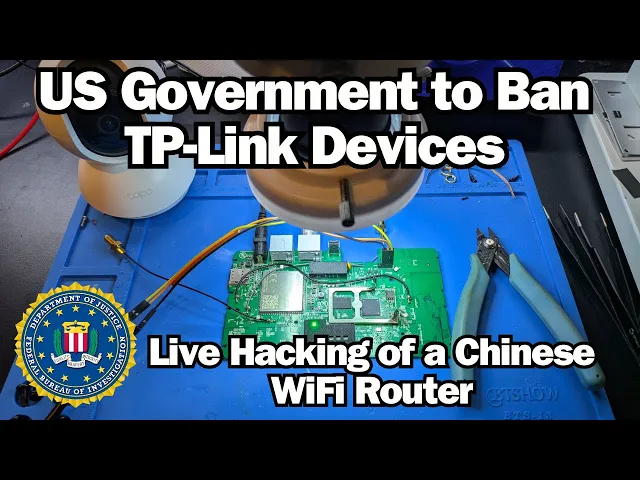
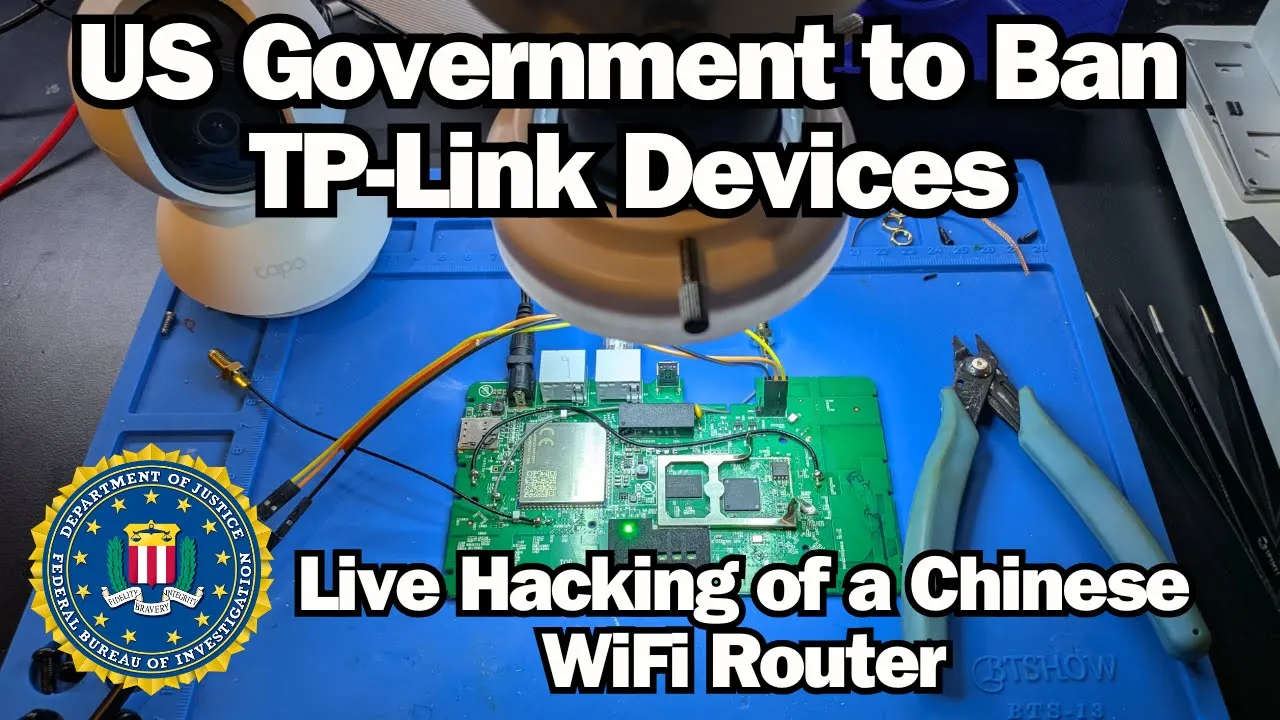
what's up everybody this is Matt Brown with another iot hacking video in our video today we are going to discuss a recent Announcement by the United States government and various departments within that they are considering a ban on the Chinese iot manufacturer TP Link why are they considering this well one of the reasons that's cited in this news article is the existence of security vulnerabilities in these devices is and that's what we talk about on this channel so uh why should you trust me if you if you're new to this channel why should you listen to me well my name is Matt Brown I am an iot penetration tester my day job is looking at these devices these routers cameras and finding vulnerabilities in them I have also competed on the world stage and won competitions uh this was one that I won uh with a good friend of mine we teamed up and we won a hacker one live hacking competition the only one that ever uh primarily featured Hardware devices so this is right up my alley to speak about and what are we going to do in this video well what we're going to do is we're going to take this router that is made by TP Link the parent company it's actually goes under a different name but we're going to take this device we're going to have it over on our workbench and show you how a hacker goes from physical access to one of these devices to be being able to hack other many of these devices out on the public internet so before we jump into that over on the workbench I want to discuss another hacking event that's centered around iot devices so let's go over here to our computer and I'm going to pull up this write up that we can find uh on GitHub the links will be in the description to this write up now we cannot be 100% sure that this write up was from the actual hacker behind the hacking team hack so uh to give you some backstory there is a company called hacking team and they provide spyware to governments and so someone did not like that right and this individual or you know allegedly the individual that wrote this write up on how they hacked this company decided to take matters into their own hands and to attempt to break into this company's networks and steal data um so in this write up we're not going to read the whole thing I definitely encourage you to because you get a lot of tidbits out of it but in the introduction he discusses he or she I'm just going to say he he discusses his political motivations for why he believes this is a valid Target and this is a moral Target we're not going to discuss that in this video we encourage you on this channel to only hack things that you physically own and so uh we're going to scroll past that and then he talks about how to like stay hidden as an attacker again that's out of the scope of our video today and then he discusses how he technically got into this network the technical means that he got into this network and he he he did his initial reconnaissance of this company's Network and he basically narrowed it down to three ways that he could get into uh this company and so uh here we see that there he needed either a zero day in jumla that's a popular you know blogging you know like content management system a Zer day in postfix uh mail Mail system probably pretty hardened or this hacker needed to look for a zero day exploit in an embedded device and so in this write up the hacker describes how that is the target they picked and they they acquired one of the devices that was on said Network they didn't have physical access obviously to the to the real device that is on his intended targets network but he got access to a similar one and took it apart reverse engineered it and in you know in a little bit found a zero day a remote remotely exploitable zero day in one of these iot iot devices and from there this individual used that access to uh you know exploiting the iot device that was on the edge of his targets Network to then pivot into the network and to perform the actual uh goals that he had of exfil of of accessing sensitive data inside their networks and exfiltrating it and of course he leaked that to the world and then he achieved his you know political goals right but we are not encouraging that on this channel but we are going to to discuss how hackers go from having an iot device to reverse engineering it to developing an exploit all in this video and to finding a real one of these devices on the internet that is exploitable we won't actually exploit it but uh we will show you that they do exist so let's go over to the workbench and let's talk about this so here we can see that I've already taken uh the guts out of this device and we have it sitting here on the desk and so there there are two things that a a uh security researcher is going to look for when they have a device like this in front of them uh there there are some others but we're going to talk about two today one is uart and the other is the flash storage on the device so we're actually going to take an even closer look at this device underneath our microscope and I'm going to show you how we're looking around this board and I I see something like this on the circuit board so this is labeled j3 J usually stands for jumper on one of these boards and uh I will say that these pins were not on my board soldered into here I added these but uh this clearly looked these four pins looked like a uart interface what is a uart interface well that's a good question so a art interface is a Serial interface to a a uh embedded system uh in this case it's going to be an embedded Linux system and it's going to give us that kind of console access to the command line of the system now it may be password protected but we will work our way around that when we get to it so the first thing we got to do though is we want to uh get our multimeter ready to figure out what these pins are so I've got my multimeter here and I'm going to put it into continuity mode then I'm going to grab my probes and then we're going to probe around here uh if you followed my my video series in the past uh we are going to go over some ground that we've already covered for the new folks in this video so I have uh have it ready to go and the first pin I want to find is ground and this is really because I want to eliminate that from contention okay so here we go we have this pin is our ground pin and now what we're going to do is we are going to turn the device on on I'm going to flip it on over here and then I'm going to flip to voltage mode on my multimeter and now what we're going to do is we're going to you know we can touch ground here or we can touch it over here in the shield and we can measure voltage okay so I'm getting basically Zer volts on that pin okay that pin is three volts and now what I'm going to do is now uh with my hand off screen I'm going to turn the device off and on again and now I'm going to connect my probes now we see oh you see that voltage fluctuation that is showing that this pin is not a steady 3. 3 volts but it's actually kind of varying between 3. 3 volts and uh zero and so what that means is that this is most likely our transmit pin which is going to make me guess that this one next door to it is the receive pin and so what I'm going to do now is I'm going to take a USB to Art cable here and I'm going going to connect it up to this interface so we already said this is ground now we said this pin all the way over here is our transmit pin and so I'm going to put the receive pin of my Ur cable into onto that pin oops that fell off we're just going to connect this one up first and then vice versa so I'm putting my transmit pin which is this orange wire onto the receive pin of the board so that way we have that that uh serial commun data Communications to and from the device okay I'm going to make sure that's powered off to start with and we are going to come over here and we're going to hop into our Art Shell and so the way we're going to do that was with a program called picocom you can use minicom but this is basically a terminal emulator that is going to allow allow us to interface through that USB to ur cord that we have plugged into our device and so we need two pieces of information to to pass to this program first is the bog rate uh 115200 is the most common bog rate and with uh when you're targeting iot Linux devices that's what you want to guess first and then if you get it wrong you can guess some of the most the other common B rates but we're going to start with that and uh spoiler alert it's going to be right and then we need this Dev TTY USB this is the device this is basically where that USB device gets mapped to on my Linux system uh your mileage may vary if you're using a different OS so now I'm going to go over here and I'm going to Simply power on the device and we will see that it it starts you know acting this is a Linux system that's booting up um and it'll even say you know hit enter to enter the console and it says okay so it's prompting me for a login right and it's still booting up the Linux system so I'm going to give it a minute to to to boot up but uh as you can see this system is password protected so there are sometimes some tricks where we can get into the bootloader uh via this Ur interface but that's not going to quite work work for us today and we want to demonstrate the other thing that hackers do when they're reverse engineering these devices to develop exploits and that's that you always want to get your hands on the firmware so that's what we're going to do now let's go back to the desk so uh now now what we're going to move on to uh is we're going to now be targeting uh so instead of this art interface I'm going to make sure this device is powered off and we are now going to Target this flash chip right here and let's zoom in on that with the microscope and so here we can see that we have our CPU we have our RAM and right here we have our storage our flash storage on this system you can see it was kind of underneath the shield which I have kind of uh torn torn off to the side so we can gain access to this chip now sometimes we can perform an in circuit Fromm our read where we attach like a clip or something like that to this chip and we can perform a firmware extraction that way I'm going to show you my preferred method and that is a chip off approach so what I have is I have a hot air rework uh I have a hot air gun and we're going to point that at our chip and that is going to melt the solder on all eight of those connectors and then we should be able to pull this chip off and there we go it is off that was pretty simple so going to bring this chip front and center here so here we go this little chip is what stores all the software on that embedded Linux device I'm going to turn off my multimeter we don't need that anymore all right so what we're going to do here uh normally I would clean this chip up a little bit but it looks good I can see in the microscope that there's no solder bridging in between any of the pins so that looks good to go and so what I'm going to do now is I'm going to prep it to go into this this uh um this reader for these flash chips this Flash reader and so uh let's get this in Focus so the way that this reader wants me to do this is see that little dot there on the chip that is a pin one indicator and we are going to Simply press down and press up and it wants the chip to be down at the bottom but pin one facing up and uh I'm a little bit of a perfectionist with this even though that is not necessary at all okay yeah I'm actually just making it worse all right there we go nice and locked in and connected and now uh let's go back to the desk because so then this little socket gets placed into our Universal programmer this is the ex geeku T56 Universal programmer and so we're going to drop that in again all the way at the bottom if we get it to line up there there we go we have the chip pin one facing up all the way down and then we're going to lock that in place and now we're going to go back over here so now let's go ahead and dump our firmware so this tool has a proprietary window uh program that you can use to dump the firmware it has a gooey everything and everything like that uh I can run that under Linux using wine but there is a really cool project called minir proo and they have recently implemented uh the reading of these kind of chips on this reader with open source software so very excited about that so what we're going to do is we're going to first run Mini Pro DL so we're going to like search for the the number on this chip so uh if you saw there under the microscope there was a little identifier that was written on the Chip And what that said is gd25 q64 e that's basically the model number of this chip now when we search for that in this in the database we actually see that there's a number of them that are like that and you can see that they're the same serial number and then at and then and then a different identifier this is the type of package uh it's the form factor it is the physical dimensions and layout of the Chip And so uh really any of these eight pin are going to be the same but my my chip today is this sop8 chip and so what we're going to do is we're going to run mini pro uh- p and then we're going to paste in that uh full string there and then we're going to say- R to read the firmware out and then we're just going to call it firmware bin and there we go it says it's reading our code and that is awesome so we're going to wait for that to finish awesome now what we're going to do is we're going to run binwalk - e to extract the firmware uh it also it also gave us this eom thing let's just get rid of that because that's all blank we don't need that let's run binw walk- e and it's going to perform the extraction and it's going to dump all of the extracted file systems and the things that it could find inside that firmware image in this folder called extractions so let's let's go in here and it can it found four different file systems so what we can do is we can just you know we we can start to look through the file systems on this device which is really cool now before I before I get too involved here I actually want to get this chip back on the board and get this device functioning again so what we're going to do is we're going to come here and we're going to get ready to check the UR interface because that'll be our proof of life that we have soldered the chip back on correctly so uh over here we're going to pull the microscope over we're going to find our spot on the board and now I'm going to take the chip out of the reader and we're just going to line this back up um because this is one of these eight pin chips I can actually get away let me get that back in Focus I can actually get away without with not putting down any fresh solder um I am going to throw down a just just a little bit of flux so this is going to help all the solder and stuff go where it should there we go that looks great and then I'm going to get this in basically the right spot cu the cool thing about all this solder with the flu is when it's all heated up it'll just go it'll just kind of naturally go where it needs to go all right so we're going to throw hot air at the chip here we go oh yeah you see it start to move a little bit there you go see it's kind of just floating into the correct place there we go awesome that looks great we're going to let that cool off just a little bit all right that looks awesome I'm just going to take a little bit of isopropyl alcohol and clean up okay that's that's starting to to boil off there a little too soon all right so there we go we got our chip back on the board uh let's let's go ahead let's go ahead and test this Ard interface I'm going to power it on and confirmed we've confirmed that we've soldered the chip back on uh and it's and it's good to go so now I can uh take these stupid gloves off uh I don't suggest soldering and then you know eating a bunch of food or drinking stuff uh when you're doing this work so uh again we're stuck at this login right uh we don't have the login but but we have the firmware right so uh so what we can do is we can just you know GP through here for maybe a password file right okay cool there's a couple of these files here okay that doesn't exist and I think that's because it's a Sim link let's try this password.
back maybe something interesting is there oh cool all right so here we can see we can see a password hash okay so we could we could bust out hashcat and we could crack this password or we could just Google it which uh turns out to be the best way to deal with this because somebody else has already cracked this password all right that's not going to work there we go we can go over here and we can search for it and we can see that somebody has already cracked this password and it's yeah so username admin password is one two 34 I'm not kidding that's how easy it is on this to to to to find the root password for this the the root the administrative password for this system so we go over here admin 1 2 3 4 okay awesome uh if you watch my channel I've actually already done this on this device so uh you can go back and watch those other videos for a lot more detail of how I got to this point but what I want to do now is talk about how to take this to the next level and find an exploit that I can find over the network on this device and then and then maybe find devices that have that same that same service on the public internet so the first step is going to be to connect this device up so what I have here is over on the desk is I have a an ethernet cord plugged into the Lan port on this device the WAN the wide area network port on this device is the 4G signal and I live in the Batcave down here and so I don't have cell signal down here and that's just not going to happen so what we're going to do is we're going to just look for any services that are on the land side and then we're going to try to find any of those same Services out on the public internet so what we need to do is uh let's go over here and just get a shell and I'm going to okay so this interface right here is a USB to ethernet card it's basically an extra network uh connection that I have on my computer here and what I'm going to do is I'm going to use this and I'm going to DHCP myself an IP address from the router on the landan interface so the first thing I'm going to do is I'm going to not lose my DNS because that it's probably going to like when I run DH client it's probably going to it's going to try to like stomp on my DNS server so I'm basically going to make it so I'm I'm going to set the immutable bit on that it's a little trick uh so so now this file even root can't go right to this file um so now what we're going to do is we're going to run DH client we're especi we're going to run a DHCP client on that interface and ask the router for an IP address looks like we've got one so let's run I have config on that interface again and it has given us the IP address of 192. 168. 1.
100 and we can run you know net stat and we can GP for 1821 168 and we can see that okay well that we we can assume we we can assume we know what the what the Gateway is I'm not going to I'm not going to dox myself right now but uh 192. 168. 1.