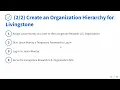
[Music] thanks for joining us again for our next exercise today we're going to be talking about organizations how do we create an organization hierarchy we'll be using a livingston rewards for the name of our parent level organization and we'll create two regional organizations under there livingston rewards fiji and livingston rewards us so for these sub organizations we're actually going to go ahead and create organization sites that correspond for the organization we'll make these organization sites both use a default sort of template for the pages on that site and we'll use a private internet site so
you'll see what that looks like shortly and the reason we're using private again private pages that helps us to show the concept of site membership very clearly because if we use public pages we won't be able to determine as easily if the user is a member of the site to test that we want to use private pages so we're going to go ahead and assign one of the users that we created in a previous exercise in fact the last exercise to one of these organizations we want to test that if i add a user to
the organization specifically the organization and not the organization site okay if i add a user to the organization they should have as a consequence an implicit membership inside of the organization site and everything that involves being able to access the private pages on that site so that's a concept we want to understand here you become a member of an organization you automatically become a member of the organization's site you can typically manage the site membership manually but with organization sites the default is that you cannot manually manage the site membership but automatically it's going to
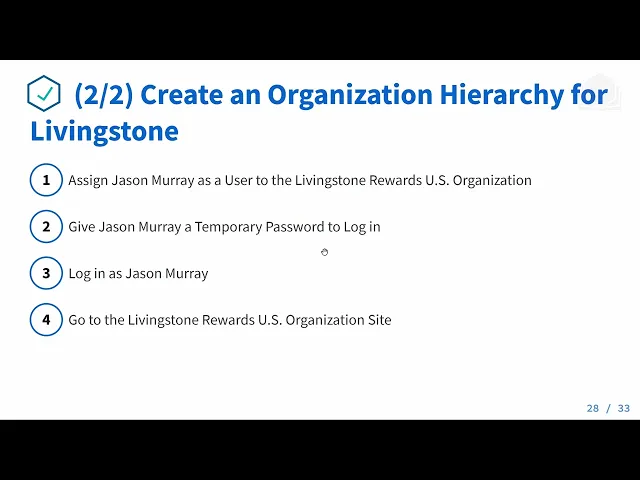
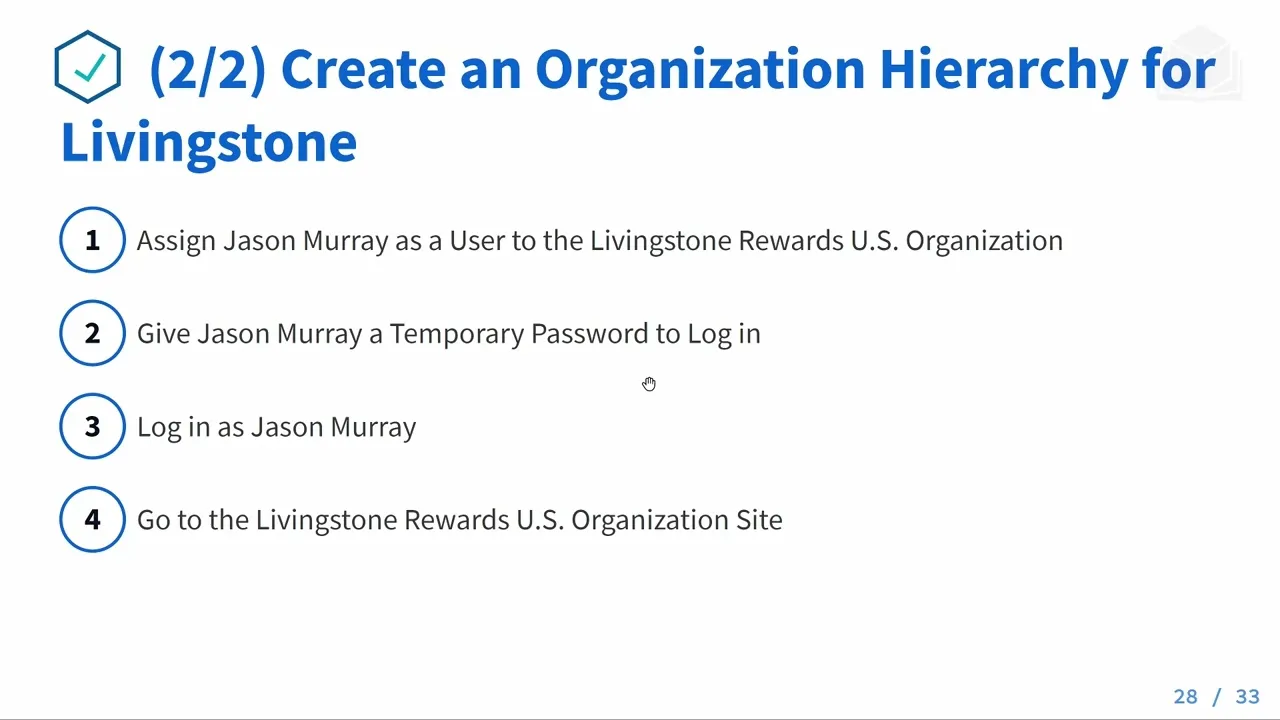
happen when you add or remove users from your organization that will be synced up with your organization site so hopefully that makes sense we'll get into that a little bit more the last step we'll do is just testing it out by logging in as one of these users that we've added to the organization site here are the steps we'll create the livingston rewards organization as well as two sub-organizations for united states and fiji we'll assign jason murray as a user to the us organization so that's really the only one we'll test here it doesn't matter
really if you're doing it us or fiji but we're just using us for now and whether or not you gave jason murray a password to log in on the last exercise you probably should have that would be test or whatever you set it to of course he's going to have to reset that password when he logs in and you'll use that password going forward whenever you log in as jason murray and you'll go to that site and see if you can access those private pages if you want to do a bonus exercise you can create
additional suborganizations for the regions of indonesia spain and japan you can test out adding those logos to these organizations and just like in the last exercise if you want you can play around with editing the contact information for the organization further ways to define and describe your organizations and add additional metadata or information step forward be to then go and add an organization site for each of these new regional areas that you created and then you could use our other user that we created last time hannah jones and go ahead and add her to one
of these organizations without further ado let's get started here we are and i'm going to log in as our super admin user okay so where do we start well we don't have any organizations as of yet i've actually already gone and created them but i'm going to delete them now and this is just more more for you to see here i've actually already gone and created this organization i'm going to attempt to delete it it's going to complain the setup that we have here has two sub-organizations so i'm going to go ahead and try to
delete these i think it's going to complain again no it's fine let's try let's go into us okay we're good there's no users inside of these right now so i'm good to delete them perfect i'll click on users and organizations again and if you're wondering where the organizations are well you just have to click on the tab here let's go ahead and finally remove our last parent organization so the idea is it's pretty safe it won't let you delete any organizations as long as there are sub organizations or members so let's go through this process
step by step first we'll create our top level organization which will host all of our child ones it won't have any country or tag and we'll press save it directs us to the edit organization rewards screen much like it did for the user which is perfect if we want to add in more information now we can and you'll also notice that we had no option of creating that organization site when we initially created the organization to do so we would need to first create the organization and then it gives us that ability do we have
the ability from here to add a child organization well no it doesn't look like we do we're going to have to navigate back to organizations and go to our action menu here and press add organization so this will create a child organization we'll give it the name livingston rewards fiji we'll specify the country as fiji okay and let's also add just a little tag here which we could use make use of by specifying the tag it will create it for us we'll press save [Music] let's navigate back to organizations and see what this has done
for us so where is fiji well the reason it doesn't show here is you actually need to navigate into the parent organization first and you'll see the users and organizations within livingston rewards let's go ahead and create our other child's site so i'll navigate back cool so i can also just navigate to the organization and press the add button that's another way to create a new organization so just cool to show you a couple different ways to do that livingston rewards us is our second country we need to make one for let's add a tag
i'm going to test out something here oh look now our fiji tag shows up so that's pretty cool but we're not going to use that right now we could use that fiji tag across our portal but for now we're going to create a new tag called united states there's probably even more ways to do this you can see here when we're creating this organization that says parent organization so let's try that as a final way this is kind of all extra that you get for watching the videos just to show that there's multiple ways to
do something let's go back and just delete this organization to try out our last option so i'm going to delete this i'm going to go back here i'm going to press add i'm at the top level here once again specify united states okay tag that was already created from last time and here we can specify a parent organization so that's the third way to do it let's navigate back to users and organizations and we have two child sites that are both tied to specific country so what's the next step let's go back to our slides
for a second okay the next thing we need to do is create organization sites because those do not get created by default so let's navigate back to the browser so if we actually want to edit it we're going to click on this action menu and click edit or add user it's another option right we're not going to add the user yet first we are going to create an organization site so let's go here and say simply create site and to test this out we are going to create a private pages because we want to test
this out and to test out site membership we need to use private pages we'll press save it's gone and created our organization site so the next step would be to do the same thing for our other suborganization now i've gone and actually navigated and i've got this new option here i want to show you now that we've gone and created an organization site in the action menu it gives us an additional drop down option which is managed site if we go over to rewards us we don't see that option is because it doesn't have a
site yet so let's go ahead and click edit and go ahead and create that organization site same thing we're going to use internet site with private pages and what these two options are are these are just default site templates what that means is that it just has some default pages for you based on the type of site you want and you don't have to use these you can create your own sites from scratch you can also create additional site templates that further suits your needs which you probably will want to do later down the road
these are just defaults that are shipped with liferay out of the box so again we're going to use private pages or it's taken us to the edit screen from here we can manage the site let's click on that just a second to see some of the options so now where we are is we are now managing a organization site we are no longer dealing with the organization itself just one thing to point out here organization sites are going to have this flag turned off by default allow manual membership management we talked about this a little
bit why is this turned off well it's because for organization sites the membership should be reflected based on the organization membership so that's going to be an automatic process we don't need to go in and manage the site membership manually because that could create issues right let's say we had 40 people in our marketing organization and if we go and then add someone to the organization site but they're not part of the organization that doesn't really make sense that would be out of sync nevertheless you do have the option to turn this on if you
want usually this is on for other sites but for organization sites it's not okay lots of explanation here let's go through the last step to add a member to the organization key thing here to remember is we are not adding them to the organization site so we'll go over here and we'll press click assign users we're not going to click add user this is actually going to create a new user which you could do but we have existing users that we want to use we can assign multiple users but we're only going to select james
and press done that's it we've finished so let's see here how do we navigate to this site let's go find a page on the site livingston rewards us well it's he's the one he's been added to livingston rewards us so let's go to site okay so here's our url that we can use group which site are we in we're in the livingston rewards us site this friendly url is automatically generated based on the name of the site but we can also change that if we want i'm going to copy this and test this out by
logging in as james murray now you don't have to memorize the friendly world i'll show you another way to get to the site so we're still in a default site but i've used the friendly url to navigate to this organization site and how did that happen well it's because josiah copeland is a member of the organization and consequently he should have access to the organization's site here's another way to navigate you can go to my sites and it's going to show you all of the sites you've recently navigated to and the ones that you're a
member of now you might be sort of confused if you go to the control panel okay so if i go to the sites and i look at livingston rewards us which it has this helpful word in parentheses organization to show you that that is an organization site so if i go to here and i look over here it actually says that there are zero members but it has this tool tip that says inherited memberships are not included in members count so i think the idea here is that okay are there members here well it's implicit
that's why the count is not updated but that could be confusing and it caught me up once when i was trying to troubleshoot this and i thought oh well i've added him to the organization so why isn't he a member of the site well the idea is it's an implicit or inherited membership that's why it does not update the count all right so hopefully you learned a lot there let's go ahead and move on to the next exercise