hey everyone welcome back to another episode in my mining tutorial series there was a pretty long delay between the last episode and this one and basically this is because i found that there were some inconsistencies in harmanim treats today's topic which is updater functions and so i wanted to have these sort of fixed before i actually produce an episode about it with the latest release of monum which is as of today v0. 15. 1 the general status is still messy but i feel less bad about it note that while the general content of this episode does apply also to older versions of monument or at least the vast majority of the content of this episode applies i still do recommend upgrading whenever possible as usual please find the links to all of the code and resources i'll mention throughout this episode down in the video description and in particular you can also run the examples i'm presenting here right in your browser by following the link to the interactive online money environment all right so with that let's jump right in and see whether we can demystify updaters a little bit first of all we should talk about what even is an updater function answer that is not as difficult actually it's a special function that is called right before manum captures a new frame so imagine in the end what monem does to produce a video is it constructs some sort of timeline and elevates the scene uh your position of the objects and all the stuff that happens in uh and evaluates them on in certain time steps um at these special points it constructs one of these frames and then camera captures it and renders it and that's that's basically a still image before that happens in each of these time steps which basically depend on your on your frame rate um if what happens these updater functions are called and the scene is updated according they can come in different flavors basically on the one hand they can be attached from objects which is what we call object updaters then or the scene itself although that's a lot less common actually which is what we refer to as scene updaters they can also depend on the time passed since the last rendered frame so basically one over the frame rate which is what we what we call independent update as you will see these play a sort of special role oman constructs the scene next question why are updater functions useful well you can make some objects depend on another mob positioning on their state in general and that's what makes them very very useful i'll give you one example imagine this here we construct the scene where we have some sort of blue dot um we add labor for this but it's stored uh and we move this label next to the dot what happens now is if we move the dot the weight and the text would not move with it because it's not attached to the however using update the function we can construct this sort of edge this happens in these lines over here we can add an updater function this is the syntax so you take them object add an update to it so here i use an inline function an object which is a function it's an object there's an input argument and we want function to place them object next to the blue dot that's what this all does the thing you need to know about updaters is we'll talk a little bit more about their context later but basically when you add an updater like this this means that the object it is being added to is input into the updater function every frame this means dot label gets input into this function here right before the frame which means that the label is moved next to the blue dot wherever the blue dot is located right and then the rest of the interesting scene we just add the object's scene play some animations moving around and we will actually see in the rendered output dot moves around and the labor moves with us we positioned it using the updater right of dot and forced it to stay above its position is being updated so let's briefly talk a little bit more about different types of updaters basically there's one thing i should make very clear here the following characterization of updaters is valid or up to the current release which is monum v 015 there is one thing about this that developers don't quite like and that we are likely to change in the future at some point keep an eye out for the video description in case something severely changes compared to what i'm about to say i will leave it here okay so on the one hand we have already heard object updaters which is when you take an object and call object dot add updater pass your function there done perfect this can take one or two positional arguments and an arbitrary number of keyword arguments in case there's just one positional argument this is the object so this is the the object that is being itself is being passed to the function if there's a second argument this is this is the part that developers don't like right now if there's a second positional arg and if this second position argument is named dt then the updater is considered so-called time-based updater and the time difference since the last update will be passed it which is again basically one over the frame rate if you're 60 frames per second and this will be one overs the second type of updater is scene updaters you add those to the scene by calling well self dot add updater you pass a function that has exactly one positional argument which is the time difference scene updates are always time dependent and you can pass arbitrary an arbitrary number of keyword arguments to them all right now let's go and construct an example where we use all three different types of updaters to kind of see where the differences are all right so here's my idea for the scene that contains all different kinds of updates in my scene there should be a dot and an arrow and the arrow should be placed left of the dots so the points towards the dot then we will attach an updater to the dot which makes the dot move around and simultaneously there will be a scene updater which sort of makes the objects smaller or larger depending on how far they are away from the orange that's the that's the basic idea i've prepared my file already it's empty apart from the monument imported in the beginning i'll add a new a new scene is called all updater types plus all updater types scene devconstruct i'll add a red dot and the arrow left to it as i've said so there's a red dot which is a dot that is red amazing we shift it left and we will also add a pointer which is an arrow pointing into the right direction and then we place it left of the dot so which means i want an arrow points from origin ah to right and then we place it next to the red dot and left of it okay now the arrow points to the dot all right let's add an updater with a pointer so that it stays left of the dot so we add an object updater pointer dot add data what do we want i'll just specify it here in the comments so that we know later we want to place the arrow this arrow left of dot and here i'll write an inline function again so lambda object the object should be placed next to the red dot namely left of it all right that's enough that's the inline function that makes sure that the arrow stays left of the dot next and i'll i'll write just for for changing things up a bit i'll switch to a proper defined function so let's let's define a function called shifter which will take care of shifting the dot slowly throughout the time so this this should be now a time dependent update which means i have to give it two positional arguments the second being called dt so we have them object which is passed and then the time difference dt what do we want we want this function should make the dot move two units or units actually uh right per second how does the function have to look like well we just we shift them object uh and now if i imagine the time difference being one then i want to have it shifted by two units which means that i shift it by two times dt times right you can always imagine dt being one so that you see the effects of like one seconds of this updater being applied all right that's the updater and now we add this to the red dot so red dot at updater to shift the function all right so now we've both seen an inline way of adding the updater and the normally defined function which is being added as an updater now let's uh as the third updater that i want to add now let's add a scene updater which kind of makes the objects smaller the further their way they are away from the origin how do i do that well one idea that i could do is i define a function scene scaler i pass the time difference remember scene updaters are always time dependent so they always need this this sort of argument scale objects depending on distance to origin um and now what i will do is i'll loop through all of them objects that are contained in the scene which is which i can do by running a loop or object in self.
objects so all them objects of the scene are stored in the self. objects list is basically the list where objects are added when you when you call self. add or when an animation adds something to the scene and then i'll set the width of them object to some fixed value so object dot set with should be and i want something that gets smaller as the further the object is away from the origin which means that i kind of want to have like some some one over the distance and to avoid getting any problems with with objects that are exactly on the origin i'll do one over one plus the distance which means that it can never be zero in the denominator so let's go with one over one plus the distance of an object to the origin can be computed using the norm of a so-called of the of the center vector i just use numpy and compute that it's basically like the the with algorithm theorem uh it can be used to compute this lin arc.
norm of the object. getcenter so now this is one over one plus the distance of the object's center uh to the origin uh all right you know what actually let's make them objects a little bit larger let's uh multiplied by a factor of two so we can actually see some expanding and maybe getting smaller otherwise i'm worried that we wouldn't see it too well okay we add the updater scene scaler so you see uh the first two times i added the object to uh i added on the update object and this uh the third time we add the update to the scene itself all right and with that let's add all of the objects and then see what happens self. add the red dot and the pointer and one thing that we should also do is we should initially update the scene once because right now the the objects are not scaled correctly which means that there will likely be a sort of weird first frame of the animation because well actually what would happen what would happen if if we if we just started the the animation for the first frame first the object updaters are applied which means the arrow is moved next to the dot which is fine sorry air and then in the second step the scaling would happen what would happen is the scaling would destroy the positioning of the object which would require the object update updates run again or alternatively we just scale them initially once and then the object updater does the right thing when it's first run so that's what i'll settle for i'll update self which is the command for the scene to run all of its updaters uh and pass the time difference that that happened so far which is zero and then we just wait so this time we can create our animation by just waiting uh all right looks good to me let's go and render it one word of advice whenever you're whenever you're working with updater functions um you should render your scenes with disabled caching with the disabled caching flag because monum is bad at detecting changes that are made only within your updater function you can't properly see those in a certain sense so what might happen is if you change something you update the function you run the the program again it doesn't recognize that something has changed and just uses the animation that has already been rendered instead of working again and properly displaying your changes so we'll use uh disable caching hashing there we go okay rendering and there's our animation as you can see the dot and the arrow are scaled somewhat and the closer the dots to the origin gets the larger it gets and then as soon as it's past the origin it gets scaled downwards again same for the arrow the error first gets longer and then as soon as it's passed the origin with its with its center gets smaller again the further the objects are away from the from the origin the smaller they become plate there you go dot moves the arrow moves with it and the updater function makes sure that everything is well scaled when working with updater functions there are a few things that you should take care of and here is one particularly common pitfall that we see over and over in questions that people ask namely when you loop over some some list of objects and want to attach an update to each and every one of them then you have to take care you have to be aware of how scoping works in python if you do something like this where you where you loop over the length of some list and you want to assign every object in the list and update updater function and you have some code that involves the index that you're that you're looping over here then you need to add the the index as an keyword argument to your updater function if you don't then at the end after loop is evaluated the i will have the same value the last one namely passing it like this will make sure that the correct value of i is used this is one thing that you have to well be aware of let's say it's it's actually quite tricky to track this one down if you're not aware of what you're looking for so whenever you you loop and add up updaters in a loop make sure to add the loop variable as a keyword argument there's one cool thing about updaters which is they often keep running through animations you have finer control about these with the suspend updating and resume updating and then actually show you an example for this particular concept in a in a minute i'll just let me mention the first thing namely whenever you suspend an object from updating so disable the updaters for a little while the updaters are resumed automatically as soon as an animation has been played and another thing to be aware of without time based updaters namely if you if you just add the normal object based ones without a second dt argument if you don't have any time-based updaters and no scene updaters in your in your scene then the wait function will produce a static frame so if you do something manually with updating incrementing some some some variable based on the frame rate in your update which you shouldn't do just use the dt argument to to do anything with the frame rate updated in case you do that still and you want the weight function to do to work properly and keep updating throughout then you can pass frozen frame equals false to the self.
weight that you usually call if you do that manum will ignore the fact that there are no updaters and still compute every single frame that happens during the weight animation otherwise it just freezes the frame and well duplicates that one because there's nothing happening anyways from anime's point of view let's look at the example that combines updating and animations and look at how we can suspend an object i'll call the new scene that we create updater and animation scene i'll first create a red dot and then i'll make a square that keeps rotating so let's have a red dot we again shift it left we will add the rotating square and we'll make this square rotate by actually adding an updater it makes it rotate the rotating square at updater we use the inlet function notation again so lambda object and dt object. rotate by some angle let's say pi times dt which means that in one second it does a 180 degree rotation let's again use the the shifter function from above could copy it but just write it again shifter function object dt which makes them object shift by two dt times right so in one second two units to the right and we add it to the red dot again at updater shifter let's add both those to the scene wait for one second and then we will suspend the updating of the red dot so we will set and let's wait for a second which means the square has done half a rotation and the dot has moved two units to the right and then we red dot dot suspend updating just without any arguments and then we wait for another second so that we can see what happens actually so dot wait again and then let's play an animation that involves both the dot and the square so let's have the red dot animate shift up and at the same time the square will also move it somewhere rotating square animate move two let's move the square to coordinates minus two minus two zero because originally it's in the origin so let's move it to uh down left minus two minus two zero so that we can see something happening and then we wait once more there we go alright so initial observation the dot is shifted left the square is added to the scene the square should rotate and the dot should move right for one second right happens square is still rotating the dot arrived its position the updating of the dot has been suspended next thing that should happen is the dot should move up and the square should move to the bottom left right and you see we did not explicitly resume the updating of the dot it still did that so let's look at it again dot moves stops moving and after the animation of the dot has played the dot continues to move again so the updating resumed automatically the square at the same time continues to rotate during the animation anime is able to combine like a simple method animation um and the the updater function together that's possible in many in many situations it doesn't work for all animations but for the usual ones let's say it should work pretty well actually in principle i could cut it right here i don't think there's that much more to say about updater functions actually but in fact there is one concept that's kind of related to them that i that i couldn't miss out on explaining in this particular scope that we are in right now meet value trackers whenever you are in the situation that you have like one particular number one parameter that you would like to change and then have a smooth animation of changing then value trackers are the way to go basically those are invisible objects that store a number and as such you can also use milenim's animation mechanism to well animate how they change i'll give you an example on the slide here and then we'll get back to the editor and discuss a more complicated example together again so this example here we construct the number line uh ranging from minus five to five and then we add a value tracker with initial value of zero what i want to do is i want to have an arrow located over some particular position of the number line and i just want to want to change the this one coordinate so to say to to move the arrow around so in first step this could be zero then i may want to have the them move the arrow to like four then back to minus two and so on and so forth and that's what what where the value check was really shine because the uh you can you can animate the the change from from the initial value of the value track or the current value of the value tracker to some other value you can animate that smoothly which is great i'll construct the corresponding pointer which is just a vector which points down and then we stick this pointer to the tracked position instead of just putting the the arrow like above position zero and then updating it so weirdly i'll write an updater that uses the value of the current value trick so this zero that's currently stored in the position variable somehow and i'll do that like this we construct this inline function here which tells the object to be placed next to our number line and above of the point on the number line that corresponds to the number currently stored in the position value tracker so this here gets the current value of the value tracker it puts it into the line dot number to point method which basically gives you back the point which this corresponds to on the number line and then we place it next to this and above to this so that vector gets placed above the buff of the point we run the update of once just to make sure that everything is is set in place and you can do that whenever you please actually whenever you need to run your your updaters manually you can just call mobject. update and then the update all the updaters that are attached to the object are executed and then we can animate the change of the value trigger basically by well treating it as any other object we use the animate syntax and we can call position.
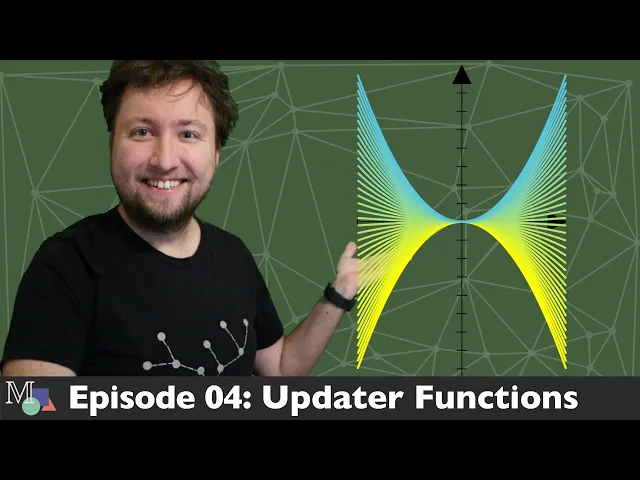
animate. setvalue which is the method that allows changing the value of the value tracker uh to four and then in next step we set it to two and the video that results well you can see it right here as the value of the value tracker gets set to four the arrow moves right and as it gets set to two it moves all the way uh to the left minus two and that's it that's the basic use of value trackers you can treat them like any other objects and you can animate them like any other objects which is particularly useful let's discuss one somewhat more involved example using value trackers in different capacities and then i'll actually conclude this video okay here we go the thing that i'd like to do is the following i'd like to plot a parabola y equals ax squared and a should be a parameter that we can control using a value tracker so whenever we change the value of the value tracker the function plot should also change let's get started so i'll create a new class we'll create the value tracker initially with value one so a equals a value tracker with initial value one i'll create some x's with the x range from minus two two in steps of one and the y range ranging from minus eight point five to 8. 5 also in steps of one i'll also specify an x length and y length because i want to kind of keep the aspect ratio of my plot in some region that i prefer all right now with some x is present we can also plot the initial version of the parabola parabola is plot lambda x it doesn't really matter what i put here because in the next step i will need to change that anyways i will need to make some sort of plot that depends on the value vector i won't do that for the initial version but you could obviously you could also put the value trigger here it doesn't matter because this what you put what you input here isn't be used later on ah and make it red all right now to this to this plotted curve to this parametric curve we will add the value trigger so parabola add updater we will add an updater that respects the value and the way that you can usually do this is with the become method uh you can change one object into another one basically so most properties from the other object that adden are taken over to the original one so we can pass a function lambda object doesn't need to be time dependent just say object.
com access. plot and here we specify now again is an inline function the function that we want to plot this time with the value tracker present but this time we need to say lambda a dot get value or parameter times x squared and again the color should be red all right we have the inline function done ah i forgot the x and the lambda function now it works and now what i'll also do is i kind of want to show the value the current value of the of the uh updater somewhere monument has a few tricks for that actually one of them that allows you to to show like a rapidly changing number is the so-called decimal number object i'll show you how it works a number equals decimal number we pass the current value of the parameter so a dot get value the color can be read [Music] number of decimal places let's set to three and then we also show the ellipses show ellipsis equals true all right and now we'll also add an update to this decimal number so the decimal number should also get an updater which changes the value of the decimal number and will also make it so that it is positioned next to the parabola so object object dot set value value tracker a dot get value so now this the value of the object the value of the the number of the object that actually is shown on screen the value of that is set to the value of the value tracker which is exactly what we want and we place it next to our parabola let's put it right right beside it all right let's add everything animate some stuff and show and and look at the rendered animation so we add the x's the parabola and the decimal number we just constructed a number and then let's play a animate set value to 2 self. play a animate set value to minus two and then let's set it back to one uh self.