the best way to learn is simply by doing I'm going to jump right in and show you how to create build run and Daddy to c-sharp application after this I will explain much more about what's going on but in order to understand something it's much more important to see it in action firstly so you can see how it behaves what it does and how it was created then we will go back and dissect how things work in order to create our first c-sharp project open up visual studio you should have installed this from the previous
lesson the first thing we're going to do is click continue without code so you can see the environment itself so this window here is the Visual Studio IDE the integrated development environment it's rarely called that these days but that's what an IDE means it's simply an environment where you can write code and the tool the ID itself assists you in writing that code whether it helps create the applications debug the applications or deploy the applications it's an assistive tool now before we create a project go to tools options and in the tool bar up here
simply type project location you'll see it expands projects and solutions and then locations and we're going to change the default project location this is the folder on your machine where Visual Studio will create the projects when we go to create our new project now because this isn't a very well known folder it's difficult to find so instead of we click the three dots over here I'm going to place this on my desktop and select folder click OK and now it's time to create our first project if you go to file new project you will be
presented with this window if I just quickly close this down and reopen Visual Studio and an hour to click create new project on this home screen you would see we end up in the exact same place don't worry about all these projects and all this text and all the options for now what should be at the top is a console app net core if not you can click the search box and type at console 4 and it will filter this list and you can select the console app dotnet core and if you see here there's
a small C sharp green icon as opposed a V B or an F sharp so we want the C sharp on you can also see it's got the C sharp tag here so simply click the console app net core then next this is the name of the project so for this one we will call it hello world you can see it's going to place it on our desktop now and leave the other options as default for now click create down the bottom and this will create our c-sharp console application ready to start running some code
once done Visual Studio will open up the program dot CS file that it's just created and you can see in the sidebar here a solution a project it's dependencies and then the only file we have called program dot CS don't worry about all this for now simply focus on this one class as mentioned this class this file has been placed on our desktop if we were to right click on the project where it says hello world and select open folder in File Explorer you will see it takes us to the desktop in hello world and
we have a bunch of files again don't worry about these files for now in order to run at this program this console application that's been created for us there are several options firstly you can press f5 on the keyboard secondly you can click this green play arrow here thirdly you can go to debug and start debugging which you can see as the shortcut at five I like to use keyboard shortcuts and it's a good thing to get used to when programming its allows you to keep your fingers on the keyboard less mouse activity and you
will work faster if you get used to keyboard shortcuts so to run this application to start it we press f5 before doing that if you see down the bottom here we have output errors if yours is not already showing you can click down here to expand and then click the little pin icon to lock it into position now when I press f5 to run the application you will see some text appear here which is showing the stages of building the application and then it pops up a command window where we can see our program running
as you can see it's written hello world on the command line and then this is simply exited so this code here is not necessarily our application this is Windows telling us that our application on the desktop exited with code zero which 0 means successful and then this little part here has been added by visual studio to prevent the window automatically closing all these things will be explained in future lessons so don't worry too much about that the key piece of information is to realize that this part here before the C Drive output this here is
our application this is the c-sharp program that we have created here running and outputting some text if we press any key to close the window it will close and take us back to the development environment so what happened when we pressed f5 now without going into too much detail at the very beginning all you have to be concerned about is that when we press there v our program got built and created for us it got placed in the bin folder debug inside this folder and this file is our actual program here so this hollow world
Exe if we were to click in the address bar here and type CMD and press Enter we are now in a command line window in this folder we can type HelloWorld dot exe and press Enter and we've now just run our built c-sharp program directly without using visual studio so in theory we could copy all these files give them to another user on another machine and they can simply run this how I will to execute our program so you can see here how a world when we press f5 a similar thing happens visual studio first
creates that program then it runs that program on the command line and at the same time it attaches a debugger which is something we will talk about shortly and allows us to investigate our program while it is running to see what's going on when we run a program in the command line windows will look for what is called an entry point to the application this means a function inside the application called main that is static it's the single place where an application will start so if our application has multiple functions when we run our application
windows knows which one to choose because it's always looking for a single function called main if we run this again you will see that it still works however if we were to rename our second function to main and also make it static you will see that we get this build error if we click no to run you can see that we get an error down here that says the program has one or more entry points defined so we can see when we run our code with f5 or from the command line windows will look for
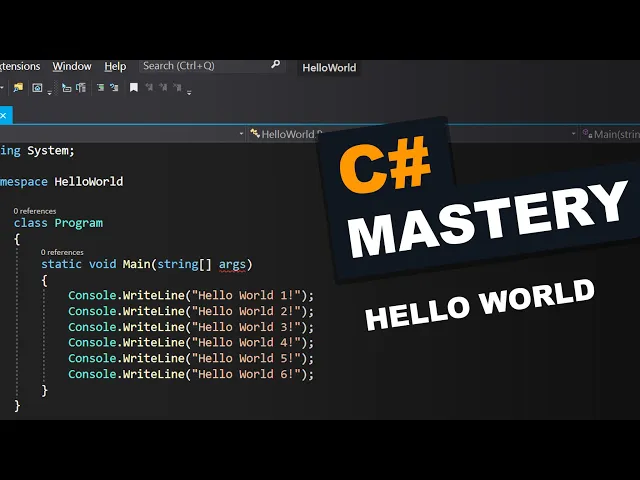
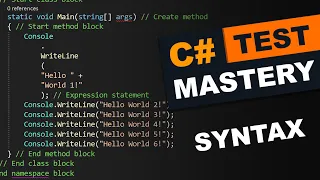
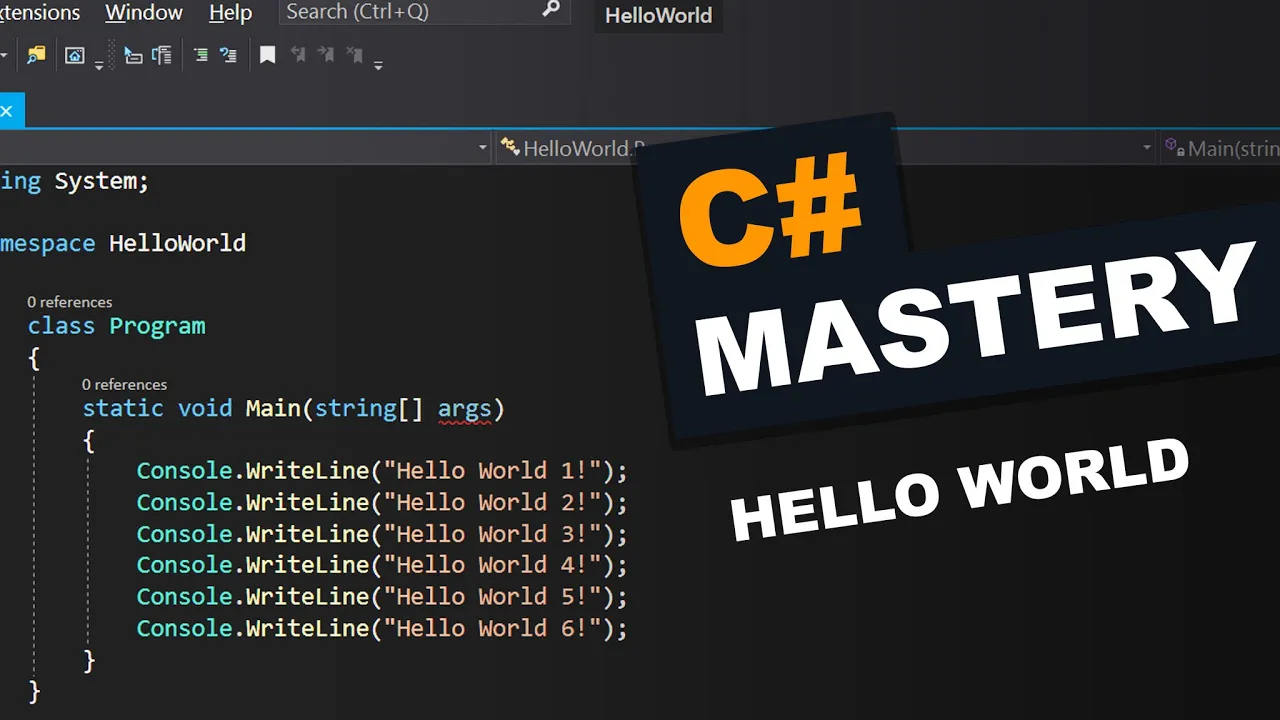
the static main function and our code inside these curly brackets will run execution of a program in terms of the computer running our program will first find the main function then it will execute the code sequentially so line by line inside these curly brackets until it's finished once it reaches this end curly bracket your application is done and has been closed if we want to see that in action we can insert a few more lines so if you click on the line with console dot read line press ctrl + C for copy and then ctrl
+ V for paste this will duplicate the line be careful not to have any text selected on the line if you do so ctrl + C will copy just that portion of the line and then ctrl + V will simply paste that portion of the line so make sure you only have the cursor on the line press ctrl-c and ctrl-v then you can just continue to press ctrl v to create multiple lines if we go inside here now and add numbers to our lines then press f5 again this will compile our application run the application
again and now you can see we have hello world 1 2 3 4 5 6 and then the program exits so you can see from that the program starts here executes slime by line and then once it reaches the end it closes in the next lesson we will talk about what all these syntax these specific symbols all throughout the program mean so quotes brackets curly braces semicolons all of these little icons in your application and all of the the way they are aligned forms what is called the syntax of the application we will learn about
that next