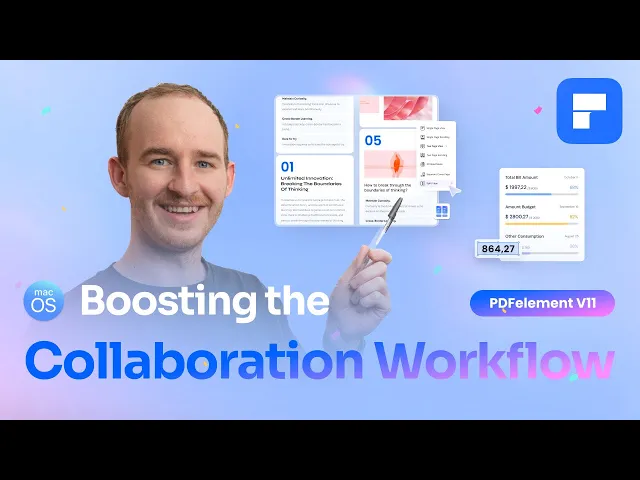
when it comes to working on complex projects teamwork can make all the difference whether you're creating a report or reviewing content combining different skills and perspectives often leads to better results but keeping that collaboration seamless isn't always easy especially if you don't have the right tools to organize information and communicate effectively with your team hi I'm George and welcome back to the official PDF elements YouTube channel in our last video we how PDF elements for Mac OS introduced tons of upgrades big and small especially when it comes to document management and editing tools today we're
taking a fresh look at PDF Element 11 but this time we'll focus on the features that make team communication and document organization easier than ever helping your collaboration become more effective and [Music] efficient when reviewing doc doents comments play a vital role in team communication allowing you to give feedback and use visual cues to convey your ideas this is why in PDF Element 11 we have made significant improvements to the comments tool enhancing collaboration and unlocking new possibilities for seamless communication one of the first improvements you'll notice is the enhanced Arrow tool you can now
fully customize both the starting and ending points as well as their styles making it easier to visually direct attention to what needs to be corrected or adjusted this simple yet powerful upgrade helps convey your ideas more clearly especially when you want to avoid cluttering your documents with lengthy text explanations and if adding text explanations to your arrows is what you need you'll be happy to know that call outs have also been improved now every time you insert a call out you can resize and reposition the text box before you start start typing anything into its
input field letting you insert empty call out into your document and decide what content add later all in one smooth uninterrupted workflow and speaking of adding text explanations there's something you need to know about the new formatting options available for text comments in PDF Element 11 there are many new formatting options you can use to enhance the appearance of your comments now you can adjust text alignments tweak line spacing or change your comments color to make them stand out better plus two key features have been added to make it simple to include mathematical or chemical
formulas in your comments subscripts and superscripts these subtle changes provide greater flexibility and ensure your comments align with the document's style and structure resulting in a more polished and professional look and for those times when you're working with scan PDFs or documents that do not have selectable text PDF Element 11 introduces the area highlight tool with area highlight you're no longer limited to highlighting just text now you can highlight any part of the document whether it's an image a graph or even several sections at once just like using a physical highlighter on paper commenting tools
are usually more than enough for pointing out the corrections needed especially when you're working with a small team or handling minimal edits for situations where things get more complex PDF Element 11 introduces new features that enhance organization and navigation making collaboration more efficient these enhancements can be found in the bookmark section of our left panel when you visit the bookmarks tab you'll discover several new options designed to streamline your experience starting with Toc from bookmarks or table of contents from bookmarks this powerful new feature can be found among the options listed in the ellipses menu
this tool unlocks an incredible handy way to create an interactive table of contents directly from the bookmarks on our document with just one click if your document doesn't have bookmarks yet you can manually add them using this button right here or better yet let PDF elements AI do the work for you with the auto bookmarks feature once your document is bookmarked you can start generating your table but I'd recommend taking a quick moment to make sure your table of contents looks consistent with the rest of your document you can do this through the table of
content properties option from the ellipses menu here you can customize everything from the font family size and style to the font color giving your table of contents a polished professional and consistent look with everything set up one click is all that's left to do and there you have it a fully interactive table of contents pretty cool right adding a table of content is a great way to enhance the navigation on large documents by allowing users to quickly jump to specific sections or chapters but if you are looking for even more control over how you manage
sections I'm pleased to introduce two new features bookmark label customization and bookmark Tex size adjustment with these new features you can now easily modify the size of the bookmark labels to visually enhanced readability or their style and color unlocking endless categorization possibilities and allowing you to make important sections stand out to improve overall navigation speaking of improving the navigation and reading experience there are new features in the view tab of PDF Element 11 that you definitely need to know about for example alongside the usual single page and two page view modes you'll Now find a
new option two pages but first single this new mode is perfect for documents with a cover page or introduction as it allows you to view the first page individually while the rest of the document is displayed in a two-page spread mimicking the reading experience of a physical book pretty cool right but that's not all right below the two pages but first single feature you'll find a game-changing new review tool split view split view is definitely our go-to tool when we want to compare different versions side by side since it lets us split our screen into
two sections either vertically or horizontally so we can work on two parts of the same documents at the same time no more juggling back and forth for example while making edits or Corrections you can have the page with comments open on one side and a clean version of the document on the other finally let's talk about forms a key tool for gathering information in an organized way way we all know that in a collaborative work setting Gathering feedback from multiple people can be challenging comments can easily pile up turning our documents into a confusing jumble
but with PDF Element 11 Gathering feedback is now more efficient and easier than ever before thanks to the new submit a form feature now when you select a form field you can use the properties panel to set up automatic actions through the actions tab this also allows you to create triggers so that when someone interacts with the form like clicking a button certain tasks happen automatically one of these actions is submit a form which lets you specify the email address where you want to collect all your team's feedback and choose the format you want to
receive it in whether that's PDF HTML FDF or xfdf this gives you complete control over how the data is collected with this feature every time a collaborator fills out the form and clicks the designated button their feedback will be sent automatically to the email address you set no extra steps or risk of mistakes this feature simplifies the process saves time and ensures that all feedback gets to the right place quickly and efficiently and that wraps up our walkthrough of the new collaboration enhancing features in PDF Element 11 but this is just the tip of the
iceberg there is so much more that PDF element can do now it's your turn download PDF Element 11 for Mac OS from the official website and try out all the amazing tools we covered today thank you for staying with me till the end of this video if you found this video helpful don't forget to subscribe and turn on notifications so you never miss an update I'll keep bringing you more tips and tricks to make your work easier and in the meantime feel free to check out our other videos there you'll find plenty of tips to
help you manage and edit p PDFs like a pro see you next time