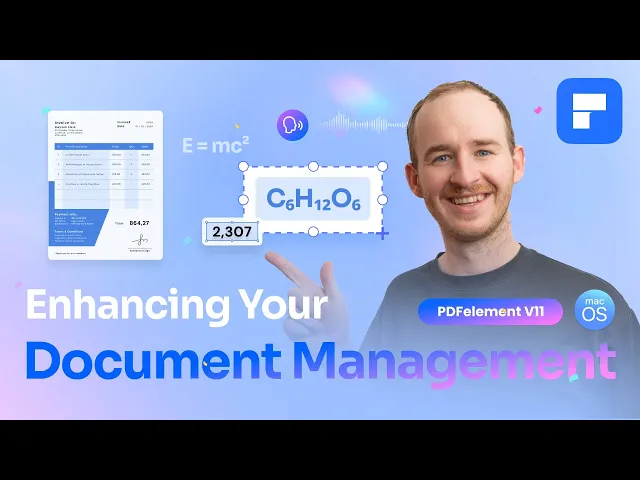
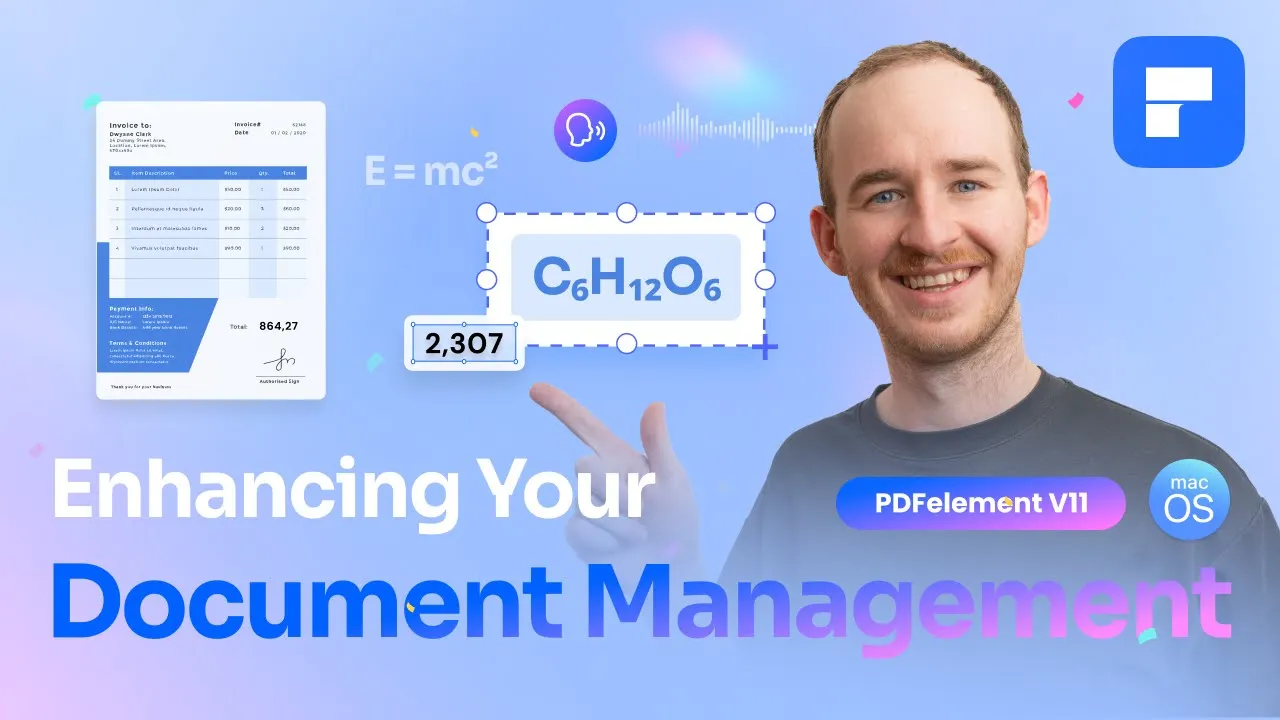
we've all been there some days it feels like the world is closing in on you your workload keeps piling up documents Stack Up and time just Slips Away in moments like these what you really need is a reliable tool that helps you push through without any hiccups well PDF element for Mac OS is that tool with a fully revamped feature set the newly launched version 11 brings incredible improvements to its workspace making document management faster more efficient and hasslefree [Music] welcome to PDF elements official YouTube channel I'm George and today we're going to dive into
how these updates can transform your daily workflow and make everything much more manageable let's start by exploring the updates and additions to our tools tab in PDF Element 11 the first major addition will look at is the PDF Read Aloud feature this feature turns your documents text into spoken words letting you control the speed volume and language it's the perfect tool for simplifying review tasks and providing accessibility for individuals with visual impairments by using the read feature PDF elements will begin reading your document aloud and you'll see this blue Banner pop up on the right
side of this Banner you'll find a button to pause or resume the narration as well as a small button that opens the preferences menu where you can adjust the range speed and language of the narration can you imagine the potential of this feature it's like having the ability to turn all of your documents into audiobooks with just one click the next feature is recognize table this tool is the perfect solution for situations where you need to create spreadsheets from table data in your PDFs eliminating the frustration of copying and pasting each element one by one
or Worse rewriting everything by hand recognized table lets you quickly and accurately extract table data while preserving both the content and original formatting once you click on the recognized table tool it will scan the PDF to identify any tables in the document you'll notice that the tables in your documents are highlighted in red this is the indicator showing that the table is now interactive with a single click this button will appear giving you the option to copy the entire table's content which you can then seamlessly paste into a spreadsheet pretty cool right now let's move
on to word count this feature is a practical solution for those times when you need to ensure your document meets specific length requirements like for SEO purposes for example using word count will make PDF elements calculate the number of words in the document and opens the document properties window where you you can view the count and easily recalculate it whenever needed finally among our new tools we have the screenshot feature as the name suggests this feature lets you capture screenshots but its real Advantage lies in the handy toolbar it provides with this toolbar you can
add notes highlight text insert shapes and even convert the screenshot into a standalone PDF now let's look at the improvements and new addition PDF Element 11 brings to its editing tools starting with text editing when you open the properties panel to modify the format of your text boxes you'll notice some useful new features take for instance the subscript and superscript buttons these features allow you to position text slightly below or above the Baseline making it easy to include chemical formulas mathematical expressions or foot notes without any hassle but that's not all there are many other
new enhancements to text formatting including improved controls for font color layers Arrangement line spacing paragraph alignment and character spacing these updates significantly improve the overall experience of text editing offering much more flexibility and precision and speaking of improving the editing experience there are two key areas of the editing process that have also been refined mind the first Improvement focuses on the insertion and positioning of images previously images would be added to the center of the screen requiring manual adjustments after insertion with version 11 this process has been significantly refined now when you're using the image
insertion feature the cursor transforms into a precise Crosshair and a small preview of the image is displayed allowing us to position images exactly where desired from the outset additionally just like with the text formatting improvements users can now move images backwards or forwards in the layout enabling us to create Dynamic and Visually appealing layouts with ease the second editing experience Improvement focuses on managing document elements after they have been placed in previous versions moving individual elements in complex layouts such as adjusting a text box over an image could inadvertently result in moving both objects complicating
the editing process to address this PDF Element 11 introduces an editing filter menu that offers more precise control over different document elements for instance with all you can select and edit all elements in the document without any restrictions but we can be way more specific switching to image will allow you to interact exclusively with images while text allows you to edit only the text boxes what is truly useful when editing text boxes positioned over an image you do not want to alter and for those times when you want to add a touch of interactivity to
your documents link lets you easily View and interact with the hyperlinks you've created in a very user friendly and intuitive way thanks to this menu editing your documents is now more comfortable and practical than ever this new tool not only improves visual organization but also optimizes the time and effort you spend editing PDF Element 11 for Mac OS offers a powerful and comprehensive set of tools designed to improve both document management and editing if you haven't tried it yet now is the perfect time to start in the description of this video you'll find a link
to the official PDF element website where you can download it for free and experience the completely revamped document management environment for yourself thank you for staying with me until the end of this video If this video was helpful to you I I would appreciate it if you could like this video And subscribe to this channel I will continue bringing you more videos with many tips and tricks to make your work easier you can also take a look at the rest of the videos on this channel there you will find many more videos just like this
have a great day and see you next time