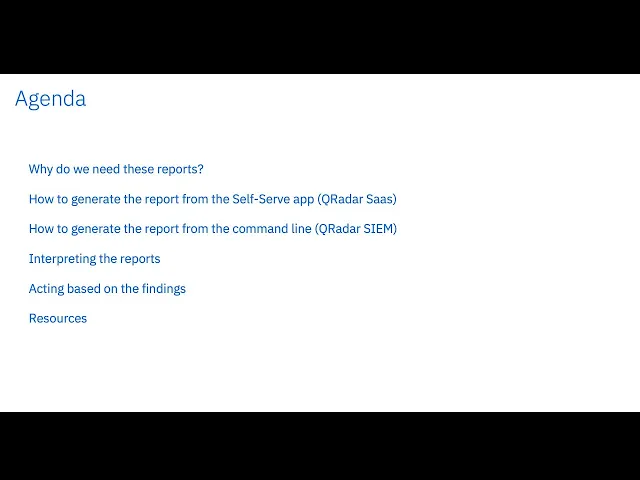
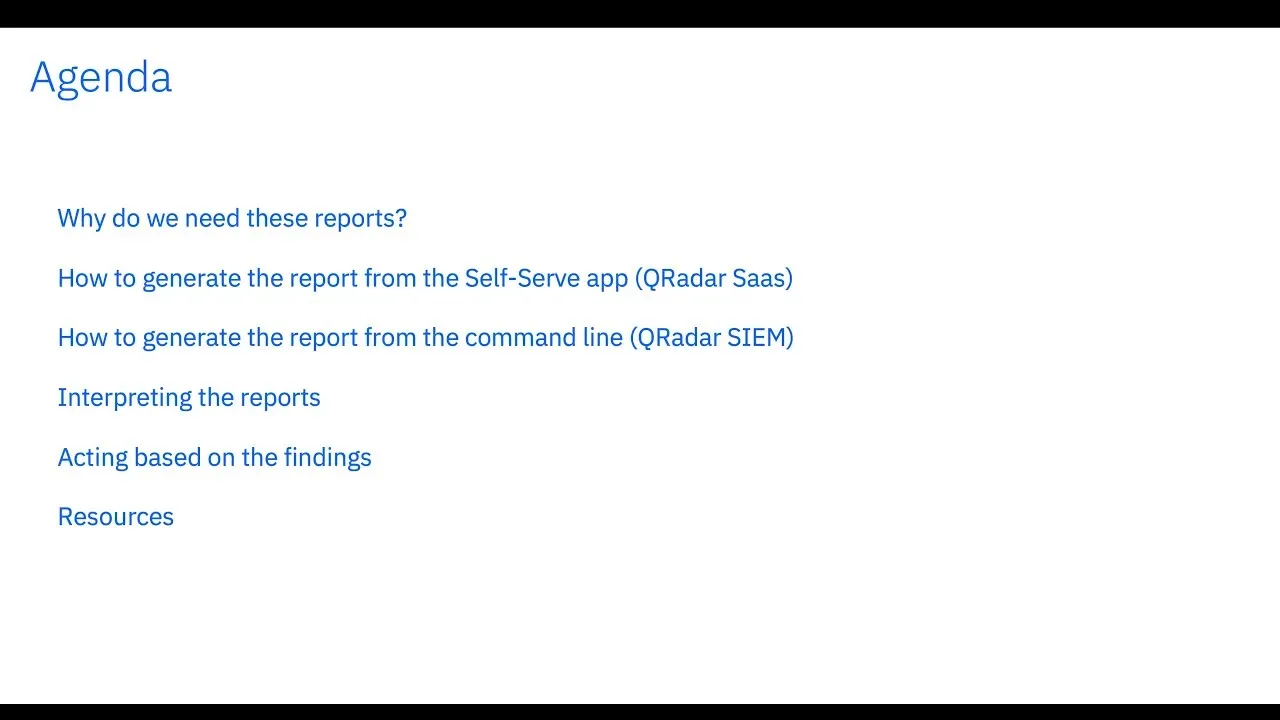
[Music] hello today we will learn how to find expensive custom rules and custom event properties in both curator Sim and curator SAS we will start by giving a brief overview of the issue that we're trying to resolve then we will cover how to generate the reports uh both on curator same and curator SAS how to interpret those files and at last we will understand how to act based on our findings when there is a performance bottleneck summary in the processing pipeline we introduce this concept of routing the data directly to storage when doing so the
event or flow bypasses part of the processing Pipeline and is written directly to the database this means that it may not be correlated or even categorized correctly however the road data is still searchable when this happens you'll likely receive alerts such as these two examples where we can see that either the device parsing stage or the custom rule engine are sending events directly to storage today's goal is to learn how to take advantage of a couple of reports that the support team often uses when troubleshooting these problems here's how to generate a report in curator
SAS we will start by going to the admin Tab and opening The Cure Self Serve app now click loog bundles then request new performance script here we need to select the type of script that we need if you're getting R into storage at device parsing then select the one for custom properties if you're getting R into storage at the custom rule engine then select the one for rules at last select the manag host post where the alerts are coming from after a few minutes the file is finally generated and it's available for you to download
for curator Sim we need SSH access to the console then the manage host that is having the problem and we need to run one of the following two commands depending on what issue we're trying to troubleshoot the script will collect performance data for 300 seconds or 5 minutes however you can adjust that threshold in the command now that we have the file what can we do with it before we start reviewing the file there is something that we need to keep in mind and it is that the order of the conditions in a curator rule
determines how efficient it is because curator executes the them from top to bottom from the first to the last one our goal here is to make sure that our rules are built in the most efficient way this is done by placing the most efficient conditions at the top of the rule and the most expensive ones at the very bottom the reason why this is important is because curator executes the different conditions in a rule one by one from top to bottom and as soon as one of the conditions is not met curat stops process in
the rule this leads the custom rule engine to only having to process the most expensive conditions to a smaller set of events or Flows In This slide you can get an idea of the different condition types in curator and how efficient or expensive they are the generated file has the report typings name it also shows the Tim stamp and it also has the host name of the banash host where we executed the report I will just de compress the file and the result is a directory that includes uh few files and another directory um today
we will focus on the txt file I will open the file with a tool such as Microsoft Excel it presents this message about some data conversion that is okay all the data is now presented in different colums we will focus in on just a couple of ones first one would be column C which includes the name of every single building block and rule in the system I will just pin that column so that it is always visible and then I will enable sort and filter on the different columns that we have and then I will
typ crl F and search for a column named capacity EPS this column represents an estimate of the average EPS throughput that the ruler breathing block can handle based on its current configuration I will add a few filters to the column to only show entries that are greater than zero and less than 50,000 which are considered expensive and as we can see there is only one result and this is a Ru that I actually created for this particular demo and it has a very low capacity EPS througho of only 9,000 now that we have found the
name of the expensive rule what can we do about it let's just open the report again and copy the name of the rule and then we will go to the curator user interface navigate to the offenses page and then the rules section and let's paste the value that we copied and it will return the rule we can see that it has a yellow performance indicator which is not good and if we actually check the different conditions that it has it starts with a payload contains then it has some reference data comparisons and it also has
some regular Expressions at the very end since this is a test rule that I don't need I can just disable it however if you actually need the rule please consider reordering the conditions that it already has based on the criteria that that we covered and also adding additional conditions at the top to reduce the potential hits of the most expensive conditions at the bottom would be a good practice as well for example filtering on Source AP Lo Source or Lo Source type and adding context to the rule so only for example events that are remote
to local with the rules already covered let's let's now focus on the custom event properties so here we have the report I will just decompress the file and we will be focusing on the tabular file the third one I'll just open the file with an application such as Microsoft Excel our Focus will be on column D which is the different Expressions that we have column e which is the average in time in Nan seconds and at last column B which is the number of executions of each expression during the execution of the report just the
average parsing time could be an indicator of a bad expression however we will apply some formulas to get a better understanding the first one will be the total Pars in timeing seconds we will take the number of executions column B times the average parsing time in Nan seconds column e of course we are converting from Nan to seconds so the formula looks something like this and now we can just apply the same formula for the rest of the properties our second column is the workload weight this is a percentage of the total parsing timing seconds
of the entire property set corresponding to each expression as you can see we're taking cell H2 * 100 divided by the sum of the entire column this gives us the percentage and then we apply the same thing to the rest of the properties the next column will be an estimate of the PS throughput of each expression and to do so we will um take 1 second divided by the average parsing time in N seconds or column e converted to seconds the formula looks like this this I will now enable sorting and filtering on the different
columns and I want to sort it by workload weight descending we can clearly see that the first one is taking 99% of the total parsing time and it has an estimated PS throughput of only 41 events per second which is a clear bottleneck now that we have found a potential root cause let's see what we can do about it to start let's go to the admin tapping curator and then let's go to custom event properties in this page I will search for the regular expression that we found and I know for a fact that it
was the last one that I modified so if I sort them by that column I can see that is right there at the top here we can see more details about the expression uh we can see that it is alpha numeric it's for a specific Lo source tabe and the regular expression that it has it's currently enabled and since this is a test expression I can go ahead and just disable that one it runs this dependency check to make sure there are no rules or safe searches or reports that are using it and since there
are none I can just go ahead and disable it thank you for your time