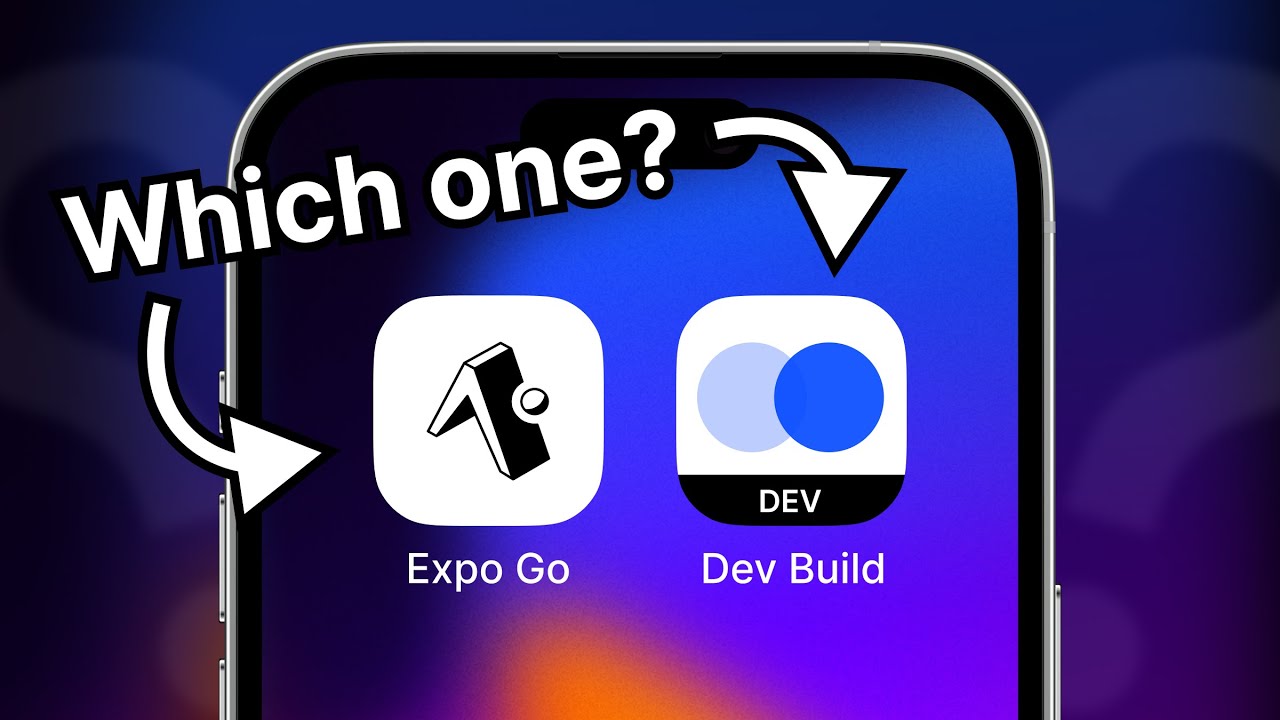
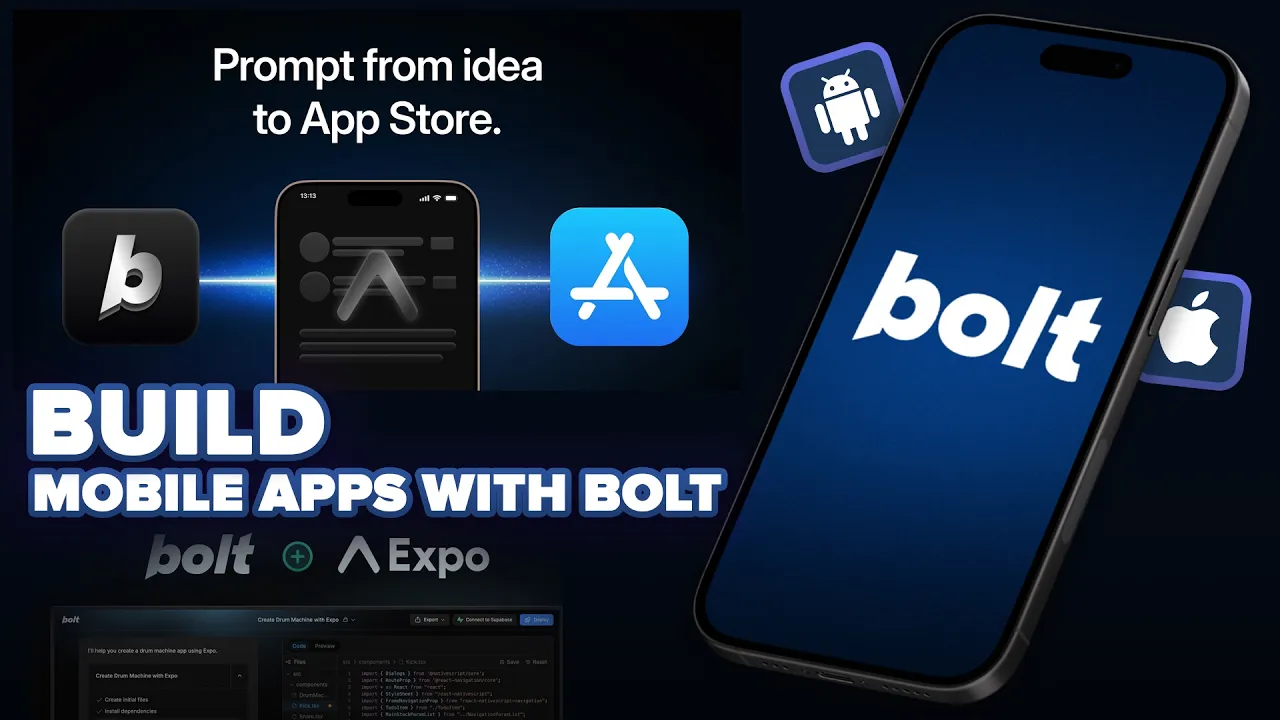
all right so now you can go ahead and create a fully functional mobile app for Android or iOS using vault. new and yes you heard it correct a couple of hours ago b. new introduced a integration with Expo and for starters Expo is like a framework like open source framework based on react native that allows you to create native mobile applications for Android and iOS and today in this video we'll go ahead and try to build application using b.
new and we'll see how it performs and also share my initial impression and the best part is that you can go ahead and preview the app in real time on your iPhone or let's say your Android device using the Expo Go app and I'll show all of that in this video and if that sounds interesting without Wasing in further Ado let's jump straight in so this writer is a tweet shared by the ball. new team onx and it says introducing native mobile app support on bolt and you can now go from idea to App Store just by prompting bolt no coding necessary and again they're partnered with Expo for this particular feature and this right here is a official blog post on export. dev and as you can see you can simply go ahead and choose the Expo stter template and start building a mobile app using b.
new from scratch so I'll go ahead and click on this option and it should Now open up ball. new with the expose starter template and you should be able to go ahead and type whatever type of app that you want to build and the AI will go ahead and take it up from there now that we have opened the starter template I'll go ahead and paste this prompt right here and it says create a fully functional not taking and to-do app with modern designs and icons so just us to test out these you know features and all that and also how well Bal performs when it comes to creating a functional app I'll go ahead and give a simple prompt like this to create a not taking and to-do app and I can go ahead and hit enter all right so as you can see bald. new is done writing the code and it hardly took about 1 to 2 minutes and it is now creating a build I guess so web so let's just wait for it to complete and yeah so web bundled 45% and after the build process or the bundling process is done you'll be able to view the preview of the app in the preview section right here and you'll be also be able to view a preview of the same on your own mobile device so seems like the build process is now done and if I move over to the preview Tab and let me just close this one from here and here we have a to-do app and I'm able to use it from my web browser itself and if I click on responsive okay you have a couple of option responsive iPhone 16 pixel9 and Galaxy s24 and if I click on the plus button I should be able to enter a title sample maybe blah blah blah content save note and here we have the note saved and here we can also go ahead and add task I guess okay to do one all right so the basic functionality that we asked for is currently working and you can go ahead and view a full screen preview or if you want to you can also go ahead and view in this way as well and now the most interesting thing about using Expo is that you'll be able to view a real-time preview of the same on your iPhone or let's say Android device and all you going to do is to head over to play store or App Store and search for Expo go and install the same and if you click on this device preview option right here it will will show you a let's say QR code and all you going to do is to scan the same and you can see the preview in real time so at first all you got to do is to open app store or Play Store on your device and go and search for Expo go and you should be able to find this app right here and all you got to do is to install the same so once you have the Expo Go app installed I'll go ahead and open the camera app and I'll go ahead and scan this QR code and it says open in Expo so I'll go ahead and click on that button it should now open the Expo app okay so it says building JavaScript bundle 52 person and once that process is done you'll be able to view the preview of the app on your phone so let's wait okay the app is now downloading something else as well oh yes there you have it so I'm able to view a full screen preview of the same and only one thing is missing in here and that is the icons so if you notice in here on the web view we have a icon on the like the plus button on here and also notes and task icon but in the phone or the Expo Go app preview I'm unable to find the icons but if I click on the plus button okay I get the option to enter the title all right okay it seems like it's a little buggy because I'm unable to dismiss the let's say keyboard so once I start typing something the keyboard does not go away so basically the screen is stacked so let me quickly go ahead and refresh and restart the preview all right so quickly went ahead and restarted the app and if I go ahead and start typing something on the keyboard I'm unable to close the keyboard while I'm using it on my iPhone next upep let me move over to the toask section and here also I can find a plus button and if I click on that one it says new task and maybe let's say add task one and return okay now I'm able to dismiss the keyboard and if I click on the art task button the same is shown in here and I should be able to Market is completed maybe not okay so the app is not 100% functional yet but we are able to view all the icons and pretty much everything is working in the web view but all of that is not uh you know exactly available in the let's say the Expo Go preview next step I'll go ahead and save and I know I asked it to make quite some changes okay so let me just go ahead and try to fix all these uh you know keyboard related errors and also the icon visibility issue and let's see if the AI is able to fix the same all right so seems like Bal is done writing the code and it says the app now has three main sections the first is notes then sticky and task okay let me close this one all right so we have notes sticky and task and if I click on [Music] sticky note one click on add note oh yes you have the sticky note in here and okay so uh yep so all that features that we asked for is now working and next up let me just go ahead and refresh and open it up in Expo go on my phone and let's see if everything is working as expected and also if the keyboard issue is now gone so I'll go ahead and scan the QR code open in Expo go and let's see opening project building the JavaScript bundle so let's wait okay all right so still I'm unable to find these icons when I'm using the preview in the Expo Go app next up let me just go ahead and try to see if I'm able to okay so now when I try to add a new note the actual note input box actually goes above the uh or on top of the actual keyboard and now I'm able to click on the save note option and it doesn't work okay no problem and again we can also find a couple of entries in the terminal that says these icons are not available so maybe I can just go ahead and copy that and paste it in here please fix the icons and hit enter let's see all right so seems like the Corde generation is done and here we have a preview okay next up let me just go ahead and quit and reopen the same on the Expo Go app opening Expo go and let's wait and hopefully the icon are now visible on the app let's see uh well the same story icons are not visible on the app for some viewd reasons which I'm not sure all right so that's basically how easy it is to create a mobile app using b.
new now that the Expo integration with b. new is live you can also head over to b.