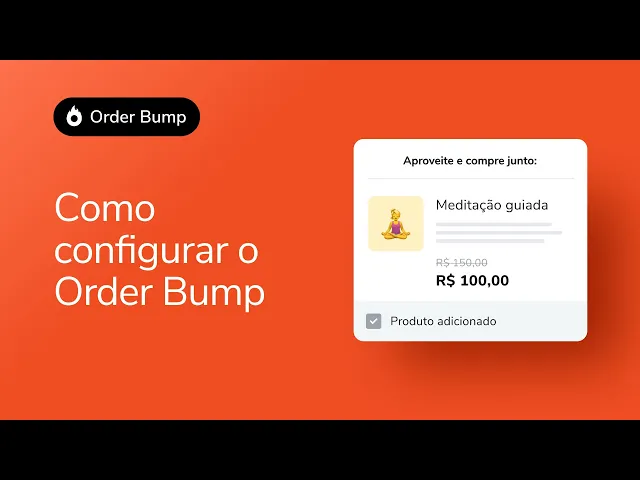
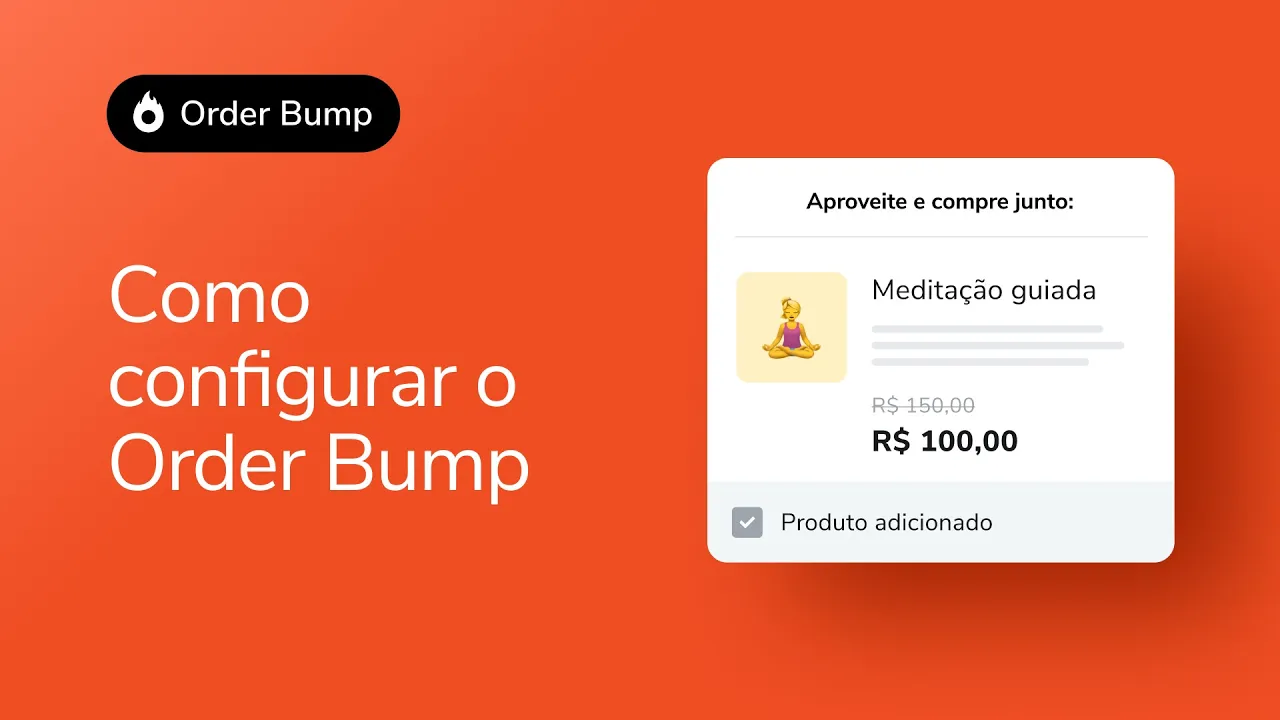
Today I'm going to teach you how to activate Order Bump, the tool that allows you to sell additional products directly on the payment page. To access your Hotmart account, use the link app. hotmart.
com When accessing your Hotmart account, look for the sidebar on the left and click on tools. You will be directed to the tools page. Here, look for the search menu, the magnifying glass, and type Order Bump.
When you type Order Bump, the payment page banner will automatically appear. This is where we will customize our checkout page with an Order Bump offer. Click on Payment Page Appearance and now we will choose which product to add to the Order Bump offer.
Today I will choose an online course. Let's go to appearance of the payment page. You can use a blank template or Hotmart defaults.
Now we will choose which offer we will offer with the Order Bump, the additional offer. Then I choose the product, which will be an eBook, the base price for that product. With Order Bump from Hotmart you have several customization options, for example: you can add a photo to this product, a previously registered photo or a new photo.
You can also offer a discount tag, this really catches your customer's attention. So, for example, here I am offering this Order Bump product for R$21. 50, but previously, when it was not an Order Bump offer, it was for R$100.
00. This discount tag will appear to my client, 78%. You can also add what it is and what it offers in the description of your Order Bump product.
This helps your user understand exactly what they are purchasing. Remember that it must be up to 500 characters. Wonder!
You have added your Order Bump offer. If you want to add another offer, you have sales tools, Order Bump. You will choose one more product.
I'm going to choose another e-book. You will choose a base price. And here, for example, if you don't want to offer that discount tag, just leave it as zero.
If you don't want to put a description either, you can also leave it blank. Ready! Now your two Order Bump offers are ready at your checkout.
Remember that you can add up to nine offers. You've updated Order Bump for your cell phone, now just click on monitor, copy the offer and save this new page. Ready!
Your Order Bump offers are now ready. Click publish and everything is fine.