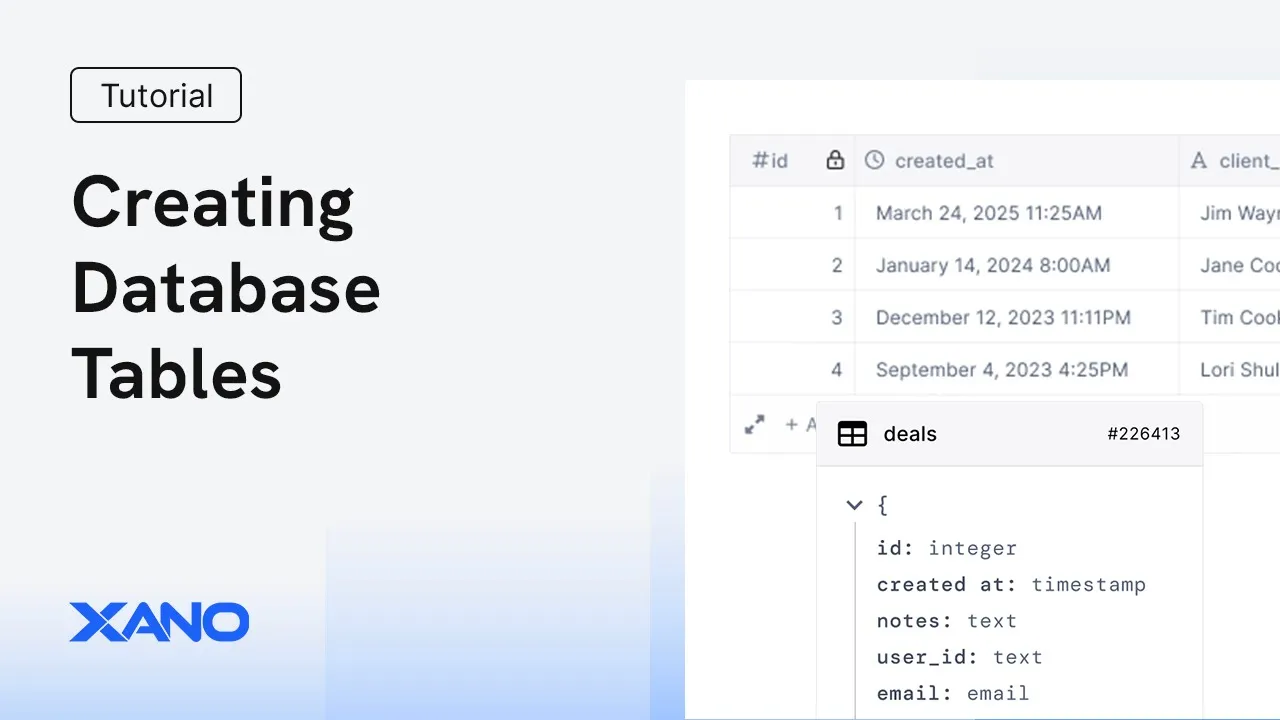
Hey everybody, Chris from Zano and today I just want to walk you through how you can create database tables inside of Zano. The first opportunity you have to create database tables is when you are setting up your workspace. As you walk through the flow here, you have the option to either create your workspace with AI or to start from scratch.
We're going to click create with AI. And what this allows you to do is to describe to the AI what you're trying to build and it will generate a database schema for you. We're going to tell the AI that we are building an Instagram clone.
After just a few seconds, we can see our first version of the database is generated here. We can also switch over to the spreadsheet view and get an idea of what these records might look like in each table. If we want to, we can continue to converse with the AI to make changes to this, or we can just click create and get started.
Now, once you're inside of your workspace, you can also use the database assistant to create tables for you. The database assistant can also iterate on existing tables. So let's ask it to create a new table to maintain followers.
The assistant will describe the changes that it wants to make and we can approve them one by one. So it wants to create a new follower table for us. So let's go ahead and do that.
And it has a couple of suggestions to make modifications to existing tables. So we'll do that, too. And we're done.
Nice and easy. We do of course have the opportunity to add tables manually. You can do this by either importing data from a CSV or Air Table.
If you want to know more about importing data to your Zano tables, we'll leave a link down in the description. Or we can enter data manually. We'll just give our table a name.
You want to choose your primary key type. Sequential is just 1 2 3 4 and continuing from there. A UYU ID is a collection of random letters and numbers.
As far as which one of these you should choose, sequential is probably the more standard option. UYU ID is good if you are linking records between various sources and that is because a UU ID is always going to be unique. Whereas if you have sequential records in Zano and then sequential records somewhere else and those IDs don't match, it could make your life a little bit more difficult.
In some cases, UU ID can also be considered more secure because it's not as easy to guess as a sequential ID. But at the same time, that kind of comes down more to how you are providing access to your data. So for this, we'll just choose sequential.
Nice and easy. You can give your table a description and some tags. These are just for you.
so you can understand what each table is for and quickly find it later. And we can choose to create default CRUD endpoints, which are APIs that will create, read, update, and delete data in this new table. When we're ready, we just click add table down here.
And then we are inside of our table. Once you're inside of your table, you're probably going to want to add some fields. And you'll do that by clicking this plus sign here.
This brings up the menu of different field types. There are a ton of different field types here that you can use. We'll just keep it simple for now and add a text field.
When you're adding fields to your database table, you will have some basic options that are mostly consistent between the field types. Some of them are a little bit different just based on the type of data that actually supports these options. We'll go through the settings on the text column because this is pretty much what you'll see across all of the field types.
Again, we have a name and a description. You can choose the data structure whether it is a single value or a list. A single value just means there will only be one value stored in this field for each record.
A list allows you to store multiple values per record in this field. We can choose to allow nullable values. Null is a specific value that represents empty.
It's different than just not storing any data though because it is its own distinct value. You will typically know whether or not this is something you need. It's probably going to be dictated by the front end that you're using and the data that they send back or maybe external services that you're connecting to require null values.
For text fields, you can choose a format. So, this is going to be plain text, HTML, markdown, and so on. This doesn't really impact the data itself at all.
This just makes it easier for you to read inside of the database view. If we want a default value to be populated in this field, if we want a default value to be populated in this field for each record, we can specify that here. And finally, at the bottom, we have some options to determine whether or not this field is required for records added to the database or whether or not this field contains sensitive data and when it should be visible.
Most fields support custom rules and filters. So, this is for things like trimming whites space off of values that are added or enforcing minimum and maximum length, uh allowing or disallowing specific characters, things like that. You would typically use something like this in a password field, for example, where you want to enforce a minimum length.
When you're ready, just click add column down below. And now our field is ready to be used. As you're setting up your database table, you can quickly generate sample data by clicking generate records here.
For each field, you'll have some options to choose from as far as what data you want this to be filled with. We'll just do some random words for now. You can choose the number of records to generate up to a 100 at a time.
And when we're ready, we'll when you're ready, just click generate. So now we have some sample data ready to be used. You can search, filter, and sort your records here.
I'm going to add another field here quickly to show you how easy that is. We're going to add a boolean field, which is a true or false. Now, if we want to search, we can just do a plain text search for specific words.
We can also filter. So, filters are for more kind of static values that don't really change or if you want multiple conditions as far as what records to display. So, for example, if I want to display only records where that boolean field is true, we can do that.
And we can sort the records by whatever field we'd like. And we can apply multiple sorts as well. If you want to save the filtering and sorting that you've built here, you can click save view and just give it a name.
This will allow you to switch between the views that you have available, whether it's the default view with all records or one of the views that you've created. You have options here for cut, copy, and paste, undo, and redo. And over here you can share access to your table with others even if they're not Zeno users.
You can choose either the default view or one of the views that you created. And you can choose the access method which is either two-factor authentication, a link and a password or just a link. Two-factor authentication is definitely recommended.
You can use this show references feature to see where this was referenced inside of all of your Zano function stacks. We can filter this down to specific fields or specific functions as well. Indexes are like the index in the back of a book.
If you have a very large table and you want to make sure that queries against it are super fast, you probably want to build indexes on certain fields so the data can be more quickly searched. There's a lot of nuance to this though, and I definitely recommend looking at our documentation for more info. And finally, there's a list of keyboard shortcuts here if that's how you prefer to navigate.
You can access some additional table settings from here, as well as import and export. You can use the check boxes to the left to quickly apply bulk actions such as deleting or exporting certain records. If you're trying to look at or edit a record, or if you're trying to add a new one, you can click this option here to open it as a card.
And this makes it a little bit easier to apply multiple changes at once. Or if you have a ton of fields, you can get better readability for each record. That's just a quick look at how you can create database tables inside of Zano.
If you have any questions, feel free to leave them down in the comments below. You can reach out to us on the Zeno community or through support chat inside of Zano. Thanks for watching.