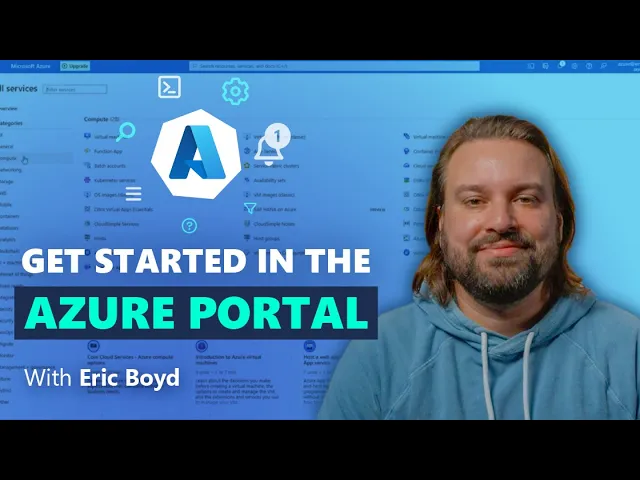
you've signed up for Azure you've logged into the Azure portal what do you do now my name is Eric Boyd I'm an Azure MVP a Microsoft Regional director and the founder of responsivex where we help customers run workloads and develop applications in azure over the next several minutes I'm going to show you how you can begin working with your Azure subscription using the Azure portal you'll see how to browse the Azure Services find your resources and customize your portal experience I'll show you how you can manage your Azure environment on the go and in these
next several minutes I hope I help you get familiar with the Azure portal so you are comfortable working with your new Azure subscription to get to the Azure portal you simply navigate to portal.azure.com in your web browser the very first time you log into the Azure portal with your new subscription you will begin in the Azure Quick Start Center Azure Quick Start Center helps you start a project with guided experiences for core Azure scenarios and services providing details about the options costs and required prerequisites along the way you'll also find setup guides in the Azure
Quick Start Center designed for it admins and Cloud architects these guides introduce key Azure Concepts provide structured steps and guidance for setting up your Azure environment and migrating workloads to azure if it's not your first time in the Azure portal you will either start on your home screen or your main dashboard depending on how you have it configured but don't worry you can always get back to the Azure Quick Start Center on the home screen you see recent and recommended Services across the top with a list of your recent resources below below your list of
recent resources you'll find buttons for subscriptions resource groups all resources and dashboard to help you navigate to your Azure resources and towards the bottom you'll find buttons for tools that help you manage your Azure environment and links to useful resources including documentation and the Azure Quick Start Center on the left you'll find the Portal menu that helps you browse Resources by their type in my menu I see virtual machines databases and more the list of services in this menu is just my favorite services if I go to the top of this list and click on
all services this will take me into the full Services list where I can browse this by category you'll notice the Azure portal also suggests free training resources from Microsoft learn specific to the category that I'm browsing I'll click on the all category and scroll through this list just so you can see the massive amount of azure services that are available to you now let's say that I'm looking for SQL related services if I type SQL into the search box at the top this list will be filtered down to the SQL related services and I mentioned
earlier the services listed in the portal menu is just a list of my favorited services when I hover over any of these I'll see a hover card in the upper right hand corner of this hover card there's a star since this one is checked it will be shown in my list of favorited services if I find one that is not checked I can simply check the star and it will be added to my list of favorite Services I'm going to get rid of that search criteria and I'll go back out to my home screen now
I want to direct your attention to the upper right hand corner of the portal on the far right you will see the account you logged into the Azure portal with if you click on your account email address you will see a drop down that provides you with options to sign out view your account information and sign in with a different account to the left of your account is a series of icons that provide Global controls for the Azure portal if you click the icon to the left of your email address you can provide feedback about
your experience with the portal this feedback goes directly to the portal team they listen carefully and improve the experience of the portal based on your feedback continuing to move right to left the next icon is the question mark and this is the help and support area from here you can see any issues that may be impacting the availability of azure regions and Azure services with service health below service Health you will find links to resources like Microsoft q a where you can ask questions and get answers from the Azure Community you will find a link
to Azure documentation billing FAQs and the Quick Start Center at the bottom there's also a button that you can press to submit and manage your support requests towards the middle of this series of icons is a gear icon and that's the settings area this is where you can customize your experience with the portal including color and contrast themes language currency and the formatting of dates and times from here you can also switch between the Azure active directory directories you are a member of and select the subscriptions you want to see in the portal towards the
left of the settings area is the Bell icon this is the notification pane where you can see any changes since your last login you get updates on the status of your deployments best practices for your subscription and if you're like me in an accredited or a free account you'll see the amount of remaining credit when there are new notifications that you haven't seen you'll see a counter over the Bell icon with a number of unseen notifications you'll want to make sure you check those out so you don't miss anything happening in your subscription the directories
and subscriptions icon to the left of the Bell icon is a shortcut that will take you into the directory and subscription filters section of your portal settings and the final icon on the far left launches the Azure Cloud shell the cloud shell is a browser-based shell that enables you to create and manage Azure resources from the command line without needing to install and configure command line tools on your Workstation I showed you how you can browse your resources from the Azure portal menu the search bar at the top of the Azure portal is a great
tool for quickly finding resources resource groups Services Marketplace offerings users in Azure active directory and documentation the search results are grouped by type and you can focus in on a specific group by clicking on the filter pills at the top if you are on the go not sitting in front of your computer and need to manage or monitor resources in your Azure subscription you need the Azure mobile app you can access the Azure portal on your phone but it's really designed for desktop and tablet browsers the Azure mobile app can be installed on your IOS
and Android phone and you'll get a first class experience for monitoring and managing your Azure resources and you can take advantage of native app capabilities like push notifications for monitoring alerts the Azure portal and Azure mobile app are not the only ways to create and manage resources in your Azure subscription but they are the ways I'd recommend you begin working with your new Azure subscription you now know how to browse the Azure Services find your resources customize your experience with the portal and get a guided experience as you create resources and solutions using the Azure
Quick Start Center in the next video of this series I will walk through the Azure free account the 200 30-day trial the first 12 months of free services and the always free services before I wrap up I'd like to invite you to join me at our weekly Azure live q a session during the 30-minute session I will host an interactive and live q a to answer your Azure questions [Music] foreign