[Music] hey welcome back to the course and to the exercises section specifically this is the first exercise in module two we'll be taking a look at creating user accounts this is going to be fairly basic we're going to create two accounts for jason murray and hannah jones and give them both access to the livingston site that we created in module one this site was created when we imported the lifer archive file you didn't have to create it manually yourself it was done for you as part of the import process the reason why we are adding
the user to this site is to demonstrate the concept of site membership which means that sites are comprised of both public and private pages by default a guest can access any public page without having to log in by default a guest can access any public pages but if you want to access private pages you need to be a site member now the livingston site doesn't actually even have any private pages so to demonstrate this concept i've gone ahead and created my own private page with almost no content just to demonstrate this feature so let's get
started again here are the steps create a user account change the password give access to the default site for both users and if you want to take a stab some bonus exercises you can try creating a user for your own self assigning a role which we're not going to try in this exercise but it should be fairly straightforward and play around with some more of the additional information that you can supply when you are editing a user so after you initially create a user you have a whole slew of options as far as what you
can edit for that user what kind of contact information or preferences you can give them go ahead and take a look at all of that on the edit user screen so let's get started i actually already have these users created now once again i'm logged in as just cya copeland and i'm seeing that message down here that says i need to re-login because i've logged out because of the timeout so i'm going to do that okay i had to refresh the page because it became unresponsive so let's go ahead and log in as our system
admin user i have his password set to a you may have it set to test whatever you specified when we created that user let's go to users and organizations i've already created these users so you get to see some extras here let's say you want to delete a user but what do you have to do well first you have to deactivate them and then from there you can filter this search container to show active users and then you can go and actually delete or reactivate the user so it's a two-step process let's create our first
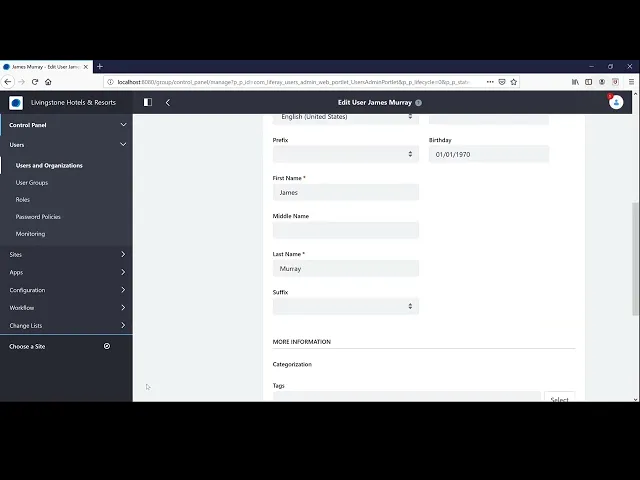
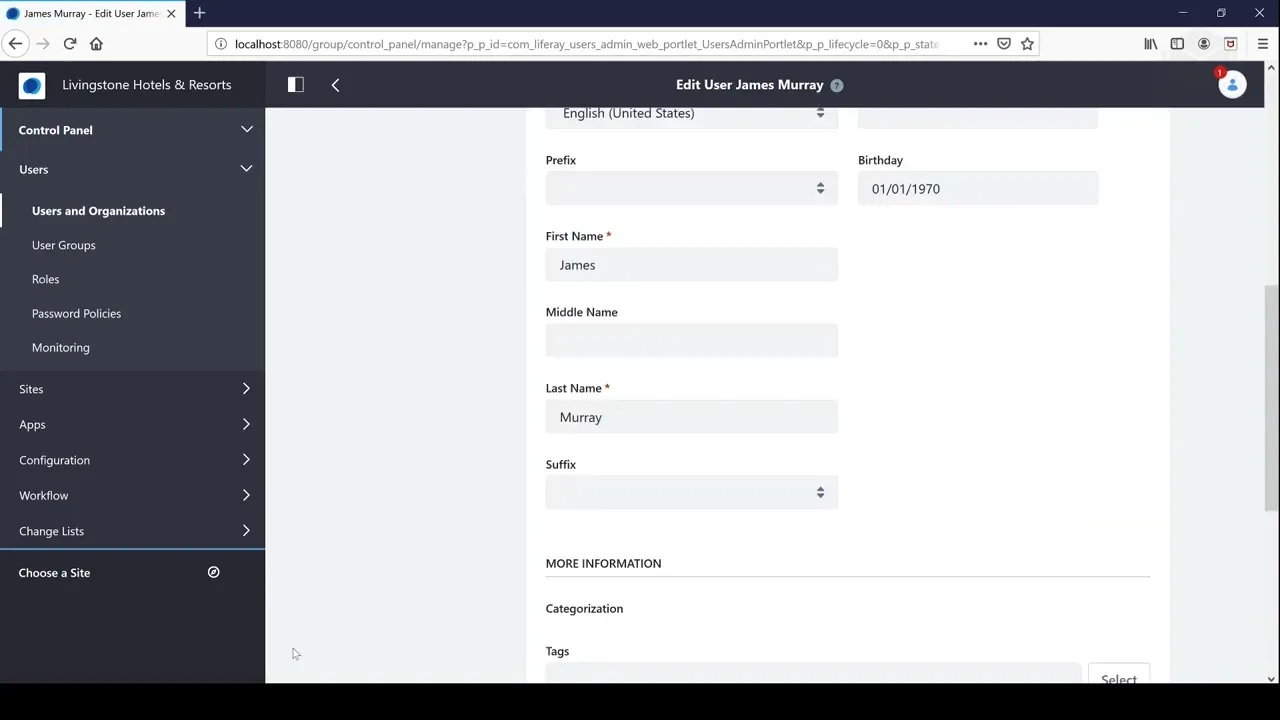
user by clicking on the add user button and once again this is under control panel users users and organizations we'll give him the screen name of j murray we use tab to quickly move through this form which is kind of nice you don't have to use the mouse and first name last name i'm only going to enter the required fields and then press save you don't have to worry about if you miss something here you can always edit the user to add that additional information request was completed successfully and it redirects us to the edit
user screen which has a contact and preferences section that you'll be using in the bonus exercise and then we're going to be using the general section here first thing let's go ahead and reset a password or set a password for james when he first logs in and then the last step we need to do is give him membership to the default site now i actually have more sites than you'll have so don't be confused here you'll be creating these sites later on in the course this is the default site that we imported with that library
archive file so i'm going to select that one and then press save don't forget to press save whenever you're interacting with a form if you navigate away even if you see this site is added here right it doesn't mean that that has been saved yet particularly if you're in a really long form like this you might be tempted just to edit something and navigate away but we actually need to save our selection and we're done let's go ahead and quickly go through that process again for hannah jones when you're only creating a couple users this
can pretty fast [Music] update the password [Music] and site membership that's it we're done so just to test this out i'm actually gonna go to a site the livingston hotels and resort site and i just want to demonstrate that i have actually gone and created my own private page that you won't have here on your you know i've gone to the site i've gone to site builder pages i'm looking at the pages that are made in this site and i've created my own private page that just is called private that's the title of a page
doesn't have any content the concept here is that any guest should be able to access all the public pages but as far as a private page any user even in our portal can access the public pages no problem but if you want to access a private page you need to be a member of the site let's test this out now i've gone and actually memorized this from the url for the private page and this friendly or friendly url is something we can type directly into the browser to navigate directly to this page i'll go ahead
and copy that let's log in as james murray test it out [Music] i'll shortly update that to make it even quicker to type i'm just going to use a again saving a password reminder question we don't need that right now so here we are on the site and we have all the public pages here and i believe the url was group slash guest slash two and there we go that's our private page no content but we can tell it's a private page because of the page title so that's wraps it up for the first exercise
fairly straightforward please join me in the next one