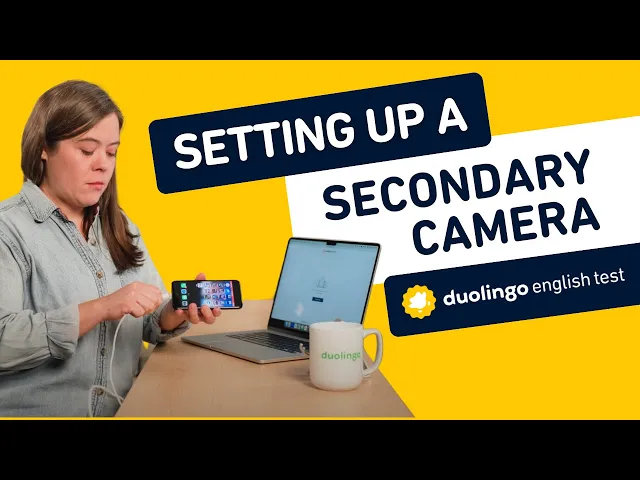
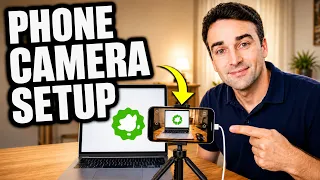
- What's up everybody! It's Sophie here from the Duolingo English Test. In this video, I'm going to walk you through how to set up your phone as a secondary camera to record your computer screen and keyboard.
But first, why are we requiring this at all? Using your phone as a secondary camera shows our proctoring team another angle of your test environment. This gives them more information and helps them make the best possible decisions about your test outcome.
You'll need two things with you. The first is a fully charged phone with a camera. If you don't have a smartphone like this, you can borrow one from someone you know.
You can even use a tablet if needed. Your phone will need to record the entire test, so a full battery helps ensure it won't shut off before you finish. To be extra safe, it's a good idea to plug your phone into a charger during setup and let it charge throughout the test.
Second, you'll need something heavy to lean your phone against. You want to make sure your phone won't move or fall over during the test. You can use anything stable enough to support your phone without blocking the camera, such as a mug or a box or a phone stand.
First, you'll open the DET desktop app and log into your account. Continue through the setup screens until you're prompted to set up your phone. Next, you'll use your phone to scan the QR code on screen.
Be sure to use your phone's camera to do this, not another app. Put your phone on Do Not Disturb and make sure none of your contacts are set to bypass Do Not Disturb. Receiving any notifications during the test could lead to your session being invalidated.
(upbeat music) Then you'll need to grant the desktop app access to your phone's camera. (upbeat music) Next, you'll lean your phone against your heavy object next to your computer. You can show the right or the left side.
It's usually the most stable to set your phone horizontally. This angle won't work because the screen and keyboard are cropped out of frame. Move your phone around until your screen and keyboard are fully visible.
You may need to place the phone slightly behind you. This is a perfect angle. And that's it.
You can now continue with the rest of the test set up. Remember, your phone needs to be pointed at your computer and recording throughout the entire test. Once your phone is set up, it won't enter sleep mode and it will record until you finish the test.
At that point, it will automatically stop recording. If the video is interrupted or interfered with during the test, your session will be invalidated and you'll need to retake the test from the beginning. If your phone falls over, we recommend quitting the test and taking it again.
In most cases, you should be able to restart your test session without purchasing another test. If you have more questions, our support team is happy to help. You can contact them using the orange HELP button on our website.
Good luck on your test.