in this video we're going over what the nexl extension is um how to sign up to the nexl extension and how to basically activate your trial um we're going to go over every single nexl extension feature I'm going to show you how to use it for topic research I'm going to show you how to use it for nce research um I'm also going to show you how to just generally use it to increase your productivity as a Creator um and I'll also show you what to do if you a bug or how to reach out
to support or also how to manage your billing option so basically a full Guide to the next left extension so the first thing you want to go ahead and do is just look up next left extension um if you haven't already you can just look up next of extension and go to the Chrome web store now what you want to do is add this to Chrome so it it's going to ask you if it can read and write uh data on a number of websites so it will only um utilize um data from youtube.com so
keep that in mind it's just only YouTube um it's just purely so we can display um our features on your YouTube right now install the next extension and as you can see it's now been added to my Chrome browser after that what you want to go ahead and do is navigate to YouTube and start making your account so go to this extension icon over here and make sure to pin your NEX left extension to um your extension bar this way you can always access the um extension whenever you're browsing YouTube because there's a bunch of
features but first uh what you want to go ahead and do is sign in to the extension so I'll show you if you don't want to sign in you can also press skip for now and just use the fre features without logging into the extension itself that's also a possibility it will just disable the the paid features from being shown and you can just utilize all the the free features uh but if you want the the full experience which I really recommend it's really worth the price um then you can just go ahead and continue
with Google Now once you continue with Google you can log in using a Google account and it will then redirect you to um this the uh trial signup page now you can do pay either monthly 13 um doll a month or you can pay yearly and you will get built uh $9 a month but on a yearly basis and you will save around like $50 uh so it's a pretty good deal if you're going for the XF extension again it's it's literally like 80 bucks so for an entire year so it's super super cheap and
what you can then go ahead and do is press try for free there's a twoe trial and again it's I think it's a really fair price because most of the um features use AI technology which cost us a lot of money to uh maintain and yeah basically this price is just basically there to to uh make sure we can run the servers and whatnot um to support you using the nexl extension so after that you will get to the checkout page um you can go ahead and enter your payment information and then you can s
um use the NEX St extension so once you've paid you will see the following tab um you're all set um basically what you want to press then is start using the extension and as you can see when I open up my YouTube um account um you will see that all the features start loading so up top here you'll have the um you'll have the filter tab as you can see and then down here on every single video uh you will have um the subscriber count and the uh the subscriber count and the outlier score for
every single video on YouTube um so what I will do now is kind of explain what the nexl extension is used for now the nexl extension was originally developed by me because um I had a big problem and that big problem was basically YouTube is made for viewers and it's not made for creators even though I used it every day to do topic research to do Niche research to you know share Inspirations with my team to you know there's a lot of things I use YouTube for as a Creator but the entire UI of YouTube
is just not made for us it's made for you know um um just normal regular viewers so what I went ahead and did is I made a bunch of features into this extension to basically make it a power tool for you to increase your productivity on YouTube by 10 times uh also help you find better topics help you find better niches a lot a lot faster so um the reason also we didn't make a tool that wasn't that uh that was just off the YouTube platform is that most of the time I just do my
research or especially in-depth research on YouTube itself so it's just good to have a tool set that's on YouTube and is there whenever something comes up and you need it right so that's very very important so let's go Page by page and I will show you every single feature that the next extension has to offer um if you already know the features or if you want to skip ahead to a specific problem like Niche research or um how to contact support you can just skip ahead in the videos there will be chapters down below anyway
let's get started so the first thing um that you got to keep in mind is that the Goot is there's a free two we free trial you can just try it out see if you like it and then second of all again it's really affordable only 13 bucks a month it's it's the price of uh a bit of an expensive coffee um but it will really help you improve your productivity over time so if you load up your homepage you will see a bunch of features and I will go over step by step what each
of these features do now the first thing that you will notice is that there is a filter tab here in the top um of the extension right so that filter tab is going to allow you to filter through all the loaded videos so again all the unloaded videos we won't render but all the loaded videos on your homepage you are able to filter through these videos so now you can quickly see for example my favorite filter here is subscriber versus view count you can quickly see you know um which channel has for example a a
very low um a very low subscriber count and a very high view count so for example in this case we have a channel that has um 72,000 subscribers um and 4.5 million views uploaded five months ago and as you can see next to it is the outlier score now the outlier score is a score that takes the average views of a YouTube channel and Compares it against this current video so this video um gets two and a half times more views than the average views on this YouTube channel right this way you can easily spot
out performers on YouTube itself now the next thing that you can do is you can also short uh filter by shorts and long form now in this case I don't have any shorts loed so it won't show anything but you can just go ahead and filter by long form and then you can even filter by subscriber count so let's say you're looking for small Channels with a lot of views you can just filter to below 50,000 subscribers and as you can see it will show you all the channels below 50,000 subscribers that were loaded onto
your homepage same thing for the views and you can also uh select when the video was uploaded so this week last week this month and this feature is really great for efficient topic and Niche research but we'll get get to that uh later now another really cool feature that we have that will speed up your worklow done is the preview feature now this preview feature as you can see shows the recently uploaded videos to your channel and the most popular videos on a given YouTube channel so as you can see if I open it up
um you will you can see the um videos on the channel and the cool part about this is that you don't have to open up an entire new tab in order to view what the channel is about let's say I'm wondering what this channel is about I just hover my mouse and there you go I can see exactly what this channel is about and if it's getting consistent views without even clicking on the channel itself this will save a lot of time one of my favorite features yet really really simple now moving on uh another
thing that I want to mention is if you don't like one of the features so for example you don't like the homepage filter you're going to be able to disable any of these features and the cool part is that if you're using any other extension and our extension maybe conflicts with one of their features you can just simply um disable the um the features so you can disable monetization uh status similar videos again we'll get to those things later uh advanced search filters you can uh enable uh for example the homepage filter you can remove
and this way you can just customize the tools and features that you need for yourself you don't have to enable every single one of these features only if you find them useful so this way again there's always there's like over 20 features in the extension there's always something that's incredibly valuable to uh to use so I would recommend just playing around with it and seeing what features you find useful and the rest you can optionally disable right now so we basically covered most of the features here on the homepage and I'll explain later how you
can use this feature to find really good niches really good topics uh but for now um I'll just go ahead and move on to the next thing now the next page that will'll be affected will be your subscription page um so this is really cool cuz you can basically um make a competitor spy tool so if you subscribe let's say you are in the politics Niche right so here we see like politics and and like some um science channels uh let's say you subscribe to all your competitors and navigate to latest in your subscription tab
right um you can keep an eye on all the outliers from your competitors with one click you simply just press filter and then you sort by total views in the niche and now I can see the highest view videos of my competitors in the last you know 12 15 hours without having any external tool it's all right buil into YouTube and it's super useful to keep tabs on what's performing well on for your competitors and this way you don't have to manually go to every single one of your competitor Channel and you can just just
simply um look at uh your competitors videos right here again it has the same options as all the other um as all the other um filter pages right so that's a really really useful um feature on the subscription tab now moving on the next thing that you'll notice is that you will have a um shorts feature so if you go to your shorts page uh what will happen is you will see this boook up in the corner here there's a box here right this box um will load on any any short you're viewing and it
will show you the stats of the shorts channel so if you're doing for example uh you're running shorts YouTube channels this is a really great research tool because then again you can basically scroll through your shorts and then look at the um the statistics of the channel and look for viral shorts channels and this way you can find really great shorts niches um so as you can see it shows a bunch of things like how many views this current short has the how many percent of the viewers like the video uh the views per hour
uh when the video was published the amount of uploads on the channel uh when the channel was or how many days ago the channel was started and how uh what the average views are of the channel That You're viewing super super useful if you're running short form channels and you're doing research right you you don't have to click on the channel it's all just there saves a lot of time and um basically the idea of the extension really is is that if we can give you enough of these really small but super helpful features um
you will really speed up your workflow quite a lot and this will really help you um increase your productivity right so um it it completely Reams your YouTube and and trust me if you uninstall this extension you'll basically feel like you're back in the Stone Age because uh you had these features that made you move a lot faster and all of a sudden they're gone so again I love this extension and that's why um I built them so the next page I want to go over would be the search page now the search page is
pretty similar to the homepage um let's say we look for I don't know we can go for turn or like we can go for Panama P Panama Canal right um what we can do now is as you can see um we have our search page now the cool part about the search page is that we also have the features from our homepage in here so if you're on your search page doing research boom you can quickly pull up what uh what videos a channel is uploading right super useful makes research a lot faster then you
also obviously have your outlier score and the subscriber count next to everything um and then you have the view per hours which shows on average how many views a channel gets or a video gets per hour so super super useful now next obviously we have the filter stab uh again it works the exact same as on the homepage you can filter by subscriber versus view count as you can see here you have a video with 3.6k subscri or a Channel with 3.6k subscribers and over 10 million views right so um the cool part is that's
not the only thing what you can do is as you can see it's in the bottom um you can't you currently can't see it because I'm in front of it but in the bottom here you'll see it's loading and it will be loading more videos for you so if you scroll down for example you will see it adding video videos um so now in a second once you let it load it will have a bunch of as you can see new videos that are loaded in and this way you can quickly find even better outliers
right so let's say I want to find a viral video that was uploaded in the last month or in this on this month right we filter and boom there you go we found a Channel with 17K subscribers 11 days ago 1.3 million views if you were to do this manually which you can um it would take much longer because you would have to scroll through everything right and this makes things just much much more efficient and you can load a bunch of videos and go through hundreds of videos just with filters and again you can
load short form long form uh and and filter by subscriber count super useful for research right makes things a lot lot faster now moving on um now that you've seen the search page we're going to head in to um a page that is very crucial which is the channel page so as you can see right right here we have the channel page now what you will notice is that there's a few new buttons to this channel page so there the first thing that you will notice is that you have this monetized icon there there we
have a system that checks video U information and basically predicts if something is monetized or not um it is not 100% accurate any of the monetization checkers you will see online are not 100% accurate YouTube removed the function of checking monetization a year ago um now it's more of a prediction uh it's pretty accurate still I would say 90 90% or so or 80 or 90% are pretty pretty accurate but um it does sometimes make mistakes especially if there's like music on the videos or there's copyrighted content on the videos sometimes it will show monetized
when it's actually not and and vice versa so you have to keep that in mind uh it's an indication but it's never 100% with any monetization Checker so moving on you will see that you also have two new buttons here similar channels and analytics so starting off with similar channels which I this is personally one of my favorite features in the extension is you will get this tab so this similar channels tab will allow you to find similar channels to you know the channel that you're looking at um if you're by the way in the
similar channels tab we won't be able to show you the monetization status because you have to be on the home or video page for us to load that data right um and anyway if you're on the similar channels tab you can go ahead and press quick search or in-depth search depending if you want it to load quickly or if you want it to take a long time to load and as you can see once you load the um similar channels you will see that there's a bunch of um channels that load and these will be
pretty similar to the one you um are looking at so for example here you have another one making videos about airplane crash disasters um here you have another one that is making videos about playing crashes and it will basically in real time and this is where it's different from a lot of other um YouTube channels um it loads the similar channels in real time so if there's a new competitor that's doing the exact same thing we will pick that up right so it's uh it's loading in real time and that's why it takes longer than
other for example Solutions because again we're checking for more recent channels because we we use this for you know Niche researching we want to make sure that we capture all of the new channels now the cool part about the Sim uh Channel feature is that what you'll be able to see is um basically the uh stats of the channel beforehand and you'll also be able to sort by them so for example you can see the average views of a channel um the day in start of a channel the average monthly uploads and um uh when
the last upload was on the Channel Total views and whatnot right super useful you can also uh sort on for example um recent channels so for examp example um this Aviation Channel started pretty recently so we can click on it and see as you can see it is a also a Aviation crash Channel and then you can find pretty recent competitors using this tool um and it's super super useful for n research so that's how the similar Channel system works now moving on we will have the analytics tab now I want to say up front
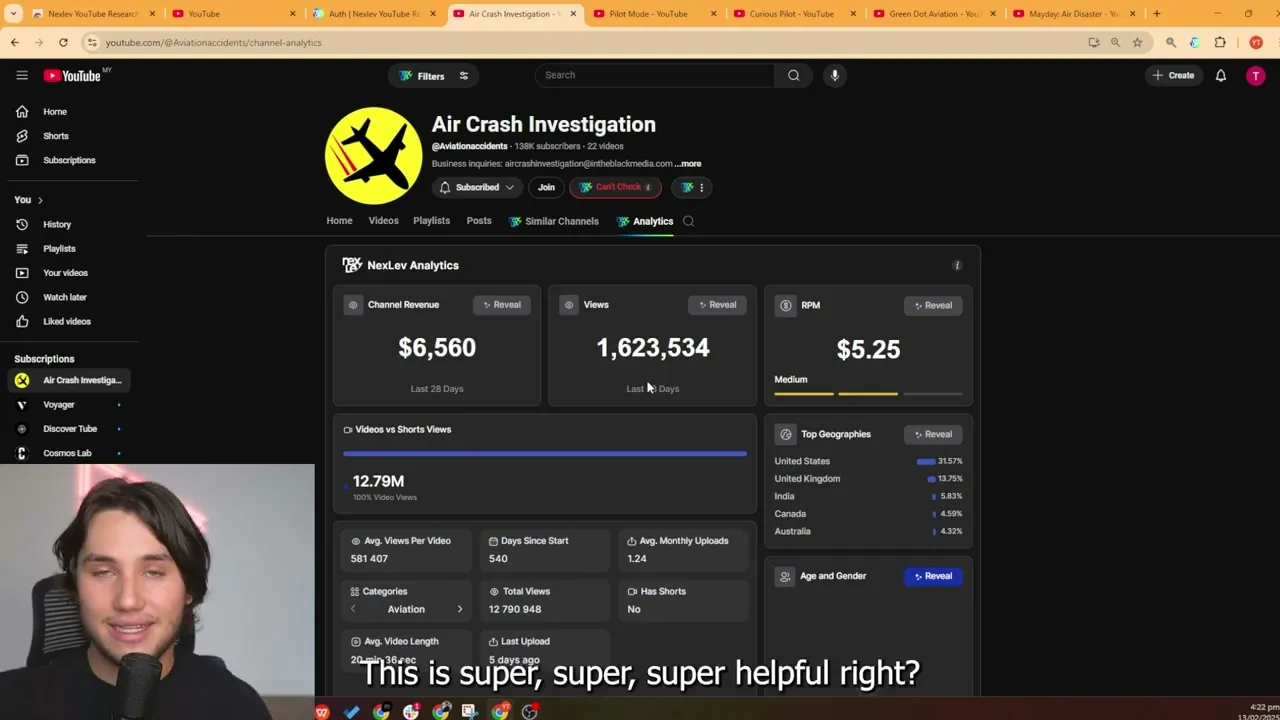
that um the analytic step makes a prediction no RPM Checker no uh Channel revenue is going to be 100% accurate because that's just simply not possible right we're we're taking the channel data we're looking at the videos we're looking at the titles looking at the comments and we're going okay what would the estimated rpmb for dis Niche so we also make a prediction based on um you know where we think the um viewers are coming from so in this case it's United States United Kingdom again it's a prediction the data is not 100% accurate um
and it can be faulty sometimes for example if a channel has two categories that it can fit into for examp like let's say some somebody's uploading both politics and basketball content we might mispredict the RPM because again they're uploading so much different content on the channel it's hard for our system to recognize it so yeah that's what the analytics page does really great for research and insights especially for beginners who don't know what a what um an RPM a specific Niche has this is super super super helpful right so great feature moving on to the
next thing now if you're back on the video page you will see another button which is the save to swipe file button now this save to swipe file button is one of the most amazing features that you will come across let's say you have a team or you're doing Niche research you would normally put like your um files or your YouTube videos or YouTube channels that you find in a Google Docs folder things always get hectic you never look at that Google Docs folder anymore so instead what you can now do is press save to
swipe file it will load all the analytics of the channel and you can then add a uh description tags and you can add it into a folder so you can basically add it into a swipe file folder so we'll make a new folder called plane crash oh plane crash and we create the folder and once it's in that plain crash folder so we have the what you have to select the plane crash folder and once it's in that folder by pressing save um it will show up in your swipe file dashboard now how do you
access access the swipe file dashboard you can press on the next left icon and press swipe file what will happen then is it will load your swipe file dashboard for you uh as you can see here is our swipe file dashboard and boom there you go this is all the content in your swipe file folders and as you can see there's a new folder called plain crash here and the channel is right in there and if you want to add like a description or notes or anything um you can do that in this folder and
the cool part is you can't it's not only that you can view this folder but also you can make this folder public or shared and share it with another nexl extension user or share it with anyone on the internet and basically show a list of channels in an organized and tagged manner not only that you can also filter through folders so let's say you go to your all content folder press filter you can only select videos and then we'll only show you videos you can only select um I don't have shorts in this thumbnails or
part of videos you can search tags so it's super super cool to uh basically organize your content in this manner and it's a great way to keep things organized when you're doing YouTube research very very helpful so that's one of the features but we have much much more so moving on um what you will see is if you're pressing on the three dots here there will be three new buttons the first button will be save the Swip file so you can also save a video or a thumbnail to swipe file and it works in the
same way as the the channel this way you can you basically save any type of YouTube asset to your swipe file what you can also do is you can save the thumbnail so it will download the thumb thumbnail um to your computer SL desktop and that's super useful for if you're basically doing a thumbnail design or you want to save that in a I don't know folder for inspiration on your computer and you can also make a screenshot which it's basically a screenshot that you can for example share on Twitter or you can share it
on Discord and you can change the color um off set featur so you can make it um white or or black you can make it transparent you can change the background color uh to anything you basically would like so I'll make it black and you can press screenshot and it will download straight to your computer and you will have a beautiful screenshot of a YouTube video super super helpful right so moving on um that's the features that you will find by pressing the three dots on your next left extension now another feature that we haven't
gone over just yet is the thumbnail test feature feature so the thumbnail test feature can be found when you press on the um next left icon and press thumbnail test now the thumbnail test will basically be a built-in thumbnail tester to compare your thumbnails to you know competition or to a homepage and this way you can see if your thumbnail stands out so let's make it white so it's a little easier for you to read and you can upload a thumbnail so we'll go with the thumbnail we just downloaded and we can do do um
the worst plane crash of the 21st century something like this right we can add that title we can also add multiple titles but what you will be able to see is that the the the thumbnail now shows up in the top corner you can also replace it to another place and this way you can easily see if the thumbnail stands out a lot right another thing you can do is um you can make it a mobile view so can see what it looks like on mobile uh and plus if you haven't noticed there is a
competitor section below me and that competitor section is extremely useful and I'll show you how to how to um navigate it so you have just a regular Home tab um which basically this Home tab just extracts the videos on your um YouTube um desktop or homepage and puts it in this but you can also use subscription so you can automatically load your competitors thumbnails into the thumbnail tester and you can also get it from the trending tab but the cool part is you can also compare it um against you know certain Search terms like plink
crash right when we look that up and press press load as you can see it will pull the videos from um YouTube search and it will compare that against your thumbnail as you can see my thumbnail uh stands out quite a bit um we can also search against certain competitors right so if we have a competitor like uh the channel we just saw green do Aviation you can just type that in and it will pull up that channel as you can see green do Aviation you can load it and now we're comparing the channel or
the thumbnail against Green do Aviation it's a really great way to test the thumbnail test title variants and see what works the best for your video packaging really great tool again all of this comes with a $13 a month subscription like you can replace five tools at this point just by these features already so really really useful feature uh if you're um trying to brainstorm thumbnails right so now that we had the thumbnail um feature we will move on to the video features so what we will do um is we will go to a a
video and we will basically click on the video and I will show you a couple of the features that next left build into the video page so what we will do is if as you can see we have a a channel here and there's a couple new buttons that you'll notice so first of all you have the monetization icon checks if the video itself is monetized and then you have uh the save the swipe file feature you can save this video right uh here to swipe file you can also save a part of the video
to the swipe file depending on um again if you find like the hook or something interesting you can save a part of a video to the to the um swipe file but basically what you can do is you can start um for example copying or downloading the thumbnail that's a good one so if you want a copy and just paste it in your Photoshop uh that's a great thing as well so as as you can see if I press copy it will copy it to my clipboard and if I press download it will just download
the thumbnail to my desktop another thing that you can do is let's say you find a cool part of the video and you want to send that to your team for inspiration instead of having to screenshot uh the part of the video um like like in an annoying way or if you want to use a frame of a video for a specific specific design or a thumbnail then what you can now do is press screenshot frame and you can press either download or copy and as you can see what it will do is it will
screenshot your your YouTube video for you in a high quality manner so that's super super useful now if you navigate to down here you will see another one which is analyze comments now this this is if you want to just get some quick audience insights the comments are really useful when doing YouTube research just for the reason of the fact that you can basically extract what viewers find interesting and maybe other videos that they want to see so if you press analyze comment what it will do is it will analyze the sentiment it will also
analyze maybe um new topics based on the comment So like um if uh Pluto is a planet um like a survival strategy on the different planet um like here's a bunch of video ideas you can generate just based off the comments uh it also highlights what viewers liked about the video um and some others um some other for example what they didn't like about the video that could be the editing that could be the contents of the video um but the feedback shows up in here really easy way to just analyze all the comments in
one click right super useful and you can press back to comments and it's back to normal right the entire extension is basically designed to help you you know navigate YouTube in a very seamless and frictionless manner so um yeah super useful now there's another secret tab that most of you maybe have not noticed yet which is called similar videos now similar videos is extremely useful CU what it does is whenever you're on a video and you want to check okay is this video performing well or is this topic performing well on other channels it will
basically look at the the channel and then it will load um it will load the um similar video so for example here you have a bunch of other channels copying this video but in in real life format so this this channel got 10,000 views with the video I'll just move myself to the other side of the screen um this channel got 10,000 views with the video and you can just basically uh click through and you see all the competitors showing up um that have similar videos to this one right so you can also press similar
format and it will pull up all the videos with a similar title structure super useful so uh um again this one is about dying and how you will die on on every planet and whatnot so again this is a super super super useful function to quickly check okay how is it topic performing uh without having to go away from the video or going to YouTube search and then having to type a bunch of search queries super useful one feature I forgot to highlight about the video Page by the way is that you have a button
called Script now this script button basically does a couple things it will summarize the video for you so you don't have to watch the entire video to know what what is about it will help you with your YouTube research it will generate topics and it will allow you to copy the summary copy the topics copy the script copy the transcript and copy that the transcript with timestamps again this really helps if you want to um analyze the script using AI or you want to send it to a voice actor you want to send it um
or save it somewhere for research you can just copy the transcri clip script and it gets copied to your keyboard or if you press copy script it will first clean the transcript uh with AI and then you can just copy and paste That Into You know uh Google Docs and analyze the script from there so yeah super useful feature most people or most other extensions already charge $10 just for these features again this all comes in a $13 a month subscription super useful anyway let's go to the YouTube Studio page and I'll explain what features
we have over there all right now we're in the YouTube Studio page and I'm going to show you a couple features in the YouTube Studio page so first off you will notice there is a button called net profit calculator now this button won't work on this particular Channel cuz I haven't uh uploaded any um videos in the last 28 days but you can input your average Video cost for example let's say the average Video cost $50 it will then calculate based on how many videos you've uploaded the profits that your channel basically made just to
keep things quick we'll move on to the um screenshot tool now the screenshot tool allows you to make a screenshot of your uh YouTube analytics for example to sh on Twitter or to share with friends or uh people without for example um displaying your channel information so you can hide Channel information or you can hide subscriber count you can hide Revenue you can hide um you know the views um and then you can change the appearance of the screenshot to maybe analytics only or full screen or transparent um again you can share things super quickly
with your community or audience in this um sense so then moving on we have combined analytics but truthfully uh this feature isn't yet um completed so combined analytics is basically a tool that allows you to connect U multiple channels into One dashboard um but the problem with this is that the feature isn't completely done just yet it has some bugs that we're uh currently working on uh but what what it will do is it will show you all the analytics of uh a few different YouTube channels in a uh you know structured manner similar to
this right it shows you your total profit um and your total views um uh from all the channels combined um which is super super useful right so you can connect your channels using YouTube uh YouTube's API um by pressing add account and then it will connect to channels but there's a lot of bugs um currently so yeah we're going to have to fix that first but this is a pretty awesome feature if you have a lot of channels that you need to manage now moving on we have um a couple really useful features when you're
uploading for example a video so let's say you're uploading a video for example this is a draft on the channel and you want to do uh or check monetization what you can do is for example and we'll come back to uh some other features later you can go to next and usually what you have to do is go through this painstaking process of turning on the ads uh and then adding mid roles but now you can do this much much faster the only thing you have to press is turn on ads it will automatically enable
the ads um then press next and then you'll get this uh rating or ad sensibility screen normally you would have to scroll down sub submit none of the above and then submit rating but now you can just press Skip and there you go it Al automatically submits a uh like a save for ads rating and you can move to the next screen uh so especially if you're uploading a lot of videos this will save a bunch of time um we'll just leave the end screen um part for now and then we'll go over to the
checks so yeah once you've done that what you can do is if you want um you can place mid roll ads so for example you can press remove all ads uh in this way and then you can for example press like oh I want to add 20 ads or mid roll ads to this video right and then it starts placing 20 mid roll ads in your video If you want an ad every minute so you can pre press one ad every minute and it adds one ad every minute and it's much much faster than placing
this manually especially if you're uploading a lot of videos saves so much time so if you want to place it one every two minutes it will do that as well super super useful so sometimes you're uploading a um YouTube thumbnail and the thumbnail is bigger than 2 megabytes and then you have to go back into Photoshop and you have to to reexport it as a jpack in a smaller file size usually thumbnail designers will send you thumbnails that are too large to upload to Youtube uh but now if you upload a thumbnail that is too
large automatically you will get this message message from the NEX have extension that will autoc compress the thumbnail so you can just drag and drop the thumbnail uh into into uh the auto compressor and it will automatically compress the thumbnail for you and apply it to the video super useful saves a ton of time so now that we've covered all the features in the XF extension as you can see we've covered every single one that you can enable disable there's a couple more that but they're really really small um we can now go ahead and
discuss how to find or do topic research with the XF extension and it's pretty pretty simple I've mentioned a few times before that what you can simply do is you can either create a new Google account and then just start browsing YouTube for faces channels click on every single faces Channel you see and uh eventually you'll get something like this where you see all these tabs in the top what you can just simply do is just load or scroll down on your homepage load a bunch of videos and then go with your filter tool in
xlev and press subscriber versus view count and now you will see all the outlier videos and usually what you're looking for is a high view videos or a high view video with very low subscriber count Channel attached to it and then you can preview it and then what you can see is that if there is a you know specific format that goes fireal consistently then you can see that straight away and basically what you can do is once you see this um you can say save this interesting channel to your swipe file here's another one
so um we have a a channel here making videos might be an interesting Niche but it's more like documentary uh and you can basically just as you can see find niches really quick you don't have to um you know scroll endlessly through your homepage and look at every single video you can just filter through everything and um the best or most efficient way to do this is to make a separate Google account and also have the nexif extension on there and then basically um fine-tune it to show you only faceless YouTube videos so what you
can do is as you can see there's a a tab in the top and what you can do is you can find good niches by simply just pressing through these tabs um like for example physics and then scrolling uh scrolling down and then loading a bunch of you know videos um and then just going into your filter tab again subscriber versus view count and then see if there's any interesting formats that you can copy so for example here is maybe something interesting um you know maybe this is an interesting format that you can try um
you can oh for example this channel 68,000 subscribers very consistent format also faceless could be an interesting need to try out if you're a bit technical so as you can see it's super easy to find niches using this method with the NEX left extension same thing for topic research you can just go through and filter all the best performing videos and copy basically that outlier format um from those videos right so you can do the same in the search tab uh and another method that I absolutely love is what you can do is you can
go to any channel right so you can go to you know for example this channel and you can press similar channels and what you can do then once you load in similar channels is you can press in-depth research and then you can load channels and then you can find you know interesting other channels and once you're on that channel you press similar channels again and you keep going until you find something interesting so for example we would load similar channels and um after that we will load the next Channel Once there's something interesting that shows
up here and you just keep going and that and this way you're not limited to one point of like interest you can just keep finding niches infinitely so here you have uh you know maybe a couple interesting niches uh maybe this is a short Channel probably uh no it's a longterm Channel but it's nothing interesting so um yeah you can just wait for it to load basically interesting channels um and then once it loads interesting channels you can also go to that channel and also press um similar channels on on this channel as well and
just keep going until you find something interesting right so um that's the that's a pretty good way of uh going about so let's see if there's anything interesting in here um so here for example you have a a channel doing pretty good so it's like self-improvement or like it's coding lessons about Ai and you can see if there's more channels doing really well and you just keep pressing similar channels on this one and then the next one and the next one and then basically you can find find a lot of good niches using this method
because again everything is real time it doesn't rely on scraping it's just all real time loading so super super useful for finding niches and and topics to uh take inspiration of right so that's how you use the nexl extension most efficiently and then every time you find an interesting Channel you save it um if you're doing research you can use the similar video step is a similar video step is by the way also another way to find really good um really good um need es so you can just go on videos press similar videos see
what channels come up um and if it's something interesting you you just keep pressing similar videos until you find an interesting niche in this way you basically have a way to infinitely find niches instead of like being stuck with maybe something that's only displaying when your homepage or um having no inspiration for what to type into YouTube search um it will basically find you a bunch of things that you can look into um and this is a really effective way to find niches most of my niches I find either with the next of Niche f
or with the next extension so it's super useful and already 45,000 other people are using this method so if you're not you're basically just falling behind so yeah super useful next thing I want to talk about is what to do if you encounter a bug in the NEX extension so you have to understand what the NEX extension it's an extension built on top of YouTube YouTube changes its UI its systems every single day so sometimes there will be a bug um that we have to fix we will always fix them as fast as possible if
you report them to us um and I will show you in a second how to do that so um basically what's important when you encounter BL there's a couple steps you want to go through first reload the page then try again if it's not working reinstall the extension if if that's not working make sure you're logged into the extension properly with the right account we get a lot of people who say oh my extension is saying that I don't have premium uh yet they do have premium but they're logged into the WR Google account so
make sure you always log into the right account that has your premium subscription right uh another thing that you can do is if it's really like bugging out clear your cage on either the extension or on YouTube itself that will help fix a lot of things and another thing that can cause bugs is if you have a lot of other extension installed they might make YouTube behave differently uh which can break our extension as well so if any of these issues happen what I would recommend is if you look out um YouTube faceless Discord you
can join this Discord server or you can just go to next life.io there will be a Discord um there will be a Discord server um that you can join and you can basically press join community and in that Community there will be a tab and that tab looks like this I will pull that up uh for you that tab looks like this and it's basically next left technical support so basically anytime you have an issue we will be there to help you resolve it otherwise you can always send an email to contact at next l.o
we will help you resolve any issues um again please be patient with us we'll try to resolve boxes or issues as fast as possible but yeah this is just very important information for if you're running into any issues with the extension um now just to uh explore the pricing a little bit so we have you have to keep in mind we have four different offers right so we have the YouTube faces course which is € 510 we have the Niche Finder 510 and we have the bundle off offer so you can get um um some
money off right so these are not the same as the extension so in the extension you will get the swipe file the analytics and the extension itself but you won't get the Niche Finder or the YouTube faces course and the YouTube faces scores and nich finder also don't include the extension these are two separate products so keep that in mind when when you're um buying the extension if you want to buy the extension you have to go through the Chrome web store you cannot buy the extension on you cannot buy the extension on the pricing
page you have to go to the Chrome web store in order to buy the extension and you just have to pay through the um through the extension itself so um another thing that I want to highlight is how do you manage your billing so let's say you want to upgrade your subscription or you want to change something about your subscription change your card you can can uh for example uh do that by heading to the extension icon and press manage plan it's really straightforward you can then press cancel plan walk through the steps and make
sure you walk through all of the steps don't complete them half and then think it's either canceled or changed make sure you get a confirmation email from our uh billing platform uh so you know for sure that your uh extensions are upgraded or cancelled or whatnot make sure you do that because um yeah sometimes people think that have a canceled extension but they haven't because they haven't done the steps properly so make sure to do it um properly when you're cancelling the extension uh but we obviously prefer you don't and if you have an issue
please do contact us first before you cancel we will help you resolve it that's what we're there for so that's basically it for um the Chrome extension tutorial it's a very very long tutorial so again uh I hope that was helpful and uh yeah that's it for now and I'll speak to all of you later bye-bye
![24 Oras Weekend Express: January 4, 2026 [HD]](https://img.youtube.com/vi/gC7ZrT_3zXY/mqdefault.jpg)