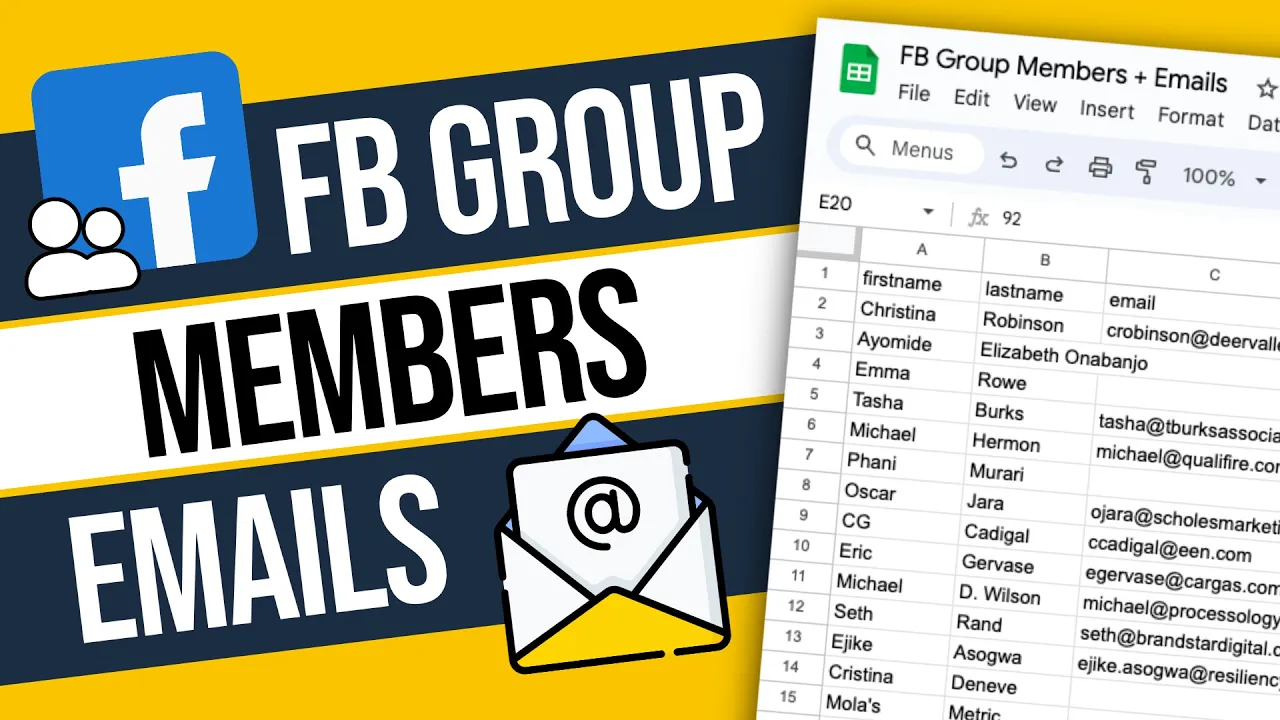
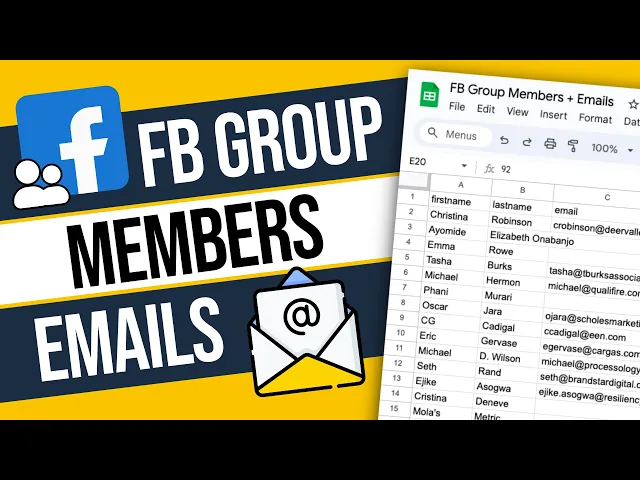
in this video I will show you the process I use to extract the information of 2,000 Facebook group members and also find a verified business email for 27% of the people Facebook groups are an excellent source for lead generation because you have intense signals for what people are interested in however not many marketers and sales professionals are utilizing them because the process of extracting people from a Facebook group and also finding their business emails is not very straightforward to automate I personally haven't seen any good Solutions so far and I know many people are asking for it so uh yeah the good news is that it is possible and I've done the hard work to to find a solution that produces good results and is not very technical and I'm going to show it to you in this video now before we begin with the actual workflow it's important to first understand what it takes to actually find someone's verified business email and if we look at tools such as find mail. com any mailf finder. com drop contact.
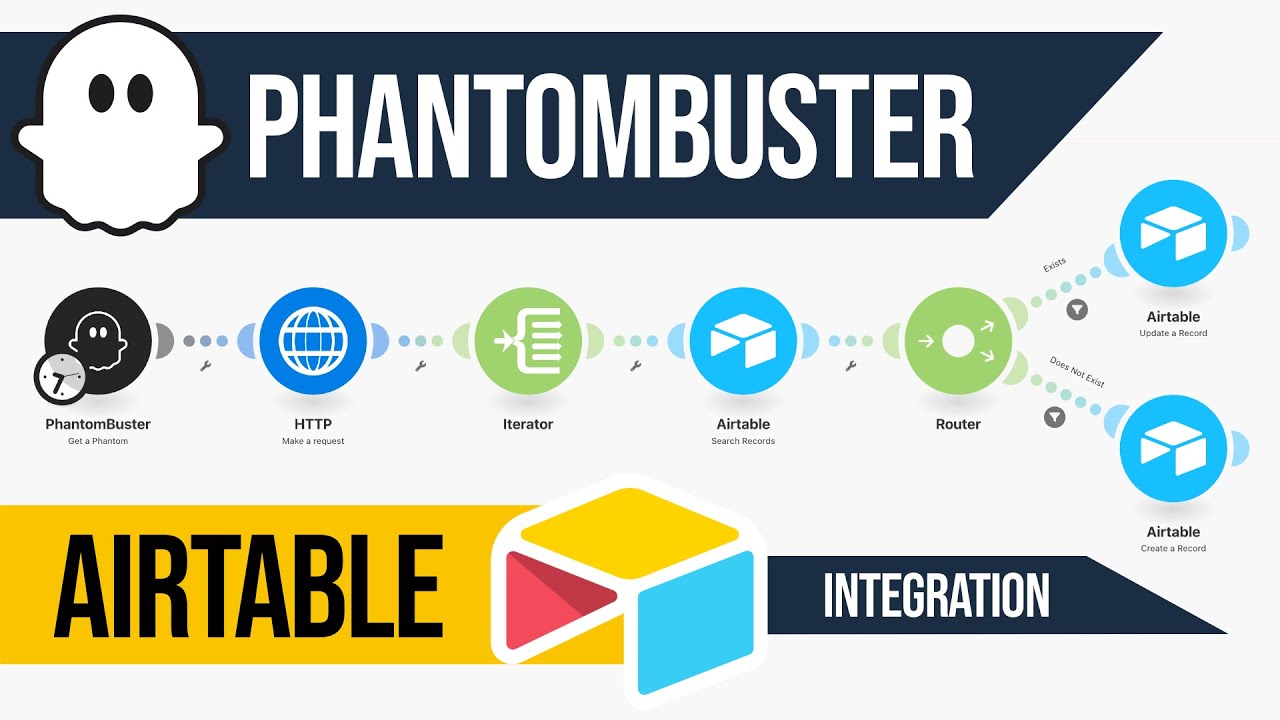
com these are all email uh email search software uh they all require you to provide three pieces of information as input and those three pieces of information are the first name of the person the last name of the person and the domain of the company they work at using these these three pieces of information the tool can then perform a search and find a a verified business business email um so the ultimate goal here is to find a way to extract those three pieces of information from the Facebook group member so we can then pass it to this tools here um in order to do an email search for each person now the first step to this workflow is to find the right Facebook group to extract the members off and this might sound like a very simple process because there's thousands of Facebook groups out there with thousands of members but what I found is that this strategy works best when you choose to extract the members of high quality groups with a lots of business owners and professionals you don't want to be um extracting members from groups with lots of spammers and people who either don't have a company or don't work in a company um you want to avoid those groups because it actually going to make the entire process more time consuming inefficient and expensive so what I recommend is that you you spend some time finding high quality groups um ideally like the harder it is to get into a group The more um high quality it will be right so if if you have the chance to get into some um business networking groups with which are private you know and require you to um you know have some uh entry requirements let's say uh those would be the best groups to uh extract uh the members of now it doesn't necessarily need to be a private group there are tons of uh public Facebook groups that are high quality for example here I found a hopspot certified which is a group created for uh hopspot users to network and help each other now the reason I know this is a a good source for leads is because um hopspot is a CRM software that is primarily used by mediumsized to Enterprise size um companies right so it's not a it's not a tool that someone is using when they are not already making money right a business that is not successful will not be using hopspot right it's an expensive tool therefore the people who are in here and they're networking are people who are who either have a successful company or they uh they work in a successful company therefore it's a good um it's a good source for lead generation and then I also go into the group I see that there's good engagement people are helping each other uh so these are all good indicators that it's a high quality group now another good indicator to look at is the BIOS of the people we're going to be scraping so if we go to people here we can see the members of the group and if you scroll down to the section where it says new to group this is where you're going to find all the members of the group and they're sorted um in in the order that they joined now if we look at these profiles we have the name of the person and then below the name we have like a very short bio which in many cases tells us what the person does right so marketing and promotions manager at Fiverr hpot certified at hopspot works at modeling profession um senior front and developer at the Times of India uh works at digital marketer freelancing competitor analysis a group uh 522 um co-founder producer um director marketing director you know so just by looking at the first few profiles here we can already tell that this is a group that uh has lots of business owners and professionals so that's another indicator that it's a good group to scrape the members off so that's the first step in the workflow find the right group to scrape the members off now once you find the right group then the next step is to create an automation that will extract the list of all the members and to achieve this I use a tool called Phantom bastard which I'm going to link in the description if you want to sign up for a trial now if you're not familiar with Phantom Buster it's basically a tool that provides a bunch of different scrapers that you can use to extract um data from social media websites such as LinkedIn uh Instagram Twitter Facebook Google uh they have many many different solutions here uh for uh websites that are difficult to scrape uh but yeah what I did here is I basically created a phantom or in other words an automation for every step of this workflow I was able to automate the entire thing here and I'm going to walk you through each of one of these steps and explain how I set them up uh but yeah the the one I'm going to start with here is the Facebook group members export so what I did is I went to the solutions page I searched for uh Facebook uh group members export I clicked use this Phantom and I created a new instance of this Phantom and I was able to set it up here under the setup um window by first connecting to my Facebook account now to connect to the Facebook account uh you'll need to first of all install the phantombuster Chrome extension you just Google uh you just do a Google search uh you find this Chrome extension page here uh you install the Chrome extension and that will allow you to very easily connect to your Facebook account by clicking connect to Facebook in these two boxes here and what this will do is retrieve your Facebook user ID and then this will retrieve a session cookie now a session cookie is basically a piece of information that gets generated every time you log in to to your Facebook account um and this allows phantombuster to authenticate on your behalf and um perform actions uh in an automated way so th this does not mean that fantomas will have access to your Facebook credential IAL uh it just means that it will have access to that session so it's completely safe uh so you do that you connect your Facebook account and then the next step is to uh Define the Facebook group that you want to scrape the members off and to do that you simply go to the Facebook group you copy the URL from the browser and then you just paste it here now uh you then click save and then here you will Define the number of members that you want to extract from the group now something very important here is to always keep in mind the limits that Phantom baster tells you to follow so here they're saying that um you they recommend that you should process a maximum of 4,000 to 5,000 groups uh so members per group in order to keep your account safe if you cross that limit then your your uh you're risking getting your account locked or in some cases even getting your account banned so all always take these limits into account you don't want to be doing too much automation especially with social media platforms such as Facebook because um they can easily you can easily get your account bonded now my personal recommendation is to always stay below the recommended limits and I'm talking from experience um especially when you're first starting out I recommend that you start out with a 100 members then go up to 300 then 500 then a th000 right take it very slow you don't want to be um going from an account that has uh zero automation history to an account that scrapes 5,000 members in a day that's very uh that that will definitely get your account flagged so I don't Rec I recommend gradually increasing the number of members that you're scraping now uh another thing to take in account here is that if you're starting out with a free trial of phantom Buster um you get Char look so Phantom Buster charges you based on the execution time of your Phantoms and if you're doing too much automation then you will eventually run out of execution time so that's another thing to take in account if you want to do if you want to try this whole workflow for free I recommend that you do let's say about um let's say 300 members just to test the whole thing out and then if you're happy you can you know uh uh buy a subscription and increase the number of members that you're scraping and so on uh so yeah that's that's these are my recommendations uh so when I was testing this out I did a total of 2,000 members uh so that's what I had there and then you can click save and then finally here we have the launch settings so uh these are a little bit more advanced you don't need to be worrying about these settings for now but the idea here is that you can set your automation to um run at a set frequency for example you can execute it once per day or uh every few hours every day or uh once every other working hour you know there's different like uh frequency options you can select in order to have this triggered automatically uh and scrape new members of the group as they get added so tons of things you can do here um I'll let you experiment with them in my in my case I'm just keeping it simple and I'm I'm launching the automation manually right so whenever I want to scrape uh the members of the group then I choose to launch it manually uh so these are this is my setup and then I went ahead and launched it and then once it finished its execution I had here a list of all the members that were extracted together with all the information so for each member I got their profile URL so this is the the profile URL of the person I got their full name their first name their last name their profile picture URL uh the group name that I extracted them from as as well as the group URL uh since when they were a member the additional data which is basically the little line under their profile name here uh which tells us a little bit about what they do um their friendship status a unique ID and then a time stamp for when the profile was scraped okay now with this information here going back to what I mentioned at the beginning of the video um we are one step closer to being able to search for a business email because now we have the person's first name their last name but we also have some information about what they do and if you remember I said that the third piece of information we need other than the first name and the the the last name of the person is the domain of the company they work at however in order to get the domain of a company or in other words the website of the company we first need to know the company they work at right uh or they own we need to actually know the company name and if you notice here the uh the profiles where in the additional data column um have information about the company that the the person works at include the company name right so owner at and then company name um co-founder at and then company name um works at company name CEO at company name right so the information we need to get one step closer to finding the company domain is part of this additional data column we just need to find a way to extract it and that's the that's the third step in this workflow extracting the company name from the additional data column um of each person where it actually exists now to achieve this there's a few things I had to do the first thing I had to do was to download the results to a CSV file so I clicked here a CSV file was downloaded with all the results and then what I did is I created a new Google sheet in my Google account and I imported that CSV file it got uploaded and then I inserted it in a new sheet import data I deleted the first sheet which was empty okay and then I renamed this to FB group export now now once I had this information in here the next thing I wanted to do was to clean up this data because as you can see here if I open up the additional data column a little bit you can see that there's lots of rows where there are no there's no additional data right it's empty so the first thing I wanted to do was remove those rows because I there's no way I could get a company name from a row that doesn't have any data so I did not want those rows so I created let me let me do that again so you can see I clicked on the column I clicked on the little arrow next to the column and then selected create a filter and then clicked here on the filter button and under filter by values I uh selected clear to remove all the selected values and I only then selected the blanks clicked okay and this automatically got me all the rows that do not have any additional data I then clicked here to select the first row went all the way down to the last row hold uh I'm holding down shift and then clicking on the last row actually this is the last row here uh and then right click delete selected rows so those are all gone then the next thing I did is I uh I clicked again on the filter uh I selected all the options to get the whole list again now the next thing I wanted to do was remove all the rows that did not have the word at in them and the reason for that is because if you notice all the all the rows where the person um has information about the company they work at or what they do basically there is always the word add between the role that they have and then the the name of the company right so founder CEO at company name uh president at company name recruiter at company name this one here which is just a location does not have the word at right founder at company name location doesn't have ad in it so because I only want the ones which have the company name in them I wanted to make sure that the the word at was always part of the text therefore I wanted to remove all the rows that did not have that word in the text so I created a new filter here filter by condition I said text does not contain at okay and here you go and whenever I'm doing this I I go through and quickly check quickly review that my decision makes sense and as you can see all these are either location or universities schools uh so I'm not interested in any of these I only want the people who um include a company name in the bio so again selecting the first row here going all the way down selecting the last one and then right click uh sorry right click there and then delete perfect so this is how we're cleaning up data then I added another condition to uh remove all the rows where text contains at self because there's tons of people that say some consultant at self-employment they're self-employed and they have self-employed as a company name and I don't want that so I want all to remove all these delete selected rows okay okay and then I performed the same process to uh remove all the rows which had the word freelancer in them the word Fiverr in them the word appwork in them these are people who have again they're Freelancers but they're on either Fiverr or apple work the word school so people who are just listing their school the university um College and finally entrepreneur right so by removing all the rows that met these conditions I was able to finally have a nice clean list with um primarily business owners and professionals now in order to extract the company name from each one of these bios which is what I want to do in order to get one step closer to finding um the company domain I had to use AI because AI is the only thing that can look at a piece of text and figure out like where in the text it mentions um the a company name right and this is again something that I managed to do with um I managed to automate with phantombuster so what I did here is I used a an advanced Ai and richer Phantom so I went to Solutions I searched for AI and then I found uh where is it so I went to AI here and then Advanced AI en richer so I clicked use this Phantom and then in the setup I selected gbt 4 as the model right so um there's uh Phantom baser integrates with the open AI GPT models and you have a choice to either use the GPT 34 uh turbo or the gbt 4 models I chose to use the gbt 4 because I wanted to use the best model uh possible in order to to get the most accurate results um feel free to test it out with uh 3. 5 turbo and let me know how that goes um then I pasted my my open AI API key here if you don't want to go through this process like of getting an API key and all that you can also use um the gp4 phantom Buster version which is basically um it's going like phantombuster will connect to GP for on your behalf right so on your Phantom Buster um on your phantombuster account you get a number of credits that you can use towards um AI enrichment so I I think you get like a thousand credits on your free trial so you can just select gb4 phantombuster and that will automatically um give you access to the Model H and then moving on to the next page here I chose to process uh each row on my spreadsheet one by one because I wanted to I wanted to extract the company name of each one of those bios uh and then in the prompt template here I chose to create a custom sorry a custom prompt because I wanted to Define uh the instruction that I wanted to give to the AI on what I wanted it on on what I wanted it to do and here's the prompt I wrote your task is to take the text in the additional column of the of the spreadsheet and extract the name of the company that the person works at or owns I only want the company name if you think it exist if it doesn't exist then return false and then output the result in adjacent string that follows this structure company and then the result which is either the company name or it will be false so that's the prompt that's the instruction and then here I provided the URL of the Google sheet so I went to the Google sheet here uh um I made sure that the Google sheet is public so I went to share uh okay let's just give it a name uh test um I changed this from restricted to anyone with the link so it's publicly accessible I copied the link and then I went back here and I pasted the link uh in this box and that's how uh the Phantom was able to retrieve all the rows and then finally here on the The specifi Columns to feed to gbt I said additional data because that's the only column that I want to process from the uh from each row um so that's the how the the the AI Phantom was configured actually sorry yeah there's Behavior so in the behavior settings I set the temperature to one so this basically tells the F the tells the AI model um to give accurate results rather than try and you know uh be creative let's say uh so yeah I set this to one and then I didn't set a number of rows to process because I wanted to process all of them um that's it save and then launch settings I kept it simple I just said once and launch manually I went ahead and launched the Phantom it processed all uh 745 rows in the sheet and then below here you can see the results that I got back so now the the difference here is that um for each row we have a company column which contains the extracted company name so you can see for example uh dear valy pluming the uh text in the additional data column was marketing director at Deer Valley plumbing and the company name it found was Deer Valley Plumbing uh then Canales here it was manager at Canales and then the company name was Canales Harbor uh housing it was uh Eva project team lead at Harbor housing and it detected that the company name was Harbor um housing so you see that it did quite a good job at finding and extracting the company names where it existed where it did not find the company name for example here where the additional data was studying at not yet working whatever uh it said false right so it did not find the company name there so um yeah I think it did a quite a good job the gp4 model does a good job at uh extracting these company names so yeah then I went ahead and uh downloaded the results to a CSV file I imported them in a new sheet so file import insert new sheet import data I went ahead and uh renamed the sheet to uh company names and then again some CLE clean up here so uh I wanted to remove all the rows which had false uh as a company name so create a filter uh I said filter by condition text contains uh false there we go select all of them delete and also all the ones that are blank so uh is empty so just one delete row so that's how I cleaned up this uh sheet and with this data set I can now proceed to The Next Step which was finding the company domain based on the domain name uh so this is again something that I managed to do with Phantom buer because they have um a very nice uh Phantom a very nice automation called domain name finder so what this does basically if I go to Solutions and search for a domain name finder what it does is it finds web domains from a list of business or company names and I believe that it does like a some sort of Google search uh and finds the most relevant um website result based on the domain based on the company name that is provided uh and then from the website it extracts the domain name so very nice Phantom it makes uh without this you know the the entire process wouldn't be possible I would say uh it's a very crucial step to the to the entire workflow so going here to the setup you can see that uh in the company names here I'm providing a URL to the Google sheet so again I'm providing um the Google sheet sorry the URL of this Google sheet uh with the difference here is that I had to move this tab to the very beginning here because uh Phantom baser always looks at the first sheet in the in the row here so I had to move it to the to the beginning um copy the link of the sheet and then paste it in the Phantom here uh then under spreadsheet settings I had to select company as the column of the sheet that contains the company names then in the behavior here by default it ignores some uh domains so I didn't touch this um it just like ignores uh these kind of websites if it finds them on the search results uh then under number of companies to process per launch I left this empty in order to process every single Row in the sheet and then yeah that's it there so save launch settings once again kept it simple uh launch manually save and then I went ahead and launched it so after it was done we can see here that it processed uh 683 rows and out of those it found 682 domains uh we can see here in the results the query so this is basically the the company name that I provided uh the link of the website that it found and then the domain that it extracted from that website link it also found the description of the website as well as the title of the website uh so yeah I then went ahead and downloaded the results to a CSV file imported them again in the in the sheet here so file import up load insert new sheet import data rename the sheet to uh domains now with this one I didn't have to do any cleanup I just kept it as it was however something that I had to do was to merge this sheet with the company names sheet and the reason for that is because in this sheet we do not have the first name and last name of each person we just have um the website and the domain right so the only useful thing for us here is the domain but we want the domain to be linked to the uh to the correct uh person record that we have in this sheet so to achieve that um I had to install a Google sheet extension called merge sheets so to find this I went to add-ons here get add-on and I searched for uh merge sheets so this is a free add-on uh where is it this one here merge sheets I installed that and then I went to the extensions again merge sheets and I said uh start in step one here I had to select the main sheet so the main sheet in this case is company names because that's what I want to keep at the end um create a backup of the sheet here just in case something goes wrong next in step two I selected the lookup sheet so the sheet that I wanted to get data from which is the domain sheet next and then here I had to select the two columns um that were the same that that had the same values in each sheet and those were the um the columns that contain the company name right so that's what I wanted to match the the the rows with and in the main table so the domain uh the sorry the company names she here the the column that contains the company name is called company and then in the domain sheet the column that contains the company name is called query so I wanted to match the rows based on the the the values of these two columns here something important here is you want to scroll down and make sure that no other um no other uh column is selected next then here I had to select the um the data that I wanted to bring over the columns that I wanted to bring over from the domain sheet so those were the the the link the domain the description and the title next and then finally here update your main table merge that's it okay so we can see now that uh for each person row here we have the domain name let's see if they match so uh qualifier doai yes all right we're now in the final final step we now have all the data we need to perform the email searches so we have the person's first name their last name and the domain of the company so um what I did now is I went back to phantombuster and I created the last Phantom here which is professional email finder Phantom so this is another Phantom you can find here so professional email finder and uh what it does is it performs any email search and this is I mean you don't have to use this you can use any other email finder tool such as hunter.










![FREE Course: Master GoHighLevel in 1-Hour [Tutorial & Review for Beginners in 2024]](https://img.youtube.com/vi/EuDI3utWDoU/maxresdefault.jpg)