hey guys Chris here with Phantom Buster and in this video we're going to look at the Facebook group members export Phantom available on phantombuster tocom which will help us extract the members of a Facebook group with this Phantom you can export Facebook group members into a CSV file extract up to 4 to 5,000 members of any single group that you're a member of in scrape basic profile data including name and profile file URL that you can use as the first step in any Facebook workflow all right let's get started all right so to get started
using this Phantom we want to head on over to phantombuster tocom and click on browse Phantoms next I'm going to use the leftand margin and filter by Facebook and then I'll see Facebook group members export if I click on the title I'll be taken to the Phantom overview page here is where I can get an overview on exactly how this Phantom works and if I click on the tutorial tab I can get a step-by-step tutorial of exactly how to set up this Phantom all right next I want to choose use this Phantom so you should
already have the Phantom Buster Chrome extension installed on your browser so all you need to do now is click on connect to Facebook next I'll click save now here's where you tell the fan which groups you want to scrape you have several options here you can use the URL of a single Facebook group the URL of a Google sheet or CSV file containing a list of Facebook group URLs you just need to make sure that the CSV or Google Sheets are publicly accessible so I've already gone up to Facebook and I'm going to use the
LinkedIn growth hackers Facebook group so I'm going to go to the URL and select all right click and choose copy and then head back over over to my Phantom and in the input section I'll rightclick and choose paste there's also several spreadsheet settings so that if you're using a spreadsheet with multiple columns you can tell the Phantom which column heading contains your Facebook group URLs but since I'm using a single Facebook group I'll close this and click on Save now here's where you choose the number of members to extract per group now keep in mind
there's a limit to how much you can automate on Facebook we recommend you process a maximum of 4 to 5,000 members per group in order to keep your account safe if you bypass this by too much you'll have to update your session cookie more often and then if you leave this input section empty the Phantom will attempt to extract as many members as possible there's also the number of groups to process per launch so if you're using a spreadsheet you can limit the number of groups to process every time you launch this Phantom now this
only applies when you're using a spreadsheet or CSV file as an input and if you leave this input empty the Phantom will attempt to process all of your groups in one launch you can also choose to remove duplicate profiles between groups under the results file settings you can also choose to rename the result. CSV file that gets output and if you're using a spreadsheet and you want to keep some of the fields you can tell the Phantom which fields to keep in your results CSV file output but for now everything looks good so I'm going
to close this and click on Save now here's where you tell the Phantom how often to launch you can choose manually or repeatedly and you can choose in the drop-down how often you want to run this every day there's also some advanced settings for running this repeatedly you can also choose every time another Phantom finishes or just to run this Phantom once for now I'm just going to choose manually and you can also choose some notification settings for now I'm just going to leave this as none under the advanced settings is where you can set
up a proxy now we recommend that you always use a proxy when doing anything automated on Facebook so you can choose Phantom Buster proxy HTTP or random proxy from a pool and if you go to our help center you can find the article how and why to use a proxy I've already set up my proxy on bright data so I'm going to choose my bright data proxy and then there's other folder management options at the bottom so everything looks good here I have my proxy from right data set up so I'm going to go ahead
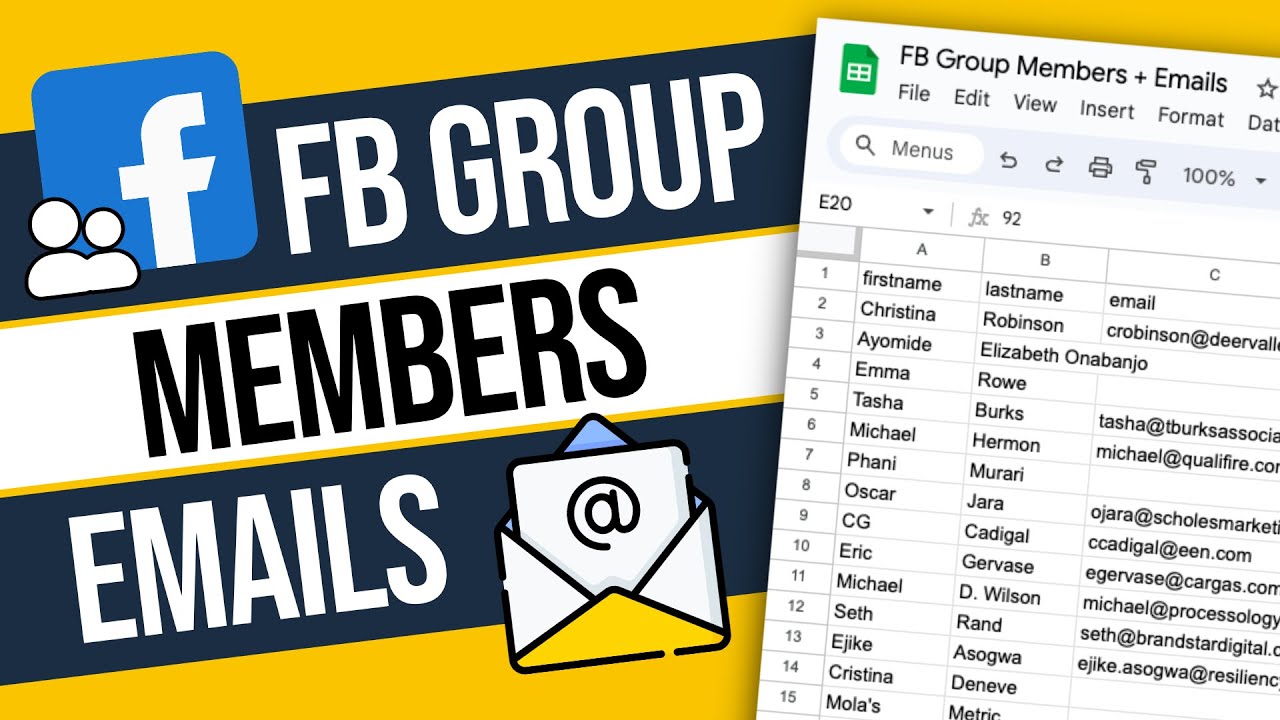
and click on save so now we're at the Facebook group members export Phantom console and everything is set up so all I need to do to launch this Phantom is click on launch and depending on how many group members you're extracting this may take some time all right so now my Facebook group members export Phantom is finished running if I want to get a preview of all of the Facebook group members that I've extracted all I need to do is go to the result. CSV file and click on the I preview icon so this will
give me the profile URL name first name and last name profile picture and a host of other data that I can use as part of my Facebook lead generation strategy if I want to download this CSV all I need to do is click on download CSV and choose where I want to save it on my hard drive all right so that was the Facebook group members export Phantom to get started using this Phantom all you need to do is go to phantombuster tocom and create your account thanks for watching and be sure to subscribe to
our YouTube channel