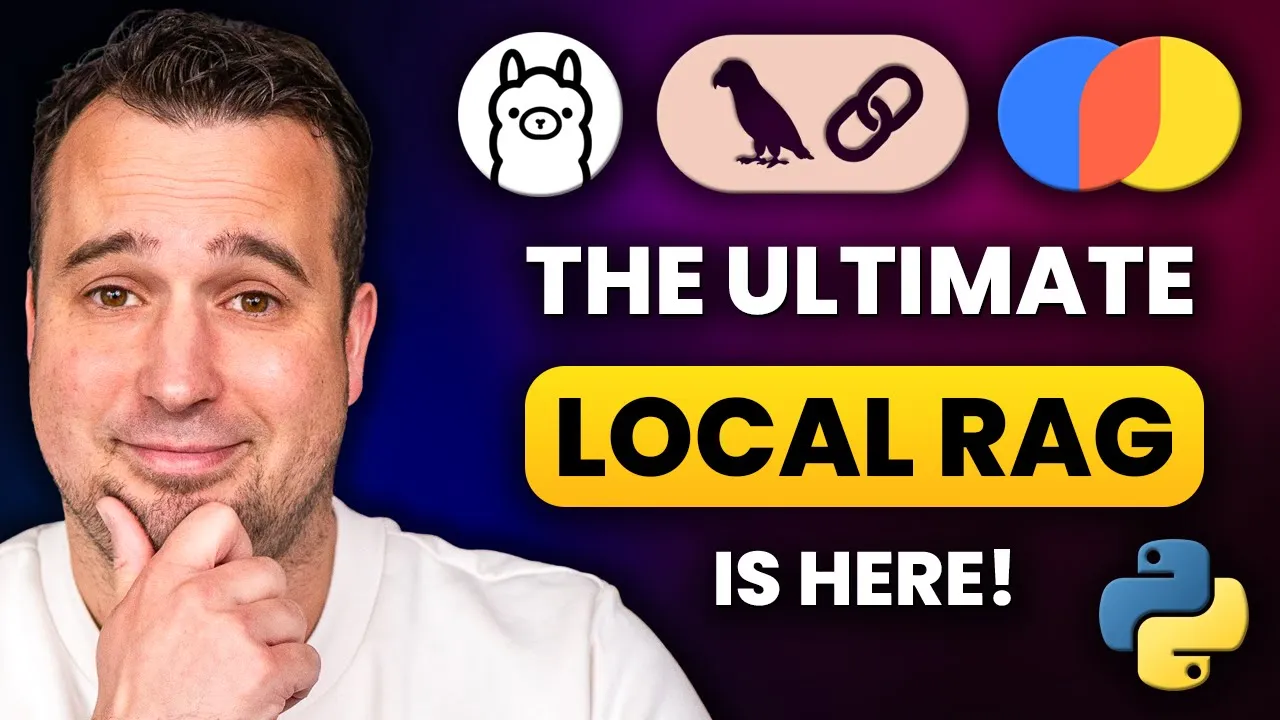
In this video, we're going to build a fully functioning local rack chatbot with Python, Ulama, Langchain, Streamlit, and Chromma DB. A local large language models are extremely powerful. But the problem is that we do not have any control on the data they are trained on.
So, let me just give you an example. I asked Lama 3. 2 when lang was created and by room.
And you see that the answer is completely incorrect. Now, the retrieval augmented generation chatbot that we are building in this video is providing the correct information and is also providing the correct source. Now, in today's video, we will be building an Aentic rag chatbot.
And if you don't know what a gentic rag is and why it's a thousand times better than the Eve rag, you will learn that later in this video. Now, if you've seen some of my previous videos about retrieval augmented generation, this video is not like that because in those videos, we just trained a rack on, for example, one PDF file. Now, in this video, I'm going to show you how to build a complete data pipeline in order to ingest data into your rack.
Now, this script comes with an Excel file, and in this Excel file, you can provide all the topics that you want your rack to have knowledge about. So, if you want to build a rack about dinosaurs or Harry Potter, for example, you can completely do that and you can do that without making any changes to the code. Now, let's get started.
And before we dive into the script, let's first answer the question, what is retrieval augmented generation? And why is a gentic rag so much better? Now in order to understand retrieval augmented generation, let's first take a look at an example without rag.
So you see here that the user asks a question to the large language model and the large language model is answering this question based on its internal knowledge. So as we have seen before, we have no control on the answer that is being generated by the large language model. We don't know whether the information which is provided by the large language model is correct.
And if it is correct at least the large language model is not providing any sources for it. Now when we use retrieval augmented generation the question that the user sent to the chatbot is first sent to a semantic database. Now of course you also have to fill the semantic database and this is what we call building a rack pipeline and this is something that we're going to do later in this video.
So the semantic database is going to return text which is similar to the query from the user. And this process is based on embeddings and I'm going to explain more about embeddings later in this video. For now, the only thing that you have to know is that the semantic database is going to provide the answer on the question.
And then we're going to send both the question and the answer to the large language model. So you see on the right side of the screen, you see um the question, what is langchain? And the answer is lang chain is a software framework that helps facilitate the integration of large language models into applications.
Then the large language model is going to reformulate the answer based on the information, the question and the answer that we have provided it. And this answer is then being sent back to the user. But by default, retrieve augmented generation also has its flaws.
Let's imagine the following situation. So the user asks what is langchain? The chatbot provides an answer.
Lang chain is a library that blah blah blah. And then the user asks when was it created? And then when we send the query from the user when was it created directly to the semantic database, of course the semantic database doesn't have the knowledge about the entire conversation.
So it doesn't know that we are talking about lang chain. So if we have longer conversations with our retrieval augmented generation system, especially with follow-up questions, rag doesn't work anymore. The solution is agentic retrieval augmented generation.
So let's take again the previous example. So the user is asking when was it created? Then the agent will rewrite the query because the agent has access to the entire conversation and it will rewrite the query from the user to when was lang created.
Then this updated query is being sent to the vector database and the vector database is going to provide the answer. Lang chain was created in 2022. And now the large language model has both the question and the answer.
And it can now answer to the user. Langchain was created in 2022. And what we are going to build in this video is an agentic rag.
So not just a naive rag. And I also promised at the beginning of this video that we're going to run this retrieve augmented generation system entirely locally on a computer. And for that we're going to need an application called Olama.
So let's install that first. So in order to build a local retrieval augmented generation application, we first need to run large language models locally on our computer. We first going to download and then we're going to download the model, the large language model that we're going to execute.
So just navigate to amma. com. Then click here on download.
I'm going to download this for Windows. And as soon as the download has been completed, just initiate the installation process. So the installation process has been finalized.
So we can now start Ola. In order to start Ola, Ola only runs from a terminal. Just click here on your Windows logo and then search for console or command prompt.
Press enter. And then we're going to type here. And this will then run.
Now you see here all the commands you can execute with. I'm just going to give one a try which is list. Press enter.
And now you see all the models that have already been installed on my machine. If you execute this command for you, this list is probably going to be empty. And that's because we still need to install a large language model.
In order to do that, I'm going to navigate back to the amma website and then navigate here to models. And then you see here all the models that we can install locally on our PC. And today we're going to install two models.
So one is a chat model. That's the model that you're going to talk to from the chatbot. And the second model is an embedding model.
Now what's really important for the chat model is that you filter here on tools and this will filter the large language models based on LLMs that support tool calling and that is really crucial for the chatbot that we are building today. So click on tools. A model that I really like to use is Lama 3.
2 and this model comes in two variants. So you have the 1 billion parameter model and the 3 billion parameter model. Now based on your hardware requirements, so if you have a PC with not the latest hardware, I would definitely go for the 1 billion parameter model.
And if you have a bit of a newer PC with a newer um a bit of a better graphical card, I would definitely go for the 3 billion parameter model. So I'm going to go for this one. So click here.
And then you see here the command popping up which you need to run in order to install this model. So let's copy this command. Uh you could have the 3 billion parameter or the 1 billion parameter variant.
Navigate back to AMA and then just paste it here in the console and press enter. And this will either install the model in case it hasn't been installed yet. And if the model has already been installed like in my case, you can then use the model and send a message for example, how are you doing?
Like this. Now the next step is to also install an embeddings model. So I'm going to navigate back to models and then filter on embedding.
But before installing the embedding model, let's first take a look at what embeddings actually are. So what exactly are embeddings and why do we need them? So you have seen this slide earlier and while presenting this slide I mentioned that if you ask a question to a vector database or a semantic database that you get back an an answer that is semantically similar to the question and in the next step the large language model is going to use this answer to answer the question that you initially asked.
But how exactly does this process work? So let's imagine that the question that you ask is what is lang chain? And if we embed this question um we give it the number seven.
So this is not a score or a rating or something but just seven is representing the semantical meaning of what is lang chain of this text. So in our semantic database we have order pieces of text and they also have an embedding that represents their meaning. So you see that crew AI is represented by 10 langraph is represented by nine and lang chain is blah blah blah blah blah is represented by six.
So if you would do a search in a semantic database with the text what is lang chain which is represented by seven we would then find the number six which is representing the explanation of lang chain. Now in reality a text is way too complex to just being represented by only one singledigit number and that's why when we use embeddings we create many numbers that we call dimensions and those dimensions all say something about the semantical meaning of a text. So every embedding model will try to represent a text as good as possible by a number of dimensions.
Now we know what embeddings actually are. Let's continue with the next step which is at the installation of our embeddings model. So navigate back to ola.
com. Make sure that you disable the filter for tools. And then we're going to filter on embedding.
And this will then show us all the embedding models. And the model that we are going to use today is this one because the performance I've tested a few of them. The performance of this one is really good.
So click on it and then just copy paste this text which will install the model on your machine. So copy paste it. Let's navigate back to and if you are still chatting with the model you can just exit the chat with /exit like this.
Press enter and then paste this comment and press enter in order to install the embeddings model. Now before we can use the retrieval augmented generation chatbot that you've seen earlier in this video, of course we have to fill this semantic database. And this process of filling this semantic database is called building a rack pipeline.
And in the next few minutes, I'm going to show you how you can build this rack pipeline and also how you can modify it to use your own data. So in the rack that I'm building today, I'm going to ingest data about Python and lench chain. But if you want to build a rack about, for example, biology or animals, you can totally do that.
And I'm also going to show you how. So how exactly do we get this specific data into our semantic database? So if you follow the news about open AAI and entropic for example, you know that the easiest way to get a large amount of data is by scraping the internet.
And we are going to scrape Wikipedia in this example. And that's because a lot of data about all different kind of topics is already on Wikipedia. Then if you have this Wikipedia article of let's say maybe 10,000 characters, we're going to split this in little chunks.
And these are the chunks that we going to retrieve with our chatbot. And for every chunk that we have created from these articles, let's say every chunk of for example thousand characters, we're then going to create an embedding and then we're going to ingest both the text, the chunk and the embedding into our semantic database. So you can find all the scripts that I'm showing in this video on my GitHub repository.
So just navigate to the link in the description of this video and then we're going to just copy this command g clone and then the location of this GitHub repository, open VS Code. If you don't have VS Code yet, you can just download it for free. And in order to run this command, you also need to have git installed.
So just make sure that you've installed them and open VS Code. And then I'm just going to select a location where I want to store the script. So let's say that I have a location uh a directory called Python scripts right here.
Then I'm going to select this folder. Click here on select folder. Open a terminal.
I'm going to trust the authors. Open a terminal. and then just paste the uh command from my GitHub repository right here and then press enter.
And this will then download all the files that you see here on my GitHub to your computer to this directory. So I'm just going to click on file open folder and then I'm just going to open the folder that has just been created local rack withama and click on select folder. Now we have downloaded the code.
We also need to create a virtual environment and install all the necessary requirements which are mentioned in the requirements. txt file. So let's open a terminal.
Let's type python space-en mv venv. And this will create a virtual environment. You want to switch to this environment when asked.
So just click here. Then we're also going to activate this environment by typing venv scripts activate like this. And then we are going to install all the necessary dependencies in this environment by typing pip install or requirements.
xt and press enter. Okay. Okay, so let's just take a look at a very quick example of how building this rack pipeline is going to work.
So open example chunking and in this file you see that there is a larger text here and we're going to use a text splitter to split this text into smaller chunks. So if I execute this um Python file right here you will see that this text is being split in 53 chunks and the first chunk is lang framework for developing applications powered by large language models. So this could be a chunk that you are retrieving from the semantic database.
Then let's also take a look at the embedding process. So if we have done the chunking, we're then going to run this embedding function. Um so I'm just going to run it over this first chunk that we just generated this one.
And then you will see that the embedding for this chunk is going to be this entire collection of all different vectors. So this is exactly what the result of the embedding process looks like. So let's not take any longer.
Let's get started. So, I'm going to take this file env. example, rename it, and I'm just going to remove the part.
So, it's called env. And this is where we're going to save our entire configuration. So, let's take a look at this.
Envile. As you can see here, I've specified the embedding model and I've also specified the chat model. Now, if you are using, for example, the LMA 3.
21 billion parameters model, then you just have to change this 3 to one. But if you want to use any other model hosted on Olama, you just have to install this model in AMA like this like we've done before and then specify the name of the chat model here. And the same goes for the embedding model.
You can use literally any model. So if you want to run models on Lama locally on your PC, you can use this piece of code here. If you want to use OpenAI, just make sure that you command out this piece of code.
And then you have to use, of course, this piece of code. And the same goes for Entropic. Just make sure if you want to use an open AI or an entropic model that you have to also provide here the open AI or the entropic API key.
For now I'm just going to keep this on lama because this video is focused on building a local model. Now let me show you how you can build a rag pipeline with your own data. There is a file here that's called keywords.
txt. So I'm going to open this file. For this you need Excel of course.
And you see that I have two keywords here Python and lang chain. And you see that pages is one here. Now this attribute pages here this specifies how deep um the Wikipedia page has to be scraped.
So you can imagine that um within the Python article there is as well a mention about for example a compiler. So if you just want to scrape the pages about Python and the articles linked in the Python article you can set this to one. But if you also want to scrape their links you can set this to two and then you go can go as far as 10 or something.
Um, for now I'm just going to keep this at one. And that's because I don't want the data set to be too big here for this demo. And you can imagine that if you set this to 10, for example, you're going to scrape a lot of data.
And this will also cost you more time. So for now, I'm just going to keep them on one. You can fill in as many keywords as you want.
Just go crazy with it. Just make sure that you don't set the pages parameter too high. So let's close this one.
Now, the way that I built the script is that we have three files. one for scraping the data from Wikipedia. One for the chunking, embedding and ingestion process.
So this is where the data will be chunked, embedded and then added to the database. And then you see here the file tree chatbot and this is of course the file from where we can execute the actual chatbot. The web scraping is a profession on its own.
If you want to just scrape one, two, three or four files, that's really easy and you can do that locally on your computer. But if you want to scrape a bit more than that on the internet, you're going to run into capt errors and all kind of other errors. And because of that, in today's video, we are partnering up with a long-term partner of this channel, which is Bright Data.
And because of that, I spoke to Brite Data about this video and the local rack that we are building today. And they are offering a $15 coupon for anyone watching this video. So, just click on the link in the description of this video in order to redeem your $15.
Create an account on brightata. com. You see that I already have an account.
And then we're going to navigate to this web scraping icon here. And then click on web scrapers library. And this web scrapers library is a library of web scrapers that have been developed specifically for a specific website.
So if you want to scrape data from LinkedIn, Facebook, Instagram, x. com for example, you can do that with those scrapers. But today we're going to work with Wikipedia.
So I'm just going to search here on Wikipedia and then you see here n. wikipedia. org which is of course the English version of Wikipedia.
I'm going to click here and then you can choose between Wikipedia articles collect by URL. So if you know the URL of an article, you can of course use this web scraper. But in our case, we don't know the URLs of the articles yet.
We just know the keywords. And for that, I'm just going to click on this scraper. And then we want to use the scraper API.
So click on next. Now, if you want to experiment with this Wikipedia API, you can do this in this sandbox environment right here. Definitely also take a look at all the other um website specific web scrapers because they are really good and they are really easy to implement.
Now, for building a local rack, all we need is an API key. So, I'm going to navigate here to the gear icon. And then you see here API keys.
And you see that at this moment, I don't have an API key yet. So, I'm going to click here on add key. And I'm going to specify that I want the API key to be available for an unlimited amount of time like this.
And then click on save. And then you see the API key right here. So, I'm just going to copy it.
You can do the same. Click on got it. Navigate back to our application.
And then I'm just going to paste it here in thev file like this. Now, make sure to save your file and then let's open one scraping Wikipedia and execute this script. Now, it doesn't take too long to execute the script and that's because all this script does is sending all the keywords to the bright data scraping service right here and then generating a snapshot.
TXT and you might see that now a new file has been created which is called a snapshot. txt. Now a unique key has been saved into this file and we can use this unique key in order to fetch the data set from write data.
And if I run this script again so I'm just going to run for a second time. Then it's going to use this uh snapshot ID in order to check whether all data is ready. So you see here status ready snapshot is ready.
All articles are ready. But it could as well be if you're scraping a really big data set and if you've set this pages parameter to 10 or 15 for example that you have to wait for five or 10 minutes. You can execute this script as many times as you want.
If the data set is not ready, it will just say that the data set is not ready yet. As soon as the data set is ready and you see this popping up then a new directory has been created and that's the data set directory and this contains one file which is data. txt containing all the data that we have just scraped.
Now be aware because it could take some time to open this file. And then you see here all the pages that have been scraped. For example, the first page that has been scraped is about MCP, the model context protocol.
So I'm just going to close this one because now we have the data set, but we still have to ingest this data set into our rag database. And for that we're going to use this script to chunking embedding and ingestion. And you will see that we go through every line in this data.
txt file. We split it into chunks of thousand characters each. And then we add every chunk to the semantic database.
So let's also execute this file. Can take a few seconds. And you now see all the pages that have already been scraped popping up which are now being added to the database.
Now you see that not every article is relevant. For example, there's also an article here about Burmese Pythons in Florida. But that's of course what happens when you search on keywords.
Now you see that a new directory has been created which is Chromma DB. And this is where our semantic database has been stored. And now before we start running our chatbot, let me also show you what the retrieval process looks like because what we are actually doing here, we are connecting to the Chroma database.
That's the database that we are using in this video. And then you see here that I search for for example what is lang chain and ks5. This means that I want to get back five results.
So let's also run this script and let's see if it can tell me what langchain is all about. And now you see here the chunks that start popping up when we search the semantic database. So you see here the information you see here the Wikipedia article where it's coming from and the title of the Wikipedia page and you see that we are getting back five articles which have something to do with lang chain.
So that's how the retrieval process works but of course we also want this in a nice user interface. So I'm going to click on three chatbot here and I see here how I developed this entire chatbot. So you see that we have a system prompt here.
I see here that we have a retrieve function which let the agent talk to the database in order to fetch information from the semantic database. So this is where we create the agent. We give it the large language model, the tools and the prompt etc.
And this is where we then um integrate everything into stream list. So let's see how this works. So let's open a terminal and then we're going to type streamllet run free chatbot.
py and press enter. And this will immediately put a chatbot on the screen that uses retrieve augmented generation to use the information that we have just ingested. So let's try that out.
And you see that it's providing back the information that I asked for. And it's also providing the source. Let's try something else.
And this is exactly why when you want to build solid and production ready large language model systems, you want to work with rack instead of relying on the information that the large language model is generating itself.