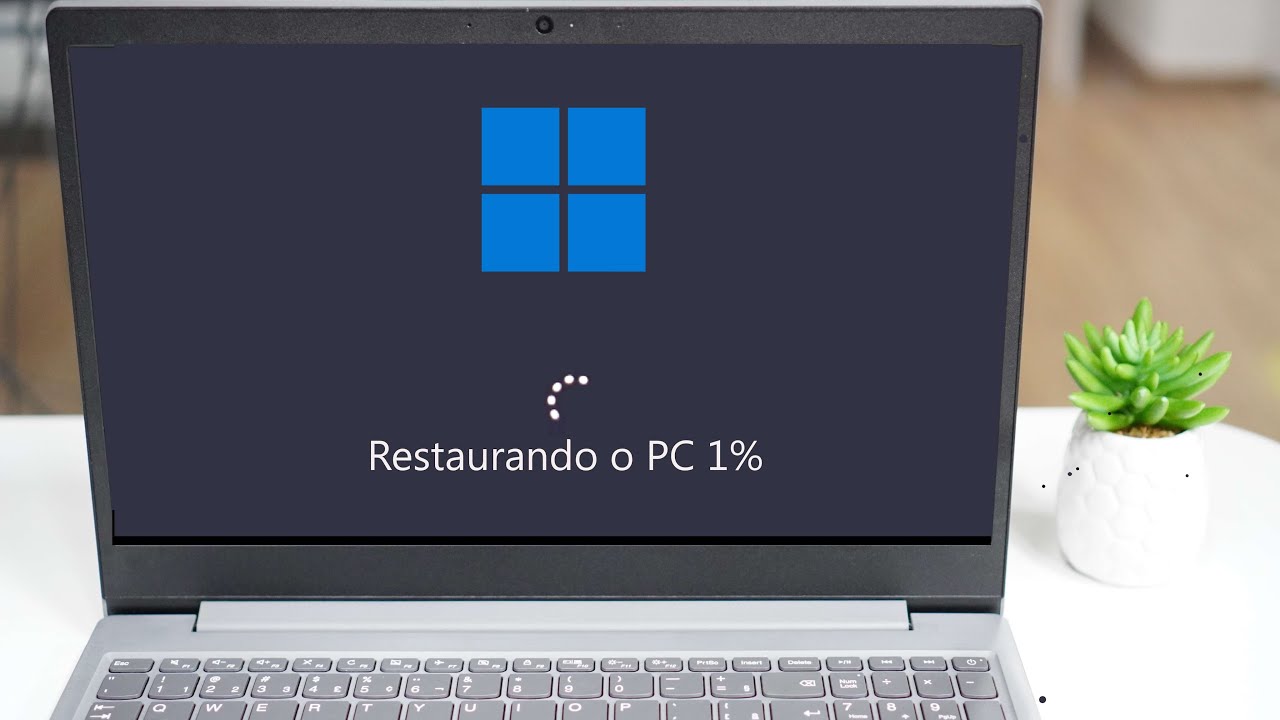
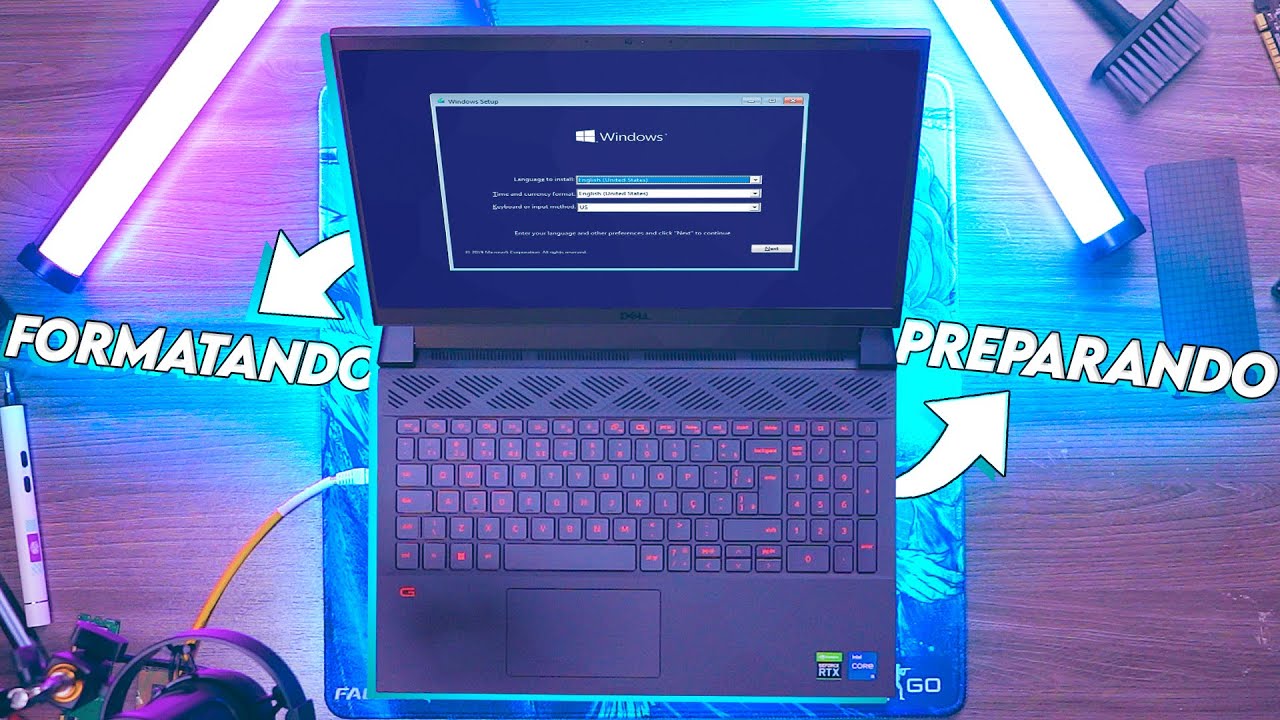
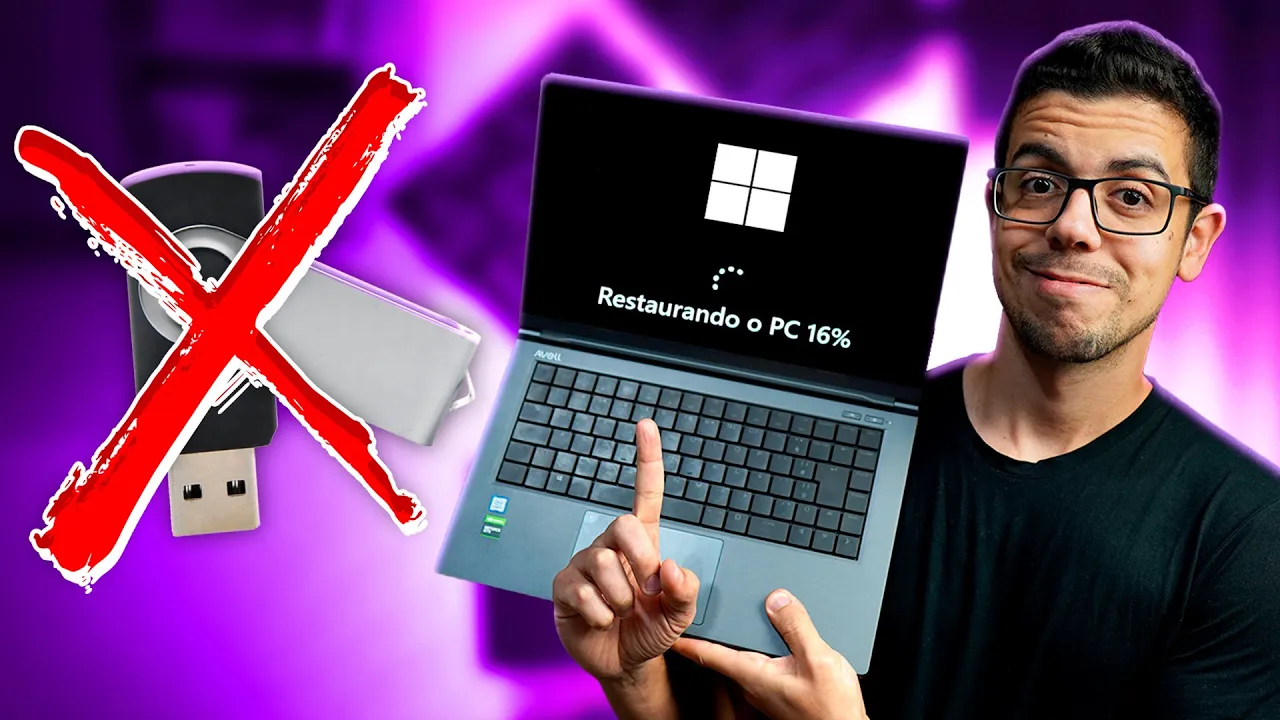
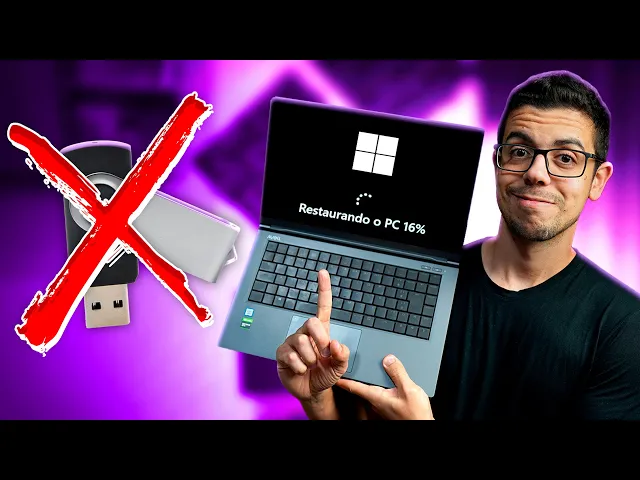
Your notebook, PC, is slow, full of bugs, problems or simply you want sell and want to deliver now for the new buyer there it zeroed, today you go learn how to restore your equipment as if you were just buy it, a simple procedure easy uncomplicated, some call it formatting without flash drive, let's go I will explain everything to you. [Song] I'm here with my Windows notebook 11 and it's not really a formatting of the zero, this procedure is different, I already I posted here on the channel recently a video also with step by step, then if if you want you can check it out restoration here we are going to use the files from your own PC or notebook then the computer must be working but we also have the option to download for this restore right? Enough more, let's do this.
Here is very simple folks, start, you will enter restore there already appeared here reset the pc or just open it settings, Windows update, go here at recovery, restore PC computer "ah Max, I'm not able to access my computer is having a problem", simple click start, hold shift and click on restart by holding shift, you can now drop, here you go in solution of problems, reset PC, same options you see, I'm going back from here, which is the most common option so here we have keep my files, he keeps his personal files and also the programs installed that depend on Windows and have here the option to remove everything is the one I I will do it if you want to select her also and still save something is just you backup to an external HD some storage service there cloud or even to another partition from your notebook or pc, for example here I have C drive, D drive and even a E drive, could take everything in c and send to any of these units here. Let's go then remove all, here are the two options I I talked to you, the second option would be the local reinstall then it goes reinstall Windows from that device of the files that are already find here in the system so let's say which is a little more work than the Windows, because it must examine your files find the originals and reassembles them in a new system in addition local reinstallation it may fail if your files are corrupted, it is a variable of this procedure and another thing that can also happen is a long time to complete this depending on your configuration machine, if it is a configuration not very good especially there if you have one HDD a conventional HD and don't have a SSD this can take a while, now on download from the cloud if you have fast internet it's really worth it because there you go get the files directly from the server Microsoft and let's say it's an installation more reliable and I will repeat if you has a fast internet speed, the cloud download option can be more faster than the reinstall option local, come on, we have here the current settings, remove apps and files, do not clean the drive, delete all files from drive only Windows, remember I mentioned the C drive? Download and install Windows, I will change the first option, clear data if you put yes will only remove your files, it would be faster but less secure so I won't move, download Windows?
reinstall? Yup. exclude the files from all drives?
Here in the my case i want to delete everything if you have backup on drive D, and then you don't put yes here, leave it marked as no confirm, advance, detail, I'm using it here the notebook and told to connect it plugged in, we can't restore the PC when it is running on battery it's Microsoft for now, that's all folks because as I said in some cases it can take too long, it already continues automatically and now once again he list everything you are going to do then read with attention to see if you have not marked anything wrong and detail stay tuned if you do you have any password to access the pc, in the when you call does he have a password? Save it, write down username if is the case that it may be that it will be needed up front, now yes to restore. Now just wait, well likely that your PC will restart sometimes and I'm filming a few steps here for you.
[Song] Well folks, now we come to the initial settings the same when you buy the notebook with Windows 11 and here it took a while approximately 25 minutes but remembering that here I have internet extremely fast and my notebook here has great settings NVME SSD, with 9th Gen i7, H-series and 32 GB of RAM, I will select it here Portuguese Brazil, Brazil, if you have a keyboard with Alt GR here next to the key of space there you select Portuguese Brazil abnt2, if you don't have Alt GR you can select abnt, I don't want to add the layout symbol, here you can already connect to the internet, you will need an email to continue the installation, I I'm going to click here on I don't have internet to create a local account, click now on continue with limited configuration license agreement we will have to accept, I'll put the camera through side like this to see if it improves the image, the name you want to give to the PC, choose one password, advance confirm password, select some questions and post the answers, you you can configure here a Face ID like this you use your face to log in quickly move forward, now it will be necessary to add a pin which is a another password for you to access quickly too, at first it's just number but you can include letters and symbols too, there now some permissions that Microsoft will give you ask and you choose yes or no how localization option to locate the notebook, if it is PC sometimes you don't even need it, here I go put only mandatory, no. Ready now everything is being prepared for you and just wait more some minutes. And there it is folks, I'm going connect to internet here automatically it will already do some updates, I'll put the theme here dark customize beauty, my eyes thank you, let me see here the drivers this computer button right, more options, manage device manager and that's all installed, all working beautifully Local disk C with some files and the other two disks here empty of the way I wanted.
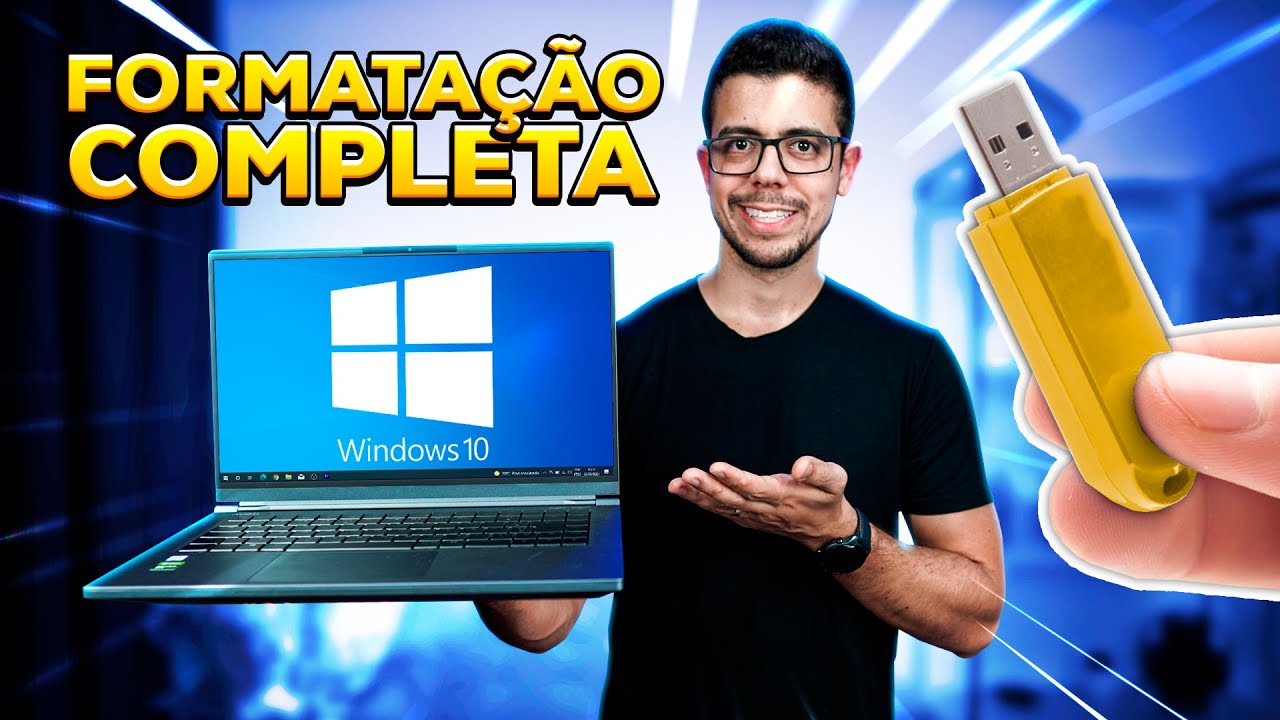
It's not too simple no? If you have any problems with driver just watch the video where I I do the complete formatting, I posted recently on the channel, there I explain how install the drivers and if by any chance you want to install programs from your PC or notebook has another video here on the channel which will also be there in the description where I show various programs essentials and teaching how you can install everything for free you use in everyday life, work and studying. Sorry about that voice, I'm with stamped nose, I'm very allergic but that's it, hope you enjoyed this one video, in an easy way we can reset your PC here, if you like it even leave that like, subscribe to channel to receive more tips about technology, every week has a lot content here on the channel and if it is back the backup beware of viruses.
It also follows me more closely there. on Instagram, I post a lot there related to technology and you me follows more closely, does not fail to check all the links in the description and below you can see more videos of PC tips and up here a video that YouTube will suggest and it may be that you like. I'm Max and this was more a tip for you.

![✅[ATUALIZADO] COMO FORMATAR O PC OU NOTEBOOK SEM PENDRIVE!](https://img.youtube.com/vi/6-85l0ToQU0/maxresdefault.jpg)