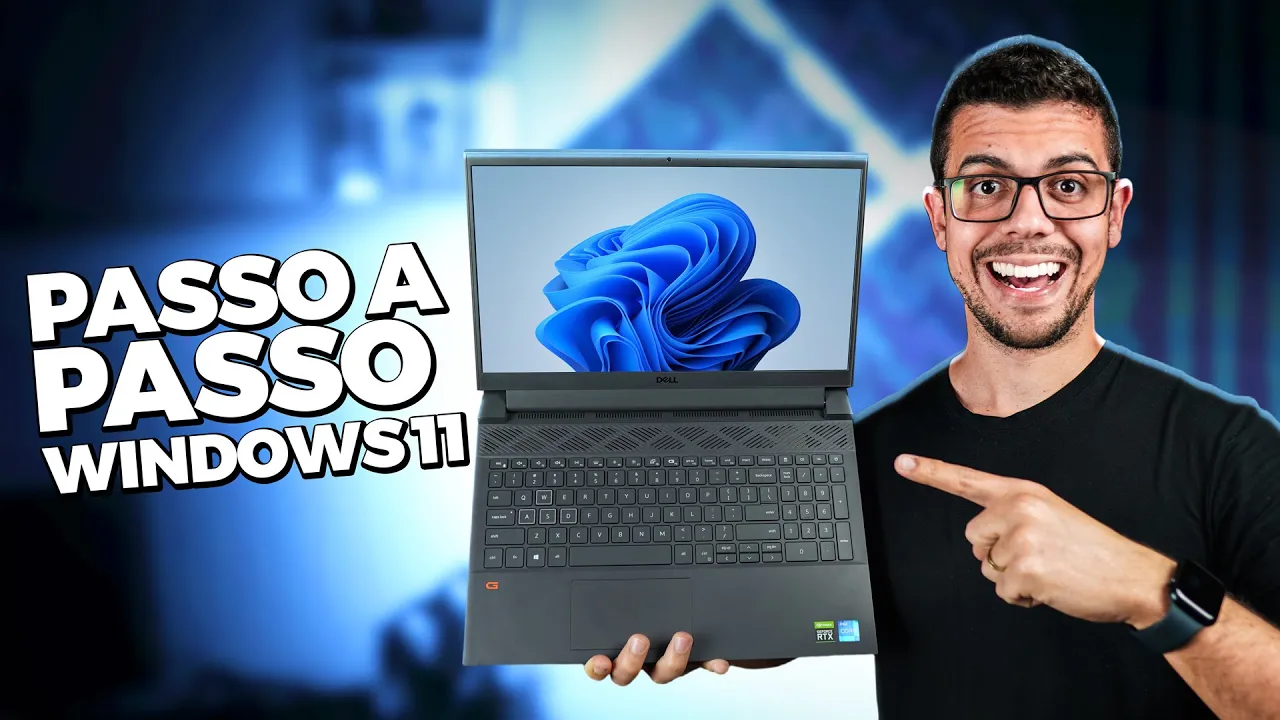
It is already becoming a tradition here in the channel every year I bring a video teaching you step by step format your PC or notebook from scratch and last year I brought this tutorial here installing Windows 10 and then from that I even taught how to update Windows 10 for Windows 11 but I'm still owing this installation of Windows 11 from zero and as always it will be a good video detailed, separated into chapters then you already have a certain notion you can skip to the desired chapter or if you are learning now just watch from start to finish giving a lot attention that everything will be fine, shall we? [Song] First step, backup, what is it backup? You will copy all files that are important to you, copy to an external HD, copy to cloud services like Google Drve, One Drve Drpbox and so on or if you have another partition here on your computer also you can backup for her for example here I have local disk C and I have local disk E, I could take everything that is important here in C and move here to E because we will only format the C disk here in my case are two SSD's that I have it on this machine but you can have it just an SSD or HD and they will be partitioned, I could do it here also i can click here with the button right on top of this computer show more options, manage disk management and here is just click there on the local disk C and then in decreasing the volume there the system will calculate here and will tell you, look now gone, I can create another partition on this SSD about there 360 Giga and then just click here on decrease, ready you would have another partition, could move the files from one partition to another because we will format is the local disk C and another thing, if you have a PC you already bought it ready, assembled there from a particular brand such as Dell I'm here with the Dell notebook too probably it already came with Windows right?
And then he already has a license that is recorded in the BIOS of the PC or notebook, it is tied to the hardware, some licenses still from Windows are tied to the email, if you don't know, you're not sure from none of that you can use the following command that I will leave there in the description, just copy and paste you come here in start, type CMD right click on top here command prompt and then execute as administrator yes, the command is this, I'll give it a enter and here appeared my key, the my license to use windows 11 that will probably be blurred there for you so I just had to copy this leave paste in notepad or write it down because later it will be necessary if the system does not pull automatically. next step we go need a Pen Drve, I'm here with the Sandisk Pen Drve 32 Giga but could be an 8 Giga Pen Drve, is the minimum necessary and pay attention to procedure that we are going to do here will erase everything that is on the Pen Drve so you have something important on the Pen Drve saves this in another location, "ah Max I can use an external HD? You can but remember go delete everything on the external hard drive a lot of people make this mistake.
beauty, i'm here with the notebook, I'll plug it into the port USB, if you are formatting a PC connect this Pen Drve in the USB port behind the cabinet because in the doors ahead usually gives more trouble and uses a Pen Drve of quality, it is a quality product, if if you want the indication I'll leave it there description for you, I can even leave this model there. Now we come here at Google and Search Media Creation Too, until appeared here Windows 11, could search image, ISO, Windows 11, too fell on the same link or download Windows 11, everything fell on the same link as Microsoft. First option here is a Windows 11 installation wizard it will check if your PC or notebook supports Windows 11, has TPM 2.
0 support, in the video I I taught to upgrade from 10 to 11 I showed how to activate TPM 2. 0, I showed you how check if you have it, if you don't, I won't extend that in this video now, if you want to understand more about it will be there in the description for you, ok? The second option is the one we will use to create Windows 11 installation media, I I have the third option too that I I select the system here and do the download the ISO image, so I can use then with WinRAR for example I can copy the files through WinRAR and play to Pen Drve, can I use a another program there to create also this installation media, the idea here is to do it directly on the Pen Drve then I'm going to click here on download now, on option here create media, I'll open it yes, I will click here on accept, here there's nothing to do just click go ahead and look here too I have the option to download ISO image to use later if I want to but no, I already I will download and create this media from direct installation on the Pen Drve, first option,, forward already found mine Pen Drve if you have other things plugged in there, be careful, select the your Pen Drve right there and go ahead and ready is now downloading Windows 11 will now depend on the speed of the your internet, the faster the quick download will also be made here.
Personal beauty my installation media already is ready, I'll click finish. Good now yes we can do some more steps here before starting Windows 11 installation what is to do download from a network drive, a drive is basically what does the software do communicate with hardware, network drive ethernet or wifi what are you going to do then you can use the internet on your notebook, Windows 11 is very likely that it will already install the drivers for me, sometimes more basic drivers but usually installs, formerly in the previous versions it was common for us finish formatting and have none driver installed there had to go back of the drivers, we will do this install everything so if you have just a notebook, just a PC, don't want run the risk of running out of driver network later because if you don't have internet you will not be able to finish to format, right? Then we can do this here now, my notebook by example is the Dell G15, you can search driver and your notebook model or if in your case it's a PC, I don't know and your motherboard is an Asus there you search Asus driver and so on with all brands, mine is Dell G15 5511, you will always find support for Dell like this then you will see drivers, download, you You can also go directly to the website of manufacturer, search by drive you find it, here I'll put it Windows 11, download type driver, category I can still filter even more, I can put a net if I want then see the first one here ethernet controller that would be cable but it gives me another option too Realtek so if you don't know which one is yours you can download both or if it's network wireless driver here wifi, here i I know mine is not those here no and yes this Wi-Fi Killer Wireless, because I saw in the specifications of my notebook, in the doubt download everything then ready is here in downloads, what am I going to to do?
Come here on this computer look here my Pen Drve stayed here in the letter D, drive D: not necessarily yours will stay there I create a folder inside and go put driver, done. And another detail staff about the PCs and notebooks that already have the key linked to the BIOS, the motherboard, by the time we start to install here Windows automatically it will already install the version that is linked, if by chance you want install another version, want to install the pro for example you can do following a simple step which is to copy this file here that I'll leave there for download, a file that I made in the block of notes even at least worked with the Windows 10, let's test here with the Windows 11 if it will work, I got this tip on the internet, I've used it, it worked, it should work for Windows 11 too. I copied the file here and I'm going to play it here into the sources folder here in my installation media It's a CFG file, ok, now let's go restart the machine to start Windows 11 installation, is restarting and as soon as it starts to boot from again we will be pressing the key delete and F2 at the same time if you are on PC it's probably delete, on notebook is usually F2, ok we access here BIOS Setup, some manufacturers will be similar, others as is the case of Dell is quite different, I go here in Boot Configuration see only my Pen Drve is here in third position, UEFI Sandisk I will go up with him by clicking on the little arrow I'll leave it in the first position and here below I will apply the changes, ok now i can leave, now he goes start with the Pen Drve, if it were for example on that Avell notebook is this the way you do it, I've already shown it in the other video, on a Gigabyte motherboard it's like this does, on PC's or notebooks more old is like that there.
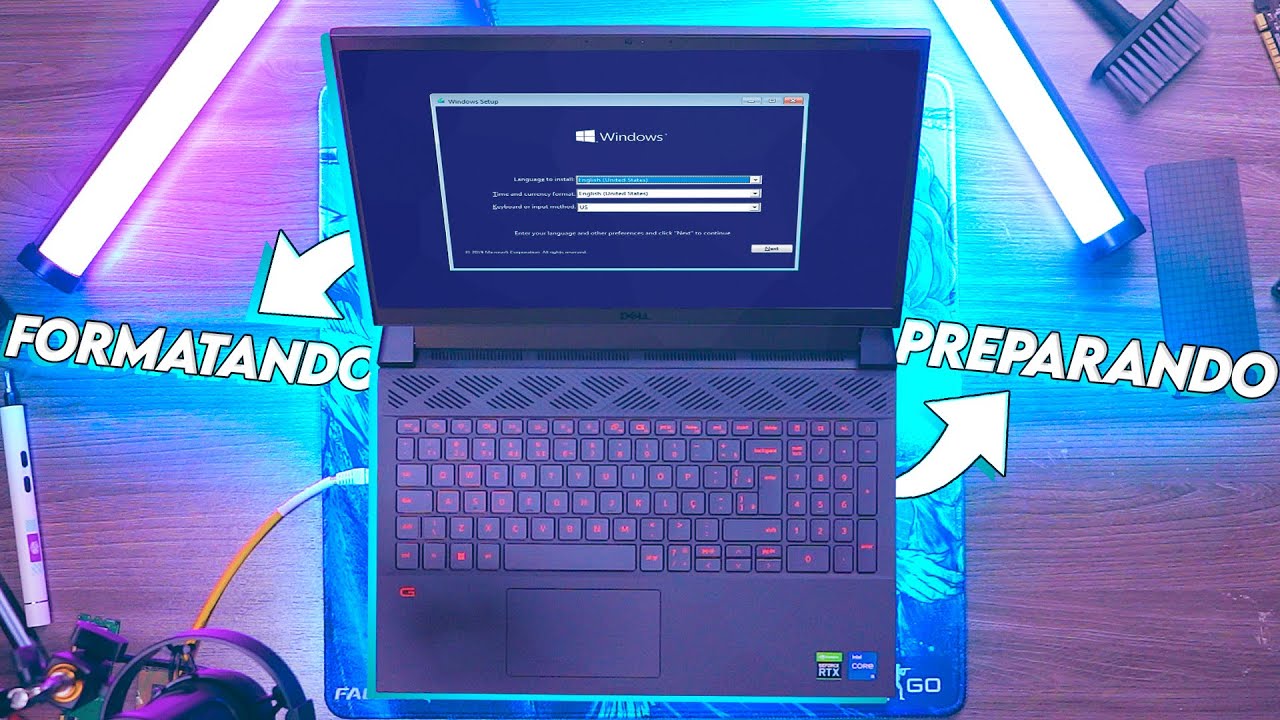
ok guys let's go then start installing Windows 11 finally, portuguese, portuguese, now keyboard here I'll have to change, the most notebooks will be ABNT anyway Brazil, if you have the Alt GR key that it's usually next to the space there you put ABNT2, here in my case the keyboard is different, I'll put it here United States international, advance install now and check it out guys apparently that little file there right here all the versions appeared only here in my case it already came with Windows 11 Home Single Language and is the one I'm going to select, I don't I want to lose my license, I will click next, I accept the terms move forward, now I go here in personalized come on guys this part it is very important and it is a little complicated to understand for those who don't is from the area so pay close attention see that I have unity here 000 and down here I have unit 1 so that means i have two SSD's in this machine or two HDs or 1 HD and 1 SSD, it's two disks here, I I have unit 0, unit 1, if I had here unit 2 would be a third HD or SSD that would be in that machine then see only 1 SSD it is partitioned it has several parts, it has a part here which is security, support, remember that I I said that if you wanted to create more a partition to save your backup could there you have to be careful to not select the backup partition and move forward because if you move forward you will lose all your backup if you move forward on top of the partition where you saved it in this case here as I have 2 disks, 2 SSD's what do I go to do? I will delete everything that is here on drive 0, if you had backup here at drive 0 do not delete, do not delete you simply select here the where your system is installed here in my case it is written West and it is the partition that has the largest size, was just me click here on next but how do i I have 2 SSD's I want to make one cleaner install, i will delete so everything that is in unit zero 0 and look it just goes together, it stays all the unallocated space. Ready look here is my unit 0, all its size, in unit 1 I don't move where could be my backup for example and now just move forward, now just wait a while, it will depend on the configuration of the your PC, if it is a good configuration will install very fast.
[Song] Now there's no secret either, let's go select here Brazil, I will select my keyboard but the same I already explained to majority there will be ABNT and if you have the alt gr next to the space key is ABNT2, Avell put this keyboard there international on notebooks, do what come on, add the second layout, skip, yes, here it will be necessary have an internet connection, no I managed to find a way to do without connect unfortunately so ie it already installed the network driver, connected move forward, will put your name here, I will put here edition, it will be the editing notebook, for now I will not put password, now it's up to you yes or no allow Microsoft and APPS to use your location, as is notebook I will check yes here to locate my device. [Song] [Song] [Song] And look, Windows 11 is already installed Wi-Fi has already connected, I go here at settings, now I come here in Windows update, check for updates, there's a lot to install, I will also install one little program to record the screen and us continues the formatting that has not yet ended. Come on guys I had to install the driver here for the motherboard video so if your PC or notebook has dedicated video card you will need to come here for example in Google, type nvidia-drivers if it's a GTX, RTX then you come here and select your card what type of download will it be?
Will be a drive to focus on games or studio to work with video editing by example then just click on search, do download and then just open, ok, advance advance until installing, "ah your card is not video", readeon, radeon driver ready, go here and choose the model of the board, downloads and installs and something I I'm already going to do here is to come here in customize, put dark mode no one deserves to stay with that theme clear. Personal beauty, to check if all drivers have been installed is only I come here on this computer, button right, show more options, manage device manager, here it is that all were installed and still it is important that you install the driver from video, also install the chipset, let's go on the Dell website which is the manufacturer of this notebook, put its model which is the 5511 type of download I will put here driver category can leave all, beauty, here he already recommended these four here so the we are going to download, we are going to start install because that's how we install some more complements to our PC, notebook work better. now is the integrated onboard video drive motherboard, this Intel Full HD.
good, after installing some drivers is required restart the PC for it to finish the process of installation. Well we're back and it's the 375 00:15:10,560 --> 00:15:15,780 Next, if your notebook, PC is new just access the manufacturer's website as already explained, download the drivers, install and ready to run for the hug, now if you you're having trouble finding it drivers and by chance your processor too for Intel you can use the wizard driver and Intel support, you'll have to install this wizard, it will analyze your machine, reboot and there you go show you that you can update, that you can install it, it's an excellent option Also, remember I mentioned the chipset we already installed here referring to Intel but if it was AMD, AMD chipset driver you there is an option here too, go to the site, make download and install, another way for you install driver easier is using programs like driver booster, I I've shown it in other videos but so it's a third-party program, it's more trust you to go to the manufacturer's website Both for PC, notebook in parts hardware than using it leave it for the last case only if you not even getting it, you installs, it also scans checks all drivers and install to you automatically and as soon as finish using it is worth you uninstall it, ok? Anything look at the previous videos there channel formatting.
Now regarding activation of your windows i will click right click right here toolbar tasks just for us to access the settings, here I can come in system and here I have activation option if you already had the key linked to the your PC ok will already be activated, if you didn't have the key, bought a new one, go need to insert it here or if not got active and you managed to save the way I showed you in command here will have an option for you click, here for example I can change, there will be an option there for you type it and there is that option that a lot of we do and I don't recommend using it pirate activators, is something extremely wrong, do not teach, do not recommend and without say that it can hurt you a lot there particularly with regard to the security of the your PC after formatting and installing the drivers will be missing install programs and I have a video here of which ones programs install on new notebook or after formatting the PC, it is a very complete, I tried to show only free programs so it's really worth it watch this video right after this one formatting you are in. good that's it guys, i really hope i have helped you, that you have achieved there format and install Windows 11, this is a kind of video for you to learn and share then share with that friend of yours that you know is needing it, if you really liked it no forget to leave that like and subscribe here on channel, every week we have videos here related to technology, from time to time when we bring PC tips but the our strength is to review products so if you like to stay tuned to the latest news worth following our work. follow me more closely I post a lot on Instagram Below you can find more tips PC and up here a video that the YouTube will suggest you and it may be that you like.
I'm Max and this was another tip for you guys.

![🔥Como FORMATAR o PC e Instalar o Windows 11 GRÁTIS [Guia Completo]](https://img.youtube.com/vi/5LLZQEtRdAc/maxresdefault.jpg)