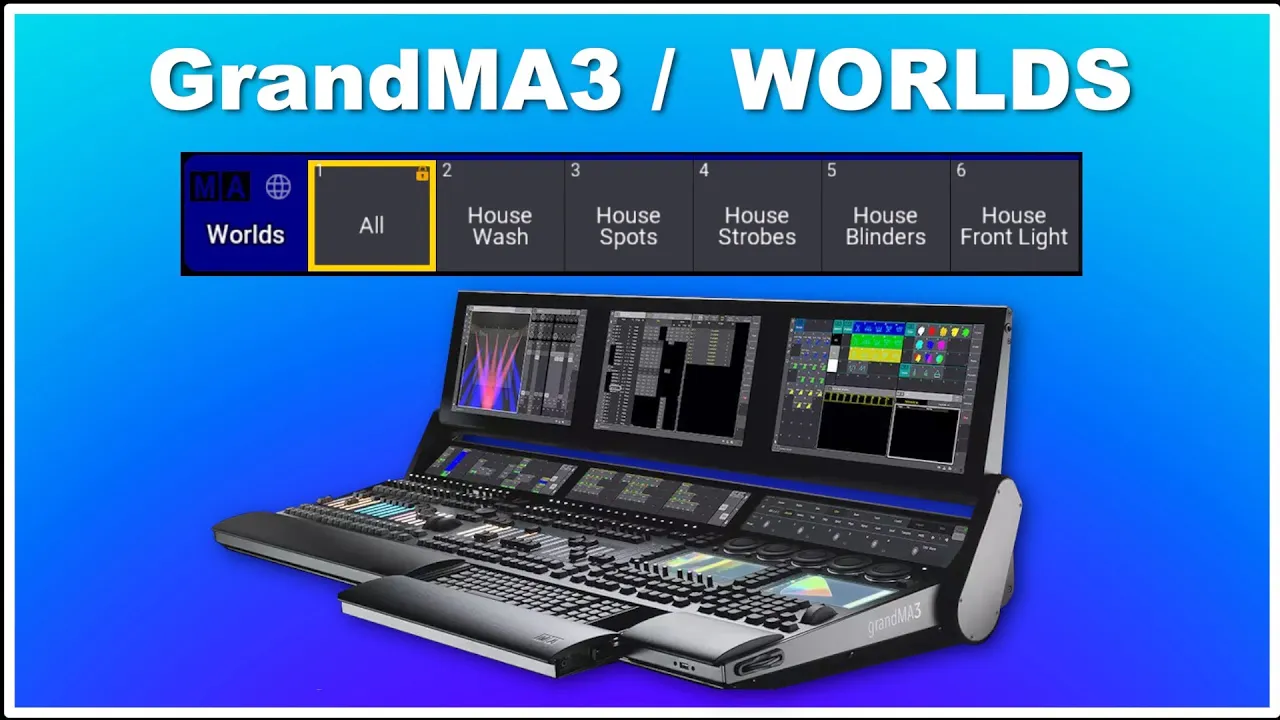
Hi and welcome back to the Event Lighting Channel! Welcome back to another tutorial here on GrandMA3. This time we're going to talk about worlds: what it is, how you can use it, and how you can implement it into your show.
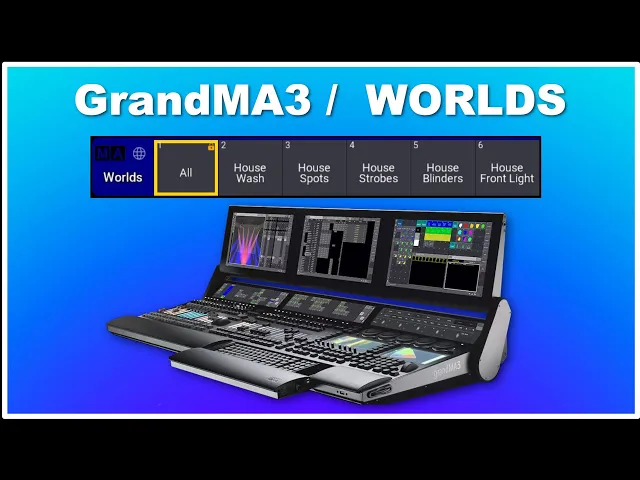
It's quite a helpful tool for a few different things, so let me just show you over here. As you can see, I have my world pool open down here. There's only an "All World," which contains everything.
So if I want to create a world, I can select my spots, for instance, and I can simply just store them into a world here using my swipes. I can label them "spots" and I created my first world. So let's just create another one while we're at it.
Take all our blinders and store this one into the next world here, and we'll say "blind. " Now we’ve basically stored two worlds. So what is a world, and how can we use it?
We have to move to the other screen over here so you can see what's actually happening. On the screen, you can see my small little setup here. If I zoom in a little bit, you can see I have a floor production, some front light here, and I have a rig in the roof for a festival.
So basically, we just created a world with our spots and a world with our blinders. If I press this one and want to look at my spot world, you can see everything goes away except for my spots. Now it's pretty easy!
If I want to select something, I can do that very easily. I can simply sort everything out and only look at the fixtures I need to see. Why this is a really good idea, I'm going to show you later when we take another look at the selection grid and the setup of that in a later tutorial.
But right now, you can see I have my spot world, which only contains my spots, and I have a blind world, which only contains my blinders. This is basically very useful if you have multiple programmers on the show. You can say one programmer, sitting here—programmer number one—is doing all the moving lights.
Programmer number two might be doing all the generic white light stuff, and programmer number three might handle all the video servers. Then you can simply make a world for each programmer that only contains the fixtures they need to work with. That's going to help ensure that you are not working with the same fixtures and competing with each other.
You can simply sort this out: you only work in this world, you work in this world, and you work in this world. When you store something into a sequence, you can take something from one world from the first programmer, something from the second, and something from the third programmer, and that's going to work fine. You can only program what's in your world, but everything can be put into the same sequence, and everything can run together.
That's pretty clever. Once again, a small interruption from our sponsor, Martin, and we're going to talk about the Martin XIP and a cool new feature called Scene Catch. The Martin Mac Aura XIP is an IP-rated fixture; you can use it outdoors in the rain.
So let's say you're using it for some architectural work outside. Imagine you have a number of them standing and lighting up against a wall somewhere, and you need to turn this on every day for a month. Then you can store the information from whatever it’s doing using Scene Catch.
You simply go into the fixture, select the control channel, find Scene Catch, and you can record it. You can turn it on, or you can turn it off. In this case, we adjusted the fixture up against the wall, put it in blue, and we're simply going to enable Scene Catch.
We are going to turn it on; when I then take the DMX out of my fixture and turn the fixture off, then the next time I turn it on, it's going to start in the exact same position, exact same color, whatever settings we used—it’s going to remember and start there every time until you change it. So, that Scene Catch on the Mac Aura XIP? Fantastic!
Let's get back to the video. Something else you can do with a world is use it as a filter. So let’s say we take all our spots and all our blinders, put them at full; you can see everything turns on over here.
We simply store this into a sequence right here and overwrite whatever is in it. We clear, and if I take my fader over here and take it up, you should be able to see that I have my spots and my blinders on in the same sequence. What I can do now is use the world as a filter.
If I go into the settings of sequence number 35, in this case, and look at my output filter, I can go into "world" and say I only want to look at whatever is in world number two, which is my spot world. If I close this one down, you can see that even though we stored intensity information for the blinders and the spots, we used the world as an output filter and only looked at whatever is in the spot world. I can change that, of course, and say, "Okay, I want to look at whatever is in my blind world instead.
" I close this, and now you can see only the blinders go through. So you can use this as a filter for storing basically one sequence with all your intensity for all your different fixtures, and you can have worlds sort out whatever is going through. Filter that is very, very clever!
You can also use worlds as a filter in your presets. If you want to limit what can go into a preset, you can go into your demo presets, for instance, here, and we can set an input filter. Let's say it only accepts something from our spots.
We select all our blinders, we turn them on at full, and we try to store this here. You can see it doesn't accept any information from our blinders because we set the filter to be spots. So that's another use case for the world as a filter.
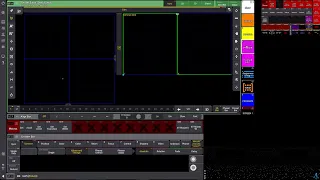
You can also use a world as a filter in your sequences. So, if you want to stop some feature from tracking through your sequence, you can use the world as a filter for that as well. If we look at this one, cue number five, and if we want to add a break, we can go all the way down here until we see "break.
" We can right-click; we can look at the filter, or we can look at the world. In this case, we're just going to look at the worlds here, and we're just going to take the blind world. You can see it now added a theater break here, and if I go into my track sheet, you can see there's a theater break, or a break, right here.
So if I change this value now to zero, you can see it removed it down to the break, and everything below it stayed at 100 because we added a break into the tracking. We haven't really talked about theater breaks on this channel yet; we might do that in the future. But this is basically how you can use worlds in your programming.
It can be quite beneficial to use, and I think it's a great thing to have. So, this is basically very simple: how you can use worlds in your GrandMA3 programming. I hope you got some value out of this video, and if you did, you are more than welcome to give it a like.
It's going to indicate to YouTube that you enjoy the content. Until I see you next time, I hope you have some happy GrandMA3 programming sessions at home or out on tour somewhere, and I'll see you next time. Bye-bye!