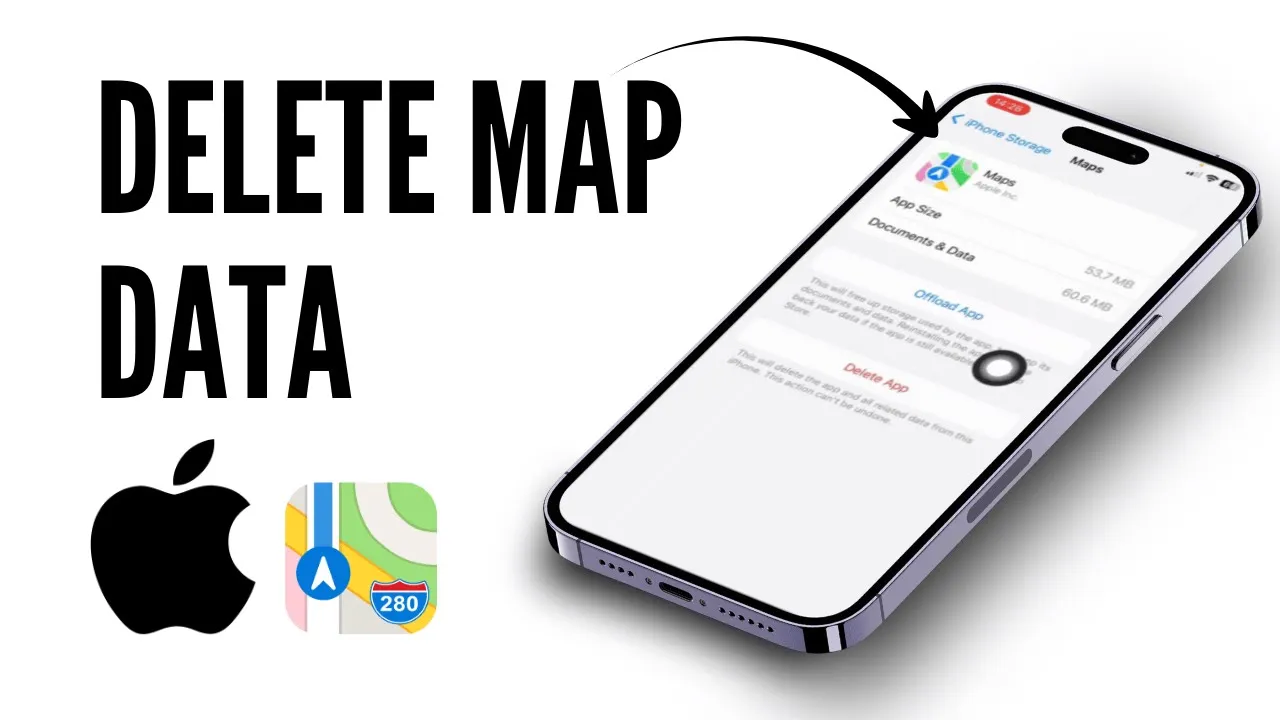
So, hello guys! Welcome back to my YouTube channel. In this video, I'll be showing you how to delete Apple Maps data on iPhone.
So, first things first, simply head over to your Maps application on your iPhone. The first thing you can do is simply click on this profile section over here. Once you click on it, you will see this offline maps section.
If your data is available, you can simply delete it from here by clicking on it. It will ask you to delete the file data, and you can simply click on "Okay. " But if it's not available for you, like in my case, here's what you can do.
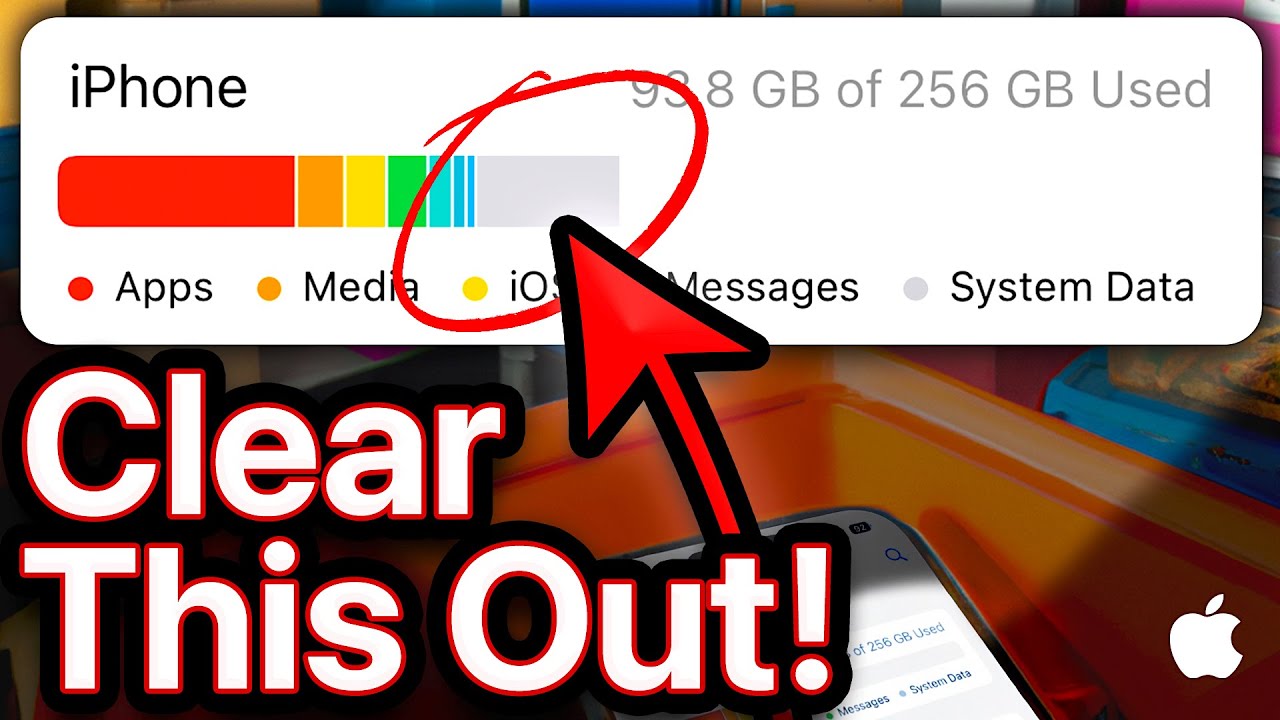
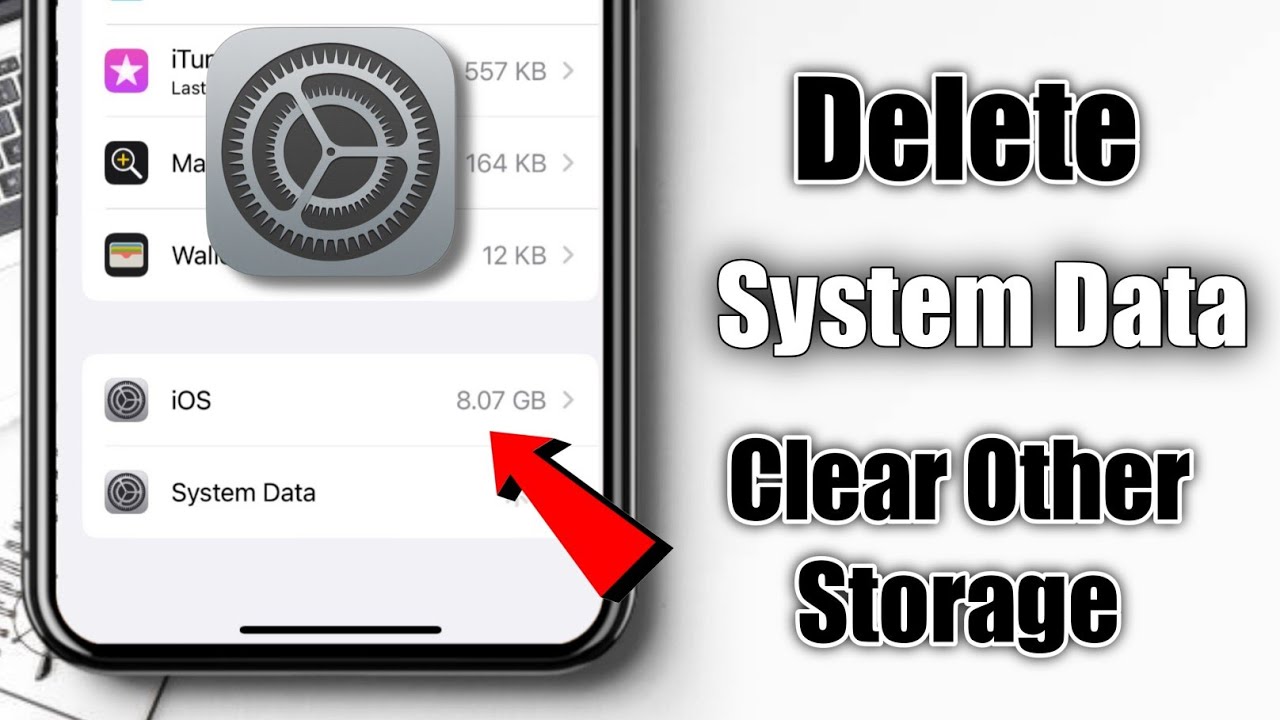
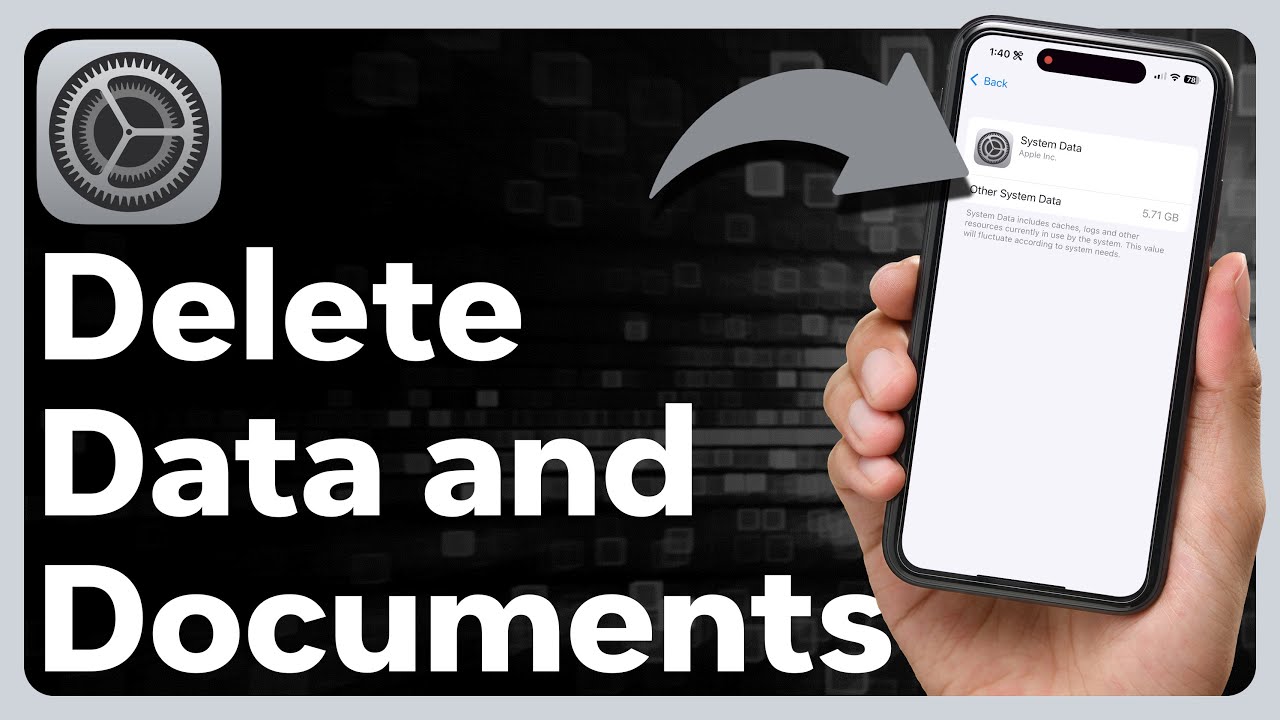
Simply head over to Settings and then to the General section. Once you're inside the General section, simply click on the "iPhone Storage" option. Once you click on it, just click on "Show All," which will display your Maps.
Simply click on Maps, and from here, you can either upload your app, which will free up your storage used by the app but keep its documents and data by reinstalling it. You can also delete the app. What I prefer is to simply delete the app from here.
Just make sure you redownload it from the App Store by searching for Maps over here. And that's it, guys! That should fix your issue and delete your Apple Maps data.
So, that is exactly how you can easily delete your Apple Maps data on iPhone. I hope this video was helpful. If it was, don't forget to like and subscribe to the channel.
See you in the next one!




![Afternoon Jazz 🎷 [jazz lofi]](https://img.youtube.com/vi/-R0UYHS8A_A/maxresdefault.jpg)