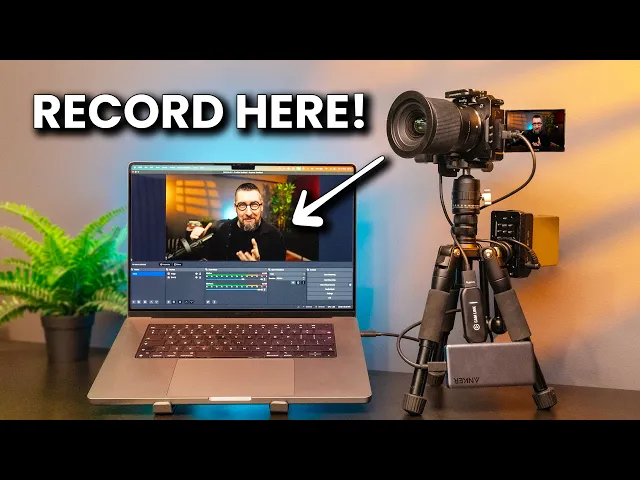
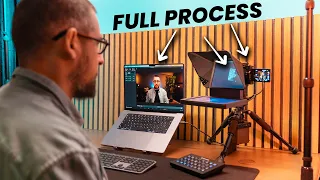
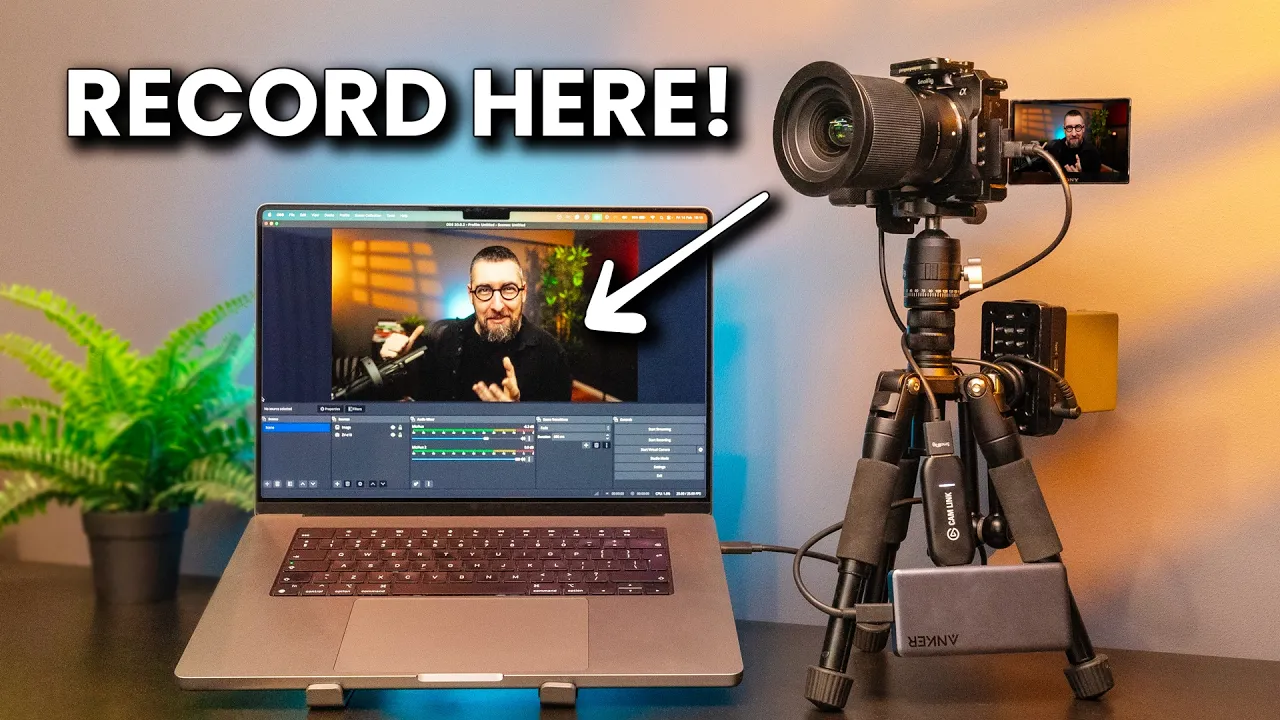
you want to record your videos directly on your PC 4K resolution why not and also to have the audio synced with the video directly while using a great microphone that will be a light speed professional way to create your videos unfortunately there are not many ways to do it and also you need to know the settings you know what I did it this video is recorded in this way and I will show you everything you need to know to achieve the same result I will show you first the set up and the hardware you need
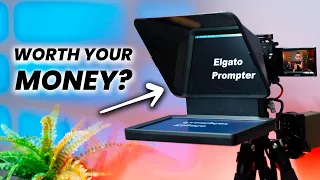
after we go to the camera settings the software and all the settings I use a Sony zv1 with a sigma 16 mm lens to obtain this great image quality and have that creamy blur behind me and the camera is powered by a dami battery to never care about charging it also because I want to scrip my videos to have them more compressed and precise I use the Elgato prompter to read my scripts but we need to connect the camera to the PC to record like this many creators want to connect the camera directly with the
USBC cable to the PC but only a few cameras on the market allow us to stream 4K with a USB cable and even those after a long shooting session will overheat this way the best way to do it is to use the HDMI output you can do this if your camera model has clean HDMI output check on the manufacturer's website and see if your camera has clean HDMI output this means that you will not see the information that is on the camera screen while recording also check if your camera can stream 4K through the HDMI
port the zv1 can do that and it's perfect for this application to connect it to the laptop we also need a capture card you can do your research but I'm telling you that in the end the best capture card you can find on the market for 4K streaming and Crystal Clear quality it's Elgato coming 4K there are other much cheaper versions but the quality is bad or or the capture card freezes or has other problems I have used this one for years and it's the greatest capture card you can find on the market and it
costs at the time of publishing this video around $97 by the way if you want to buy it or anything else from my setup I will add affiliate links in the description if you click on my links you're not going to pay anything extra but I will earn a small commission and this will help me keep sponsors away from this Channel and create more valuable content for you thank you I connect the capture card to the computer through a USB hub because my laptop does not have a USB a port and I also need to
connect more accessories to the PC but if you have a big desktop or a laptop with a usba A you can connect it directly but be careful to use a port that is USB 3.0 I connect the capture card to the laptop and the camera with a micro HDMI C cable to the capture card the camera has a micro HDMI port and the Elgato coming 4K has a full HDMI port that's it it doesn't require any driver but you need to do the right settings on the camera once you connect it to the PC via
the capture card go to the menu menu number two submenu number one and set the file format to 4K and at the recording settings use 24 or 25 FPS 25 if you are in Paul mode and 24 if you are in ntsc mode if you use 30 FPS your ey tracking will not work when using the HDMI output if you don't know what poll or ntsc modes are I will add a video about the camera settings in the description next go to the menu number five submenu number two and go to HDMI settings here set
the HDMI resolution to 2160p 1080p HDMI info display off TC output off and control 4 HDMI off now go to menu number three Network 1 go to smartphone connect and turn it off PC remote function off next go to the menu number two movie two go to proxy recordings and turn it off if you have this function on the ey tracking will not work when using the HDMI output now go to the menu number one submenu number four and set the focus mode to continuous AF Focus Area Wide face eye priority in af on subject
detection human right left eye Select Auto face eye frame display on and now you are connected with the HDMI cable and the ey tracking for autofocus will work perfectly these are the settings for the camera if you are using it for long recording sessions or streaming go also to the menu number five power settings option and and set auto power of temp to high to keep the camera on if it will overheat but if you use a demi battery keep the screen flipped and use this function you will not have problems with this camera and
like this you have the camera ready to record your videos directly on your PC now let's set the software on your PC and make the sound perfectly in sync with the video and record by pressing one single button to record the videos directly on PC I use OBS player this streaming and recording software is free easy to use and it works on PC or Mac after you connect your camera and do all the settings install and open the OBS player first go to settings and video and here type in your resolution if you record 4K
add 3840 by 2160 keep in mind that to record 4K video your PC or laptop needs to be a powerful one it's almost impossible to tell if it will work fine by the specifications so you need to try it if your PC can't handle the 4K recording add here full HD instead of 4K 1920 by 1080 and if you use full HD you also don't need to have the camera in 4k mode so change these settings also I will continue this demonstration using 4K after you enter the resolution select your frame rate the same as
you chose in the camera now go to output and select at output mode Advanced then go to the recording Tab and at type select custom output FFM Peg on the FFM Peg output type select output to file file path select where you want your recordings to be saved container format MP4 video bit rate I keep it at 50,000 key frame interval I keep it as it is 237 and at the video encoder you need to test some of them to decide what's the best one for you because these names can be different from one computer
to another on both Mac and windows I find this one libx264 default encoder and it's working great but on my laptop sometimes I S small moments with artifacts on the image the important thing is to find one of these codex that are h264 as an example on my Mac I also have this one h264 video tobooks and this one is working great for me on my Windows laptop I can't find it but instead I have h264 and V Nvidia and because I know that this laptop has an Nvidia graphic card this is working the best
if you have another kind of graphic card you should search for an h264 CCT with your graphic card name or just try the ones with the h264 if you don't know anything about your graphic card this will be different from one computer to another so here you want to spend half an hour and find the best one for you also the default h264 one could work perfectly for you try them out at the audio bit rate tab I choose 320 kilobits and at audio encoder AAC and now at the audio tab you need that the
mic auxiliary audio tab to choose your microphone or audio interface again this is different according to your microphone and then click okay on the left side we have a tab called scenes click on the plus button and add your scene name it as you like and on the right side of the scene tab we have serves here click on plus again and add a video capture device name it again as you like and click okay on the next window select your capture card can link 4K and at presets select your resolution after click okay now
you should see yourself in OBS but this is not everything because we will not have the audio in sync with the video on the right side of the cace you have the audio mixer one of the tracks should be mic auxiliary if your microphone is working and you selected it in the audio tab correctly you will see the input signal don't forget to set the gain right and never go over this yellow zone in obs because the audio will clip immediately if you don't have signal something is wrong with your microphone if you have a
signal here let's take a quick test and see how it's working I will press the record button and record something one 2 three M check my check this is a test to check the recording and the audio synchronization and if you find this video useful until now don't forget to press the like button and maybe consider subscribing thank you I press stop recording go to the folder where I selected my record recordings and play the video one to three this is a test to check the recording and the audio synchronization look at this one the
audio is faster than the video 90% of the time this is what's happening in this case we need to delay the audio on the audio mixer on the track where you have your mic signal click on the three dots and go to Advanced Audio properties and here on your track mic auxiliary on the Tab sync offset add 100 milliseconds to start with close the the window make another test and see if it's better if you still have the voice un synced at 200 milliseconds then 300 milliseconds and SE search to find the right spot where
you have your voice synced with the video for me it's perfect at 300 milliseconds as an example and if your voice is already delayed at minus 100 orus 200 milliseconds take a few test and find the right spot don't go crazy with it if you look at it too much you will have the false impression that it's never imperfect thing find the right spot and leave it as it is you can now go to profiles and Export your profile to save the entire preset you need to know that OBS player is a software with a
lot of updates so in three four five months some menus can be a little bit different some functions can be moved somewhere else you need to search for them and now all you have to do is open OBS turn on the camera and press start recording the video will be in your chosen folder with the audio sync and this is the final result of course you need next to edit the video and process the audio to make it louder when you set up the system for the first time it may look complicated but after everything
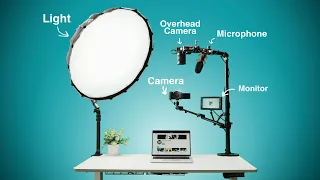
is connected and the software is set up correctly your recording will work like a breeze but all this will be for nothing if you don't light up your scenes as you should the image will still be bad to solve this problem in a small space and at an affordable price I will give you a dedicated video watch my lighting setup and discover my secret technique to light up your videos without having hard Shadows or Reflections if you wear glasses