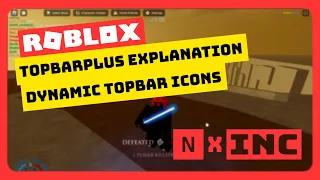
hello everyone on YouTube spark here and in this video we're gonna be making a character select menu using the top bar plus module this will be the first video of a two-part mini series and in this video I'll be covering everything that's to do with the top bar module side of things so all the code I have here right now I actually explained and wrote all this in my previous video I suggest checking it out if you want to learn how to set up this module and you'll also learn some of the basics along the
way okay so first off we're gonna be making a whole new option for the character select so let's do that first okay I've made the icon and sold it in a variable okay so here we need to set an image for the option so we'll go in toolbox and I search the question mark image earlier so I'm just going to use this paste the ID right there next I'm gonna set a tip that's the sentence which will show whenever I hover my cursor over the option okay and now we're gonna be making the drop down
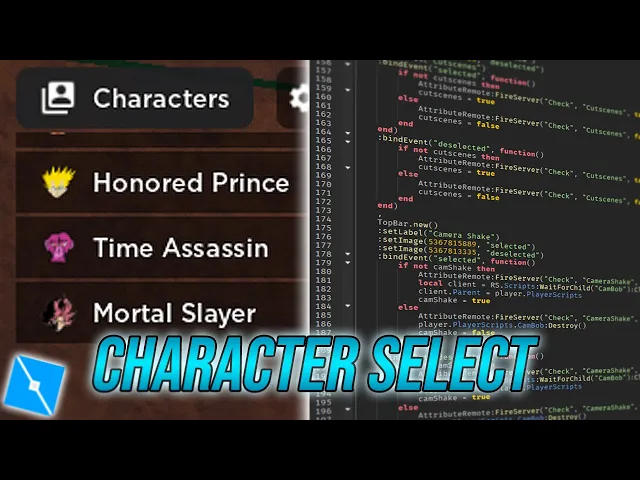
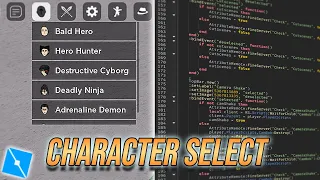
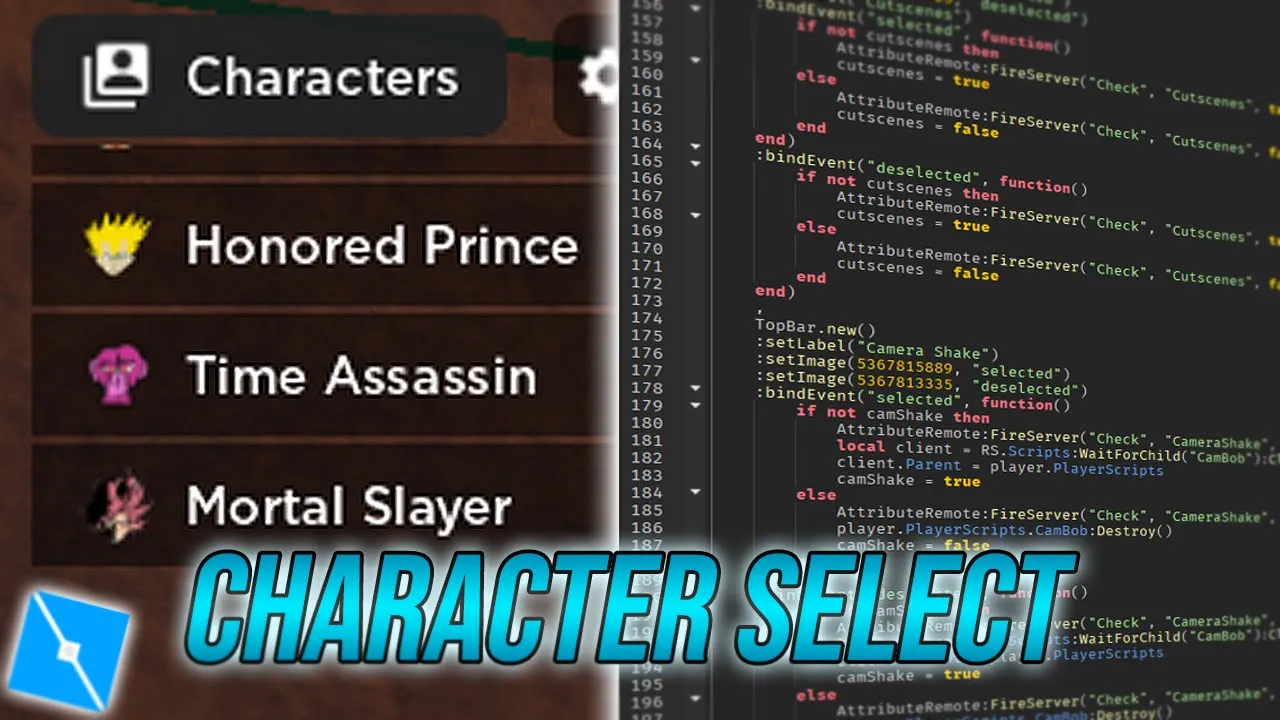
menu now in the drop drop down menu we are making other option actually first let me show you what this is gonna look like okay if you can see we have the new character select option so let's click to change character I click it it open up one option right now because uh that's what I wrote okay so let's say I want three different characters in my game so we'll be making three different options for the first option I'll name it um Gojo let's say now let's say I want icons with all three of these
character options we'll just do set image um or toolbox right Broly here use this for all three as you can see all three options show up and all three of those have the same icon okay so now the character select is set up um at least the interface is set up now we're gonna be creating a function for all three of these options so we'll do bind event so before creating this function we're gonna need three variables to detect if we have already selected the character or not Okay so basically the code that's in these
functions will only run if they are not already selected so that's why we're using these variables we're using them to detect whether or not we have selected our character so now cover the rest of the stuff in the next one which will include how to change your character model how to load scripts into it and delete old scripts try to release that video as soon as I can so I hope you guys learned something in this video make sure to like And subscribe and I'll see you in the next one