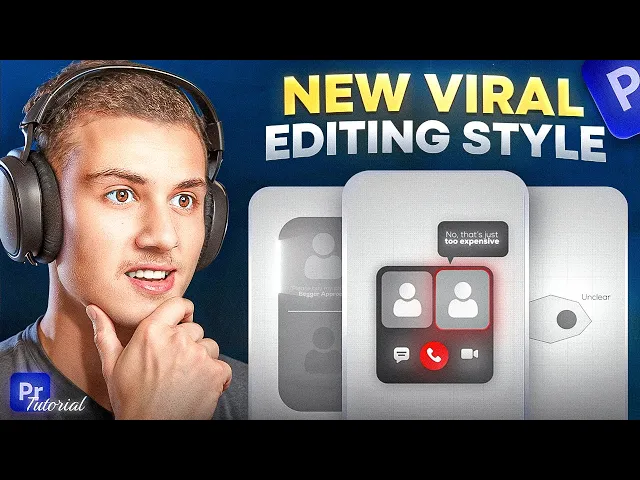
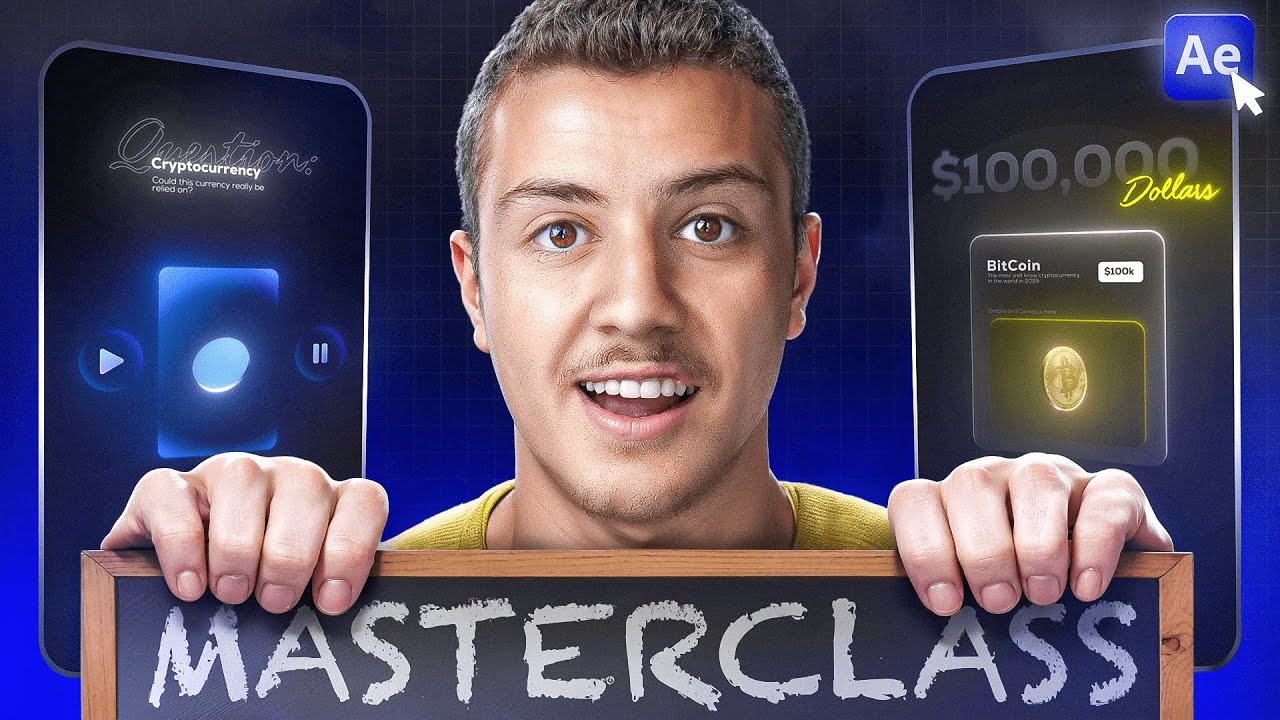
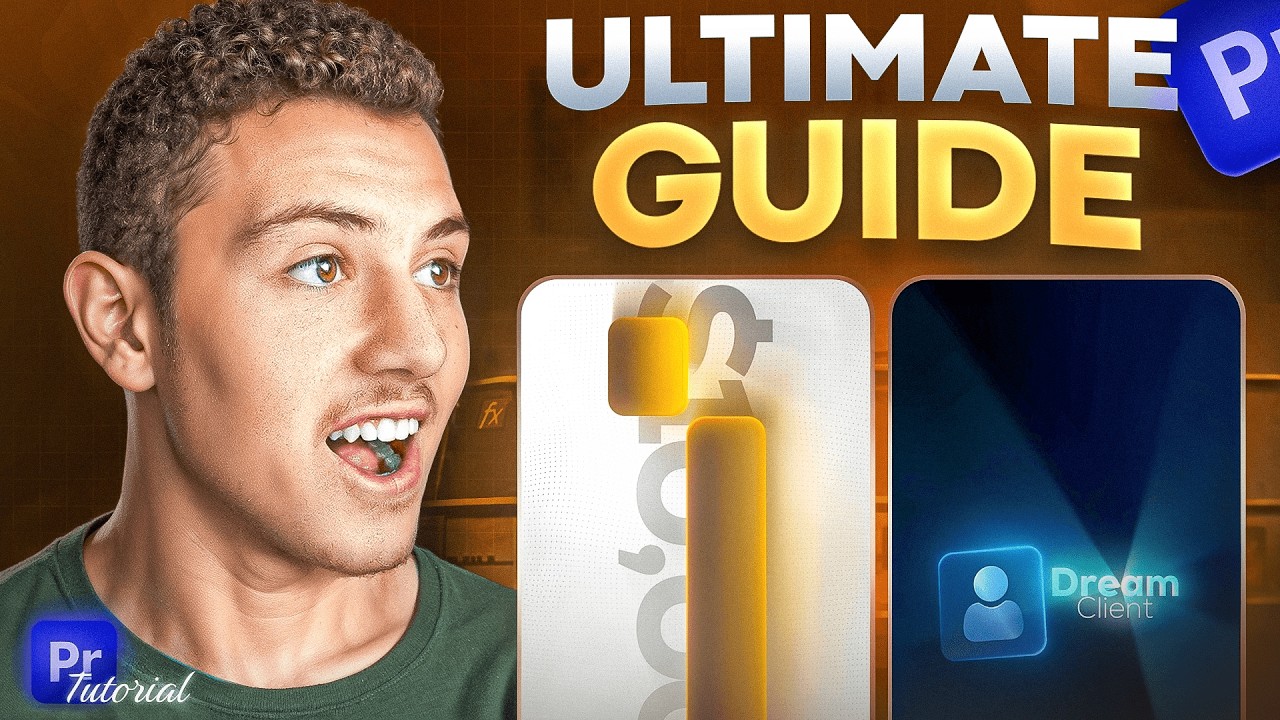
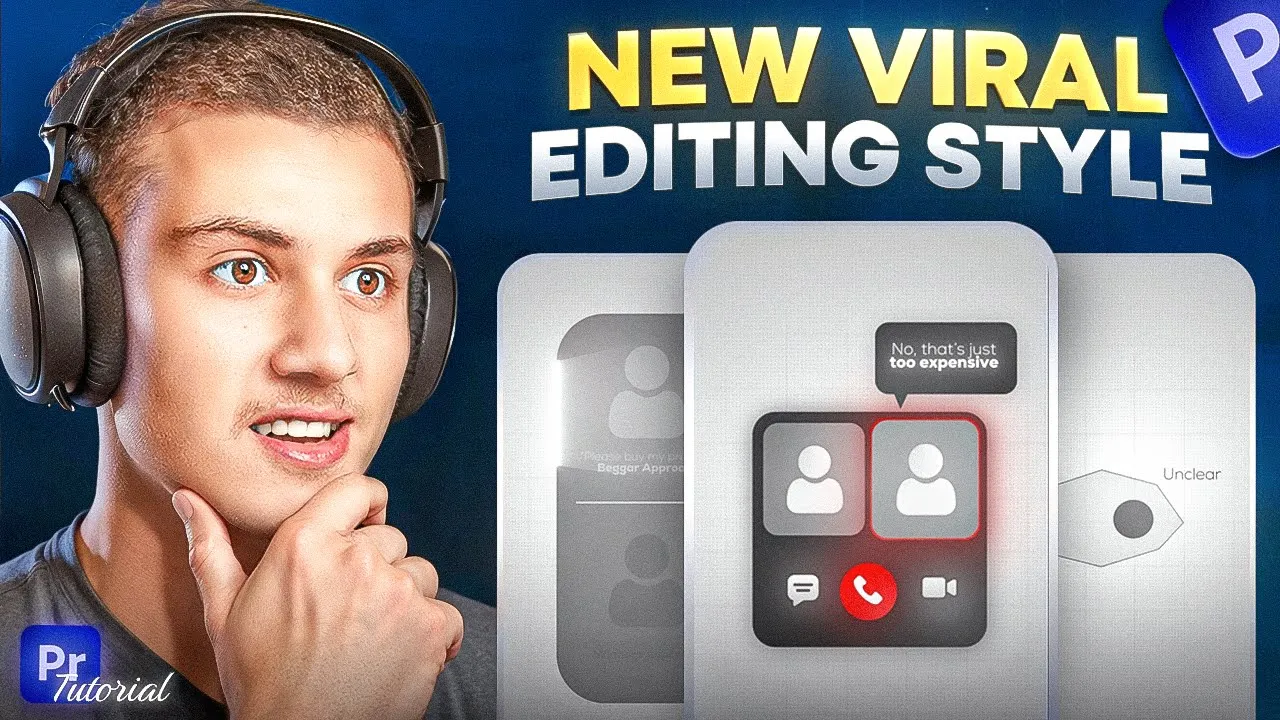
ladies and gentlemen in the next 20 minutes I'm going to turn you into an editor who can create this clean and minimal editing style that's going viral in 2025 this editing style is blowing up in the coaching and business Niche and tons of agencies coaches and business owners are looking for editors who can edit in this specific style so today I'm going to teach you how to create three highquality viral animations that fit this clean aesthetic first we've got a Sleek Google meet UI popup with a smooth slider animation second we have a minimal highquality
scene setup with Abstract title animations and third a unique eye animation that transitions into a circle leading into a clean scene with two Dynamic title animations and by the end of this video if you follow along step by step you'll have three polished animations you can post on your socials to attract potential clients and if you're a serious editor who wants to master high quality animations we've got over 300 courses inside of ultimate editors the link is down below but without further Ado let's get to work on our first animation if we analyze this first
animation a little bit more we can notice that it's made up of some shape layers these three icons over here and then one of the shape layers pops out and everything scales back down and finally we have the slider scale in and this light select between these two icons this will be a little bit complex but it's going to give us a very high quality animation so let's dive right into it as always let's start by creating our background over in After Effects I'm going to right click and add myself a solid layer then to
color it we're going to be adding the gradient ramp effect we set the ramp type to radial and bring it down here then change the start color to a White and the end color to a gray all right now let's add some layers to this background I'm duplicating the solid layer deleting the gradient ramp and adding a venetians blind effect then set the transition completion to 85 then duplicate the effect and set the rotation to 90° and this is going to give you these dots now we're going to add a gradient ramp on top of
these and then set the start to a gray and the end to a darker gray this looks good but we can add one more layer to give it more texture we're adding in the grid effect sizing it like so and then setting the border to two and the grid color to a grid now after resizing it properly this is our background this is a very high quality white background that we can reuse later on in the video but now let's start working on our animation first we're adding a shape layer and we're going to create
a square right here then let's make its edges slightly more round and finally to color it I'm adding the Four Color gradient this just generates four colors like so and I'm just going to set all these colors to a gray like this then to make it look better I go in and I make some of them lighter and some of them darker and this gives us this cool looking gradient background now we're going to add another shape layer and draw a square right here let's then round off the corners a little bit and also add
the Four Color gradient to it this time make all the colors a lighter gray you're going to end up with this box let's then duplicate the layer and bring the second box over here to the right side now we're going to quickly import a user icon to the scene and place it right here then let's make it a lighter gray than the Box behind it and duplicate the layer and move it to the right side great this is looking good now let's work on our our icons let's add in a phone icon place it over
here and then we're going to add a shape layer and draw out a circle behind it like so just make sure that the circle color is red and then add the tint effect to the phone icon and change it to White finally we parent the phone to the shape layer under it and scale it down here now we're going to add in our chat and video icons apply a gradient trap to one of them make the start White and the end a light gray and paste the effect on the other icon then let's place them
right there next to the red icon great once it all looks good we can start animating and this is where things are going to get a bit more tricky but I'll make sure to guide you guys step by step through this first we select this gray background and add a key frame to the scale let's move it forward and have it start at zero this is going to make it go from small to big then we smooth out the animation in the speed graph to get this now right around here I will move these two
icon layers to here and add a key frame for the scale as well let's move it forward and have it start at zero and also smoothing this out now previously I actually parented this icon to the shape layer behind it which means the shape layer controls everything and if the popup looks good we're going to select both of them key frame the opacity and move it forward and then go back and set it to start to zero once we are happy with our popup let's copy and paste these key frames on the second shape layer
and the icon okay this looks great now to animate the icons I'm starting with the phone in the middle once again the phone layer is parented to the shape layer so I go to my shape layer I key frame the position move it forward and have it start slightly lower then smooth it out and as always key frame the opacity on both the phone and the shape layer then move back and have it start at zero now for the last one let's select both these icons key frame their position move it forward and have them
both start slightly lower and key frame the opacity move it forward and have it start at zero and with all these animations complete you're going to get this cool Popin animation all right now let's create a nice red glow behind this shape layer first I'm going to duplicate the shape layer and use the one under our main layer as the red outline then I have it only start after the Popin animation is complete and simply add a key frame here increasing it scale then I changed the layer's color to red and there we go now
we add a deep glow to it with an exposure of 0.1 and we notice the glow roughly comes in so I made it fade in using the opacity in the beginning of the clip great now we finally need that text comment to come in up at the top so I add a shape layer draw this rectangle round off its corners and then using my pen tool I had a little triangle down here and this is our shape now we're just going to make it a dark gray color and let's add this text on top of
here type out what we want to have in the rectangle and place it inside this text is just a simple font with a deep glow so I make this lower section a bold font for stylization make sure to parent it to the shape layer and then let's key frame the end position move it forward and then have it start on the right over here and make it start quick and then slow down in the speed graph and finally as always create an opacity fade in animation on both the layers now once we are happy with
all of these it's time to move on to the second part of this first animation which is the slider to do this I'm going to cut all the layers right here and just just like how all our animations pop in smoothly they also need to pop out smoothly to do this it's really simple your first set of key frames is when your animation is faded out and your second set is where they come in so all you have to do is copy the second set and paste it here which means the animation won't change in
between these two key frames then copy the first set and paste it here at the cut which means your animation Fades out from this point to this point the last thing you need to do is head over to the speed graph and correct it as it might go back too slow in the graph and check out how this looks on our text layer and all that you got to do now is basically do the same copying and pasting of key frames to all of your layers basically reversing the first set of key frames at the
end of each clip and after all that you should end up with a fade out like this awesome now it's finally time to work on our slider before we complete this first animation first we're going to add in a shape layer and we create a rectangle right here with slightly rounded Corners like this then we're going to add in a Four Color gradient but make the color variance of a light gray like this then let's add in our user icon add a tint effect to it and set the black color to a darker gray then
place it up here duplicate the layer and bring it down here then we're adding in another shape layer and using the pen tool to draw a line right here and add a little stroke to it to make it a light gray next step is to add in our text so we duplicate this text we previously made here bring it up and over to here and simply write out please buy my product and then place it down here under our user now we're going to add more spice to this animation by adding in another line in
that text type it titled Beggar's approach and then we're going to set that font to bolt now we just add a tint effect and map the white to a gray like so then just duplicate it bring it down here and write out are you interested with the words winners approach under it the last thing we're going to need to do is the slider on the left side so we are adding in a shape layer then drawing a rectangle here set its color to white and now to make a special boxed glow we need to add
a shape layer on top of it create the following shape like so then let's add a gradient trap to it set the black to the right side and the white to the left side now check this let's add a deep glow to the rectangle we made earlier under the layer and finally track mat the rectangle to this shape layer up over here this forces the glow to only appear in the light values of this polygon layer that we made earlier and that is how we get this boxed glow finally we pared the polygon to the
glow under it and we're good to go now to create a slider animation we key frame the current position move forward and drop it down here let's create a spike in the speed graph and I don't like how robotic this is so we're going to space them out a lot now to make this more realistic I want these icons to be white when the slider's on them but turn to gray when it isn't to do this I head into my tint effect add a key frame to the gray color for the icon then move the
key frame forward to where the slider is no longer on the icon and have it start right here as a really light gray do the same exact effect to the title under it as well and you get this effect and now for the bottom icons we want those to start as gray and then Fade to White as the slider gets on them like so now this animation is basically Ally complete let's just go ahead and finalize it with a cool minimal popup to all of these elements on our screen so we're going to start by
key framing the scale and moving it forward but having it start over here on zero smoothing this out in the graph to get this pop up then we're going to add a key frame to the user icon move it forward to here and have it start slightly smaller then just key frame the opacity starting at zero and ending at 100 to get this simple Poppin make sure to add the same opacity key frames to the title under it as well then just copy and paste the key frames to the icon below it finally let's go
to our slider key frame the current position a few frames before the first key frame happens and have it start off to the left a little and then obviously create our opacity fade in over here as well now the animation is too fast so I'm bringing the first key frame all the way back here and also copying these key frames over here so that it pauses for a little while before starting the second animation and with all this being said this completes our first animation and this is what an animation with all these layers looks
like you've probably heard that's too expensive more times than you can count and the solution isn't trying to convince people to actually buy your product it's making sure that the right people are on the C now let's be real if you're watching this you're an editor who wants to one learn how to edit high quality videos and two start making money with video editing but right now you're stuck either your edits aren't at the highest quality level yet or you don't have the right clients paying you what you're worth and that's exactly why I created
the ultimate editors the program that makes you a high quality editor and lands you high paying clients in just 90 days you seem pretty interested so here's exactly how we turn you into a highquality editor and get you a $1,000 editing job in just 90 days the first 30 days phase one you're going to master Premier Pro and after effects with our 100 plus course Library teaching you everything from beginner Basics to expert editing in both programs phase two the next 30 days you're going to learn seven viral editing styles of 2025 you're going to
get access to training on editing Styles like Josh Leon Devon jatho Houston cold by maximize Iman gaji and much more and finally phase 3 the last 30 days we're going to build out your personal brand that attracts high quality clients so that you can make $11,000 per month editing videos and this isn't a random course this is me personally taking you on and coaching you to become a highquality editor so if you want to master Premier Pro and after effects learn the seven viral editing styles of 2025 and land a $1,000 editing job in the
next 90 days then click the link below and join ultimate editors you'll be directed to a page where I tell you everything about how this program is made to help edit like you but with this being said it's time to dive into animation number two and looking at this animation all it is is a simple profile with this radar graphic around it then just some minimal text popup with a cool pop-up and a slide effect and the second animation is just a text sequence with animations so let's go ahead and make this first I'm going
to duplicate the backgrounds I used in the previous animation the first thing I'm going to work on is the user with the radar waves around him so let's add a user icon and color it with the Four Color gradient by choosing a bunch of colors related to light cray now let's make it a 3D layer and place it right here in the center of the screen now we add a shape layer on top of it make sure it is 3D as well and zoom out a little like this draw a circle right here then simply
delete the fill from the shape layer and add a stroke of one and color it a gray color like this now let's create a quick animation for the circle by key framing the current scale and having it start at zero then just smoothing it out in the graph of the graph editor and now let's duplicate it and go to our second key frame and make it larger then duplicate it make it larger again duplicate it one more time and make it larger one more time now this all looks good I just want to add one
Final Extra Touch of detail first I'm adding a shape layer and then using my ellipse tool I'm going to draw a small circle here finally I'm going to place it on the line right here then duplicate it and move the second Circle up top here then duplicate it again move the last Circle over to here finally I'm going to put the first Circle over here on the line then put the second Circle over here and put the last Circle all the way here and finally to make them all rotate together I'm parenting the top Circle
L to the the one below it and that one to the one below it all the way until we parent the last Circle to our circle shape layer over here finally let's key frame its current orientation move it all the way back and increase the orientation on the Z AIS and move that key frame all the way to the end the last thing I'm going to do is I'm going to select all my circle shape layers key framing their current opacity moving back and starting it at zero now we just offset them and there we
go the radar user icon is complete now using the move tool let's move our scene so that the animations is at the bottom right like so and let's get started on our text first we're adding a text layer and making it a 3D layer then writing out ideal client then let's size it up so that we can see it and place it right here on the top left finally let's change its font to a font called gold script and then I duplicate it and change the font back to Nexa and type out a long description
of who the ideal client is then I'm going to scale it down move it over to the left side under our big title and the last thing I'm going to do is I'm going to duplicate it one more time finally I'm going to use a thin font on this text and write out these are the right fit for your service and place it down here and add a light red color to it now I remember that my first part of the animation is supposed to be talking about the bad client not the good one so
I changed this title to bad client this description to a bad description and this to not the right fit now I want to stylize this scene a bit more before we start animating so let's quickly duplicate this layer make it huge remove the fill add a very light stroke and just place it up here now for this first text I key frame the current position move back and move it slightly to the left then speed it up in the speed graph finally I key frame the opacity move back and have it start at zero to
get this smooth popping then paste the same animation to this text and use the Anchor Point to bring it back here and paste it on here as well but use the Anchor Point to bring it back too then I just offset them a little like so and we're good to go now this all looks good so let's go ahead and move on to our second scene where I'm using my move tool to move to the right side over here then I'm going to select all these animations and duplicate them right there let's start by bringing
badl over to here and having it pop in from the right side instead of the left let's also bring in the description over to here and also make sure it pops in from the right side not the left and finally bring in the red text and make it pop in from the right side not the left let's move all this text over to here let's then select all our old text here key frame all of its position move forward and have them all fade out so that we can only see the next text now we
change this to Ideal client change this description to a good one and finally change this to the right fit and set its color as green don't forget to duplicate this text make it big remove the fill and add a stroke to it and with all these scenes set up it's finally time to link it all together with a camera so we're going to right click and add a camera here let's start it over here slightly zoomed out to where we can see the full frame then just key frame the current position move forward and right
after our next text comes up let's have the camera move to the right where we can see the next scene smoothing this whole thing out in the graph Editor to get a smooth slide in now this whole animation ends right here so let's select all these layers and cut them here and for the next section let's start working on our text sequence first we need to subtitle everything so I'm adding in my text over here and typing out the first word which is the word y then I duplicate the layer and type out my second
word which is the word r and just keep doing this until I have a bunch of text layers with all the words I say in this sentence now the next step is to add an animation to all of them so I select all the layers key frame the current position move back and have it start slightly off to the right then then just smoothing it out in the graph editor and then I spend some time just aligning the text layers to where I say them in the videos like so and lastly I use the Anchor
Point of each text to place them neatly in a clean sentence with even spaces like this and as a final touch of detail I make these last two words a bold font and there we go ladies and gentlemen animation 2 is finally complete and this is what it all looks like let's be real your ideal clients aren't the ones asking for discounts High Lev buyers don't hesitate when they see real value so why are you still dealing with unqualified leads by this point I know it's getting exhausting but there's one final animation to complete before
we get to enjoy this entire short in all its glory and this is animation number three first we're starting with a clean eye animation then transitioning into a minimal Circle to finish it off with a button transition into the scene with two titles and a reveal at the end let's go ahead and make this so first we're going to add in our white background as usual and I'm going to start by adding in a shape layer and using my pen tool I'm going to draw four points like this to make this shape then I key
frame the path move back and have them start here this will make them open up like this then let's smooth it out in the graph editor like so and then we're going to add another shape layer on top of this and draw an ellipse right here set the color to gray finally key frame the scale here move back and have it start at zero and also smoothing this one out in the graph Editor to get this open up and scale in animation to make the eyeball move to the left I key frame the position move
forward and move it to the left then I want it to pause for a bit so I move forward and add a key frame for the current position so that it stays here then move forward again and move it to the right now in the graph editor I make sure to smoothen these curves as much as humanly possible to get this jittery quick movement and now I'm going to add a text layer right out Broad and use a lighter font and place it down here then I just animate it fading in when the eye moves
towards it here and duplicate the text right out unclear and move it up here so that it fades in when the eye looks at it now I wanted to add more complexity to this shape layer here so I went into my path and I just added two extra points right here then moved forward and added another two extra points and simply had them move further out like this on our second key frame to get this open up animation now let's make this ball movement more realistic first unlink the scale and between our first movement to
the left let's have the ball become longer then shrink back this makes the animation look faster and we're going to do the same thing over here on our second movement animation and just look at how much nicer this looks now now in order to transition into the next animation I need my ball to come back to the center so I added a key frame for the current position move forward and move it back to the center then key frame the opacity of our shape layer with the eye and make it fade out as the ball
comes to the center and also keep him the opacity of the text layers and have it drop to zero at the same time as well so now we just have the ball which means we can move into our next scene first we add a Four Color gradient to this and set these colors to a dark gray then I'm opening up the scale properties and making it scale up right here and making sure to maintain the smooth flow in the speed graph then let's stylize the scene a little more by adding a shape layer drawing out
an ellipse in the center here and removing the fill but adding a stroke with a dark gray color color let's make the stroke bigger and add the trim paths effect then just decrease the end to 50 and the start to 25 then I set the end to 25 and key framed it so that the line goes back here and then move the key frame back and then I had it come up to 50 so it draws out like this smooth now the animation in the speed graph as always then let's duplicate it once and change
its scale and rotation then duplicate it again and change its scale and rotation again I think this was too much so I rearranged them like so now to make them rotate I selected all of them key frame the rotation move forward and rotated them all together now it's time to set up the scene with some text and Graphics first we start by copying this artistic text we added earlier and pasting it here let's just write out premium clients and place it up here then let's add a shape layer and draw a rectangle down here now
this rectangle is eventually going to become a background so to color it I added a Four Color gradient effect and I used some dark gray and light gray variants finally I just key framed the scale and moved back and set it to zero and smooth it out now let's add a text layer write out some dollar signs and set the font to heavy set the color to white and place it on the bottom right here and now we need to create a nice glitch effect on it let's start by key framing the opacity at zero
moving forward and setting it to 100 then moving forward and setting it back down to zero and repeating the cycle over and over again finally let's add a deep glow and we're good to go now I need this text to fade out later on so I duplicated those opacity glitch key frames but made sure the first key frame starts at 100 and the last key frame ends at zero now let's make this rectangle turned into a background by key framing its current scale moving forward and simply making making it so big that it takes up
the entire screen and now we can finally work on our last scene over here so first up I'm adding a text layer and writing out premium clients and then I'm resizing it and placing it up here now we duplicate it and type out a big description to premium clients use a light font and scale it down to here and move it over to here now moving them both over to here duplicating premium clients and writing out the word one and resizing it over to here and making it so opacity lower perfect now let's duplicate the
word one make it huge like so remove the fill and add a super light stroke like really light now I select all these layers duplicate them but bring them down to here to the bottom right for our second text I am writing out two in the back two in here no objections in this text and a long description of no objections here make sure to put the outline in the bottom right and move all your text layers to where we can actually see them now I selected all my first text key frame the current position
move back and have it start off to the left then smooth it out in the graph Editor to get a quick popup then key frame all their transparency going from 0 to 100 let's offset them a little to get this smooth Popin animation and then I do the exact same thing in the second pair of texts down here to get a smooth popping and my final touch of detail here is to add in a shape layer and draw out a huge circle here and align it as a background to the top left text then color
it to a darker gray than the background and finally keeping the scale at 100 move back and have it start at zero and obviously smooth it out in the graph editor and then just duplicate it and move it over to the bottom right text and the final thing I'll do is I'll duplicate this text and place it here in the middle of the screen write out high quality clients make it slightly bigger add some deep glow to it and then just add opacity fade in to make it cinematic and ladies and gentlemen this is it
for animation number three now let's go ahead and finally enjoy this short with the sound design all three animations and everything in between if you're still getting price objections on sales calls it's not your offer it's your audience Bro you've probably heard that's too expensive more times than you can count and the solution isn't trying to convince people to actually buy your product it's making sure that the right people are on the call which means it's making sure that the right people are seeing your content in the first place because let's be real your ideal
clients aren't the ones asking for discounts High Lev buyers don't hesitate when they see real value so why are you still dealing with unqualified leads it's because your content isn't filtering them out if your messaging and content is too broad and unclear you're going to keep attracting the wrong kind of clients when you dial in your positioning and start speaking to premium clients Everything Changes no more back and forth no more objections just people who know that they want to work with you if you're ready to stop getting the objections of that's too expensive and
trying to get people to buy your product just check out this profile we've got a bunch of content that's going to help you do that I understand I didn't cover the sound design in this video however I've got other videos covering that if you guys are interested now you guys know how to make all three of these viral and clean animations so go out there start posting them use them in edits and get the best clients and guys thank you so much for watching all the way till the end it means so much to me
you guys all have an amazing day or night God bless all of you guys and I'm going to see you on the next video