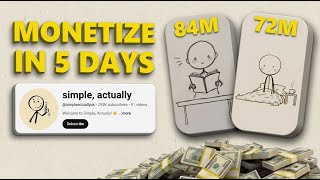
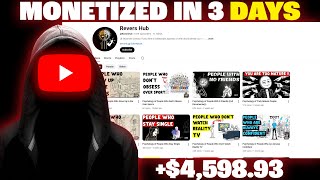
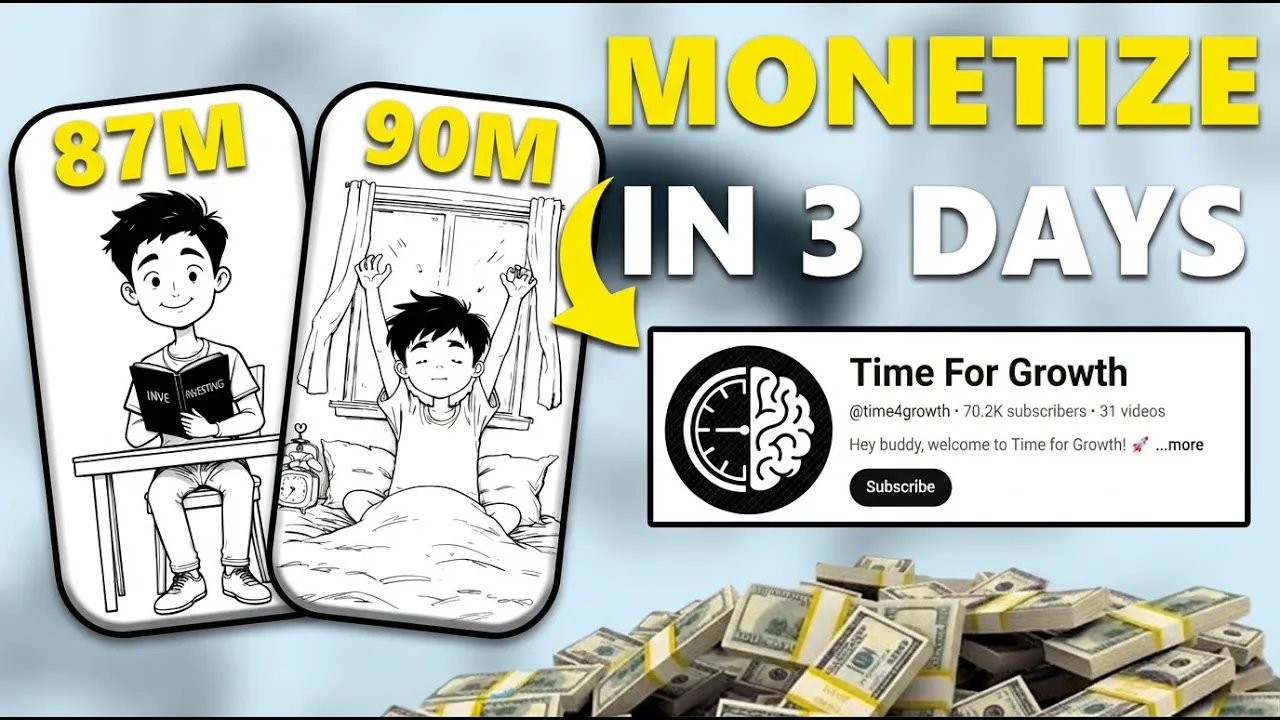
My friends, I've already told you these stick style channels are growing faster every single day. Yes, because people absolutely love these kinds of videos. And the best part, these channels are easy to monetize.
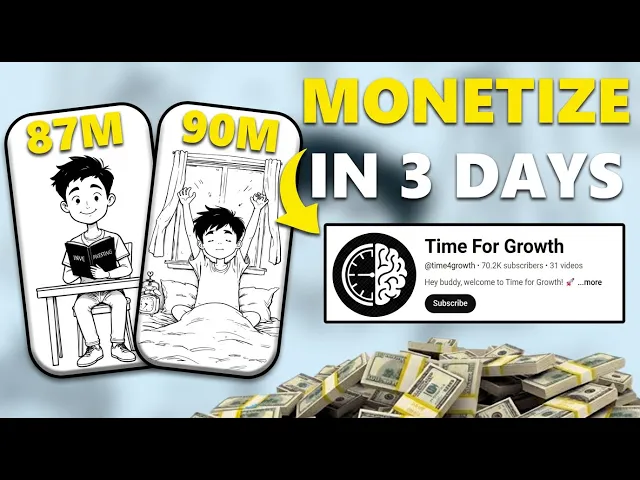
No issues at all. Just check the channel called Time for Growth. It has gained 69.
9K subscribers with only 31 videos. Can you believe that? The channel started just 6 months ago and now look, one video has over 1.
7 million views, while others have thousands. This channel focuses on helping viewers improve their habits, mindset, productivity, health, social skills, and financial growth. And here's one smart strategy they use in every video.
They keep it simple, relatable, and fun. My friends, people love these types of videos and even kids enjoy watching these stick figure cartoon styles. They're amazing.
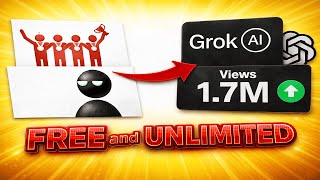
[music] So today, my friends, we're going to create the same type of video, but with 100% free AI tools. No more paid software. We'll use free tools for imagetovideo and voice over creation.
Let's grow together, my friends. Let's go. W my friends.
This is a very important part so don't skip it. You know that first we need to create our image prompts and motion prompts. Both must be consistent.
All right my friends. Now open chat GPT and log in first to get the best response. Next go back to YouTube and copy the main channel link you want to analyze.
Then come back to chat GPT and paste that YouTube channel link and ask this please analyze this channel. After that click generate and chat GPT will analyze the entire channel A to Zed its mission style [music] theme and full content strategy. Now it's download time.
We're going to generate image prompts. Go back to the YouTube channel and check which thumbnails look the best. Take two or three screenshots of those thumbnails.
Then come back to chat GPT and upload them. [music] Now ask this. I want to make images.
Can you give me 10 looks with the same character as shown in the screenshot? At first, Chat GPT will only give you image prompts without a consistent character. But don't worry, just ask again.
Please make the character consistent in all images. This time chat GPT will give you 10 consistent image prompts. Once your image prompts are ready, ask this next.
Please also give me video motion prompts. Chad GPT will now give you motion prompts too. And that's it, my friends.
We've created image prompts and motion prompts in just a few minutes. Now save everything to your PC because next we'll generate our images using free AI tools. Let's go, my friends.
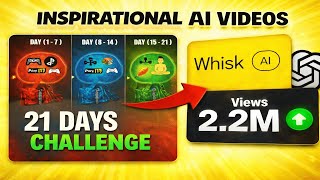
Let's grow together. Now, it's time to generate our images using Whisk AI. [music] I've added the link in the description, my friends.
So, go ahead, open it and log in with your Google account. It's completely free. No credits or payments needed.
On the left side, you'll see options like subject, scene, and style. We'll focus on the style section. Now upload your screenshot or channel image inside the style section.
This helps Whisk AI keep a consistent character look for all your images. Next, go back to Chat GPT and copy your main character prompt. Then switch back to Whisk AI.
Paste it into the prompt box. After that, go again to Chat GPT and copy your first main image prompt. Return to Whisk AI.
Paste it in the main prompt box and click generate. Now wait just a few seconds, not minutes, just seconds. [music] And boom, your first image is ready, my friends.
Look at the result. It looks exactly like the channel style. Now go ahead and download or save it.
Repeat the same process for all your image prompts. If sometimes the result doesn't look perfect, don't worry. Just click generate again and the next one will look even better.
Once all your images are ready, save them all to your PC because next, my friends, we'll create our imagetovideo project using another free AI tool. So don't skip this part. It's very, very important.
Let's keep going, my friends. We're doing amazing. Now it's time to turn our images into videos.
I've added the link in the description, my friends. Just open V AI. It's a 100% free AI tool.
No credits, no payments needed. Today, we'll use V AI to generate our AI videos easily. First, log in using your Google account.
That's very important. At the top, you'll see many different tools like text to image, image to image, image to video, and more. You can also upgrade to the pro plan, but today we'll stay with the free version.
Now, click on image to video. Once it opens, you'll notice how simple and clean the interface looks. First, upload your image.
After uploading, look at the right side. You'll see sections like basic prompts and camera prompts. Below that, you'll find options for video format, video length, frame rate, and resolution.
Now, simply click generate and wait just 1 minute, my friends. And boom, your first AI video is ready. Look at it.
It's beautiful, smooth, and looks just like a professional animation. Now repeat the same process for all your other images. Upload the next image.
Go back to Chat GPT. Copy your next motion prompt and then paste it into V AI's prompt box. Click generate.
And that's it. Your next video will be ready in seconds. Once all your videos are done, save them to your device.
Because next, my friends, we're going to generate the AI voice over and bring everything to life. Now, it's time to generate our AI voice, my friends. Again, open Chat GPT and ask, "Please give me 12 to 15 lines for a voice over.
" In just a few seconds, ChatGpt will give you 15 lines covering your full script. Perfect for generating the best video. Now, simply copy all the lines and go to 11 Labs AI.
First, log in using your Google account. It's free. 11 Labs gives you 5,000 credits, enough for a 6T 7minute video.
Next, select your voice. For example, Brian, which is free and sounds great. Then, paste your script into the text box and remove any unwanted elements.
Finally, click generate. Wait a few seconds and boom, your voice over is ready, my friends. Now, simply download or save it to your PC.
And that's it. Our AI voice over is ready to use with our videos. Now, it's editing time, my friends.
The technical part. [music] Open Filora, one of the best free AI tools for editing your video. You can add transitions, video effects, and other adjustments.
Simply import your video and voice over, set them on the timeline, and adjust timing if needed. You can also apply video effects, color adjustments, or voice effects. But remember, the background is already good, so you don't need to overdo it.
Once everything looks perfect, export your video in 4K. And there you have it, my friends. Our video is ready.
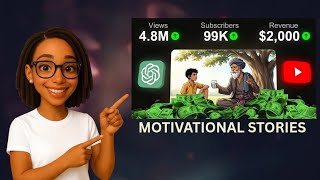
We made this entire video using 100% free AI tools. No credits or payments needed. Now, my friends, you can upload your video to YouTube, share it online, or even start earning money.
Don't forget to subscribe for more tutorials. Thank you for watching, my friends.