let's learn how to turn off parental controls on your iPhone so welcome back to another Simple app tutor video everyone in this video we'll show you how you can turn off or disable parental controls on your iPhone device it doesn't matter if you are on iOS 17 iOS 16 or even lower this will work for your version as well as any model of the iPhone parental controls on the iPhone are features and settings that allow parents or Guardians to manage and control their children's access to certain content apps and features on the device so if
you try to do some things on your iPhone but you notice that some websites apps or other features are blocked and you can't access them then we can solve that by disabling the parental controls what you want to do is to open up the settings and then go to your screen time section when we open the screen time section we have two different options to turn off the parental controls on our iPhone we can scroll all the way down and select this turn off screen time button you may have to enter your passcode and if
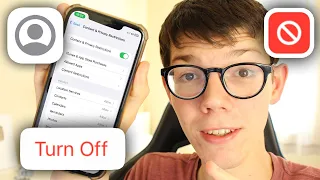
you don't know it then ask the person that set up that screen time passcode enter it and then screen time will be disabled as well as the parental controls but if you don't want to turn off screen time completely then you can click on this content and privacy restrictions option in here you can see all the different options that can be disabled or allowed like the location services photos and other stuff and in order to turn off parental controls simply disable this content and privacy restrictions option at the very top of the screen again it
will ask us to enter our password so just do that and then the parental controls will be turned off and you can enjoy apps and other stuff that were previously restricted and that's it for this video guys if this was helpful then leave a comment down below and I'll see you in the next video