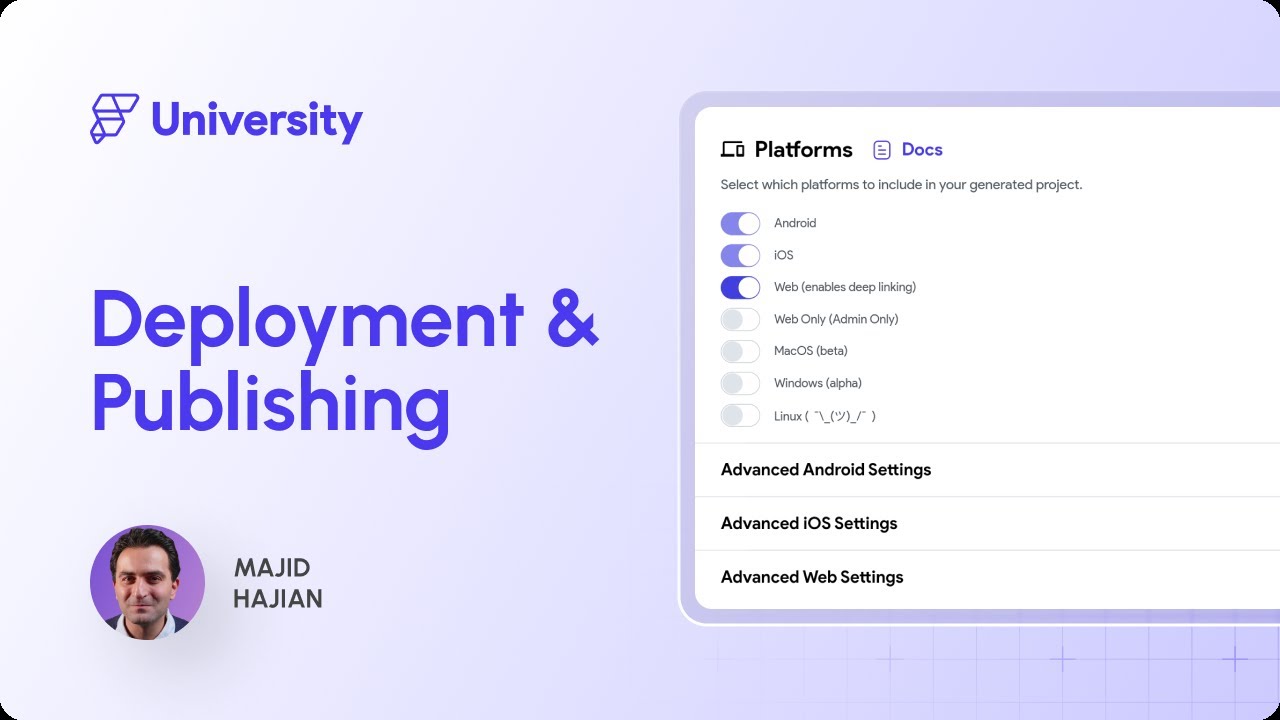
in this video I'm going to show you how to deploy your app to the Apple App Store so to do that you want to come down here to your settings and come down to mobile deployment and this app store section is what we're looking for now once we're ready to deploy we just smash this button here but we need these four pieces of information before we do that but before we do that you want to make sure that your app is prepared for deployment and we've made a video about that that we've linked below but
the most important things to take care of that will prevent your app from being deployed are making sure you have no errors here and making sure you've added in an app launcher icon right here that's the icon that will show up on the screen of the iPhone when you open the app that you press to open the app okay so let's go back over to mobile deployment and let's get this stuff and we're going to get it from two places your Apple developer account and the App Store connect so first your developer account now you
have to sign up for an apple developer account here and then purchase a membership that's $99 for the year so once you've done that let's jump in there now what we're going to need in here is an app ID an identifier and identifiers are used to provide a unique ID just like a user in an app has a unique ID and you create one by this plus sign right here now when you're making an app there's a bunch of different things that need IDs unique identities so each app has its own identifier but also if
you have services like sign in with apple that service has an identifier or if you're using Apple Maps you'll need an ID for that but we just need an app ID so we can continue this is going to be for an app so that's great then we just need to fill out a description and give it a bundle ID now there's a naming convention that you can see down here and we're going to grab Ours from INF flutter flow so let's go jump over there if you come to app details it's this package name that
you want to grab so copy that and and paste it in next if you're using any of these capabilities you want to make sure those are selected it's pretty common that you won't use any so don't be concerned if you don't select any the most common capabilities are push notifications or sign in with apple but of course that's only if you have that in your app then just continue if everything is good then you register and there it is great all right now we're ready to jump over into App Store connect all right now that
we've created a unique ID for our app we're ready to create our app in app store NE so let's jump over there now of course we're not creating our app cuz that's what we did in flutter flow we're creating this app with its configuration and App Store connect and then flutter flow will send our apps code over here to this app we've set up okay so come over to my apps come over to the plus sign to create a new app and this is going to iOS and give it a name primary language and bundle
ID that's that ID we just created and finally a skew you can just use your package name and full access is good if you're not seeing it you can just refresh your page and then it should come in and you can click into it all right so we're finally ready to get the information we need and to get it you can come over to app information and scroll down and you want this Apple ID here it's also in the URL so you can grab it in either place and just copy it and go back into
flutter flow okay great so we come to mobile deployment and paste it into this app ID now if you're wondering wait I thought we already had an ID what's this other ID well the context of App Store connect the Apple ID is a unique identifier for your app on the App Store whereas the app ID we created at first also called a bundle ID is used during the development and distribution process of your app okay great next we need to get some keys and we need to do that because these will be Keys we give
to flutter flow so that it's authorized to send your app into App Store connect here and we can do this by coming into users and access right here and we want to come over to Keys here now if you haven't added a key before you're going to see this request access and request access accept those terms and generate API key and you can just give it a name here I'm going to just call it flutter flow deploy so I know what this is doing and give it the access of app manager that gives it the
correct permissions and generate all right next you want to download that key and it's going to tell you here that it can only be downloaded once so if you lose it you're going to have to make another one okay download now before we go back into flutter flow copy this issuer ID so we can kill two birds with one stone okay now we're ready to go back so you can paste in this issuer ID and upload this private key that we just downloaded awesome finally we need this key ID which is in that same place
in app store connect so let's jump over there and that's this right here so copy that and paste it in beautiful and that's it we are ready to deploy to the App Store now keep in mind that deploying to the App Store store means sending our app into App Store connect it's not actually publishing the app for the public we'll need to do a few more things after we deploy it to App Store connect so we can deploy it now so flutter flow is just going to tell you that if we were in the process
of deployment before it will cancel that deployment and start a new one Okay now what's going to happen now is that flutter flow is going to generate your code and then send it over and this can take a little time and it's dependent upon the size and complexity of your project and how busy the servers are behind the scenes now you can click on this button to see the build status and we can see that it's CED that means it's in the process of generating our code and sending it over you can keep checking here
or apple will send you an email when it receives your app so go grab a cup of coffee and I'll see you when it's ready all right and there it is it's finished great let's go take a look at it so if I go back in my apps and there it is but it doesn't have that launcher icon and that's because we haven't Associated that build with this project yet it's just sitting in there so let's do that so if you scroll down you have this add build section so let's add it and there it
is and we can see our icon so let's select it and accept so there it is it's linked up now there's a lot of other information in here that you need to add in like screenshots and description and copyright and tons of other stuff so you want to go through here and go through all these down here to fill out all the information for your app now for these screenshots remember that flutter flow has a screenshot generator and we covered that in prepping your app for mobile deployment video but very quickly you can access that
here if you go into preview mode right here and turn on screenshot mode use the drop down here and select which screenshots you want to generate and for any Dynamic data you'll need to add that in to okay let's jump back over to Apple connect now once all that's done you want to click save and add for review and apple will review your app and if they accept it then you'll be able to publish it now if you want to have people to test your app before you launch it you want to come over here
to testflight testflight is an app that users can install and then download your app once you've given them access through their email it gives them access to your app before it launches on the App Store so you want to create a group and we can just call it testers Now by default you're sent into internal testing that's people who have access to your app store connect account but often you want external testing so you can go create a group there create scroll down and add testers and you could import them from a CSV or just
individually add them and then add a build and accept this build and whether you want your testers to require a sign in you can add that here here you can give a message to your users and submit for review and now your test users will receive an email to download test flight and then download your app and that's how to deploy your flutter Flow app to the Apple App Store


![Flutter Tutorial - How to Publish Flutter App on App Store [2024] Build, Release & Deploy App](https://img.youtube.com/vi/0zgDF81ZLrQ/maxresdefault.jpg)