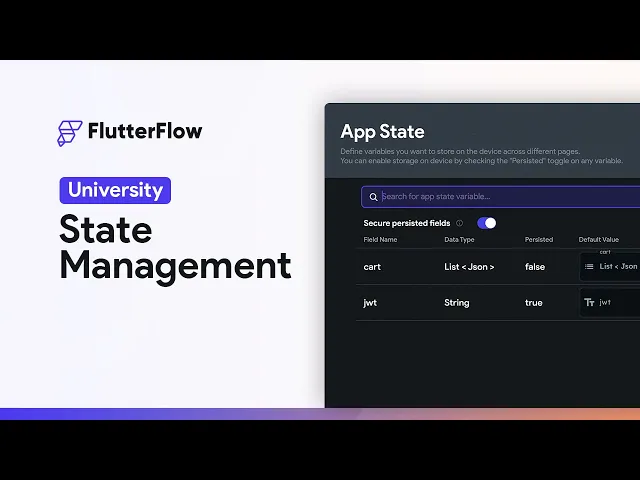
often you'll need to keep track of data or changes that happen in your app for instance whether a user is logged in or if you have a shopping cart and you want to keep track of when a user adds something to their cart or maybe you have a list of clothing and you want to filter that list by only men's t-shirts so you have to manage those filters that's what state management is for and there are two parts to State Management in flutter flow widgets and variables so first let's look at widgets so some widgets
these ones right here have their own State manage their own State built in so you don't have to do anything so here's what that looks like so let's just add in a text field right here that's like the input and if you just go to any sort of data binding property so you can see what you have available to you you see that you've got this new option available and it's called widget State and if you twirl that open you're going to see that text field right here and just like with all of your other
properties it's going to be type aware and type safe so we've got this little T here so that tells us that this is a string now I didn't name this very well but one of the nice things about flutter flow is when you hover over it you can see that both in the widget tree over here and on the canvas it's going to show you what widget that is but let's give it a better name so we can see this so maybe this is going to be an email address so when we come in here
again we can see that now it's an email address or let's choose another one of those so maybe we want a drop down once again if we just go into a bindable property right here we can see that we have another item that's added to our widget state so what this means is that this variable the value of this variable will be whatever is in that widget so here whatever the user types in will be in this email address variable and here whatever the user selects will be in this drop down variable and so let's
just test this out so word binding our page title right here and let's just add this to this input right here and to be able to see this we have to test it so let's just run the test mode all right so if we just type in hello world because we have this title bound to the state of this widget these are linked and anywhere where you can bind data where you can set it from a variable you can reference these widget States this is especially helpful because this means that in a lot of scenarios
you don't have to set up your own variables and manage these state by themselves because it's already managed for you so for instance a common scenario would be with API calls so let's just add in a button right here so let's say we have a simple form submission where the user is just submitting their name so let's come in here and say API call and let's open up our action flow editor let's just select that form submit and we've got this one variable our name and now we can bind it directly to that widget state
so we don't have to add in any additional variables okay but sometimes you do need to manage your own variables and that's the second part of managing state in flutter flow variables and there are three types of variables component State variables page State variables and App State variables and the difference is that they're just scoped to different parts so your component State variables are defined in your components your page State variables in your page and your app State variables are available app wide so let me show you how these work so I've got a component
right here it's just a little card component and when you select the root widget or just click out here on the can this you're going to see this option right here and this icon is the universal symbol for these State Management variables so you see it here and when we look at our app State variables or our Global variables those are going to sit right there and to add a variable you just add it right there give it a name maybe user and select the type of variable and confirm it and now in this component
you have access to that variable so if we just come into our cart text right here and open it up you see we've got this component State folder right here and when you open it up we can see our variable and it works the same way with page State variables so let's come into a page and we click out onto the canvas or on that root widget we've got this same icon and the same UI because it works the same way add a field we're going to call this name and set the type and that's
it but let's look at some of these configuration options right here so first you can select whether this variable is going to be a list so if I selected this right here what I'm saying is that this variable is going to be a list of strings if I were to change it to doubles it'll now be a list of doubles and a list is just a collection of these values in other programming languages this is called an array so that's the first option the next option is whether you want this to be nullable that means
can this this variable have the value of null and if you don't know what null is null is just no value now that's kind of confusing but it's easier with an example for instance maybe you have an option for a user to put their middle name but they don't have a middle name well then you could use null so null is a value but it's a value that means there is no value or maybe if you have a favorite color and the user doesn't have a favorite color you can select null and we have this
value because we need some sort of value to indicate this concept of nothing or no value okay so if you select this you are saying that the value of this variable in this case could either be a double or null so right now I don't have this checked which means that the value can only ever be a double but if I select this now I'm saying that this could either be a double so it could be like 1.5 or null okay well when should you make a variable nullable unfortunately the answer is it depends it
depends on what you're going to do with the data and how you're going to store it now this might seem like a dumb and obvious question but you can simply just ask yourself do I need null as a value and if you need it then you can use it but if not don't now one common error that you're going to bump into when using State variables and nullable is when you're binding this to a text widget so for instance let's change this to a string and let's say it's nullable now in flutter and thus in
flutter flow flutter is null safe which means that variables can't have the value of null unless you explicitly say that they can so by default it can't have null but if you say they can here you might think okay well everything is good now I've said it can be null but just remember that while this variable can now be null that doesn't mean that anywhere where I use it can be null so for instance if I've got a text widget here and this is one of the most common scenarios you're going to do creating a
state widget and then binding it to a text field and let's just remove move this here if I want to bind that to my page State variable I just set up it's going to crash and let me show you that and there we go and it crashed because there's an unexpected null value and of course you might be thinking but I said it can be null and that's right the variable can be null this variable right here so this is all fine that's not what caused the crash what caused the crash is that I bound
it to a text widget and this text widget can't have the value of null and if you run into this there's two solutions you could either make this variable not nullable so just click that off or you could give this text widget a default variable value and so if I do that it will never have the value of null and you're safe okay so that's component State variables page State variables and last we have App State variables and that's right over here now we have these three different divisions of variables instead of just one and
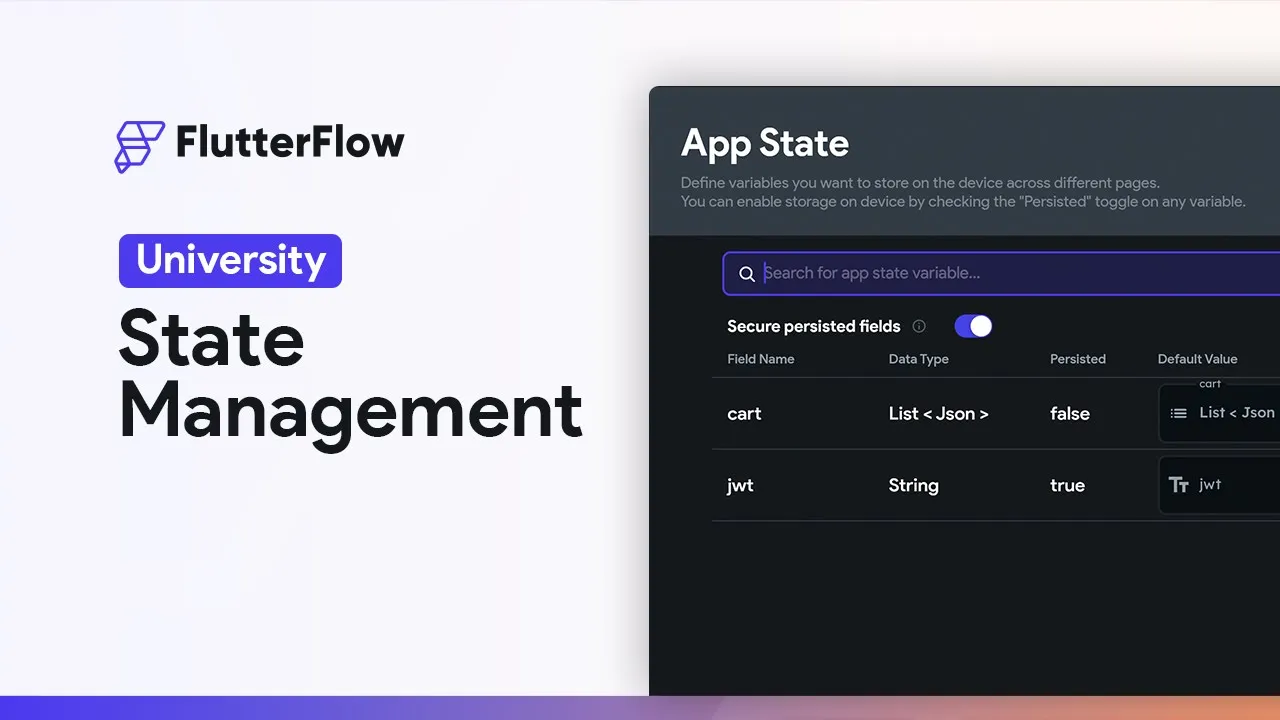
that's so you can build more cleanly and if efficiently because you wouldn't want to have all of your variables sitting in just one place but sometimes you need Global variables or environment variables and here's where you define them you can just add a state variable give it a name I'm going to call this JWT for Json web token and of course you can select the type whether it's a list and here you can select whether it's persisted so that means if the user closes the app whatever is in this variable will be saved on their
disk and one of the common scenarios is with user authentication for instance with Json web tokens and so if you accept that the user can now still be signed in if they close the app and then open it later but because I select that persisted Fields I get this other option right here which is secure persisted Fields And if I turn this on this will encrypt all the variables that are persisted so right now my JWT variable and this Json web token is a perfect example of doing that we want that token to be encrypted
okay so that's how you define your variables but how do you change them well let me show you so I've got this name variable right here and let's just change it to email address so it's the same as our text field and we're not going to make it nullable and just give it an initial value beautiful and so let's say we want to update that email address when the user clicks this button and puts in an email address there okay so we go to our button and we want to come into our action flow editor
here we want to add an action and if you scroll down I'm just going to close this up and look at State Management right here you're going to have those App State and Page State variables available to you now we don't see our component States in here because those are scope to the components so if we were defining an action inside a component then we would see those here okay so this is a page State variable and we want to select which variable it is we want to mutate now we only have one so we
only see one here and then we're given some options for the type of update so we can set the value we can reset the value to its default and depending on the variable type so if it's an integer you're going to see additional options here like increment and decrement but we're just going to set this value right here and we are going to set it to the widget state of that text field beautiful lastly we've got an option to update the page and we've got two options in here we can rebuild the current page or
not rebuild it alright so what does this mean well this doesn't mean everything is going to be rebuilt and repainted flutter is intelligent so it's going to go through your widget tree and re-evaluate and if there is something that needs to be rebuilt then it's going to rebuild it so for instance here on our page this title property is bound to our page State variable so when that variable updates it's going to reevaluate the page and say oh this value is changed so we need to rebuild this widget so you can actually see the updated
value so you can ask yourself does anything on this page depend on this updated value right here and if it does you want to rebuild it then but once again you can think about this more of a re-evaluation than a rebuild and that's it that's how you change the values of your state variables okay so lastly let's look at some practical examples of how to use State Management so let me show you a coffee app example so here I've got a little coffee checkout page and I've got two drop downs one for the type of
coffee and one for the number of espresso shots and when the user selects each one of these I want the price to update so in this first drop down here you can see that I've got two types of coffee two types of coffee Ethiopia and Peru and I've split out this drop down into the labels that is what the user sees and the values so if the user selects Ethiopia they'll see Ethiopia and they'll click on it but the value of that selection will be four that I'm using for the price and Peru is two
dollars okay then we've got espresso shots and I've got one two and three so now let's do the State Management stuff so we're going to to come into this text and let's scroll to the top and we want to go into this text field and for this we want to do a simple calculation where we're just adding these two values up so we're going to use a code expression now let's start with the end in mind so what value do we want returned well right now we're just using no decimal places so we can just
select integer and close that up and we're going to have two arguments in here our first number and our second number so we can just give these a name this is going to be coffee and it's going to be an integer and the value is going to be set to that widget state that first drop down beautiful and the second one is going to be the number of shots that will also be an integer and that will be set to that second drop down beautiful so now let's just write the expression coffee we're just referencing
that variable that argument name plus shots and that's it let's just check for errors which you always have to do when you write in an expression that's great and lastly we want this to be displayed as this dollar and so we can just change this to let's say a decimal automatic and we want to display it as a currency and our currency symbol is USD confirm and let's test it out all right so let's switch this to Ethiopia five dollars and of course we want three shots beautiful so because we have access to these two
widget States we can manage the state of this total very easily let's look at one more example so here I've got a simple product page and I want to just be able to click on this button and add it to my cart all right so how would we do this well first let's look at our data so we've got an API call in here for our products and here's the data we've just got an array or a list of objects and each object is a product with a title and a price and a description etc
etc so when the user clicks on this I just want to dump that object into a list all right so we're going to need a variable to dump these products and where can it be well I want this to be available anywhere in the app so I'm going to put it in this app State variables and I've already got it set up right here it's just a list of Json okay so that's our cart that's where we're storing these products so let's set up the logic the action for adding it to the cart so I'm
going to click on this button right here and come in here we're going to add an action and we're looking for the App State variables we want to update that App State variables because we want to add it in and which variable do we want to update well we want to update our cart and what type well we want to add it to a list okay and what do we want to add okay well here's our response from our API call and here's the individual item that we have clicked on okay so that's what we
want beautiful and that's it okay but I one away okay but I want to wait for our users to be able to see it and so we can confirm that it's actually been added into the cart okay so I've got this cart button right here which is going to show this bottom sheet this cart right here which I've got set up right here and I've got this column set up that's bound to our Cart app State variable so if I just set up this before I came into my app State and I'm just binding it
to that cart variable beautiful and then each of the items in here I have bound to for instance the title property that's this property all right beautiful let's test it out all right let's add in this first item and the second item and let's check our cart beautiful and those are the two ways to manage state in flutter flow widget State and variables