today I'm going to show you a new tool that will allow you to sound just like like your favorite streamer or maybe your favorite YouTuber or even your favorite anime character of the season so I'm going to be showing you how to install this tool and then we're going to see if this is actually better than the W Oka tool and that will determine which you should use going forward so let's hop right into this video so to install this voice changer first you're going to want to head to this link found in the description
of this video now this is their GitHub page where we'll find all the downloads and things and this has some really good information just about the voice changer in general but also over here we can find an area with the prerequisites that we need now I'm not going to go too much in detail with this basically you just follow the steps here and you need pie torch and a few other things and make sure you're paying attention here with Nvidia or Linux and AMD cards so you just have to make sure that you're paying attention
to everything that you're doing here this is where you can find all those prxs and you will need to supply your own RV voices so they have some info as to where you can get some just demos that you can get from them or we have a whole separate video on where you can find other custom voices that other people have made so you can go check out that video if you're interested now once you have all of the PRX installed go up to this link right here and this just takes you to the home
of their GitHub page so just go back to the home and then the file that we'll want to download is over here in releases and you should just get the latest one uh and as of recording it's October 6 2023 so just go ahead and click on this and then if you have an Nvidia graphics card click this link if you have an AMD graphics card click this link I have an Nvidia graphics card so I'm going to be using this top one and keep in mind if you have an AMD SL Intel GPU if
you're having issues I unfortunately cannot help as I do not have an AMD graphics card or an Intel graphics card to troubleshoot that so you'll have to see other comments or other videos online to figure out out your issues so yes I will be going with the Nvidia one now the file is quite large so it might take a little while but once you have that downloaded go ahead and drag it into the folder of your choice and then you're going to want to extract that szip file so you might need to download szip or
windar or something like that I don't know if Windows now has its own built-in atast 7zip unzipper but yeah just keep in mind you might need to download 7zip or something and also keep in mind of your folder names make sure that any of the path aside from the I guess root path don't have any spaces in any folder names because that will mess with the things so as you can see right here it's j aen software RVC the thing but there's no spaces anywhere in here that's what you want you don't want any spaces
in between here because that'll mess with the file linkings of things so just make sure that you're putting in a file path that is a direct link without any spaces and again this is a really large file so it's going to take a hot SEC depending on your computer specs so just let it load and I'll see you when this is done now once that is done extracting you can just delete this file you don't need it anymore and then you're going to want to hop into this folder now if you already have your voice
model files installed and ready to go you can go ahead and put them in this folder in assets weights and then just drop them in here and it looks like this does come pre-installed with a few so you're good in that regard so I went ahead and dropped in a few that I already had and then we can go back to the main page here and then you're going to want to run this go- realtime DGI bat and then it's going to open up a command prompt file and just like that it is already open
super quick and easy now you'll notice this looks much different from how woa looks it's much more simple looking and very old-fashioned and very Bare Bones but we'll have to see if any of the functionality makes up for the poor appearance so let's go ahead and get into how to use use this now this top section is for the model now you're going to want to hit select the. pth file and then just select the one that you want to use so I'm going to try with gaura first and then if your model happens to
have an index that's fine you can use it or if it doesn't just leave this how it is the next section is for your audio device so your input and output your output should be headphones don't use speakers because then it's going to have an echo effect and your input should ideally be a good microphone preferably not your laptop or computer's built in microphone so if you have just an any external microphone that will be perfect and if you're wanting to use this in Discord or any other game we also have a video on how
to do that granted it is for woda but it's basically the exact same process so you can go ahead and follow that and figure out how to use this in Discord now there are a few sections here for general settings response threshold is basically how sensitive your microphone is I would just leave this where it is unless if you're really having some issues picking up sound if you're having issues picking up sound go ahead and just lower this a little bit but that means that you will be able to get more background noise in so
just keep that in mind pitch setting adjusts the pitch of your voice so if you're going from a deep voice to a high pitched voice as in the model that you're loading is a high pitched voice you're going to want to put this about 12 if you're going from a high pitched voice for to a lower pitched voice then you're going to want to set this about -1 12ish and granted it'll you know vary based off of your own individual voice but that's about what works for me give or take a few index rate I
would not touch unless if you're using an index but just honestly I don't like the indexes I don't really feel like they change too much so I'm not going to use them but if you do you can increase this to make the index more powerful and the loudness factor is just how loud it sounds like coming out of the thing so if it's really quiet and you can't really hear it you can bump this up to just sort of you know be able to hear it better so just adjust this on your own depending on
if it's too quiet or too loud pitch detection algorithm I would just leave this at its default for now if you happen to have issues with some models you can try putting it at CP or harvest sometimes um so just sort of play around with it and that's true with a lot of these settings a lot of these settings depend very much on the model themselves so you might have to you know mess around with it a little bit and I would take a screenshot of this every single time you have good settings set um
because each model like I said you know you'll want to have log of each model settings so if you go back to it you know exactly which settings work best for that model now for performance settings this is really going to depend based off of your graphics card I personally have a GTX 1080 which is definitely pretty outdated in terms of using it for AI stuff but if you can go the lowest that you can for the sample length and probably fade length go to the very top which is the default if you go higher
on the sample length that means there's going to be more of a delay between your voice and the outputed voice changed voice and the fade length basically the higher the number the higher the quality of the actual voice is going to be so you could put this lower to increase the performance however the voice is going to be much lower quality so leave this as high as you can and leave this as low as you can and everything else probably just leave at the defaults unless if you know you notice that your CPU can handle
different things and depending on your settings just leave everything how it is for now and once that is all done you can go ahead and hit start audio conversion and keep in mind you do need a decent computer for this so if you don't have the best computer it might just not work for you so let's go ahead and hit start and see how it goes and you'll notice back here there's a couple stuff happening with the CMD and you can hear a voice starting to emerge from the background there so I can tell that
it's very choppy and that's very likely probably because my graphics card is not the best so if I try putting this back maybe to point I think it was 52 was the default and hit start audio conversion and as you can hear the voice sounds much better much better so depending on your graphics card you might need to have this lower have this lower or higher so all things considered the performance settings on default for me tends to work pretty good so you'll just have to see if this works for you or if not you
can edit it and to demonstrate the picture settings it's on 12 right now which tends to sound pretty good but if I were to lower it back to two which is the default setting you can see it sounds really weird so when you want to stop the audio conversion just hit the stop audio conversion button and then you'll see ending VC and you're good to go it is done so that was gura but let's go ahead and try Markiplier and then because it's a deeper voice from mine I'm going to set it uh maybe to
-3 to start cuz his voice isn't isn't that much deeper than mine so we'll see how that is and then I'll probably have to adjust it and there we go we can hear the voice we can hear the vo so if I go even further down I go even further down maybe ne88 I think I think this is a pretty good swe I think this is a pretty good sweet spot so yeah there we go that is pretty much this voice CH pretty much this voice changer now there is an Ever So slight delay for
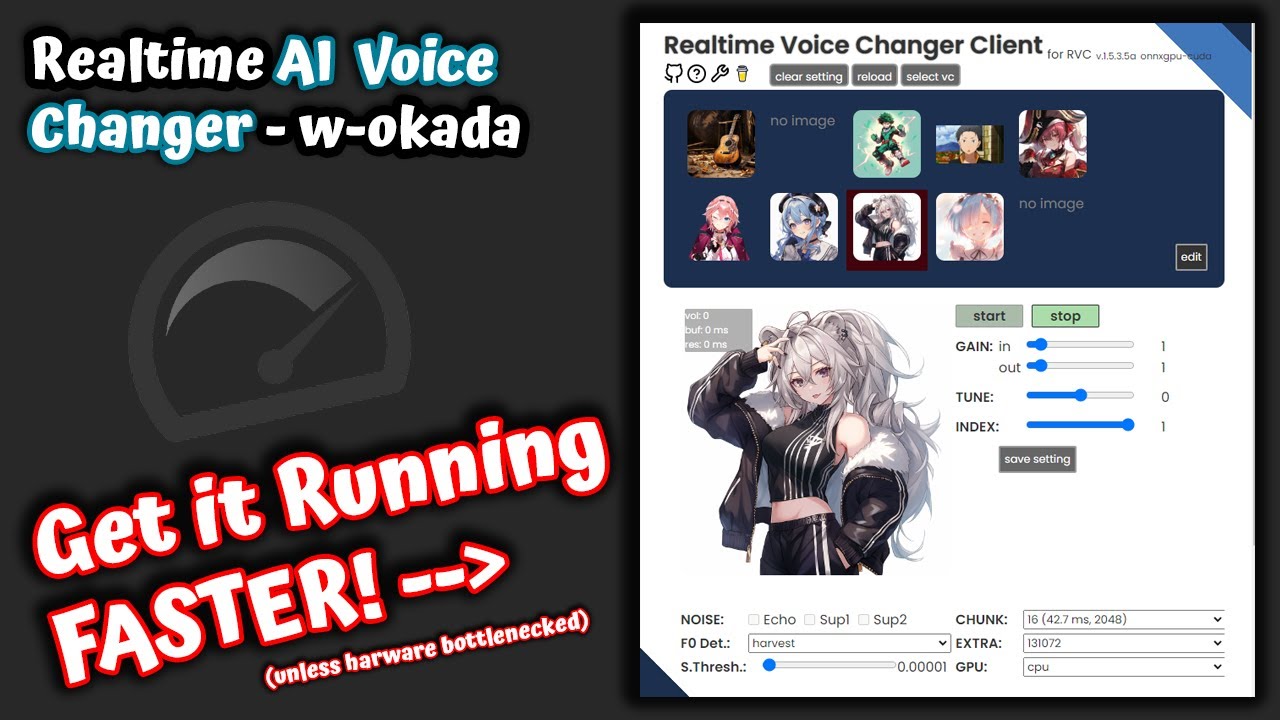
me delay this is basically the exact same Delay from from W but to me at least even with a lower graphics card pretty outdated by now outdated by now this would actually work pretty well in a real time environment in a real time environment now the big question with this voice changer is is it worth it to use this over W okoda because the GUI on this is considerably worse than the other one and there's not really any featur I mean sure the install is ever so slightly easier in my opinion it's still not worth
for the customization that you get W okoda plus you can have various profiles in that one so it just makes this one far inferior in terms of features so I guess if you're looking for a very Bare Bones kind of setup this will work fine and I would say it's certainly easier to use and maybe Works a little bit better on some lower-end systems but other than that I would just stick to Woka so I will leave the original video to download W Oka down in the description below so if you want to go download
that one you can go ahead and do that they have had some more updates since that video was released but the download should be roughly the same process so yeah it's really cool that we're having a few more options in the RVC space but like I said there's not really any need to switch from wuta because this doesn't offer any real benefit but that's all I have to show you for this RVC GUI to discover more cool AI tools like this one check out our website at ai- search.




![I Replaced ALL my ADOBE APPS with these [free or cheaper] Alternatives!](https://img.youtube.com/vi/5EfqHg49kMk/maxresdefault.jpg)