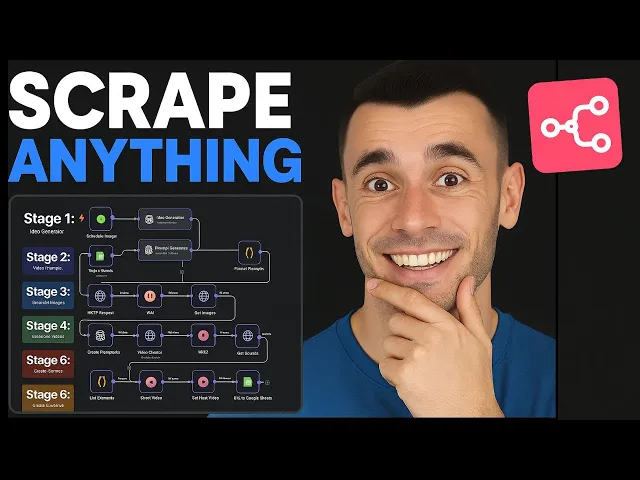
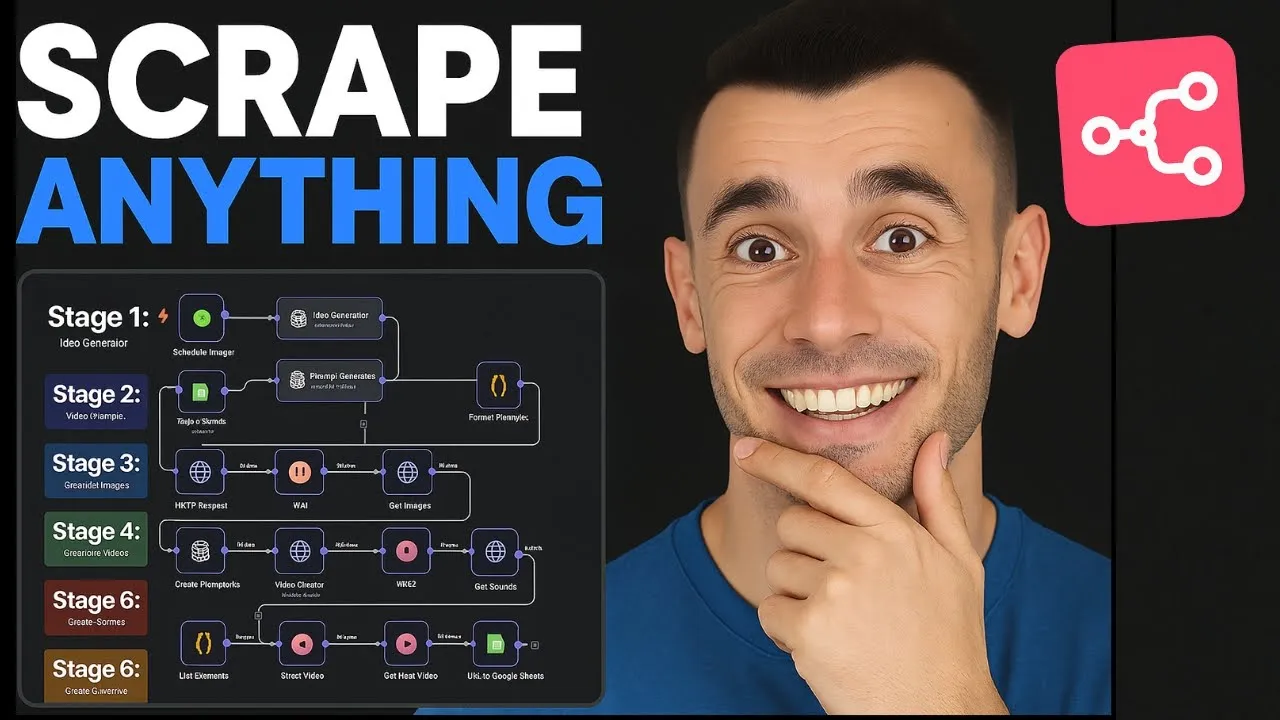
Today, what I'm going to show you is how to scrape anything free with NA10 and the scraper agent. And I'll give you the full template for free. You're going to see, for example, how I easily scrape for free using Appify.
All of these leads for free without coded. And I'll give you the downloadable template for free, too. So, you don't even need to set this up yourself.
And you'll discover my exact step-by-step process to build personalized AI outreach emails for you scrape leads. And you can even send them over to a Google sheet and then fill in all the details right there. Now, you can do this for pretty much anything.
So using Appify, which I'll show you exactly how to do today, and you can get free usage like you see in the bottom left hand down there, you can get access to, for example, like Instagram scrapers or tweets or Facebook groups or Facebook group comments, etc. Anything that you want to scrape, you can scrape leads and data in seconds and build personalized AI outreach emails from them all as well. Come on to that later, too.
And this is the exact system you can use to scrape pretty much whatever you want in seconds without coding and then link it to AI. So, what I'm going to show you is an easy way to basically scrape anything with NAT. So, you can see this is an example web scraper that we've built.
And if you pull up this example right here, you can actually see that we've scraped 50 dentists. And you can do this for free. I'll show you how in a minute with all their details like the phone numbers, email addresses, etc.
And then we've actually blasted that over to a Google sheet, which you can see on this example. And here's an example of the data that we scraped directly from Google Maps. Now, it doesn't have to be from Google Maps.
Could be from like I think there's like thousands of platforms on the app that I'll show you in a second. But essentially, if you want to quickly scrape data for free and then plug it into a Google sheet automation like you can see, you can easily do it with this web scraper AI agent. Now, I've actually included the template for free inside the AIO success lab.
So you can get the scraper agent directly inside the AI SEO success lab. If you want to get free access to it, just import the JSON. As you can see down here, we've also included links to all the relevant resources.
And let me show you exactly how this works and how to set it up step by step. So essentially what's happening here is we're running request and then we've plugged this into something called ampify. Now amplify directly inside the appy store here, they have something called actors.
Now actors are like basically pre-built agents for web scraping and AI automation projects, right? So you can get an API from any of these different models and then you can plug that into NA10 and use this to build stuff out. So as an example of that, I actually took the Google map scraper and then plug that into NA10 to create this automation.
Now you may say, okay, is this free or not? So, we actually get free usage and I rinsed it this morning and it's only cost me 41 and you get $5 of free usage that resets every month, right? So, you can do this for free.
It is a scraper. You can get the data and then you can plug that into a Google sheet automatically. You don't even have to map out the fields.
It's incredibly easy. So, you can see here I mapped it automatically to a Google sheet. And it's absolutely insane that you can do this, right?
So, if you want to see exactly how to set this up, let me show you. So, I'm just going to zoom out here and I'll set it up from scratch as an example. So, let's say we want to set up the scraper.
So, we're going to click on HTTP request over here. Then, from here, we're going to select post and what we need to do is select whatever we want to scrape from these actors inside the Apple store. Now, if you're wondering, okay, which one do you want to use?
It depends on your use case, right? So, for example, if you wanted to just get some details of local leads, then Google Maps would be great. If you wanted to, for example, scrape Instagram and get like the latest viral post, you could use the Instagram scraper.
There's so many different apps inside here. It's absolutely wild. Facebook comment scraper, even like LinkedIn profile scrapers.
Really powerful for lead generation, but also just for scraping data and building stuff from the web, right? Even like for example, getting ideas for viral content from Tik Tok and places like that. So, for example, if we go over to Google Maps and then what we're going to do from here is we're going to type in whatever the search terms are that we want on Google Maps, right?
So, let's say, for example, we wanted to search locally inside the US. We could select our city and location over here in the location section. Then, inside the search terms, we can select whatever we want.
So, for example, we could select restaurant. And then here you get to choose how many places you want to extract from the data. Right?
So for example, do you want to extract 50 different responses or 30 or etc. Right? Obviously the more responses you use, the more API credits you're going to use in your free usage section here.
You can also, for example, choose whether you want to use like Google Maps listings and all that sort of thing. But the point here is that you can scrape almost anything you want using these free agents. Um, the cool thing as well about NA10 particularly is that with NA10, you can self-host this and then it's free as well.
So then at that point, you're not paying for NA10. You're not paying for a yeah, all of this is pretty free. So it's really simple and easy.
So for example, let's say we want to search restaurants in New York. I don't know, something like Chinese restaurants, right? Let's say you're a lead gen agency targeting Chinese restaurants.
we can take the information and then from here we're going to go to the API section. So let's go to the API API endpoints and then from here we're going to click get the run actor section. So let's copy that.
As you can see we're going to go back into the HTTP request. We are going to also make sure we select post instructions inside AI success lab if you want to get free access to this stuff. So put the URL method equals post.
got the information right here and then we just need to make sure that we got the details plugged in and also just make sure here that you've selected send body and then using from here go back to ampify x app and then go to the JSON section and inside the JSON section you can just copy this code over here and you see here I was selecting Chinese restaurants and it's scraping 50 places inside the US right now by Doing that, you can see all the different search filters you've got inside here. It's just like a Google search or like using any sort of filter, but the difference here is like you're scraping data and you're scraping live data like you can see. So then you're going to take that, copy that, plug it in here, select JSON using JSON, send body post, and the URL.
We'll test that step and you can see that has worked perfectly. All right. So once you've set that up, then what you can do is add another HTTP request.
And inside this section, you're going to keep it as get. So make sure that you select get here. And then for the API, you're going to go to API endpoints.
And then from here, you are going to select get last data set items. So if you go to get last data set items, we'll copy that. We'll go back to the web scraper.
Plug this in as URL. Hit test step and one thing we just need to do here quickly is just check on the runs which we've done and then you can see an example right here. So we just executed that workflow as an example.
This is for the dentist workflow but you can see an example of how it works step by step here. So let me show you from scratch right here. So we've got get then we'll get the endpoints.
Scroll down. Get last run of data set items. Plug that in over here.
Hit test step. Boom. There we go.
If you want to change the endpoints, you want to change the filters, etc. Let's go back to ampify, Google map scraper. Go back to manual, then change the search.
So, let's say, for example, SEO agencies. We want to scrape something like that. We'll plug this in.
We'll search in New York. 50 places to extract. Grab the endpoint.
Get the run actor one. Copy that. Go back to NA10.
Insert that into the first HTTP request. Post URL send JSON using JSON. And then obviously if you change any of the filters, then the JSON changes as well.
So just copy that like you can see. Go back, delete that, plug that in. Hit test step.
Make sure it works. Boom. Shakalaka.
That's working nicely. And then you can see all your previous runs over here. You see what we're doing, how we've worked, how much it cost, right?
And you can see this is finishing scraping, right? So, what I would typically do if you wanted to run this from scratch, you can add a new section here, wait 22 seconds before you go ahead and then that will just allow the website scraper to scrape and complete scraping before you move on to the next step, which is this one. And again, we'll just test that step.
And boom. Look at that. We've got all the internet marketing services and SEO agencies in the local area of New York using that process.
Right? Really simple and easy. Now, if you want to clean this up, keep it all neat and tidy, you can click this button for tidying up in the bottom left.
And then if you want to add a new module, let's say you want to send this to Google Sheets or whatever, we can add Google Sheets section here. Append to row. So we'll click on append row in sheet and then inside this section we can search dentists just for my random template.
Then inside here we'll update that sheet. And you get an option here which is map each column manually or map automatically. So I'm going to map automatically just save a bit of time.
And basically we've got all the headings inside the spreadsheet mapped to the Google map scraping search. Right. So what you can do here is if we click on test step now that's going to send all this information inside the Google sheet you can see it's all been appended to the spreadsheet.
So we've got for example all these SEO agencies inside New York from Google Maps listings and we're living the dreams my friend. Right now let's say for example you wanted to take this information and then for example do some outreach. There's a couple of ways you could do that.
Right? You could take the information from the spreadsheet. You could go over to chat GPT.
You could say something like, "Okay, create a short, funny, personalized email to this person from my SEO agency to sell white label building to them, right? Something like that. I'm going to use GPT 4.
1 cuz that's what I tend to like the most. " And now you can see he's created a interesting outreach email template based on the personalized details of that lead. Right?
So for example here it said let's millionify right and millionify is the name of the agency. Even more millionify with easy link building like that. Right?
So I hope business building. I'm Julian Goldie founder agency. How many tabs you have open right now?
If the answer is too many you don't need nothing on a plate. Here's how we can help you. millionify plus our links equals your client's ranking.
Your margin is laughing and you're finally having time for lunch. Blah blah blah. So, if you want this, here you go.
We can insert a calendar link. Boom. So, that's one way to do it.
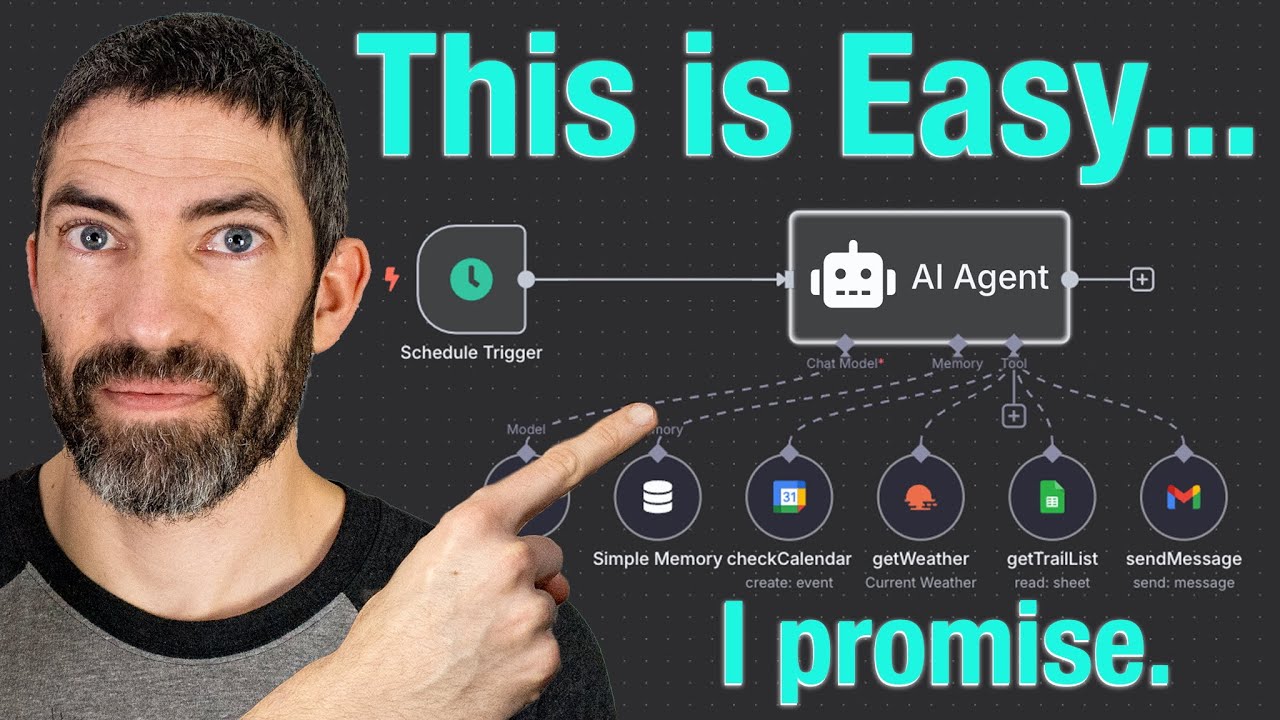
The other way you can do it is like for example, you could go inside. This is super interesting. You could take the information like so get an AI agent, right?
Then we can define this information below. We can take all the information from the Google sheet. All right.
So for example the title, the address etc the website like and then we can add a chat GPT agent. So open AI chat model. We'll select GPT just for now.
And we can take the information from Google Sheets and send that to the AI agent. Right. Now, if we stop that workflow, we can now tell the AI agent with a system message, you are an outreach assistant helping me write emails for my leads based on the information in the prompt.
Right. And we've put in the address, the website, the title. We could put the neighborhood as well.
What else could we put? I think that would be it to be fair. Category name maybe as well you want to include in there, right?
And then you just label this. You put like a title for example here. And this is basically taking the information from the Google sheet about the lead and then using that to just automate the outreach, right?
So for example, if we say okay lead details here based on the information in the prompt, write a nice personalized email, right? Something like that. Then we can go inside chat.
We just need to make sure that's working. I think it's going to be okay. So, let's just test our workflow.
And then you could chat with the AI agent and just use that to get responses. And so, if we delete that and then we add a new node here and we'll put chat trigger. And then you can see it's taking the information from the Google sheet right in the email based on this, right?
Pretty simple and easy. Boom. Now, if you want to get access to all the templates, etc.
Just go to the AI success lab. It is free. Link in the comments in description.
You can get free access to this. Go to the classroom, go to the AI course, and then you'll see the latest module right here with the NA10 scraper agent details. And you can just download this JSON file like you can see.
So, we can click that, download it. Then, we can go back over to NA10. Just going to hit save.
We'll exit that. Open up a new workflow. and we shall import the template that I've given you for free.
So, let's import that from file. Open up the web scraper. And there you go.
You got the web scraper ready to go. Obviously, you need to plug in your own details inside this, but it's quite easy to set up, super simple, doesn't take much time at all. All right, but basically, it's one of the most powerful ways to do lead generation and automate it with AI, right?
Because if you combine the AI agent that we've built with the web scraper, you can create personalized emails. It's really simple. Doesn't take long at all.
And you can do it inside the chat nodes like so. Right now, if you want like personalized coaching on this sort of stuff, if you're struggling to implement it or you're struggling to actually get it loaded into NAN, etc. , then you can actually go to the AI profit boardroom, which is basically like an upgrade from the AI success lab, right?
So come to all my best automations, workflows, templates, AI agents. But the most important thing here is you get support, right? And I would say that's the biggest thing is like you want to be in a group of people that are learning AI, learning with you, growing with you.
You can jump on weekly Q&A calls. We're actually increasing this to three calls per week, which is going to be super interesting. So we're actually going to be launching coaching calls three times per week inside the AI profit boardroom.
link in the comments description and you can get all the support you need from the DMs, from the community, from the weekly coaching calls and the classroom emojis inside here. So, if you really want to learn and implement this stuff, I would recommend the AR profit boardroom. But if you want to get it for free, you can get it inside here.
Feel free to get it. Let's try another one now. So, we're going to try and build something with, for example, Tik Tok.
So, let's put in a HTTP request here. We can do that. In fact, let's try Twitter just to mix it up.
So, let's say we're targeting like content around AI agents. We want the latest content, maybe like the top 10 tweets, then we can do that. So, we'll grab the API key.
So, grab the endpoint over here. We'll copy that. Go back in here.
Post URL here. Then inside the send body, we'll select using JSON. Then we'll grab the JSON over here.
I'm flying through it now because I've already shown you how to do this stuff. We'll copy this. Go back in here.
Plug this in. Hit test step. That's running now.
And then, for example, what we could do here is we can add a new HTTP request. We're going to link that in. We'll just select it on get.
Then we're going to take the URL from the API. So let's grab that. We'll get the endpoint.
As you can see, we'll scroll down. We'll get the last run data set items. Copy that.
Then we're going to go back to NAN. Paste in the URL over here. You don't need to do anything else.
And you can see the node is executed perfectly. And we're good to go on that. Happy days.
All right. So, it's really easy to set this up. Once you get the hang of it, once you get your head around it, it's super simple stuff.
And as promised, inside the AI success lab, link in the comments description. If you go down to the NA10 scraper agent, like you can see, you can download the template in the resources section. You got all the links over here.
You've even got the template for the spreadsheet that I used as you can see. And this is completely free along with all of my best agents. If you also like for example social media post automations and shorts, you can get that inside the AI success lab along with a community here.
And if you want to upgrade, you can upgrade to the AI profit boardroom link in the comments description. This is a much more supportive community where you're going to get coaching, DM help. You can ask questions inside the community, get support whenever you need it.
You can jump on weekly coaching calls as well. You also get access to tons more training templates, etc. And you connect with like-minded serious entrepreneurs who are serious about scaling and learning how to use AI automation to make more money and save time.
Feel free to get that link in the comments description.