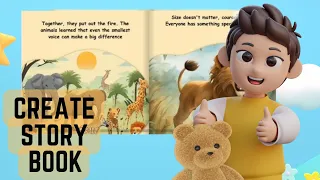
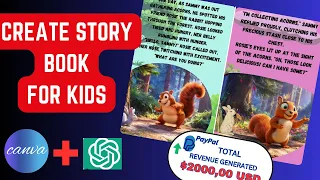
welcome guys in today's video we will explain to you how to create a short story book for children using chat GPT and the canva website we will create a story book for children like this one that I designed the first step is to create a short story go to the chat GPT website and artificial intelligence text generator write for me a short story for kids to learn something useful here I use the easiest prompt you can use to generate a story for children but you can search more on the internet for more professional prompts now
chat GPT has created a useful short story for children it is the story of a caterpillar that feels sad and wants to turn into a butterfly like its friends I will now copy the story and paste it into Google docs for us to use later now go to the canva website and type in the search book story now click on the create blank option so that we open a page that is the appropriate size for the story the next step is to change the page background to a different color here I have chosen this color
now we want to add a frame to place pictures related to our story inside it go to the elements section then open the frame section after that open the blob section I will use these shapes in my book to place the image inside now browse these many shapes then add the one you like next add the first section of a story as text on the first page after that change the font type of the text to Comic Sands in this way I complete the creation of the rest of the pages of the story add story
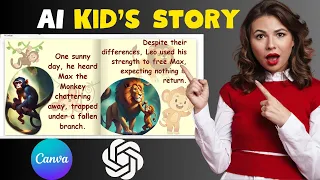
lines on each page in an appropriate manner the next step is to add decoration to the pages open The Element Section then type caterpillar in the search box we will add one of these cute pictures from the graphics section to the front page after that open the transparency and reduce the value to 40 we want to make the image of this caterpillar transparent behind the text to give Aesthetics to the page in this way continue adding interesting shapes and images to the rest of the pages then make them semi-transparent the next step is to create
images that relate to our story and then place them in frames we will now use canvas free image generator open the application section on the left then scroll down and click on Magic media here I will write Garden then I will choose the playful option from the Styles now the image generator will create a garden image that we will place on the first page of our story as you can see I am now adding one of the pictures to the frame I will then add a picture of the caterpillar in the elements section there are
a lot of images ready for use in case the image generator is not working well on the next page I will create an image of butterflies flying in the garden now on the next page I will create an image of a wise butterfly and place the caterpillar next to it also on the next page I will create an image of the Cocoon finally it remains to create a picture of the caterpillar after it turns into a beautiful butterfly we have successfully completed creating the story to make the story a book flip click the share button
at the top then press the more button scroll down then from the design section choose simple booklet flip then press save we will use this website as a third party to create the book flip as you can see the story book has been created successfully we can now turn the pages in a beautiful way as you can see explanation finished for today thanks for watching and don't forget to like And subscribe to the channel