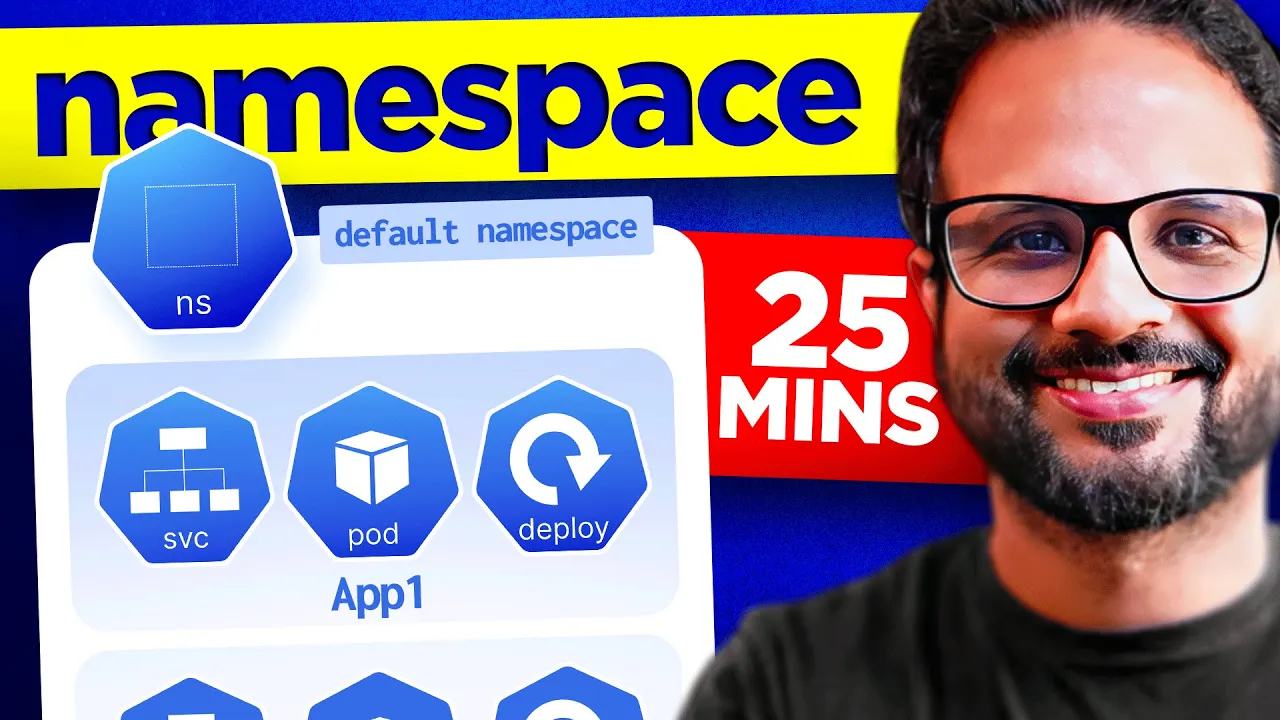
hello everyone welcome back to my channel my name is p and this is video number 10 in the series CK 2024 and in this video we'll be looking into name spaces why are they needed and we'll do a small task of showing the connectivity between multiple Services when they are running in same spaces with respect to different name spaces so we'll be doing a lot of Hands-On uh in this video as well without wasting any time let's start the video but before that please try to complete the comment Target and likes Target for this video so the comment Target of this video is 150 comments and the likes Target is 250 likes in the next 24 hours and let's start the video now all right so let's start a little about Nam spaces what exactly are these and why it is needed so basically it's just provides you another layer of isolation within your cluster so that you can separate your objects and resources within a cluster using different methods like for example when you create any resource and when you don't specify the namespace name it by default gets created in a default namespace right so this is your default namespace so when we were not specifying anything like till now we were creating anything in the default name space so that's what it is default Nam space and when you provision a kubernetes cluster kubernetes itself create a few name Spaces by itself for example example it creates a namespace called Cube system and all the kubernetes components like the control plane components will be by default created in the cube system Nam space that is why it is important that we keep these name spaces separate so that no one can accidentally delete or modify any resources inside a different Nam space for example I have three name spaces and I wanted to delete or modify a pod in in the first name space and I accidentally did that in the second one right so now it is easier to manage that because we have to specify which Nam space we want to make the change to right but if we don't everything resides inside one single name space then it is easier to make that mistake so it helps avoiding that plus you can assign different permissions and different rbags to each of the Nam spaces and your services your pods resides in you know and another object res resides in one of uh those name spaces so there are different methods through which you can Define your Nam space names for example the one is kubernetes so let's say uh for the cube system so you have your control plane components run inside this Cube system namespace and let's say you create a few more namespace one for your test environment this is your test environment and then you create one for your fraad environment so here as well you are keeping them separate with each other so that again for the AIS level for the better security for the isolation and so that they actually resides in a separate space and it is basically for the isolation now these resources within the Nam space can access each other like let's say there is an engine x p over here and we have a reddish SP over here so these resources these pods within the namespace can easily interact with each other with their host name host name is enginex for this let's say redis is for this so they can easily interact with each other but let's say you have the similar pod in another Nam space in let's say the test name space so now if your engine X pod has to communicate with the redish inside the test cluster they cannot directly communicate with with their host name they have to use something called as an fqdn or fully qualified domain name so we'll show you how we can do that uh we we'll show that in in just a few minutes but before that I just wanted to give you a gist of it what exactly is namespace and why do we use it now I have opened two terminal windows and I have splitted my screen so that I can show you side by side of the difference between both the Nam spaces that we're going to create so that is why it's there so let's start with creating a namespace first or before that let me show you the default Nam spaces that a kubernetes cluster comes with so if we run the command Cube CTL get Nam spaces I'm using the alas k for cube CTL which I have already seted my bash profile so it should return the name spaces so you see we have different name spaces the first one is default name space so whatever resource we create without specifying any name space it will go in the default name spaces so whatever resources we created till now it by default had created in the default name space then we have these name spaces these name spaces are used by kubernetes for its own purpose like for cube system namespace we create all the control plane components inside this so if we want to check what inside these name spaces we use the uh command such as cube CTL get let's say get all hyphen hyphen namespace and namespace name Cube system okay so if we hit enter uh we have these many pods running so let's see not just pod other services and uh everything so we have code DNS which is again a control plane component we have SD a control plane component this is kind for networking API server controller manager Cube proxy Cube scheduler these all are control plane components that's gets created inside the cube system name space then we have a cube DNS service so Cube DNS service is responsible for resolving your IPS to the host name within the cluster it will look into that and then we have uh Damon sets we have deployment which is cod DNS uh like we have seen the Pod as well and then a replica set so these are all the components inside the cube system name space so if we clear the screen and instead of hyphen hyphen name space and instead of giving this big command we can also use a smaller version of it which is hyphen n single hyphen not double hyphen hyphen n and then the name of the name space and it will give you the same results so it's one and the same thing right let's see what else do we have in other name spaces so I'll replace Cube system with Cube public okay there is nothing as of now and then we have Cube node Le okay nothing in that as well and local path storage we have not created anything so it's fine now for now and if you want to check what's there in the default name space we can either specify hyphen n equal to default okay or we can just remove this flag because by default it will get the information from the default name space so it's showing the same results with hyphen n equal to default or without that so currently we only have one service which is cluster IP which is automatically gets created with the cluster itself so we don't have anything running at the moment so again there are multiple ways of creating a namespace because this is one of the kubernetes object okay so I'm going to create a new namespace ns. EML as there are multiple ways of creating the namespace imperative way declarative way so we'll go ahead with the declarative P first so I'll open this file in VI and again I'll enter API version which is V1 kind is nam space should be with capital N we have metadata side metadata we have its name so let's give this name space a name let's call it demo okay and and that's it we don't have to specify spec in that just these three Fields should be sufficient so we just have to provide the API version name and a kind which is namespace now let's apply this EML hyphen app ns. EML um it says API version of because I actually did not take care of uh this V it has to be capital V now it should be fine okay it says namespace created so now if we do cctl get Nam spaces or k get NS one and the same thing it will now show you the demo namespace that we have just created so we'll mostly work on two Nam space uh for this particular demo we'll work on two namespace one is demo another one is default so that's why I have two separate terminal windows so that I can open one namespace in one and another one on second so just to avoid any confusion there is this and if we have to delete the namespace so Cube CDL delete NS and then space name or slash name demo okay it's been deleted now why I deleted it because I wanted to show you how we can create it imperative way that is pretty simple straight forward Cube CTL create NS or namespace and then name and that's it with just writing the four words we can create a namespace so that's why I am I was saying earlier that sometimes running a small imperative command is faster than running the declarative command where you have to create a yaml first and then create the object out of it so you know uh sometimes this comes very handy now we have created the demo namespace what we have to do to create resources inside this Nam space so let's see let's see we have to create a pod or a deployment so Cube CTL create deploy let's give it the name enginex hyphen demo and image is enginex okay and then we have to specify the namespace name as well so hyphen and space demo or hyphen iph namespace equal to demo otherwise this will create the deployment in the default namespace so if I hit enter now image name I guess let's see CTL create deploy hyphen hyphen help uh c c create deployment and then deployment name and then hyphen hyphen image so this should be okay so I'll just uh remove the slash okay it says deployment created now if we do get deploy we will not see anything because this is the result from the default namespace but if I want to fetch the resources from the demo namespace I again have to add hyphen and demo so if we have to get the resources from default namespace you just don't specify the namespace but every time you have to interact with the particular namespace like whether you are getting any resources from that or you are adding or deleting any resources from that you have to specify the namespace name like we did over here so now we have um three deployments running oh sorry three pods running in the default in the demo name space now let's create one in the default Nam space so on the right side I will create resources in the default namespace so let's use the similar command create deploy engine X test and to remember over here as well you can use the same name you can create the object with the same name in multiple name spaces because they are isolated so you can create an enginex deployment in demo name space and the same name NG X you can use in the test name space as well or the default name space it it will work without any issues so create um Cube C create deploy enginex test hyphen hyphen image equal to enginex and then you don't specify the namespace it will by default will create it in the default name space so let's keep it that way and get deploy okay so now we have enginex test in the default and engine X demo in the demo name space okay the next part is we have to see if the pods in this name space on the left is able to reach the pod on the this Nam space on the right right so with that we have to exec into the Pod if we do K get Pods at both the places K get pods right there is one pod running so that's go inside that he exec it and then the name of the Pod hyph hyphen and then space command which is sh so we are inside the pod on the test name space Oh no see I just made a mistake over here I did Cube CTL get pod so it is by default showing you the default uh namespace pod right so let's go and do edit and now let me run the command again with namespace equal to demo okay now K exec iph it and namespace then the namespace name again hyphen n demo and then hyphen hyphen sh so now I am inside the pod in the demo name space on the right we do the same K exac iph8 and the Pod name hyphen hyphen space SH now over here I'm inside the pod on the default name space let's clear the screen on both the sides okay before that I needed the IP so I forgot that let let me grab the IP from both the pods first hyphen o wide this is how I will get the IP of the Pod and if I run K get pods hyph o white I will get the IP of this pod so IP is 10 24417 for the demo pod 10 24427 for the default pod so on the left uh let me run exec again okay and on the right also I'll run exac again now I have the IP so now let's try to see if this name space is have the ability of reaching the part from here to here and the other way around as well so let's run a curl on this pod and let's see what does it return says welcome to enginex that is why it is getting the successful response back you can run ping as well by default um this is a lightweight enginex image it does not have ping installed so you can install that binary and then you can run ping instead of curl we just have to check the connectivity test but over here we are able to get the response back from the pod in the other Nam space let's do the same over here on the right side and now we'll be doing the curl on this pod okay so let's do curl okay we are getting the response on both the cases now let's try to do one more test so I'm going to exit it from here and from from the both the sides and now I'm going to scale the deployment to three replicas so Cuba CTL scale hyen hyen replicas equal to three deploy engine X hyphen demo and the name space was also demo this should do it and let's run the similar command here o CTL scale hyphen hyphen replicas this might see redundant work for you to type the command again again but the more you practice the more it'll be easier for you to exam in the exam and easier for you to work with cuber it is because these all commands we use in our daily day-to-day work and a lot of times so uh yes uh this will be a good practice to do so again the it was engine X test or default I I forgot what was the deployment name but let's see yeah I guess it was engine X text so if we do kctl get pods we should have three pods running now with engine X test and get pods so we have three pods running for um the other as well now we will be exposing a service in front of uh this particular deployment and both the sides because service is what we'll be using to access uh each other's pod right so Cube CTL expose this is an imperative way to create the service expose course deployment deployment name is enginex demo and on the port 80 and let's give this service a name as well SVC test oh sorry SVC demo oh I actually forgot to add the namespace name over here so I'll I'll do that afterwards okay so SVC demo is the service name deploy Port 80 and then I have to specify the namespace name hyph n equal to demo but does it say there is no need to specify resource type as a separate argument okay maybe I have to remove the deployment resource type let's let's have a look at the command [Music] um kubernetes do IO and inside that we had a quick reference guide for the cheat sheet okay let me search expose okay so uh okay so uh let's go back and let's make some changes to this command it should be hyphen hyphen name instead of uh this particular that we have used and um hyph hyphen name SVC demo okay it says it's exposed so if we do ksvc hyphen Nam space demo so this is our service that we have just Exposed on part 80 and the name is SVC demo let's do the same on the default name space as well CTL expose deployment and the name of the deployment is enginex test and hyphen iph name equal to SVC undor test and hyphen hyphen Port is 80 we don't have to specify namespace over here so let's hit enter and exposed K get SVC now this namespace should have two Services running one is the default cubern it is a cluster IP service and another one that we have just created and they both have different IP addresses so 109670 168 and 1096 19886 so they both have the different IP addresses and they both are in different names space now what we'll do now we'll see whether we are able to access this service from the first pod or not right so C CT get pods okay let's not just get pods hyphen and demo okay let's go inside this pod hctl exec hyphen 8 and hyphen hyphen sh I'm inside the Pod and it shows me that pod does not exist because I forgot to specify the namespace name hyphen n space demo okay now I'm inside the Pod now let's try to do a curl on earlier we were able to reach IP from the Pod like from one namespace to another namespace now we want to check if we are able to access the service from one namespace to another namespace or not right so let's use this name SVC test which is the service in default namespace and let's do a curl on this service now says could not resolve post name okay let's do the same test on the other Nam space k get pods K EXA iph8 and let's pick any pod from one of the running pods five and hyphen hyph sh okay and the service uh name over here was SVC hyphen demo right so let's do a curl on SVC hyen demo here also we have the same issue so what we have got to know is we are able to reach the pods and services from the different name spaces with their IP addresses but not from their host name so what we can check is you can do a cat on Etc resolve docon so this is the file responsible for doing the ip2 DNS resolution internally within the cluster or within the host so so you can check this and now you will see we have different uh host name that you can use so if you have to access the service inside this namespace so you have to follow this fully qualified domain name and similarly the Pod inside the other namespace will have this file so if you do Cat ATC resolve docon you will see a similar file it just the name is a little different so it starts with demo which is the namespace name then service and as we see short for service then cluster.
loal and over here on the default namespace the first uh string is default which is the name of the namespace so again the same format namespace name service. cluster. looc so now let's see when we were doing curl SVC test we were not able to resolve the host name but if we do call SVC hyphen test Dot and and then add this entire host name in front of that like this so now we are getting the reply now our pod in one namespace is able to get the response from the service in another namespace and let's do this test from um this particular pod as well on the default Nam space c SVC demo dot default do SVC do cluster do local I have made a mistake yeah so instead of default it was the demo name space so SVC demo.
demo. SVC do cluster.










![Kubernetes Crash Course for Absolute Beginners [NEW]](https://img.youtube.com/vi/s_o8dwzRlu4/maxresdefault.jpg)